Change Password Guide
Change Password Guide
There are two ways to sign up for dibalas.ai. There is a difference in the method of updating your password depending on whether you sign up using "Sign in with Google" or manually by entering an email and password.
Signing with Google
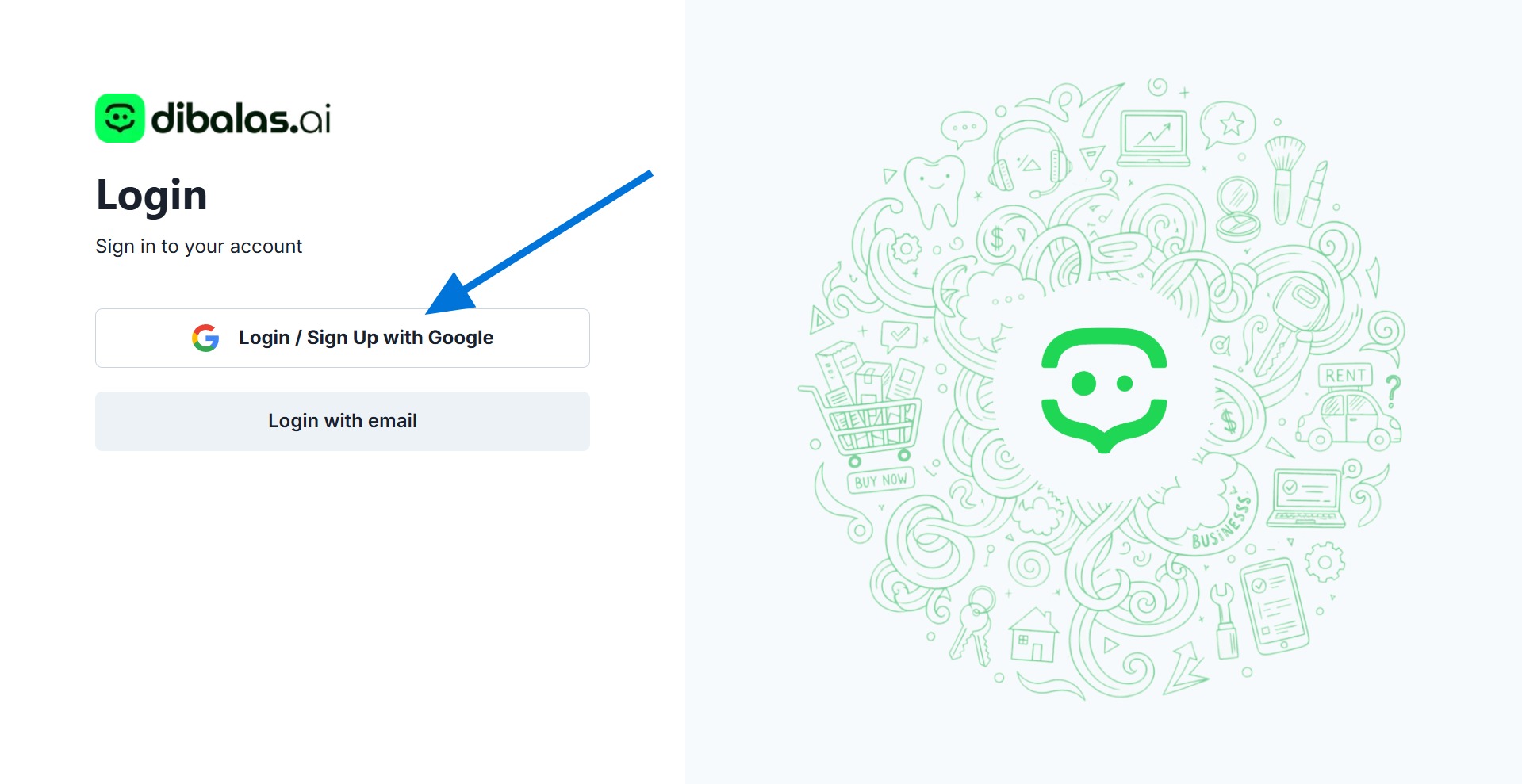
If you sign up using your Google account by clicking "Sign in with Google" you can update your password by following the steps below.
- Please log in to your account.
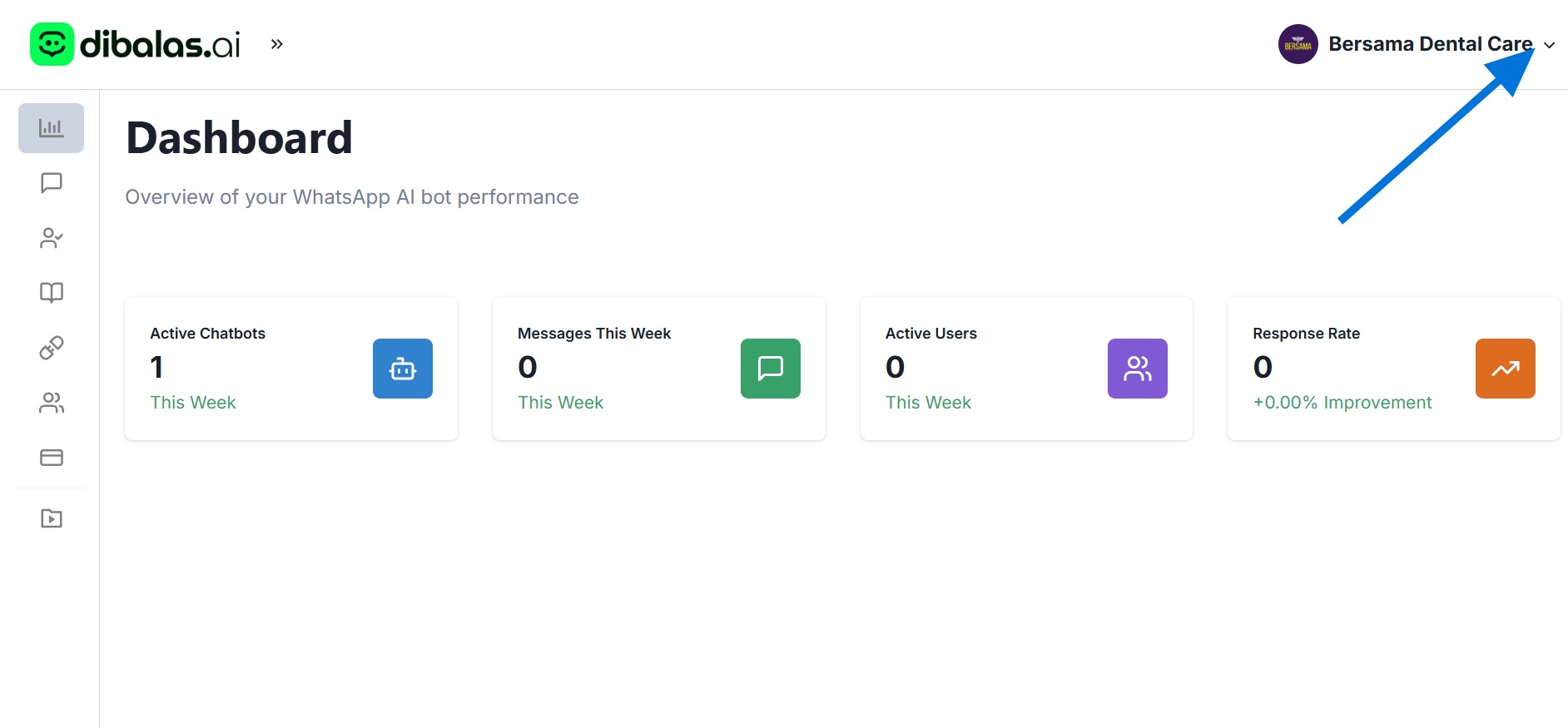
- After successfully logging in, you will be on the "Dashboard" page. Click on your name or the dropdown on the right side of your username.
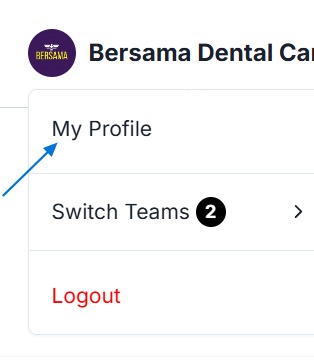
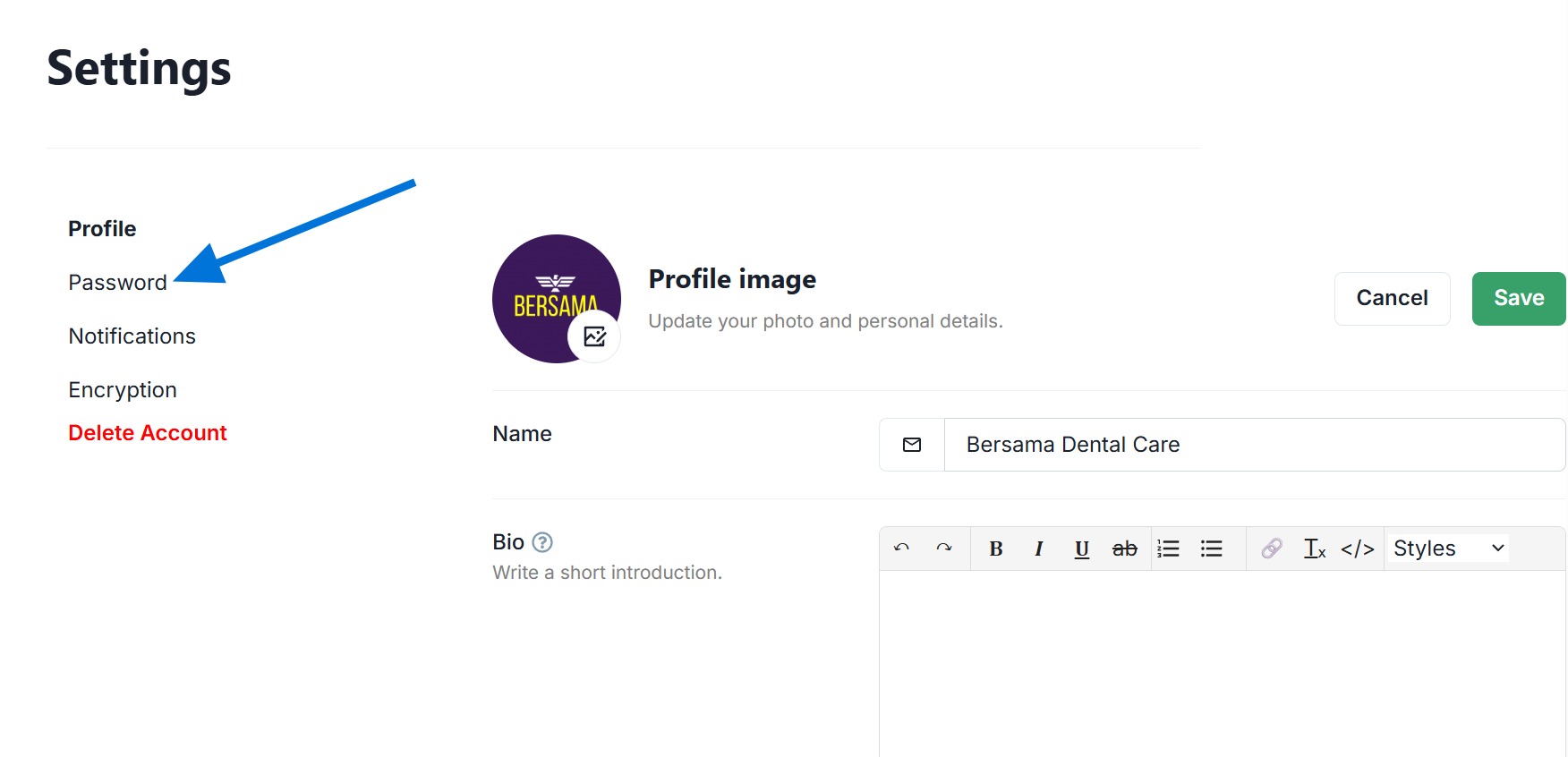
- Click "My Profile"
- Click "Password"
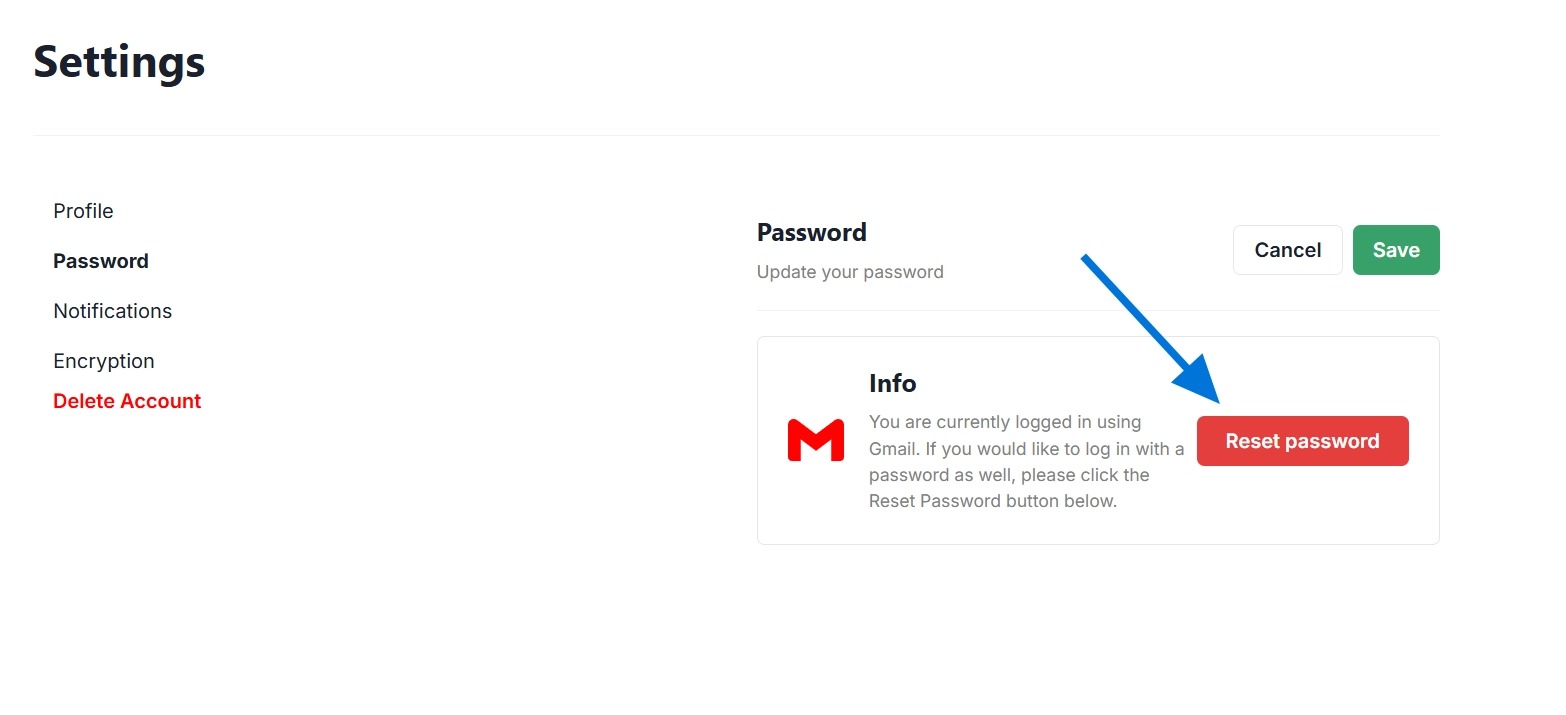
- Then click "Reset password," then check your email inbox and click the link we sent to update your password.
If you successfully update your password, you can log in manually using the email address and the password you created.
Signing with email
if you register and log in manually using an email account, the steps you need to follow to update your password are as follows:
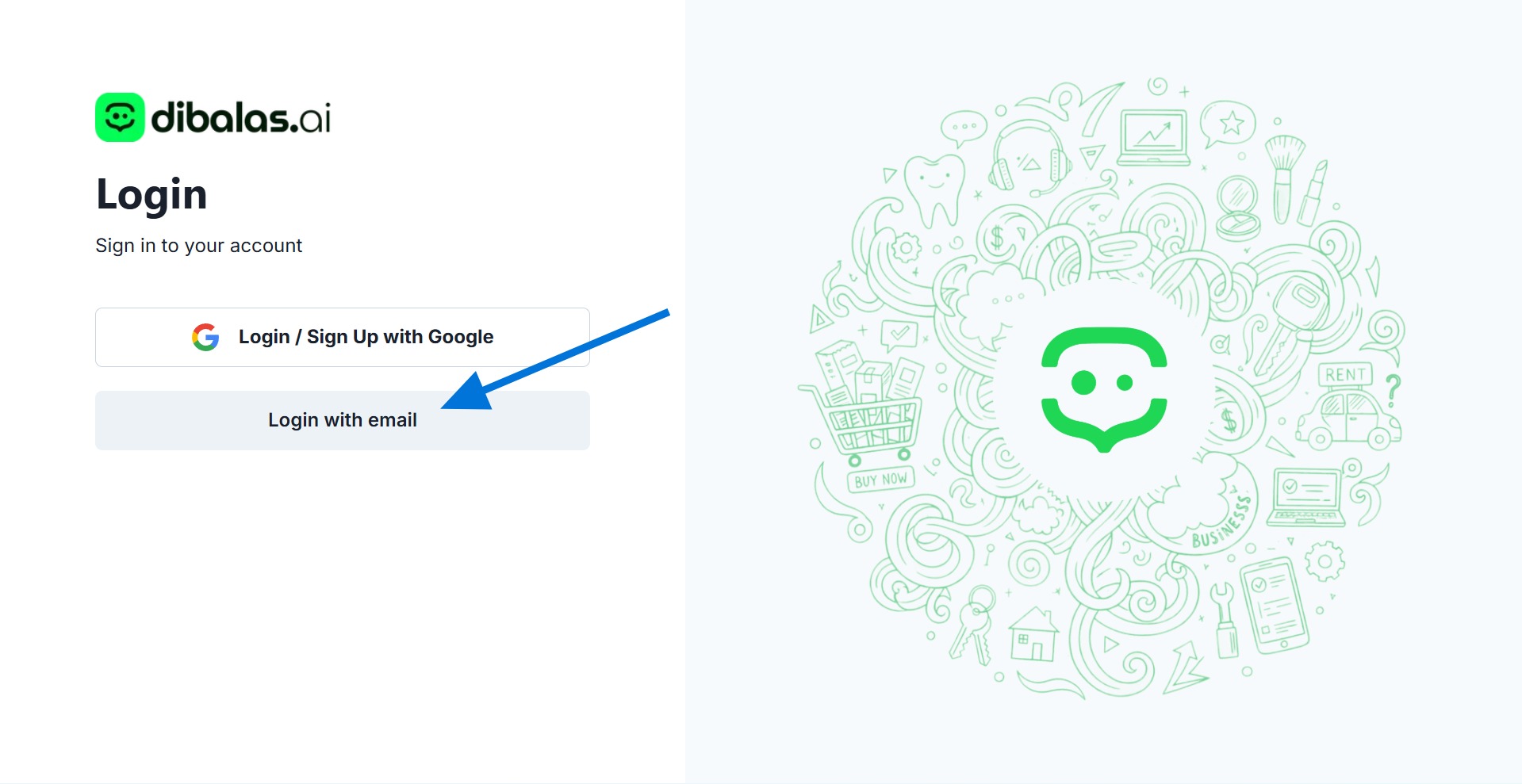
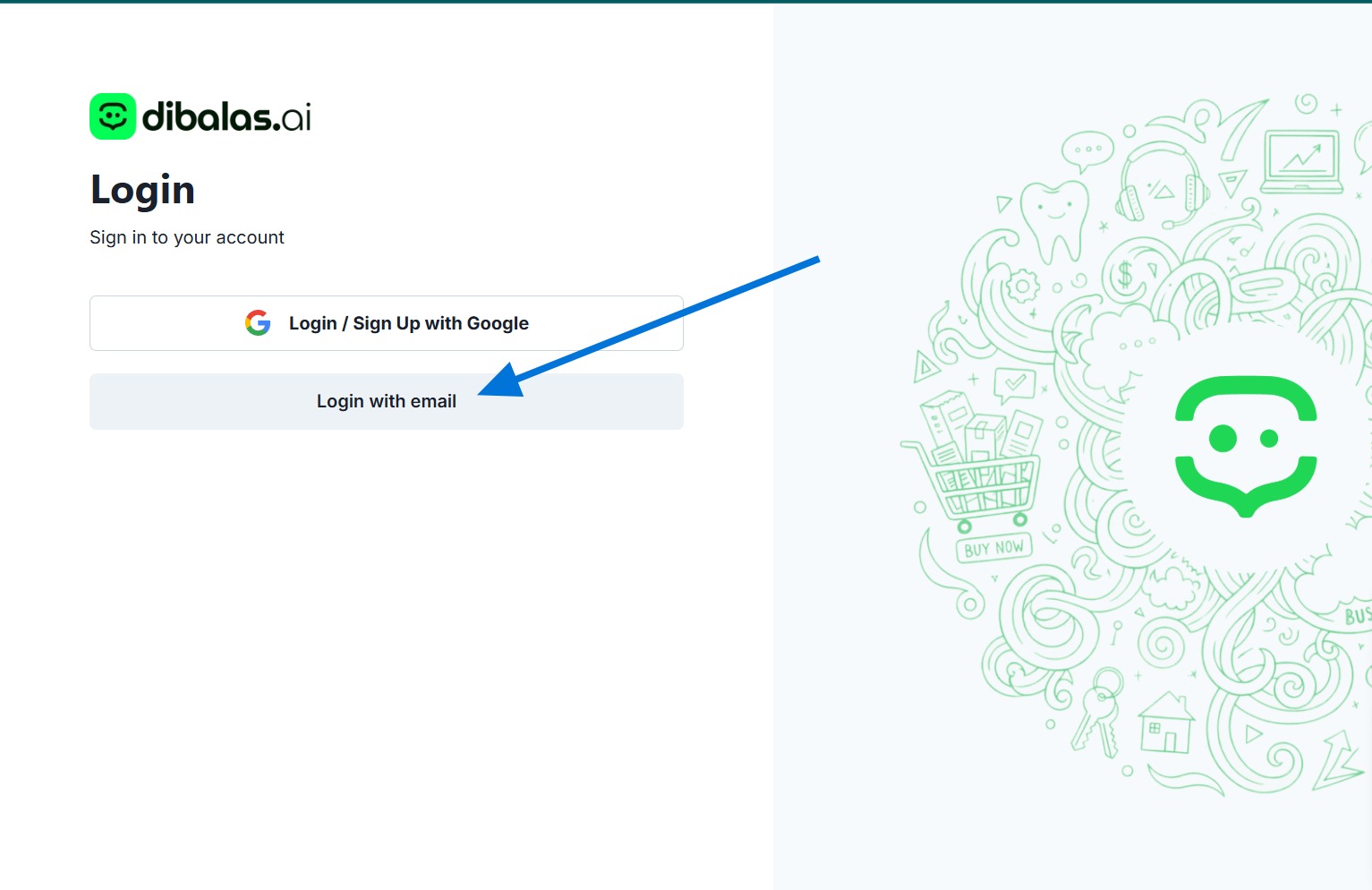
- You must log in to your account first using your email. Click "Login with email"
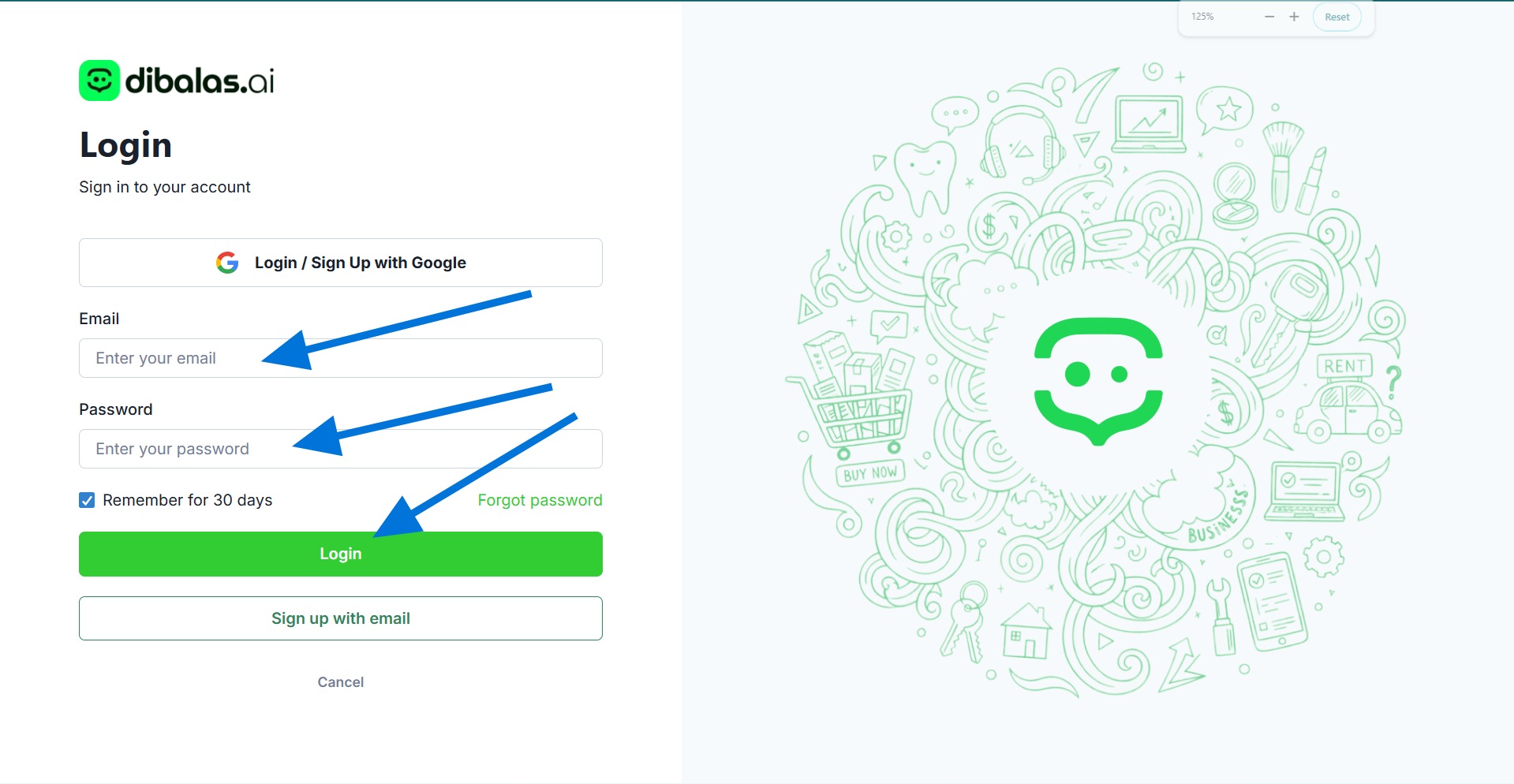
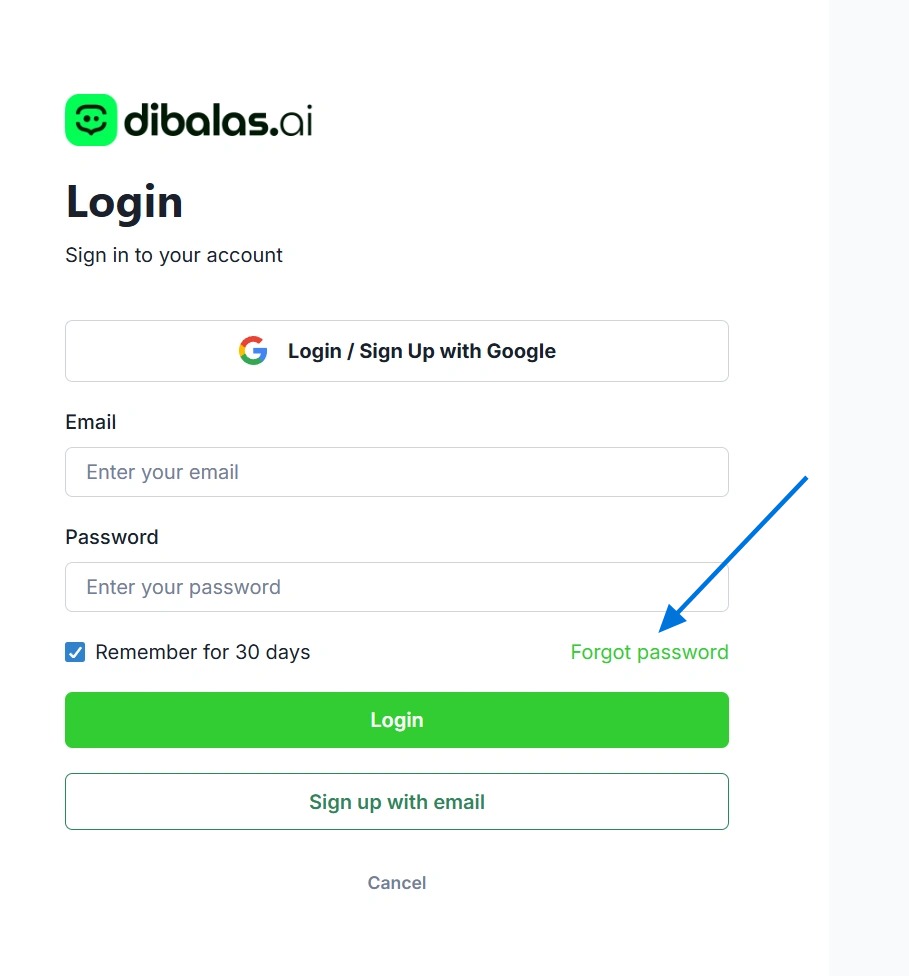
- Enter your email and password, then click "Login"
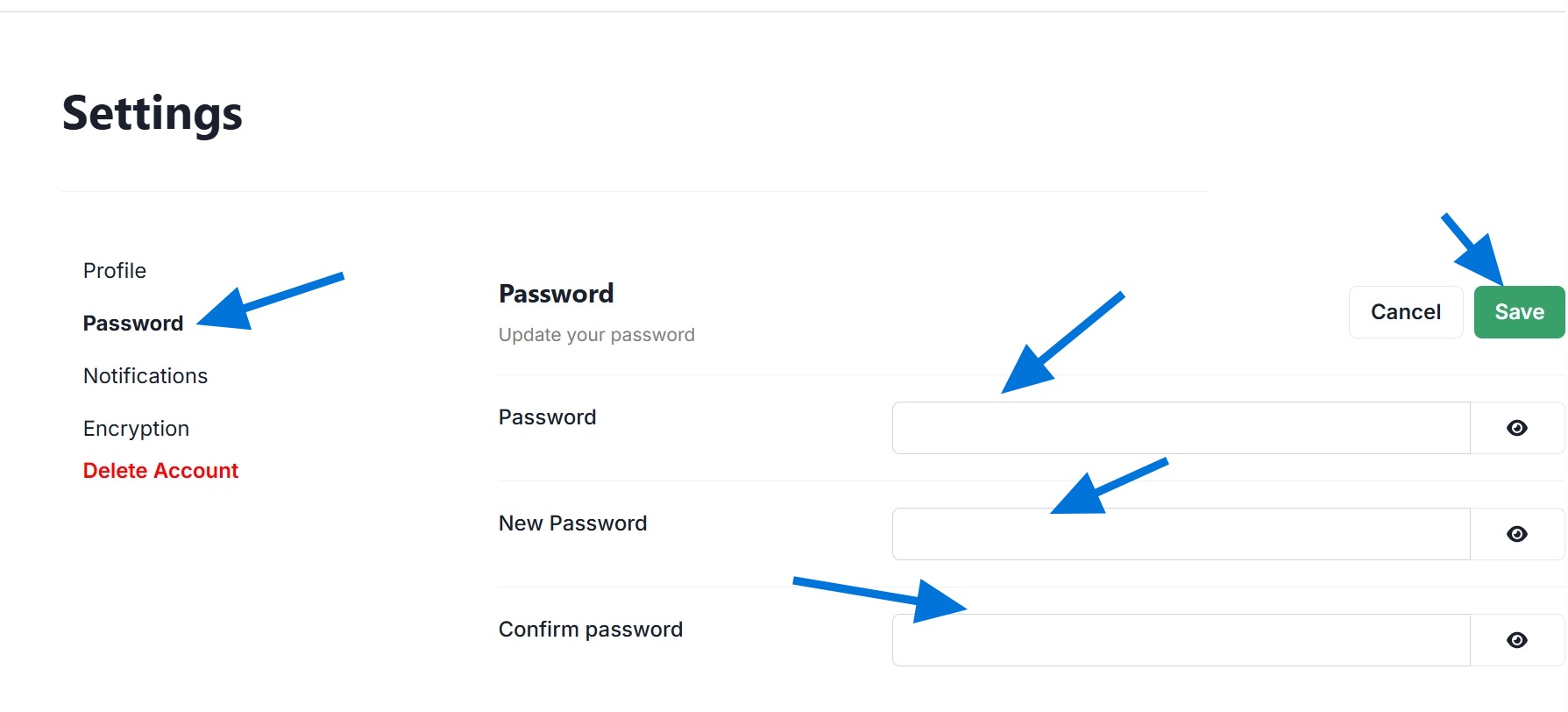
- After login, you will be on the dashboard page, then open profile page and click "password"
You will find fields that you need to fill out to update your password.
Enter your current password in the "Password" field, enter your new password in the "New Password" field, and re-enter your new password in the "Confirm Password" field. Then, press "Save."
After this, you can log in using your new password.
How to reset password using forget password
- Click "Login with email"
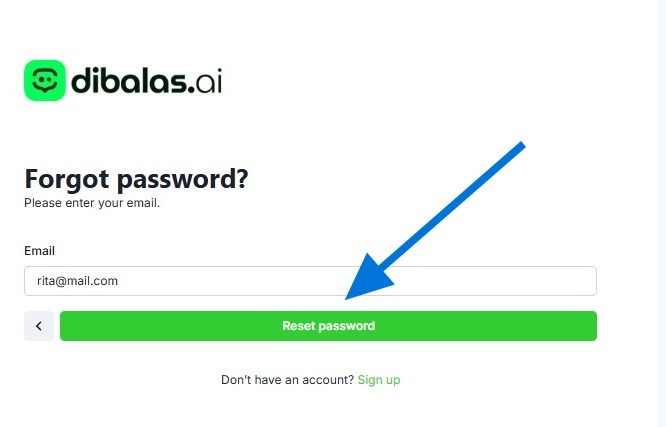
- Click "Forgot password"
- Enter your registered email address on dibalas.ai
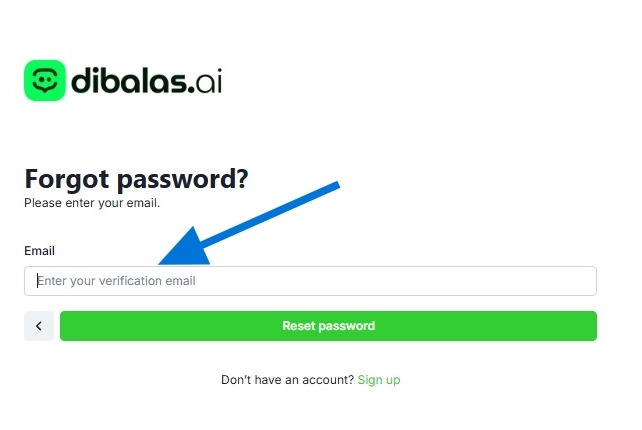
- Then click "Reset Password." After that, check the messages in your email account. You will find a link that, when clicked, will direct you to a form where you can change your password.