Plan & Payment
How To buy plan and download invoice
Billing
Things to note before purchasing a plan (if you have more than one team):
- Each team has its own separate plan.
- If you want to upgrade to a paid plan, the purchase must be made for each team individually and does not automatically apply to all teams.
- Make sure you are in the correct team before purchasing a plan.
- Each team automatically receives a free plan.
Here are the steps to purchase a package:
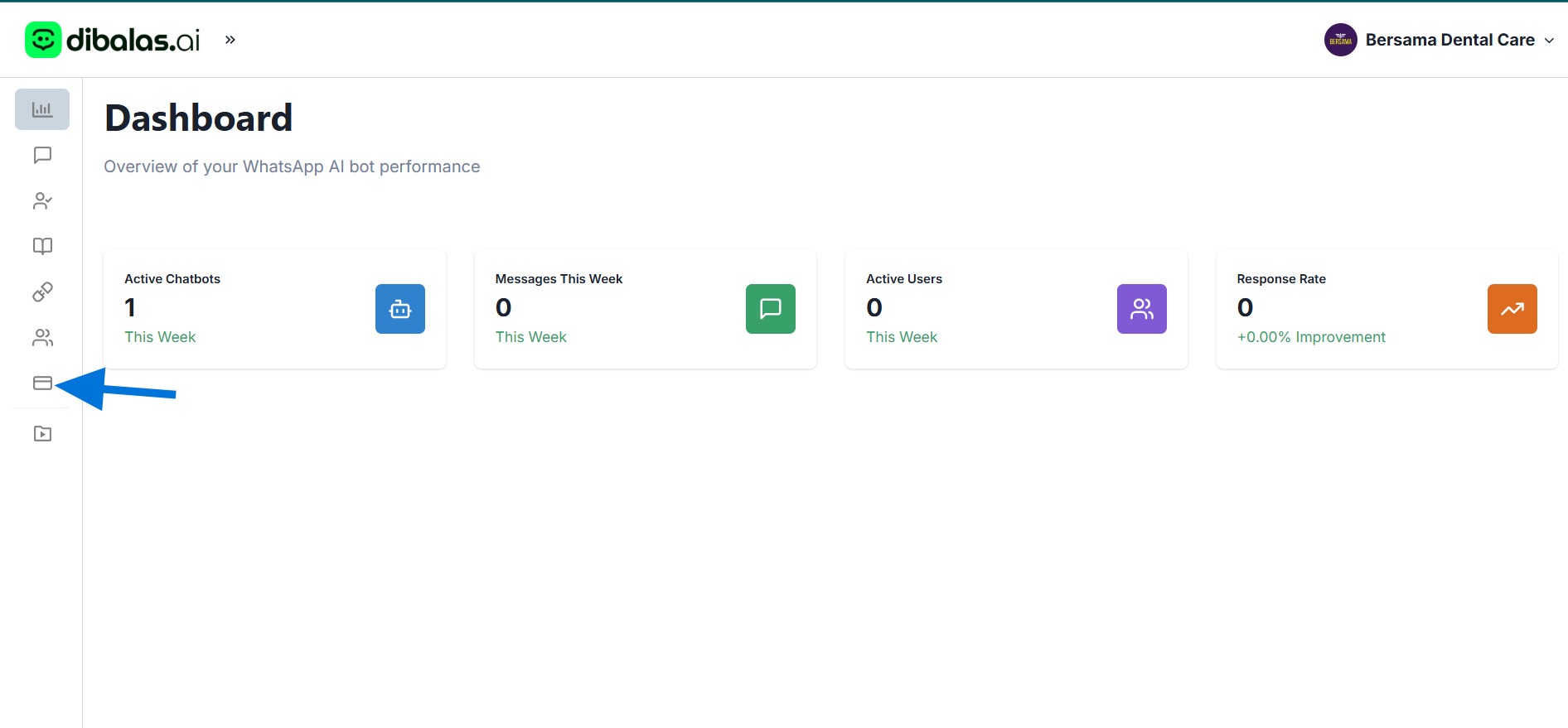
- Click "Credits" menu.
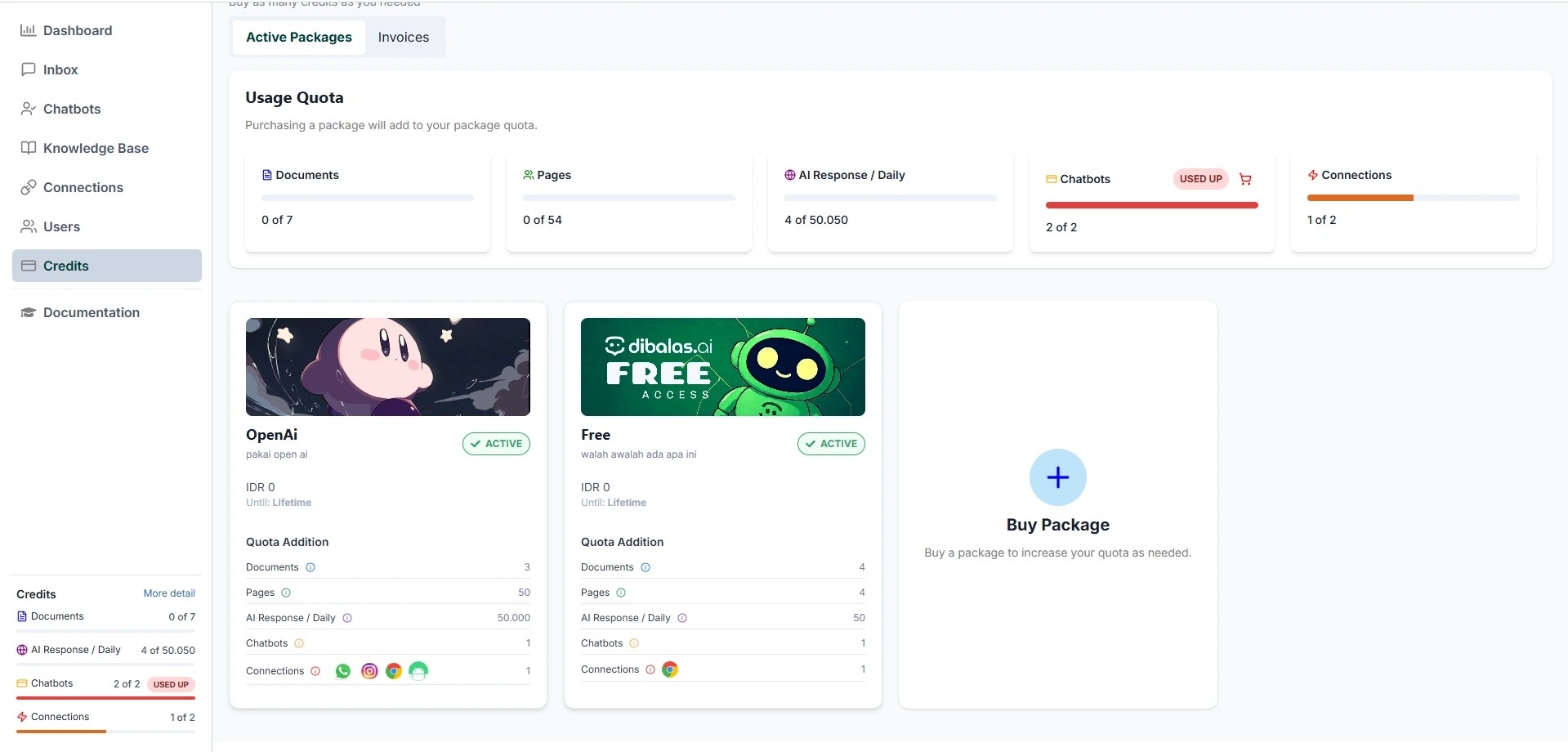
- This is the credits page, you will have 1 free package.
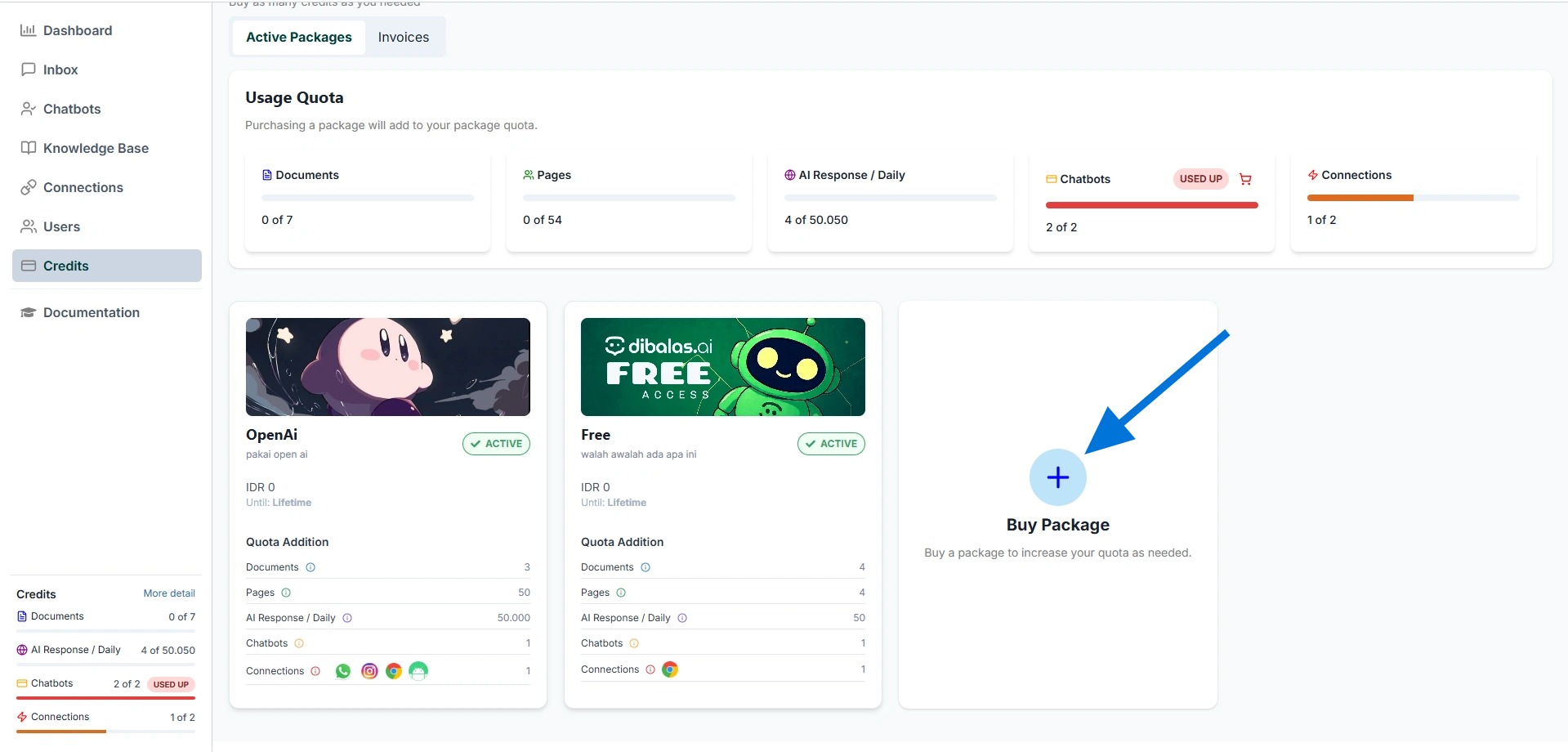
- To purchase a different plan, click on 'Buy Package'.
- You can view all the available packages along with their specifications. Press "Choose Package" on the packages that you want to purchase.
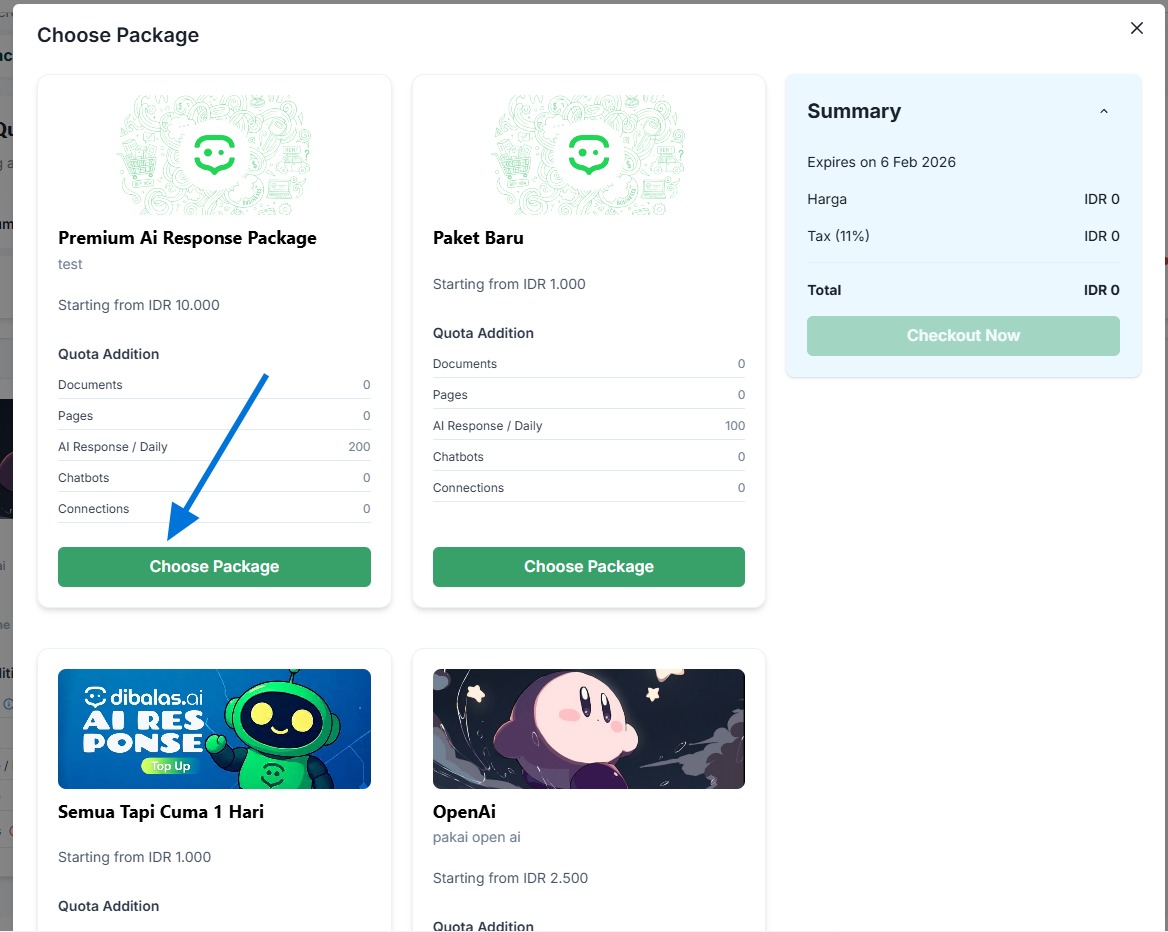
- You can view a summary of the amount you need to pay.
Select plan duration that you want.
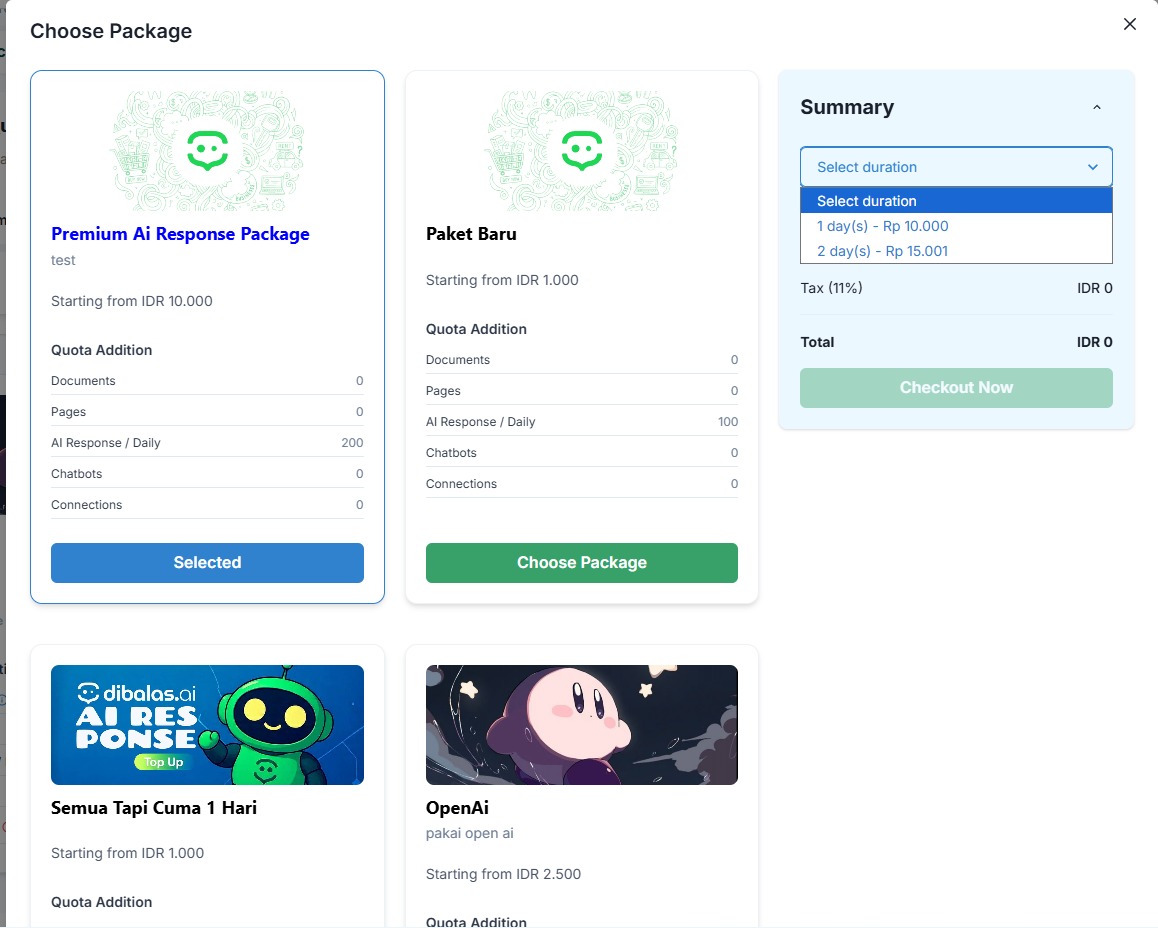
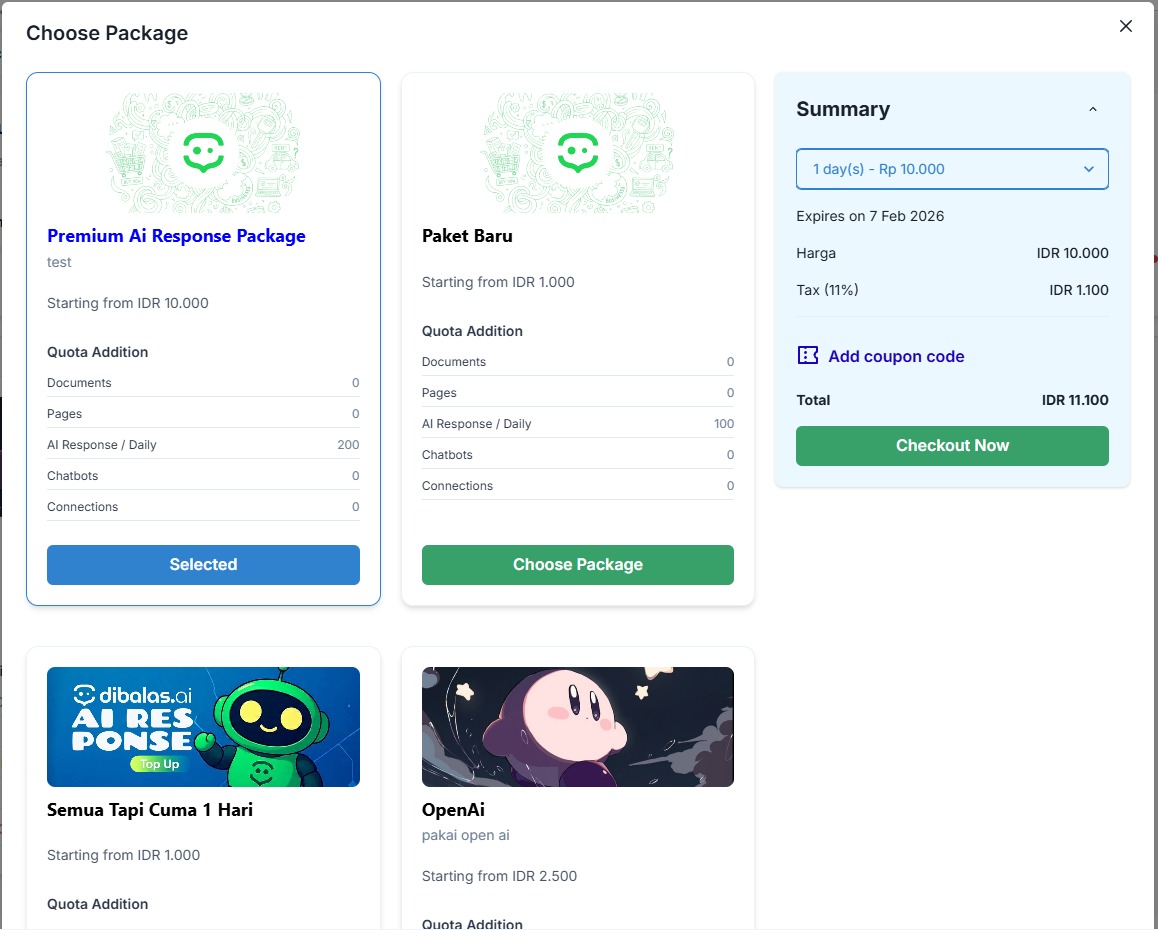
- If you have a coupon, you can click "Add coupon code" to enter your coupon. If you do not have a coupon, you can leave it blank.
Click "Checkout now"
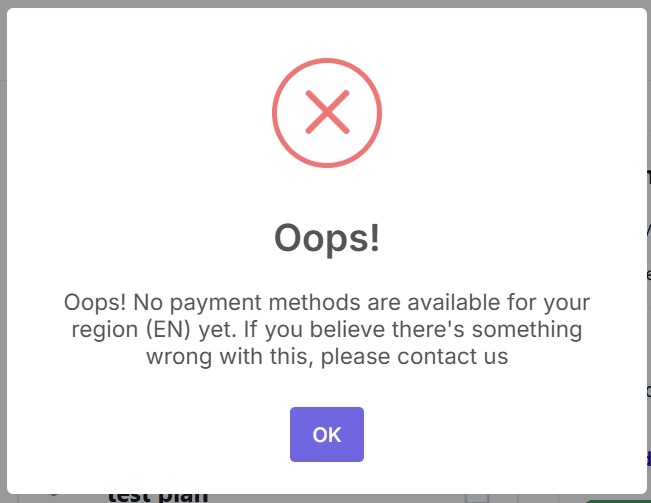
Note: Currently, our payment method is only available for users in Indonesia. If you are located in Indonesia and see this alert, please add 'Indonesia' to your browser's language settings. After completing the payment, you can switch your language back to English.
Payment status and download invoice
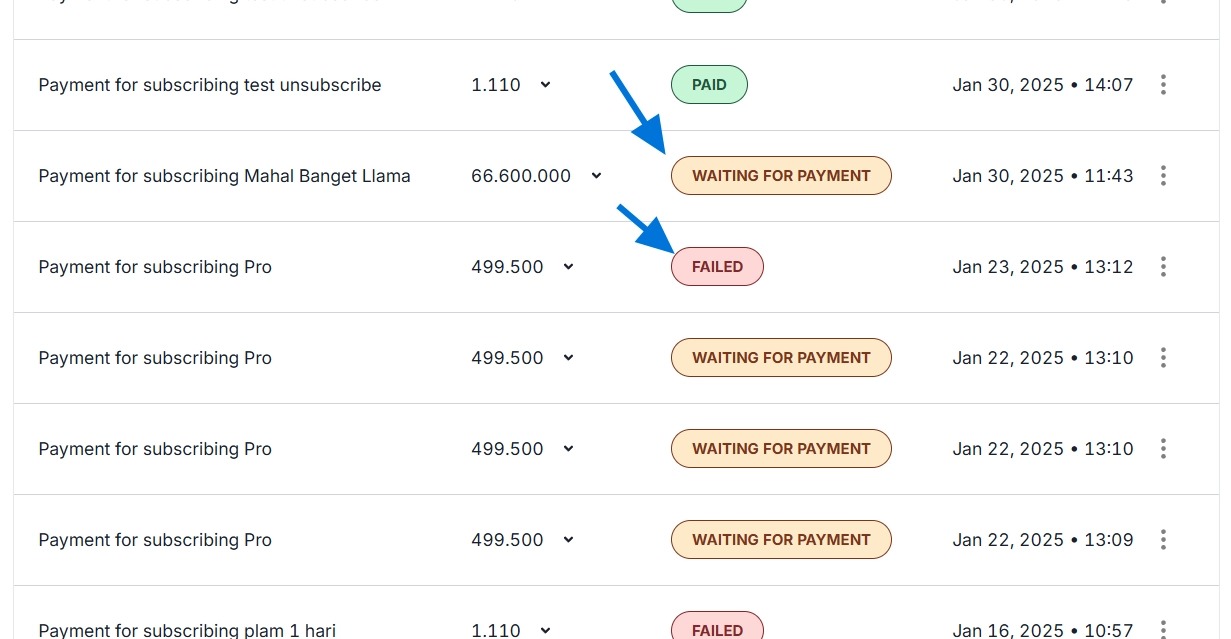
- If you do not make the payment immediately, the payment status will become 'pending'.
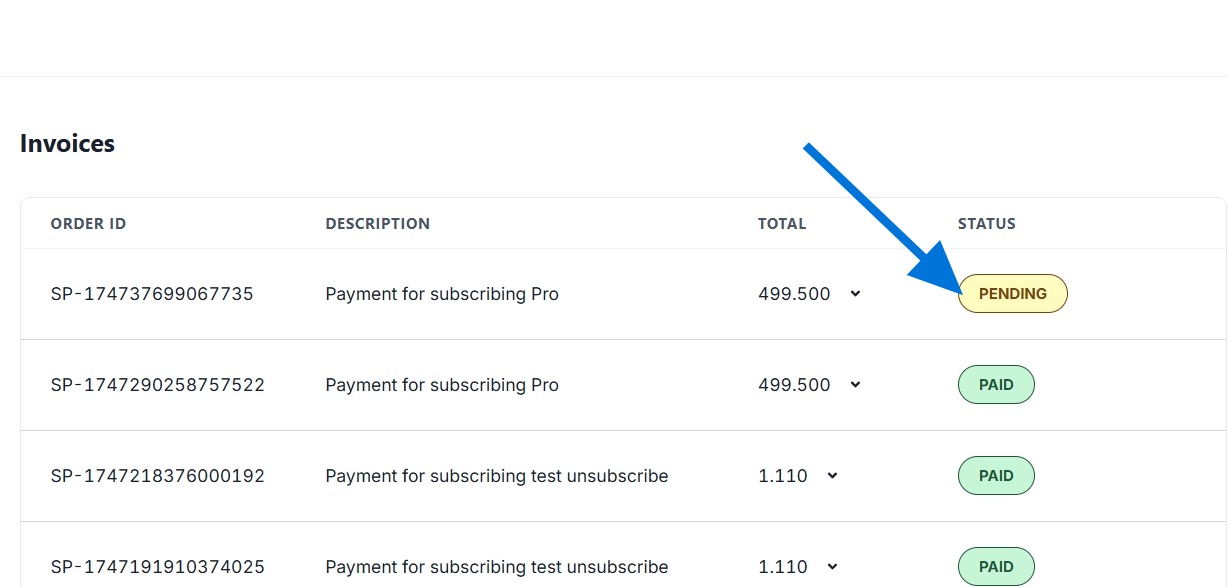
- To view the virtual account number again, you can press the three dots on the right side.
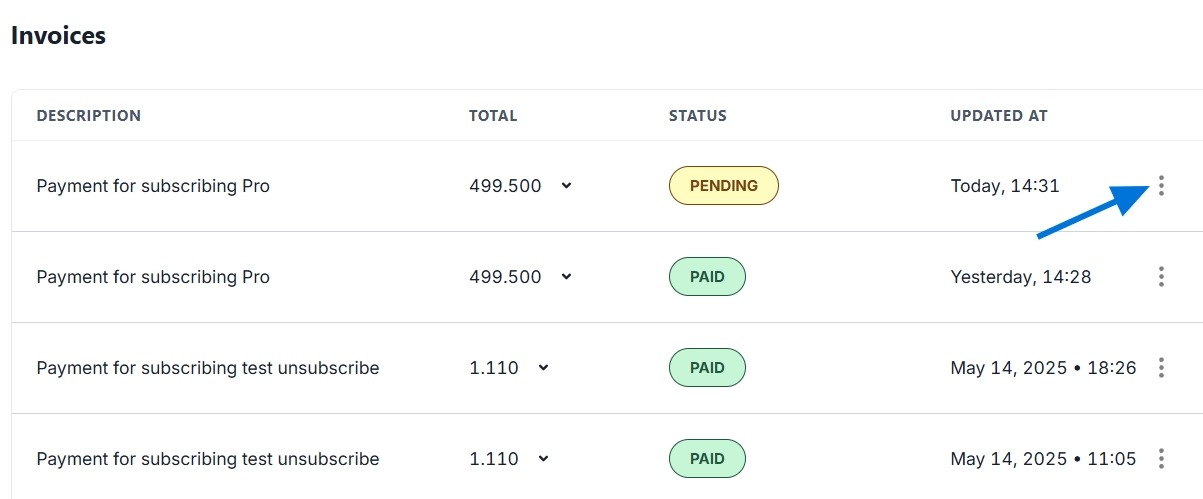
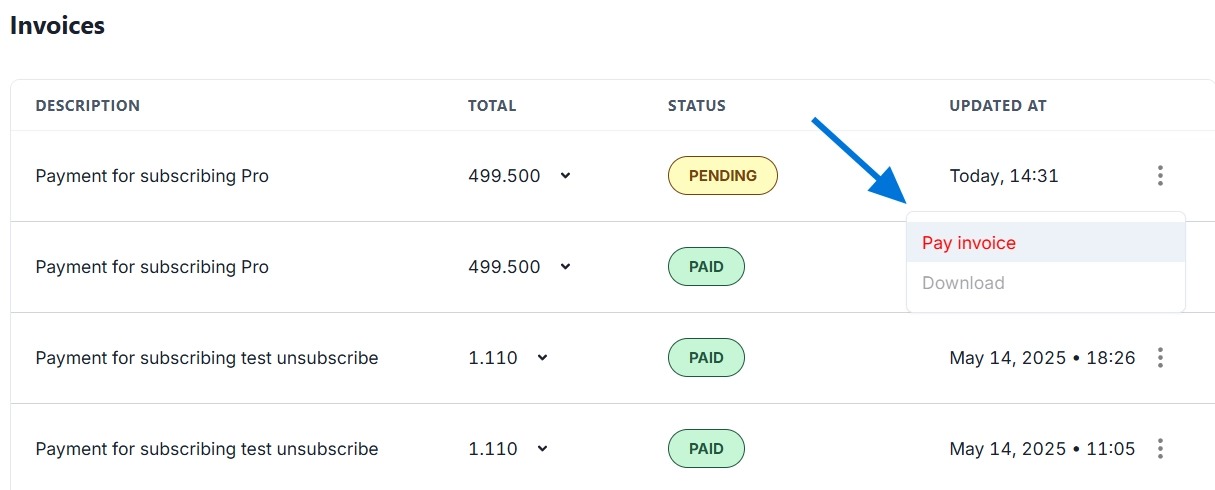
- Press 'Pay Invoice' and do payment.
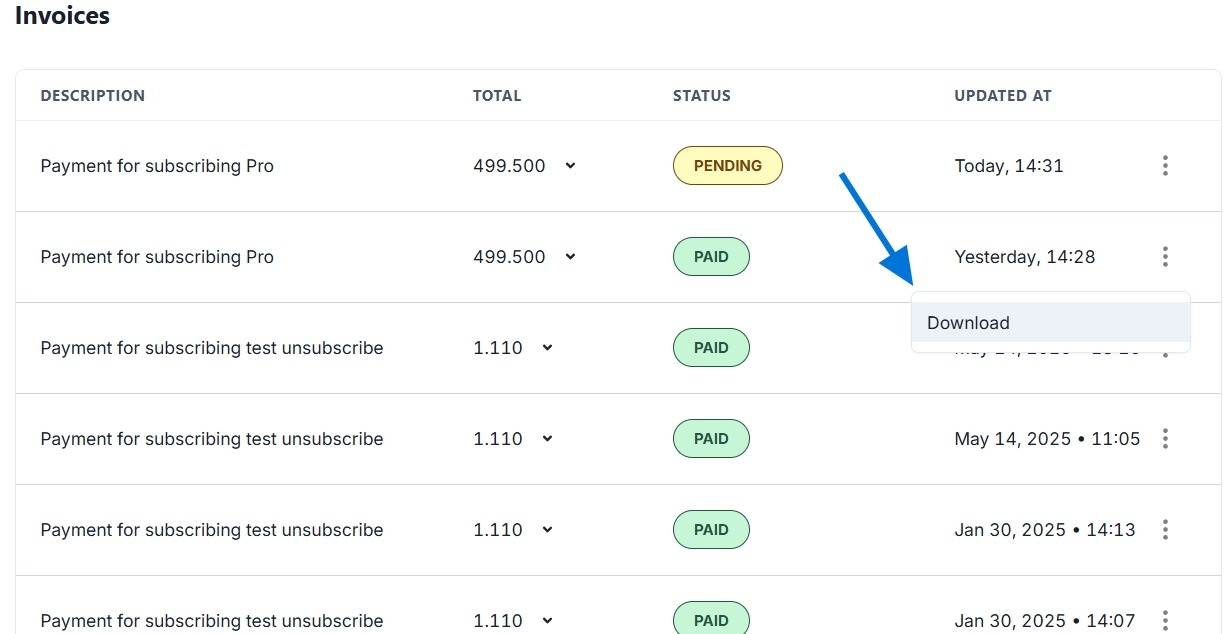
- You can download the invoice for payments that have been successfully completed or have a 'Paid' status. Tap the three dots on the right side.
Press "Download " and your invoice will be successfully downloaded.
- If you do not make the payment by the specified time, the payment status will change to "Failed."
If no payment method is selected, the payment status will be "Waiting for Payment."