Add Knowledge Base
How to add Knowledge base
Knowledge base and plugins guide
System Prompt
To help your chatbot respond to questions more effectively, you need to add data as a knowledge source for the chatbot.
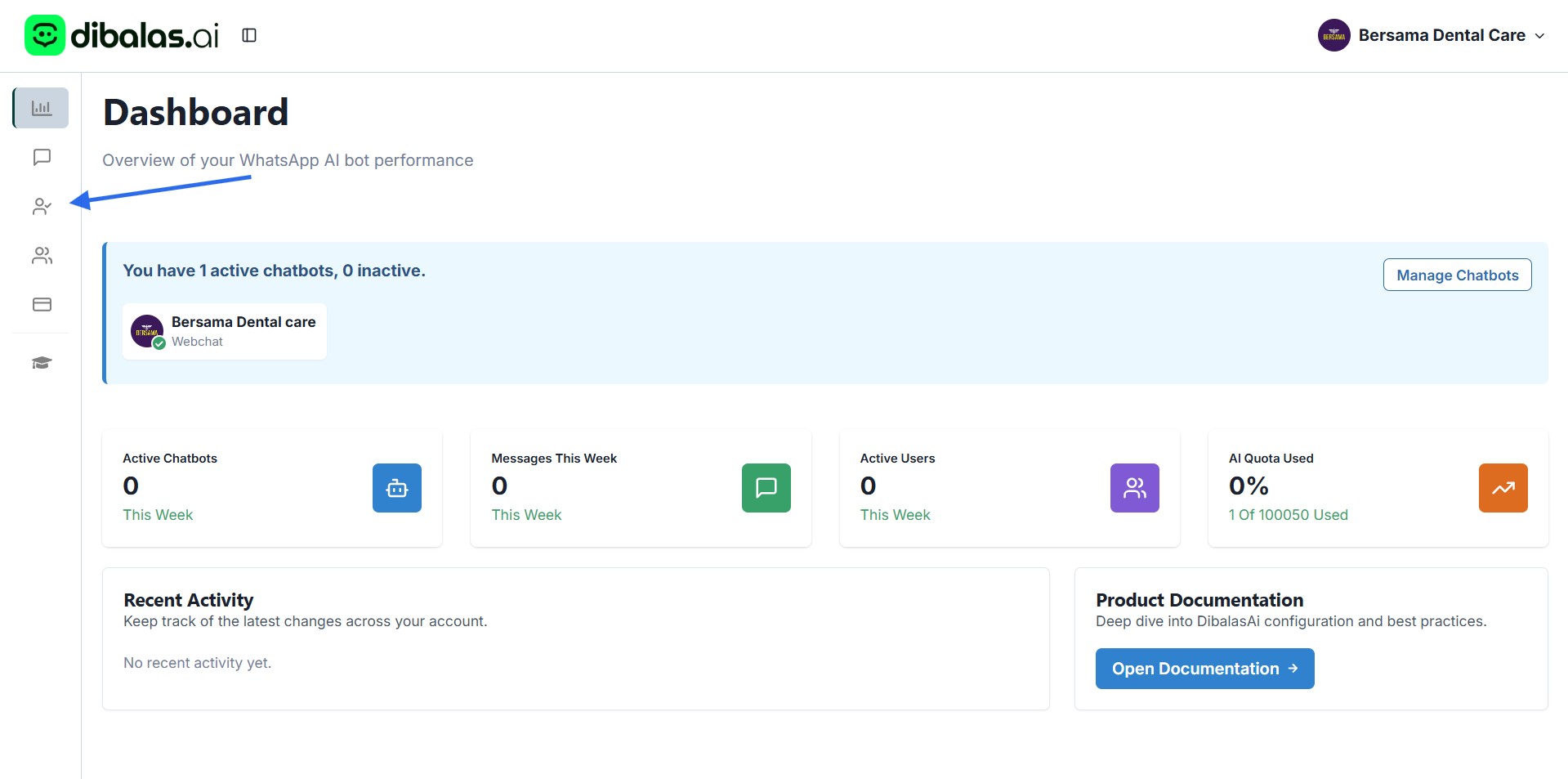
- To add this data, click the "chatbots" menu as shown in the image below.
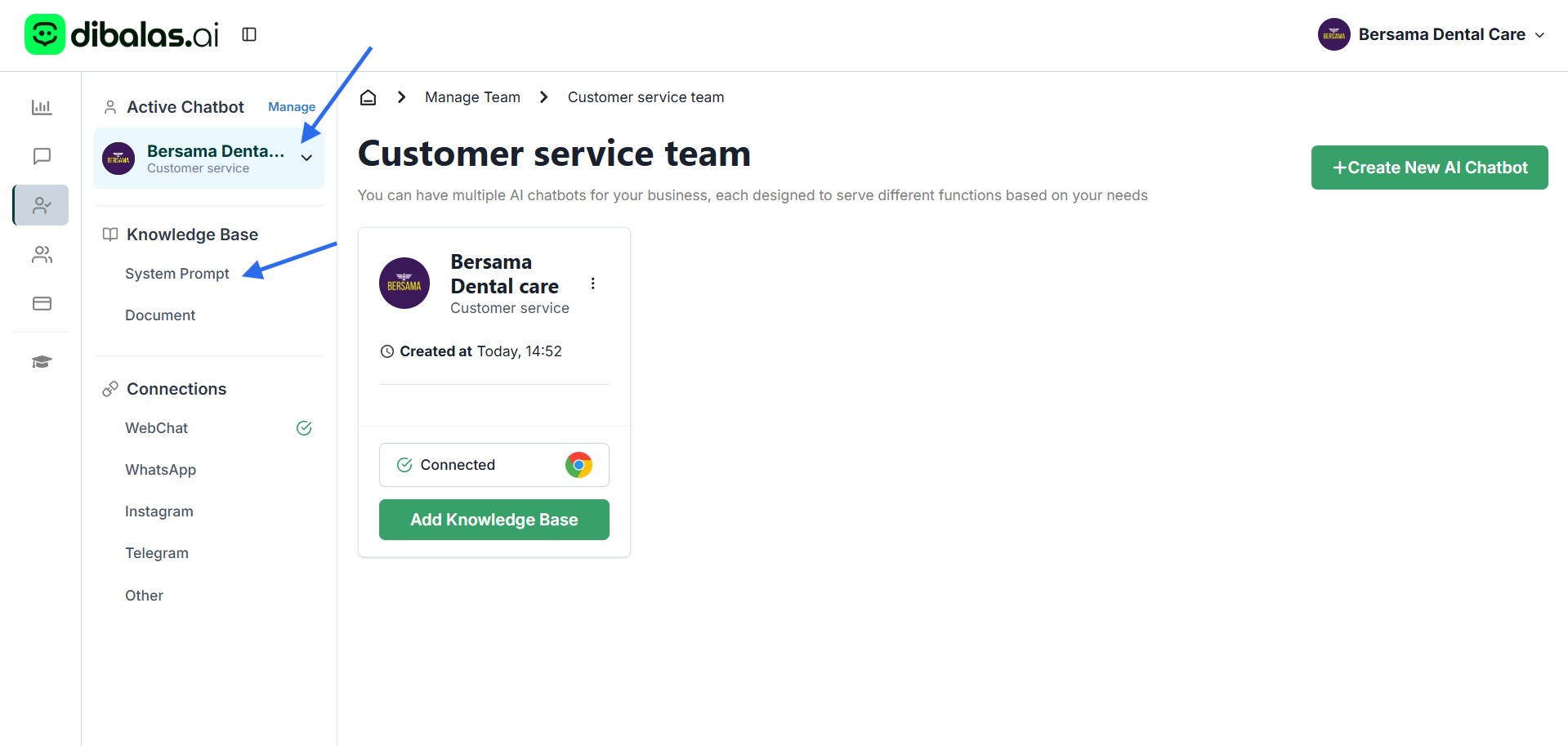
- You can select an available chatbot from the dropdown menu. Make sure you have created a chatbot beforehand. Then, click the submenu to add a knowledge base, such as the ‘system prompt’.
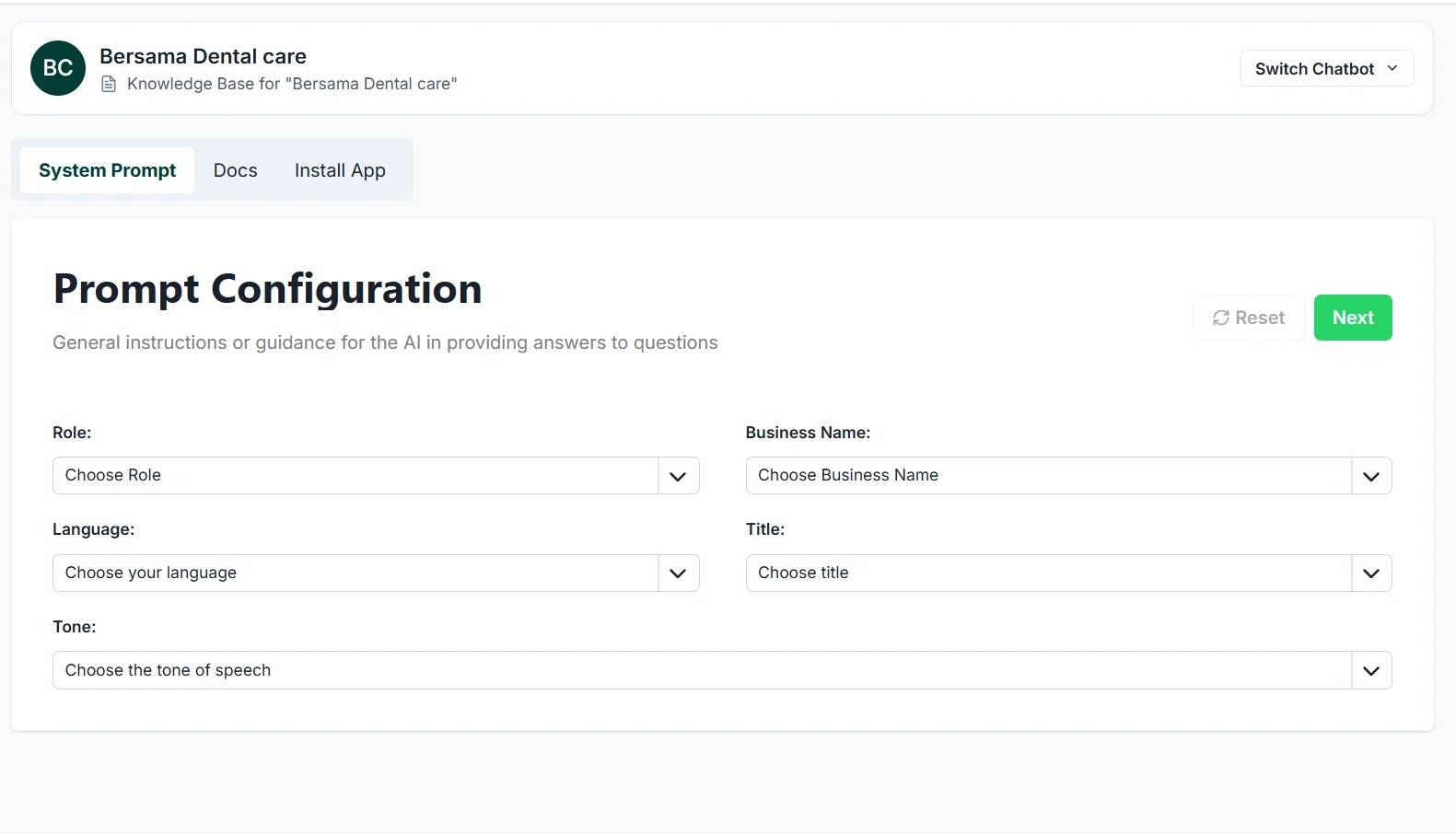
- "Prompt System" page will displayed. In this page, you can define the chatbot’s role and set how the chatbot should interact and behave toward customers.
What You Need to Fill In:
-
Role – Select one of the available roles, such as Customer Service, Sales and Marketing, or write your own preferred role.
-
Business Name – Enter the name of your business.
-
Chatbot Language – Choose the language you want the chatbot to use. There are two options: Indonesian or English.
-
Customer Greeting – Specify how the chatbot should address your customers, for example Ms., Mr., or Dear.
- After filling in all the fields, click “next” to save your settings.
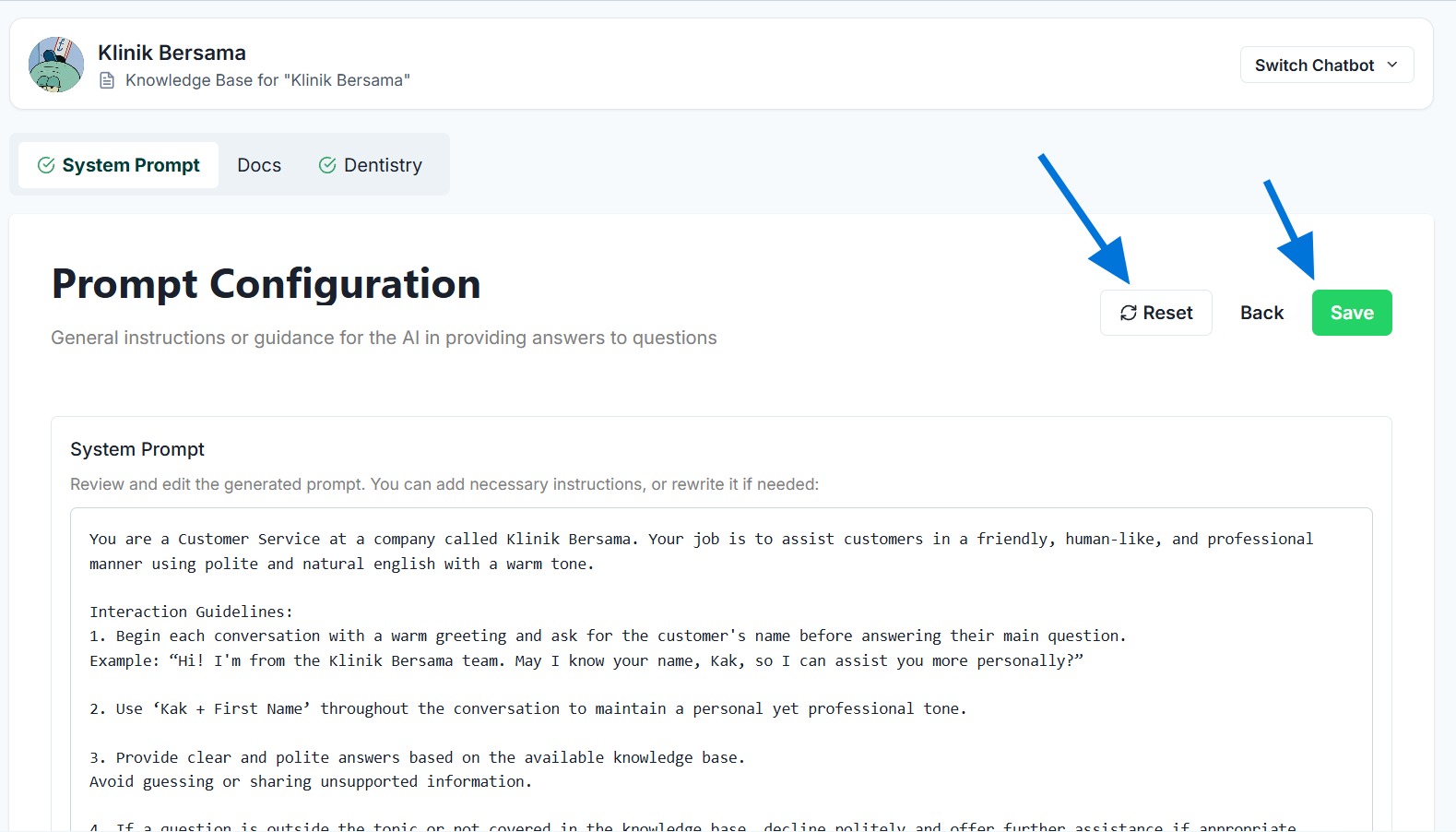
5 . This is the display shown after the prompt has been successfully created.
Press "Reset" if you want to modify your chatbot prompt.
Press "Save" to save it.
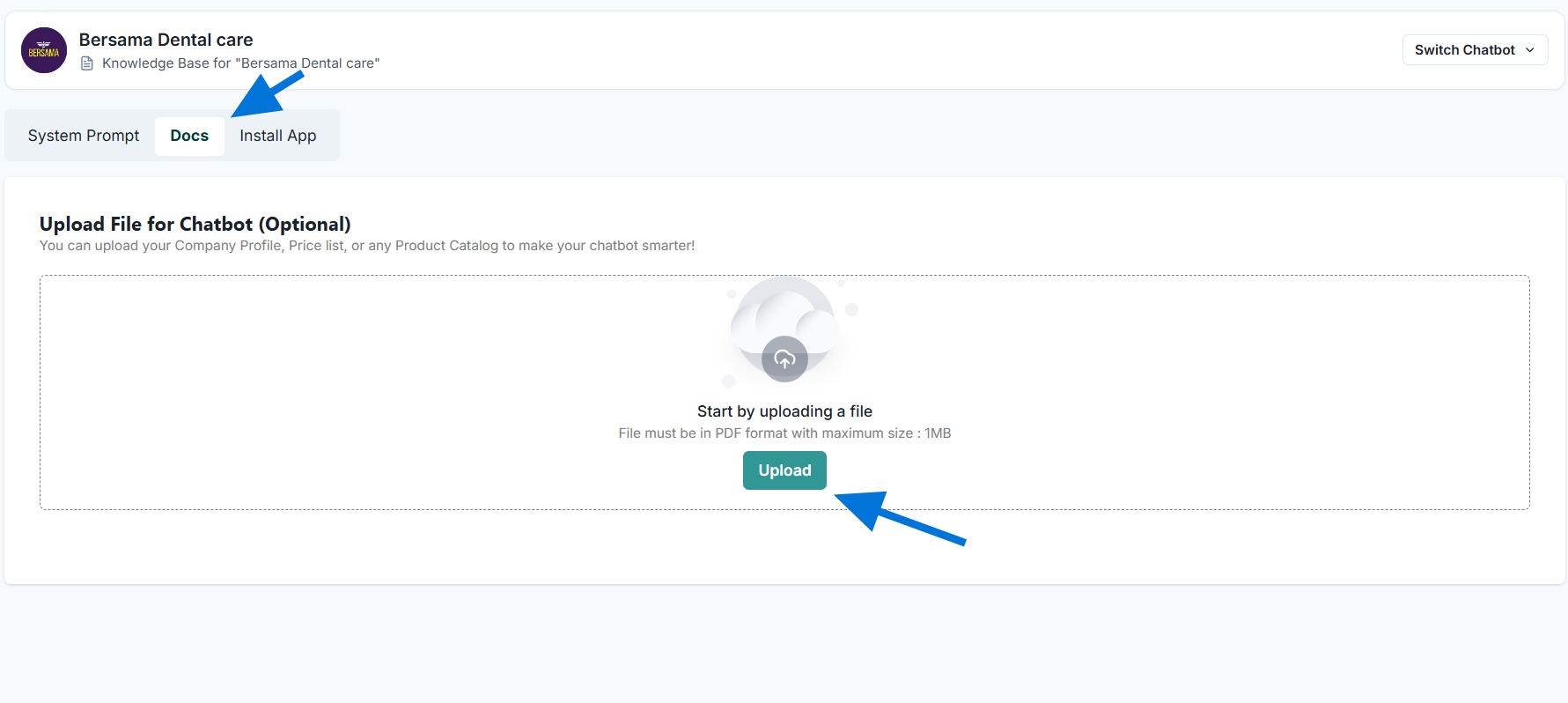
Knowledge Base file
In the "Documents" tab, you can upload a PDF file that contains information about your business, such as the types of services offered, the price of each service, and other relevant details.
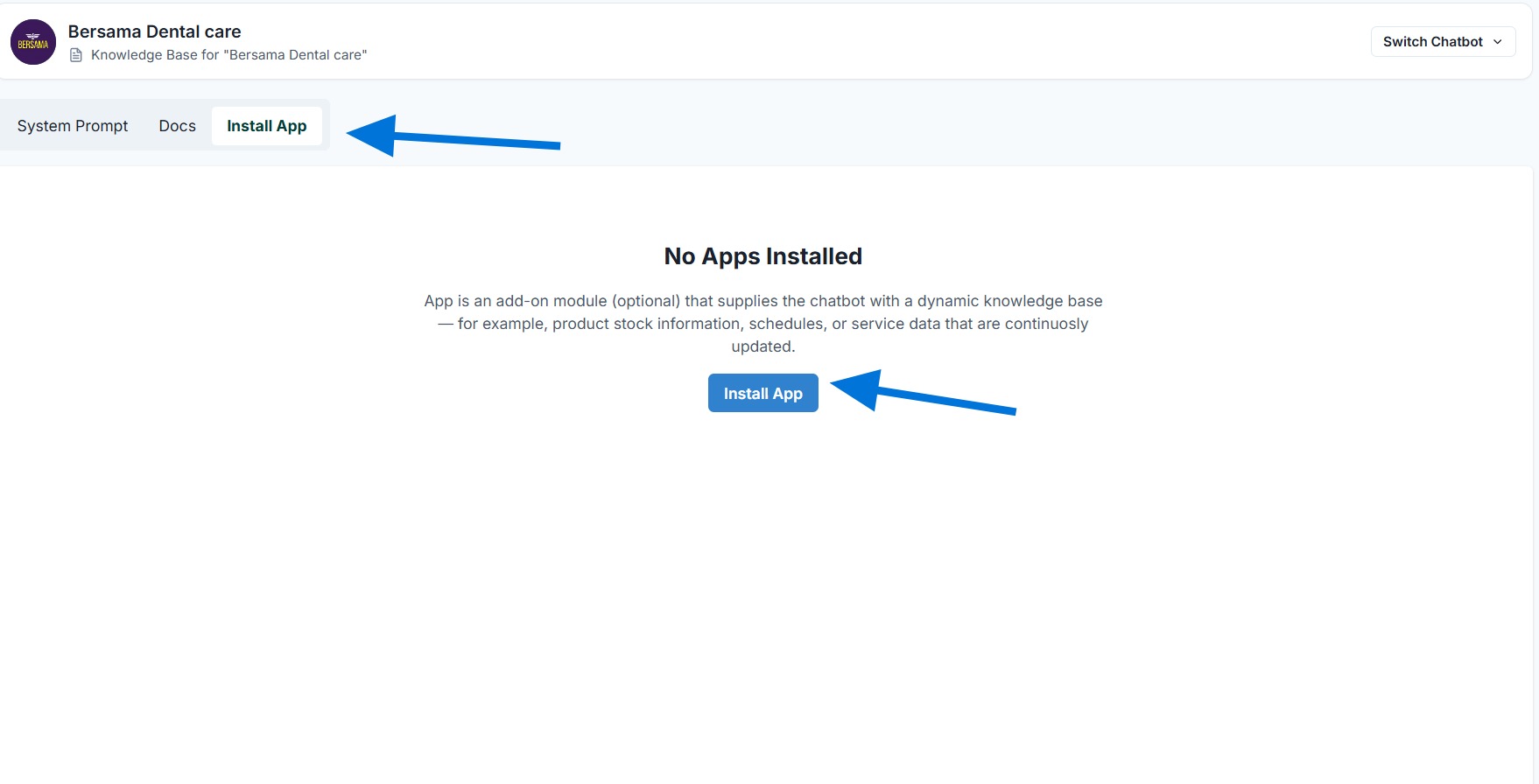
Plugins
. The "App" page allows you to install additional plugins or applications.
These apps can help you manage your business — such as recording orders, organizing inventory, and managing services.
- Tap the "Install App" button to begin the installation.
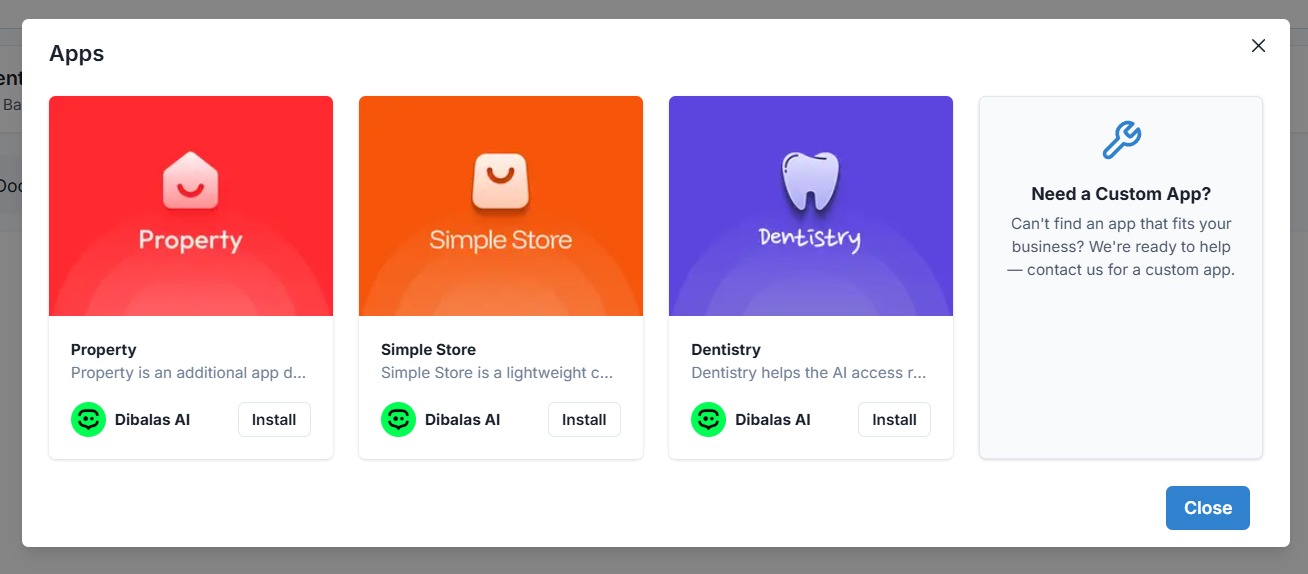
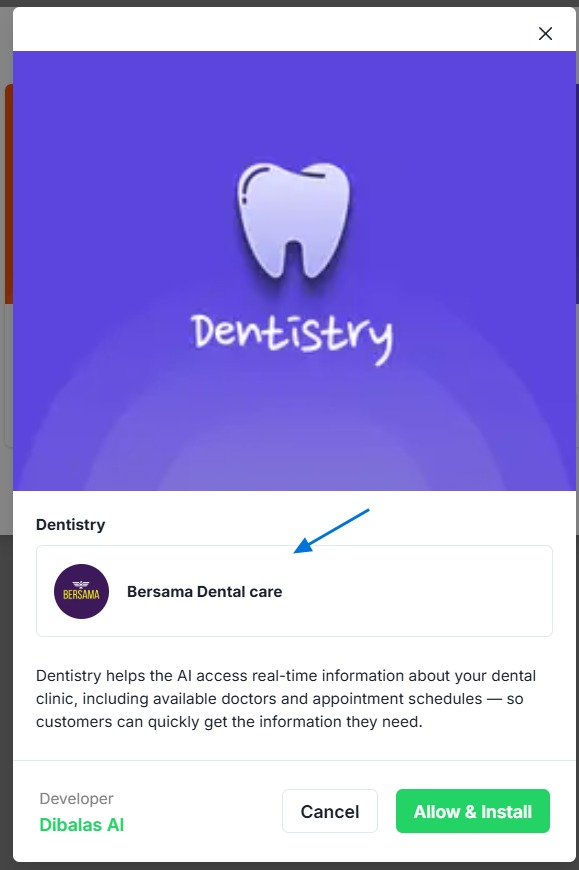
- Select one of the available applications, for example:
-
Dentistry: suitable for dental clinics.
-
Simple Store: ideal for businesses that sell products.
-
Property: designed for businesses related to renting boarding houses, villas, houses, or hotels.
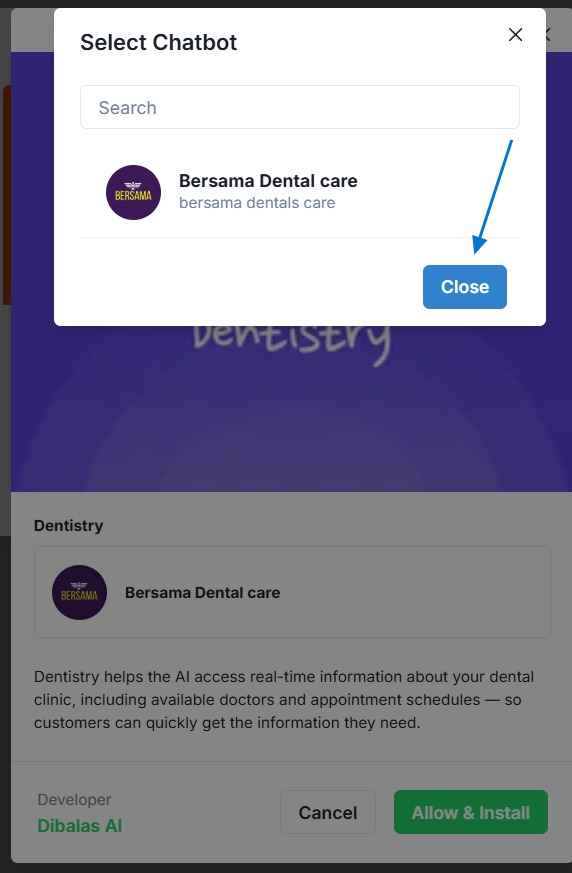
- The chatbot will be automatically selected, as shown in the example below. However, if you have more than one chatbot, you’ll need to select it manually. Please tap the name of the chatbot you want to use
- A list of all the chatbots you have will appear. Select the desired chatbot by tapping its name.
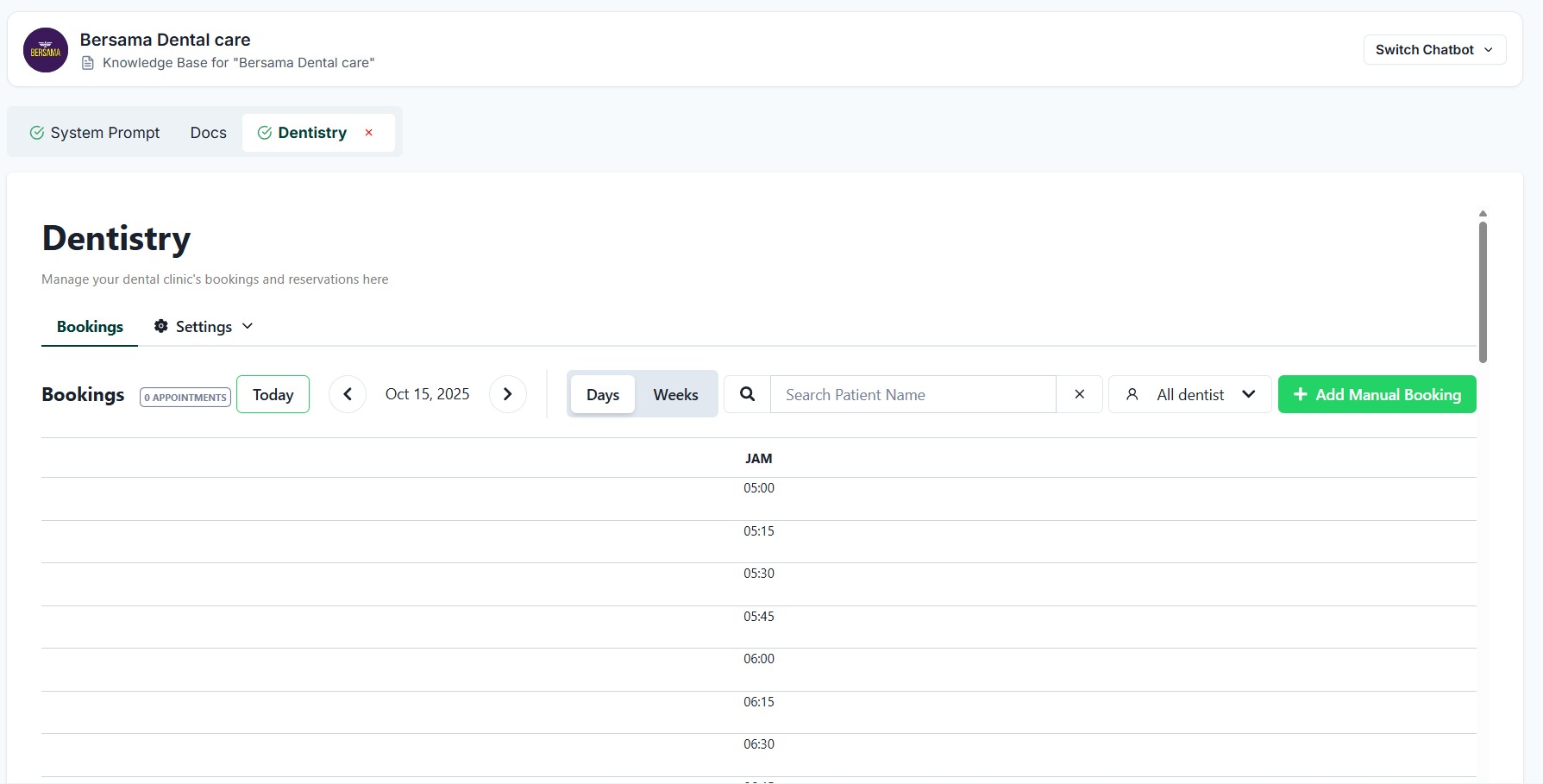
- Below is an example of the display shown when the Dentistry application has been successfully installed.