Add Human Agents
How to add Human agents
Team Management
How to Add Human Agents
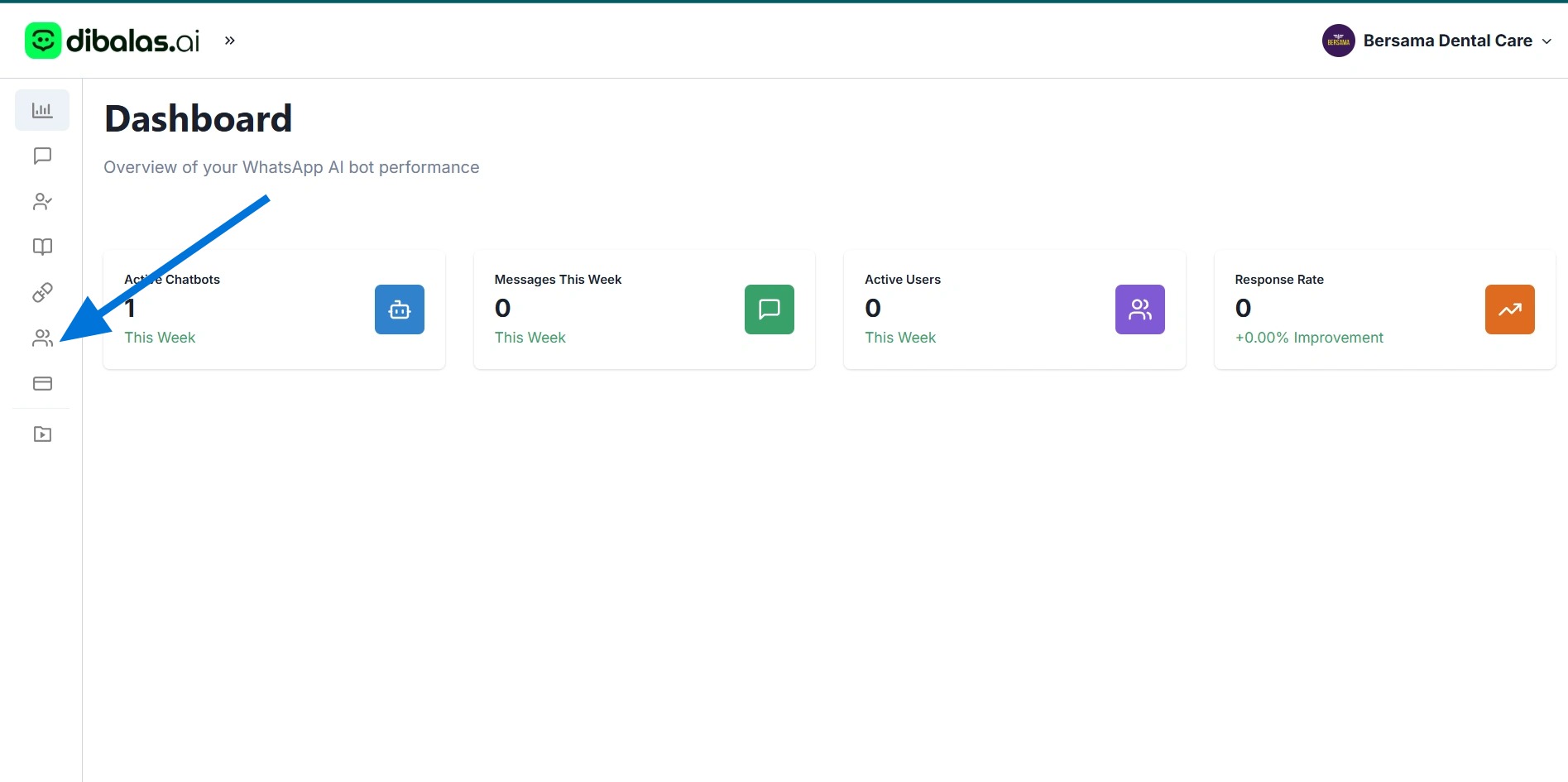
- Tap on "Team" menu.
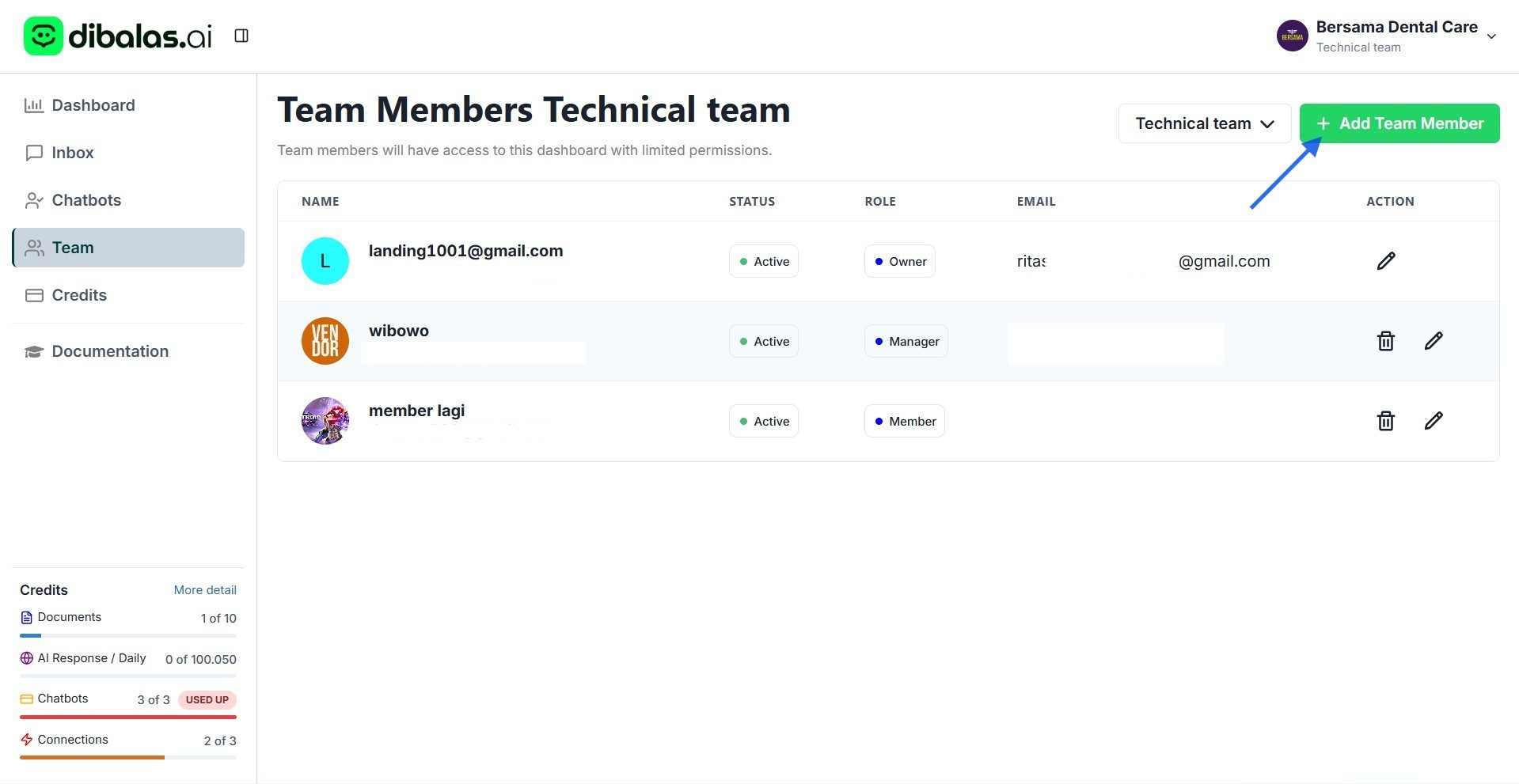
- Click "Add Team Member"
- Enter the agent's name and email address. Ensure the address is correct, as the agent will receive an invitation link via email to join the team.
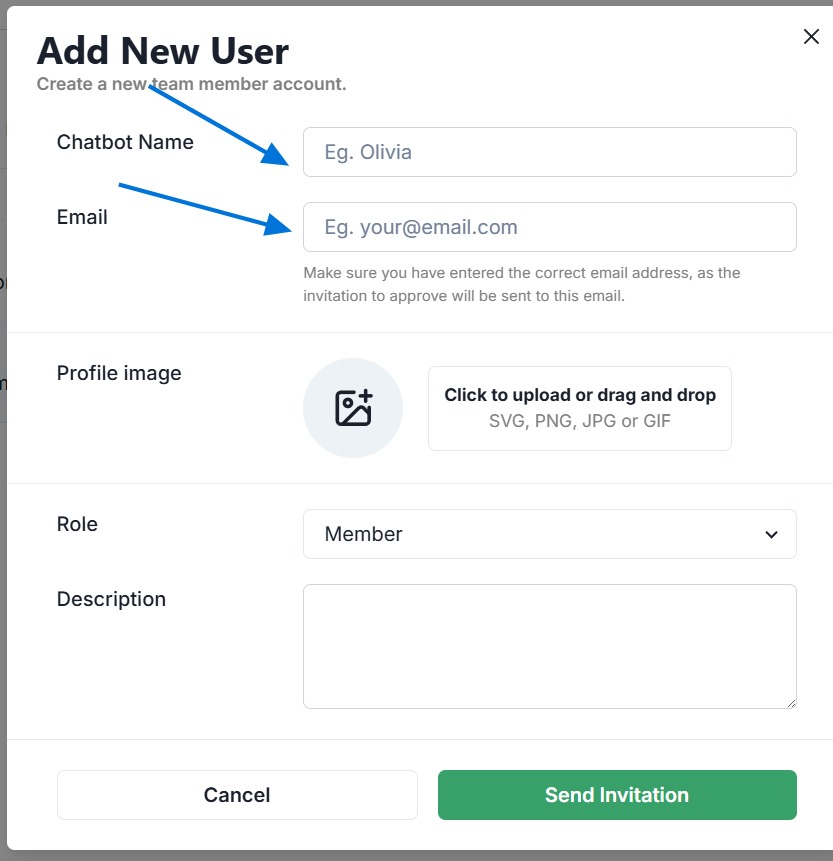
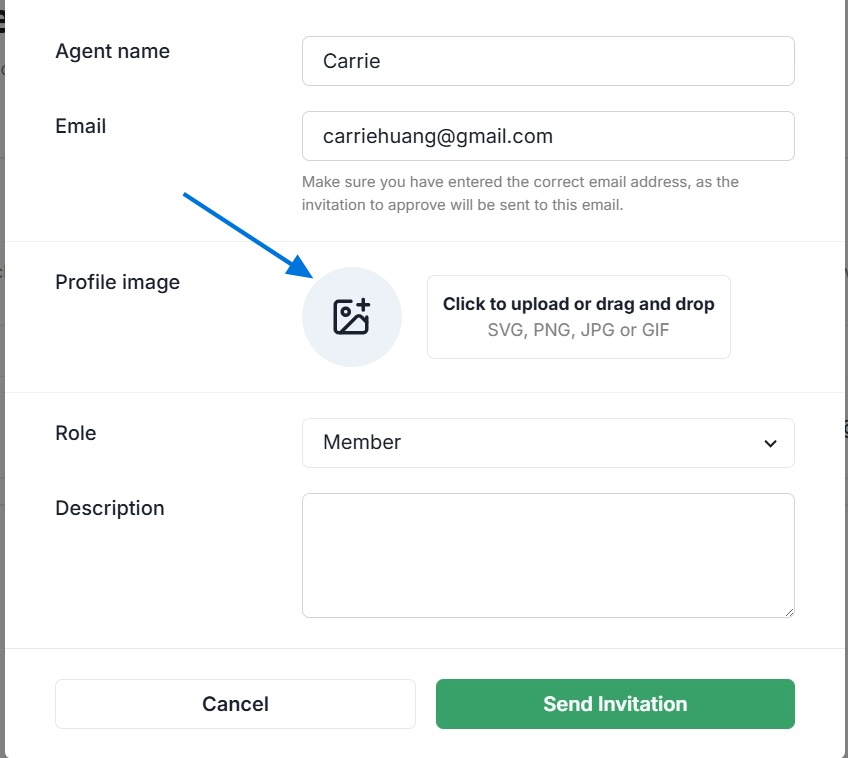
- Upload an avatar for your agent, or you can also leave the agent's avatar blank. Agents can upload their own avatars.
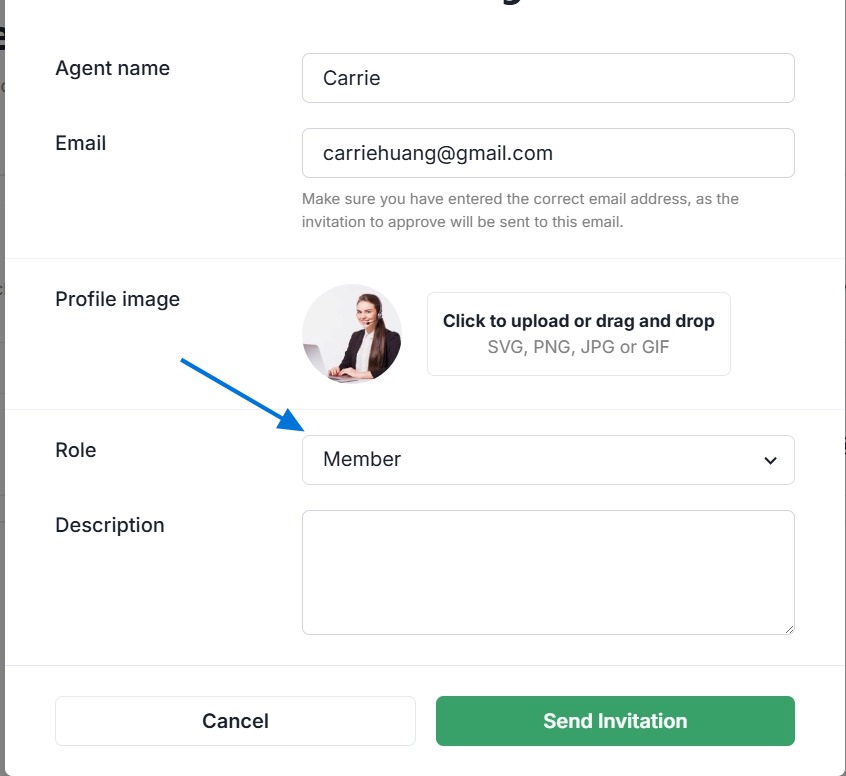
- Then, select a role for the agent. There are two roles: Manager and Member.
-
Manager
- Add other agents as Members.
- Access the Inbox to take over conversations from the Chatbot and respond to customer inquiries.
- Add, edit, or delete chatbots, connections, and the knowledge base.
- Remove members.
- Access the credit page.
-
Member
- Access the Inbox and take over conversations from the Chatbot.
- Respond to customer inquiries.
- Does not have access to add or manage other agents.
Note: The Owner has full access, including the ability to edit and delete the roles of all team members.
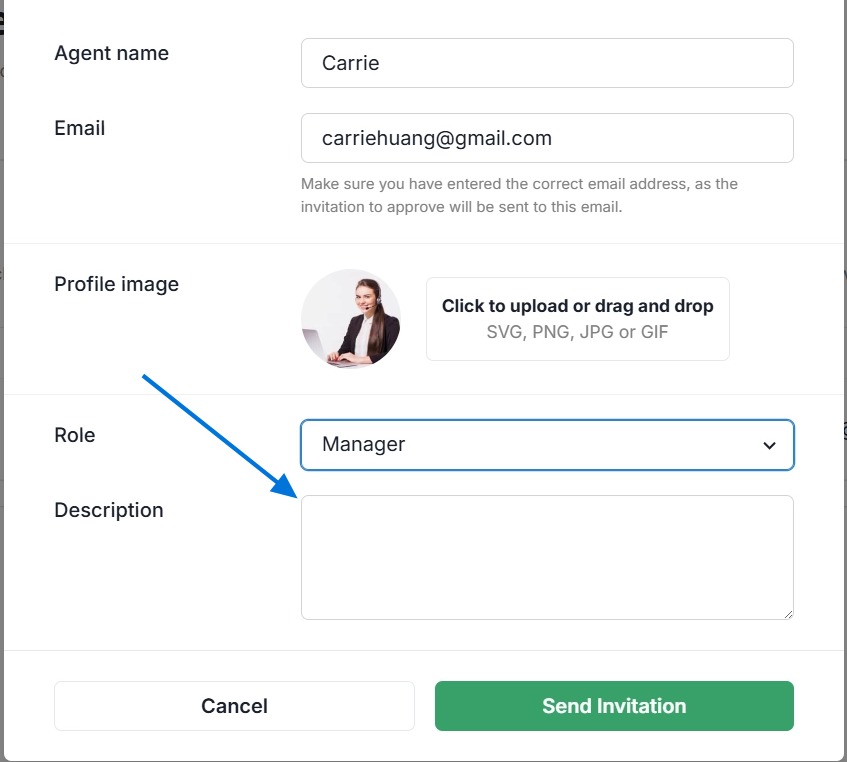
- Then enter the agent description.
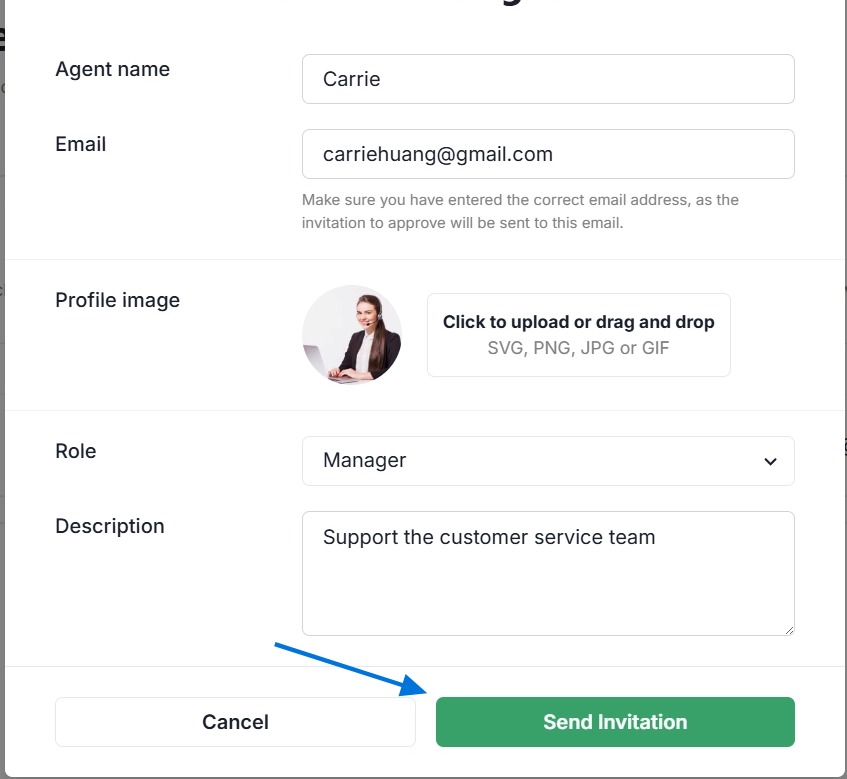
- Press "Send Invitation," and the agent will receive an invitation link via email. The agent must click the link to join the team.
Agent status
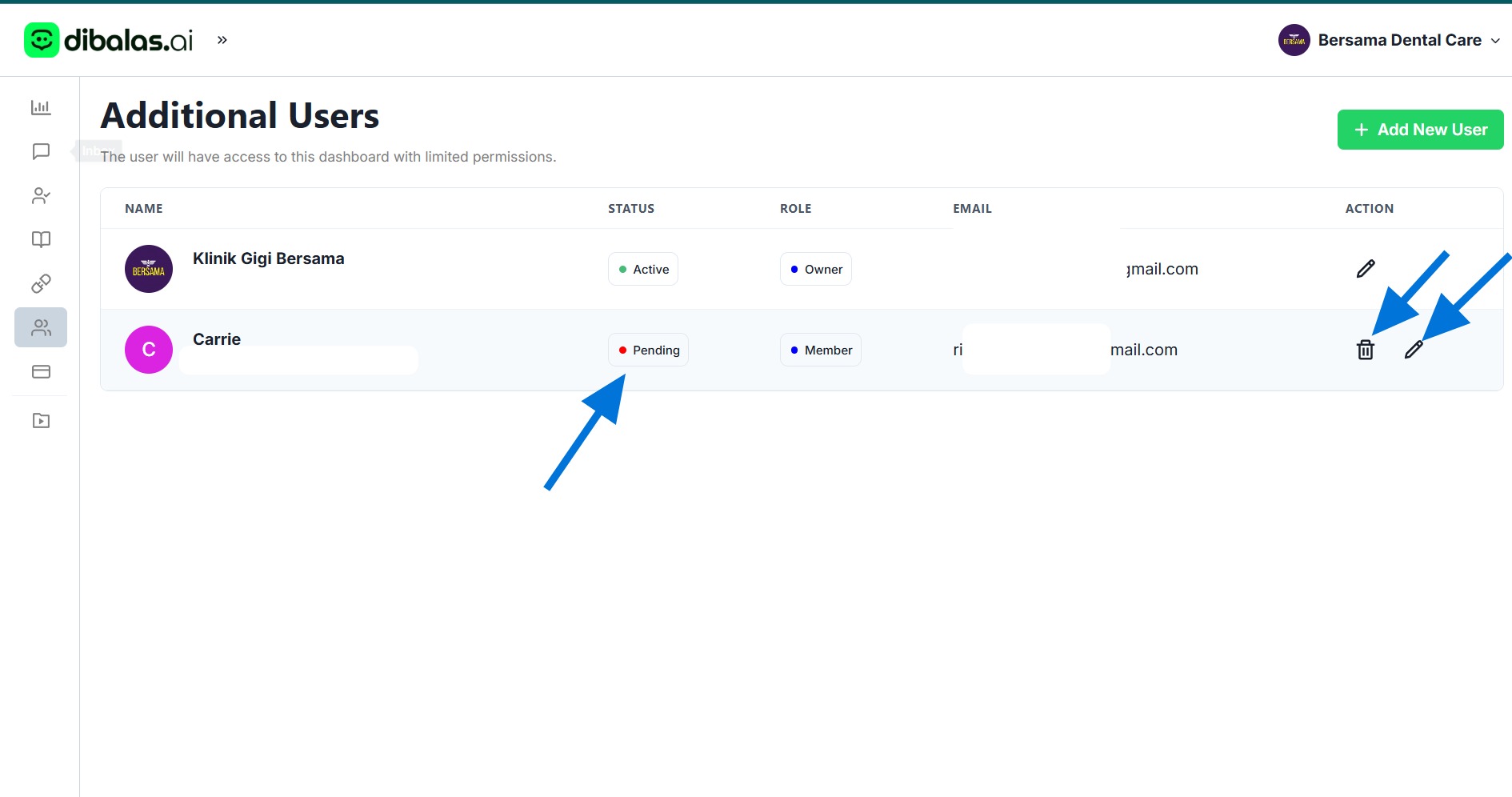
If the agent still not accept the invitation to join, the agent's status will remain Pending, and once accepted, the status will change to Active.
The agent can accept the invitation by clicking the link sent to the agent's email.
Delete and update agents
As the owner, you can delete and edit the roles of all your members, and Managers can delete members.
To delete, press the 'trash bin' icon, and to edit details, press the 'pencil' icon.