Inbox features
Inbox features
Feature: Chatbots filter
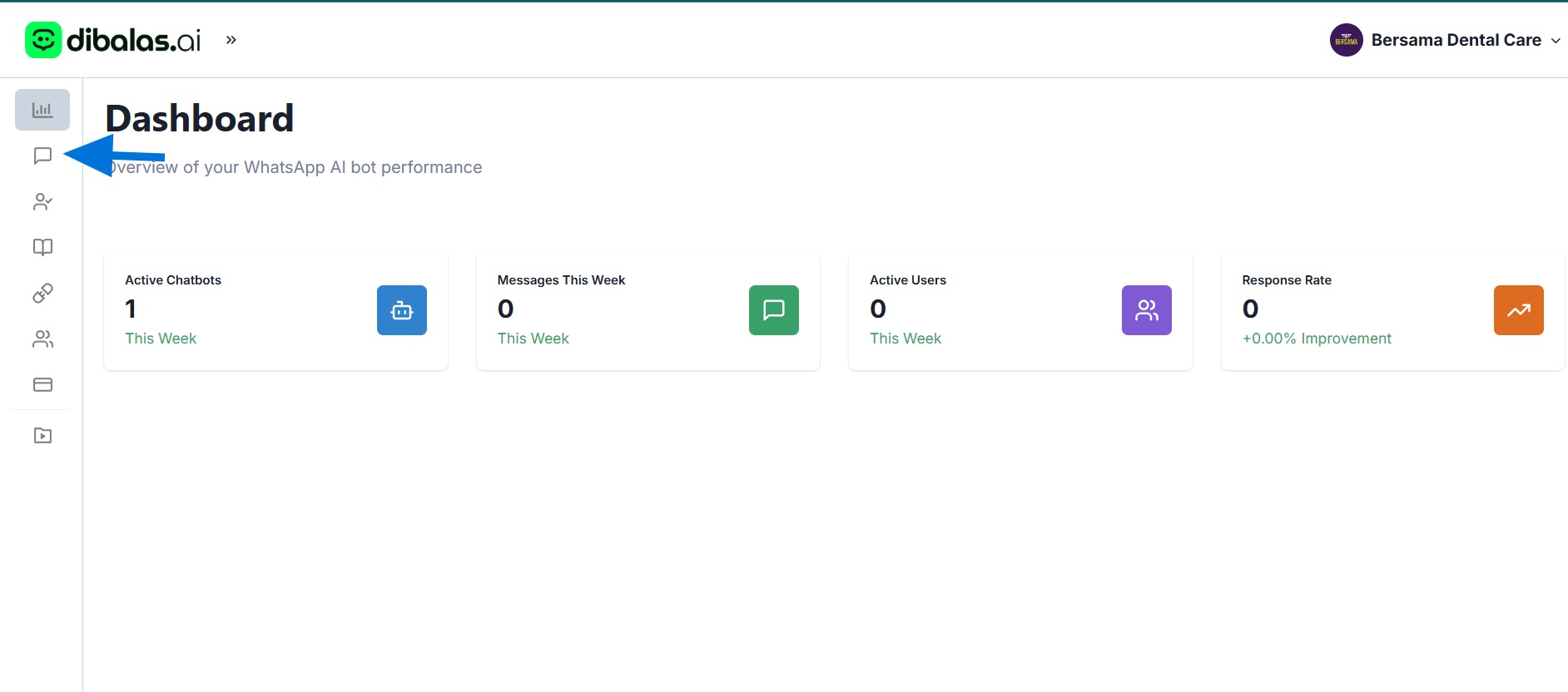
- After logging in, you will see the "Dashboard" page. Click on "Inbox" to view your messages.
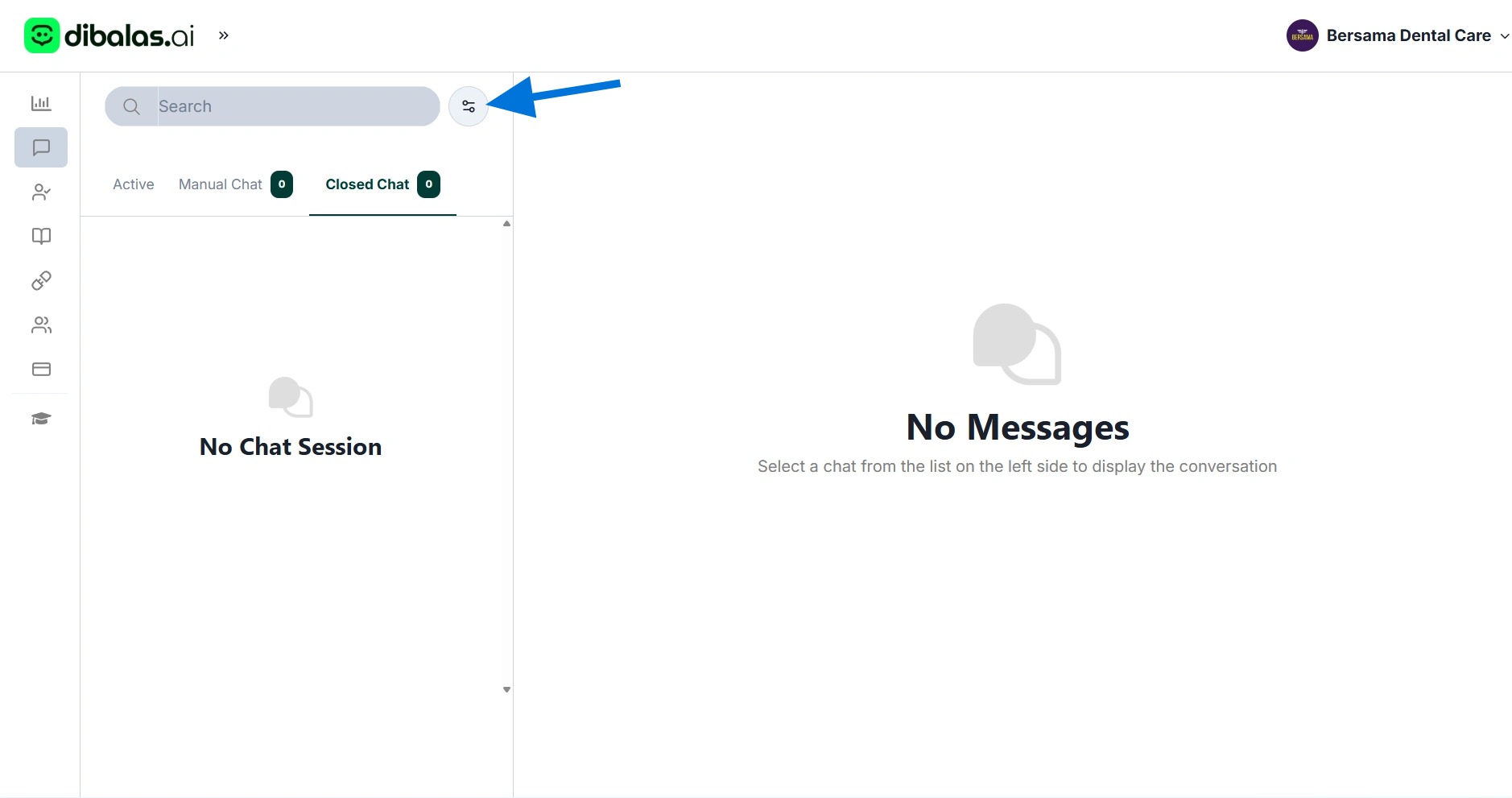
- You can filter the inbox by chatbot.
If the filter view looks like the one below, it means the current inbox is showing conversations from all chatbots.
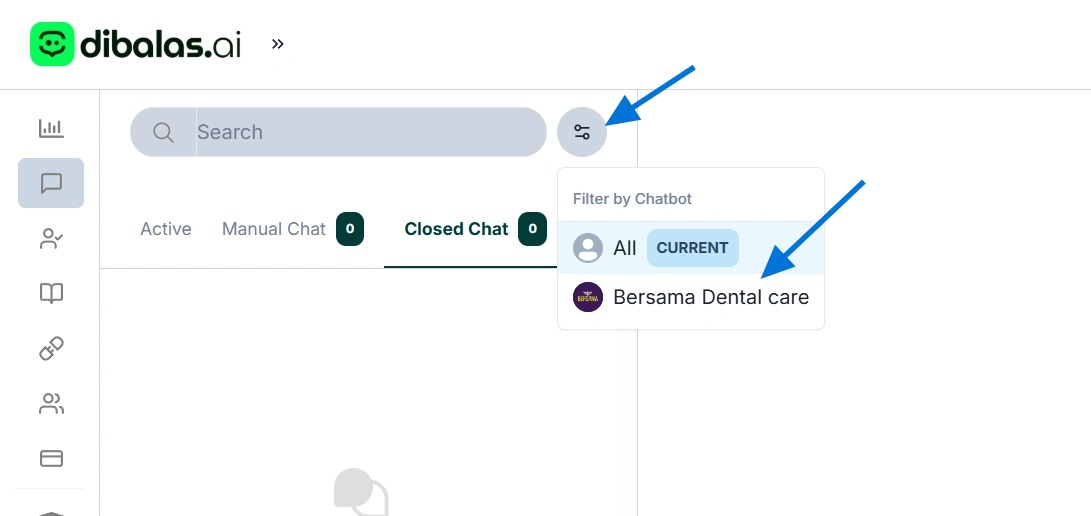
- To display the inbox based on a specific chatbot, you can click the filter icon and then select the name of the chatbot.
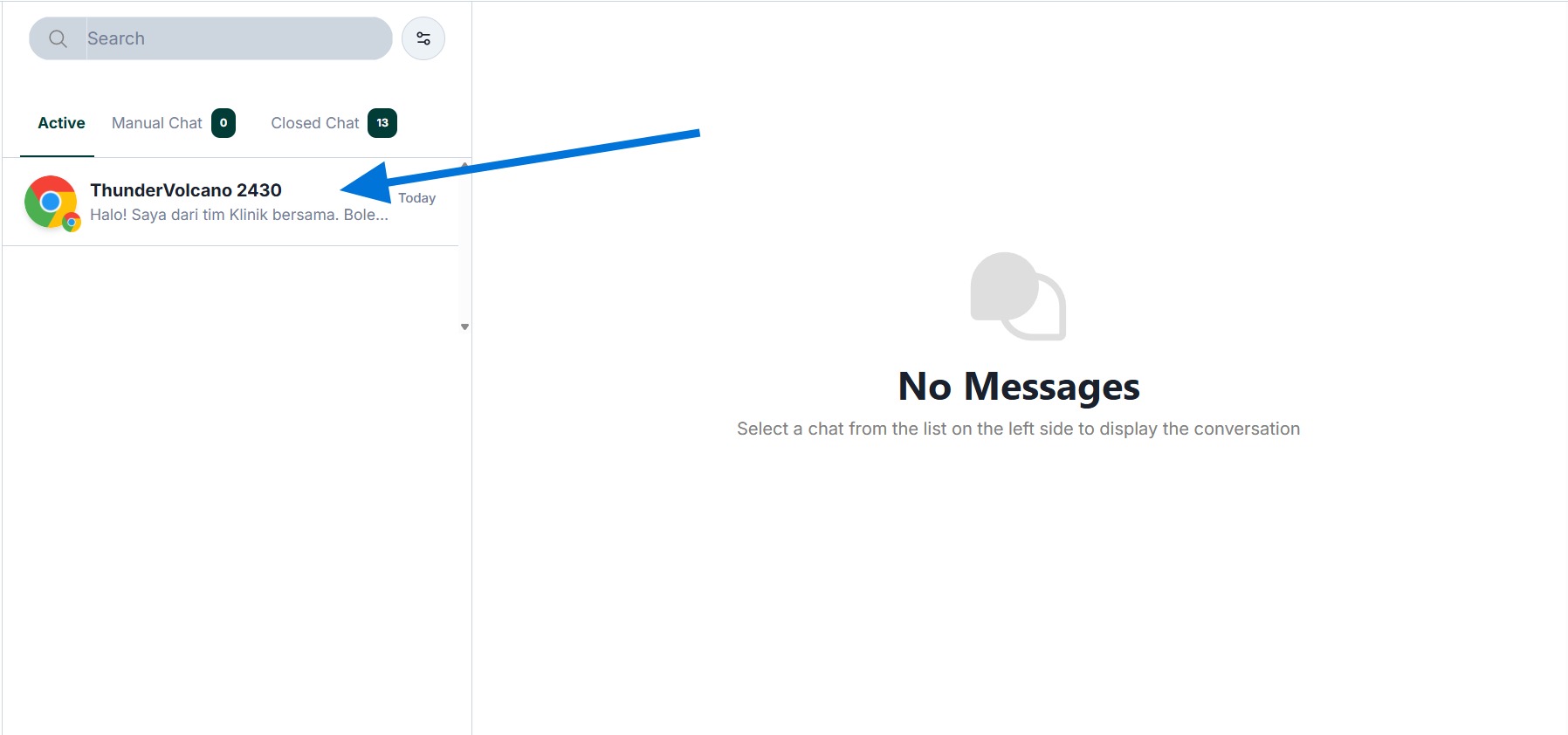
- Select a message you want to view or take over.
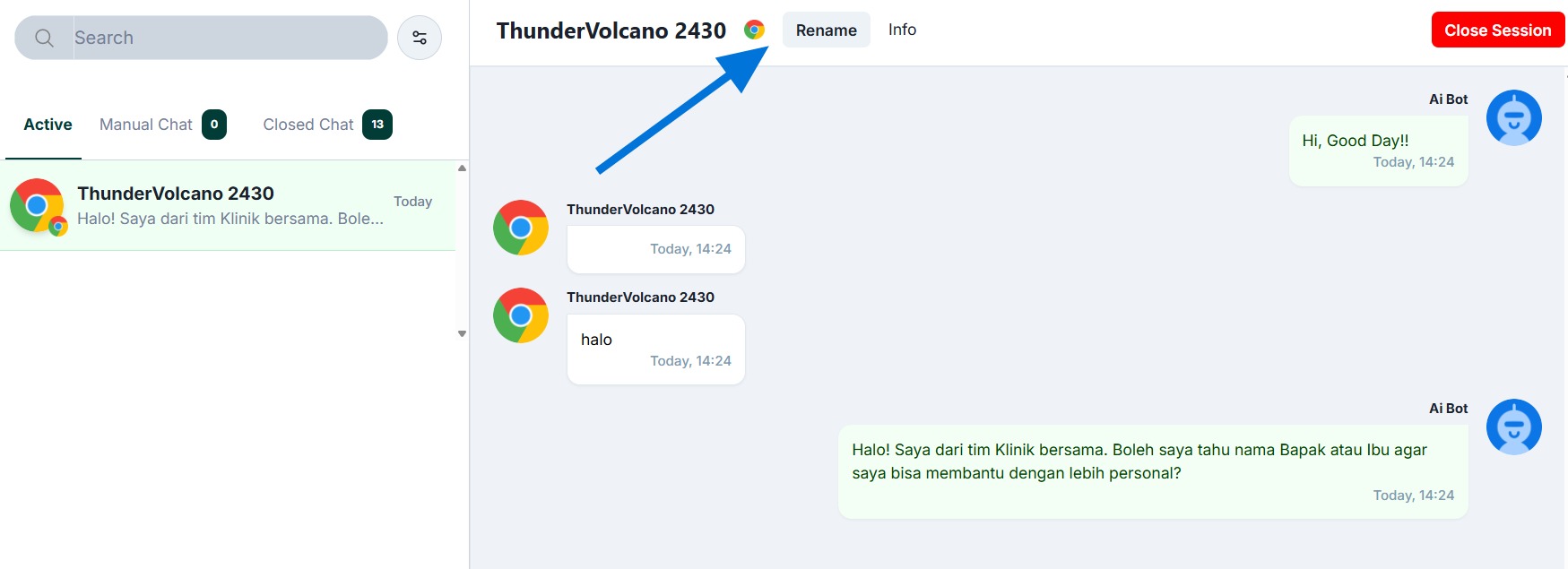
Feature: Rename customer name
- You can change the customer's name by clicking "Rename"
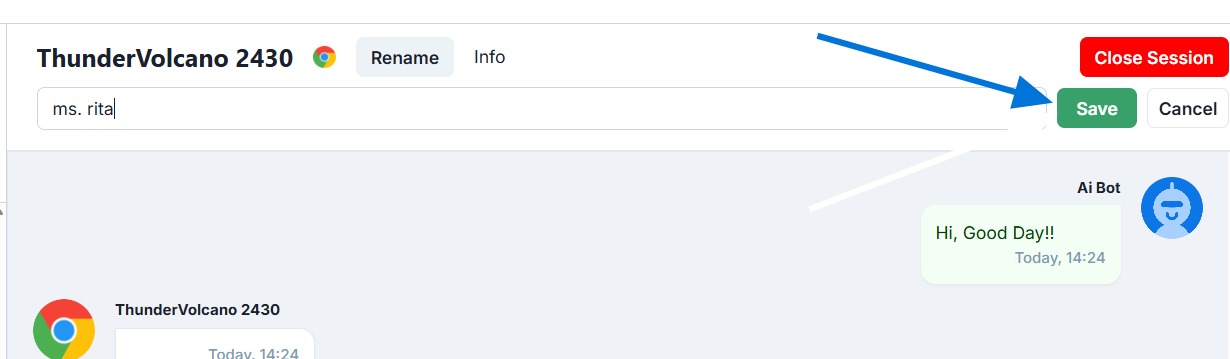
- Then delete the old name and enter the new name. Press "Save" to save the changes
Customer name will change if you click "save" button.
Feature: Take over, Send message and stop take over
- You can press the 'Take Over' button to take over the conversation.
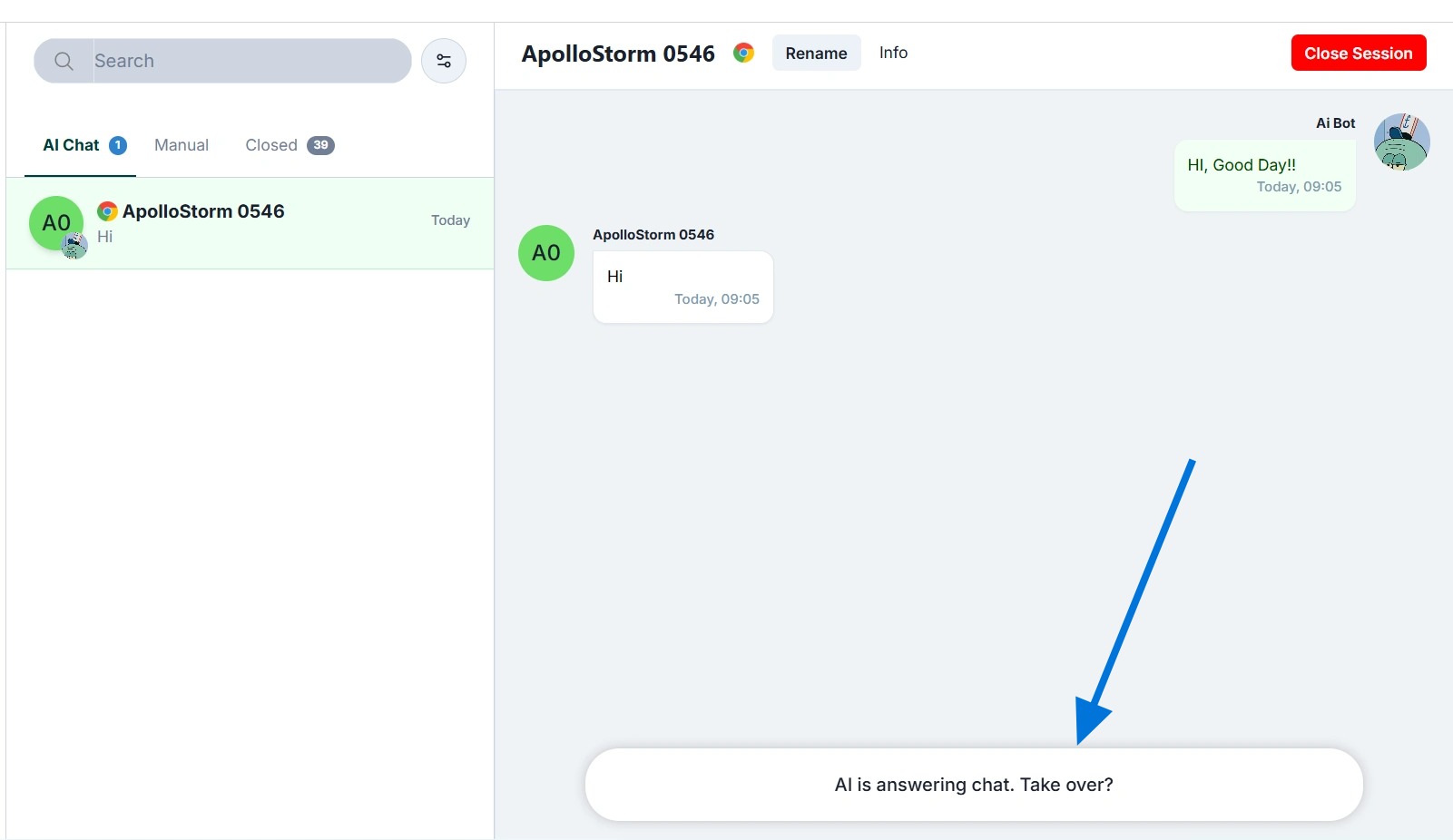
- After pressing the "Take over" button, a message writing field will appear, and the messages will move to the "Manual Chat" tab. You can send messages and emoticons to the customer.
After writing the message, press the "Send" button to send the message
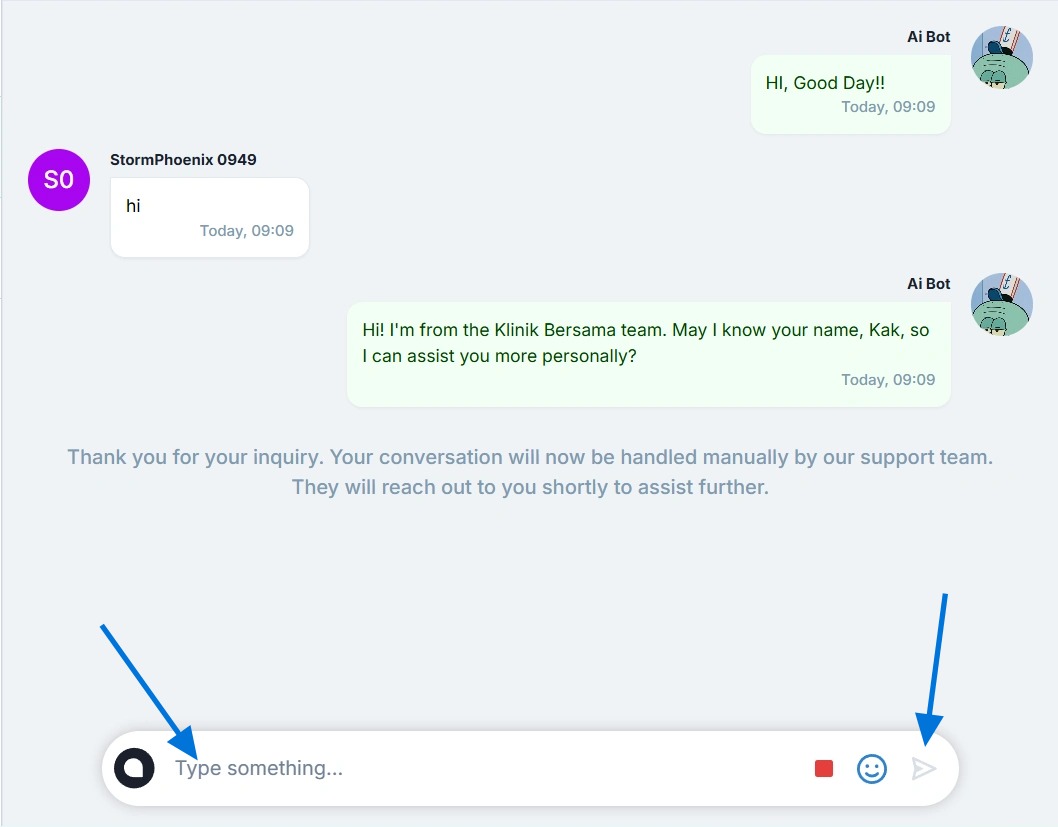
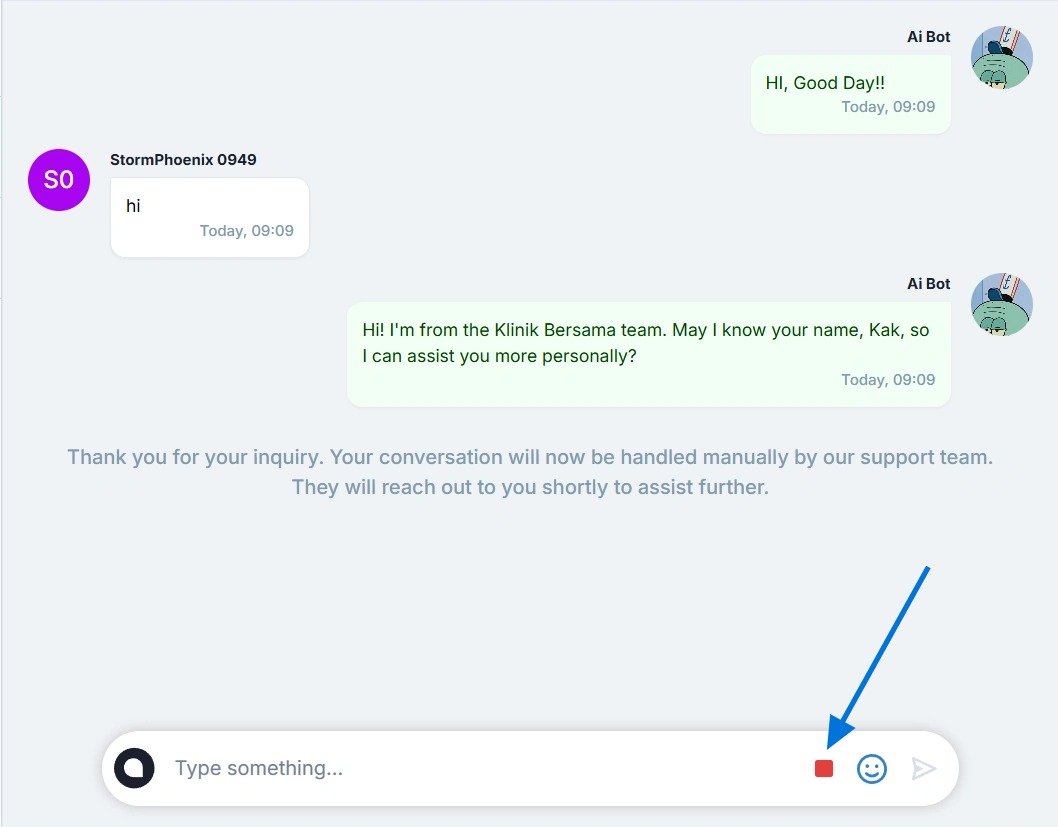
- If you want to end the conversation, click Stop Take Over button like below. The conversation will end, and the messages will move to the 'Completed Chats' tab. Once the conversation is finished, you will no longer be able to send messages to the customer.
Feature: Close session
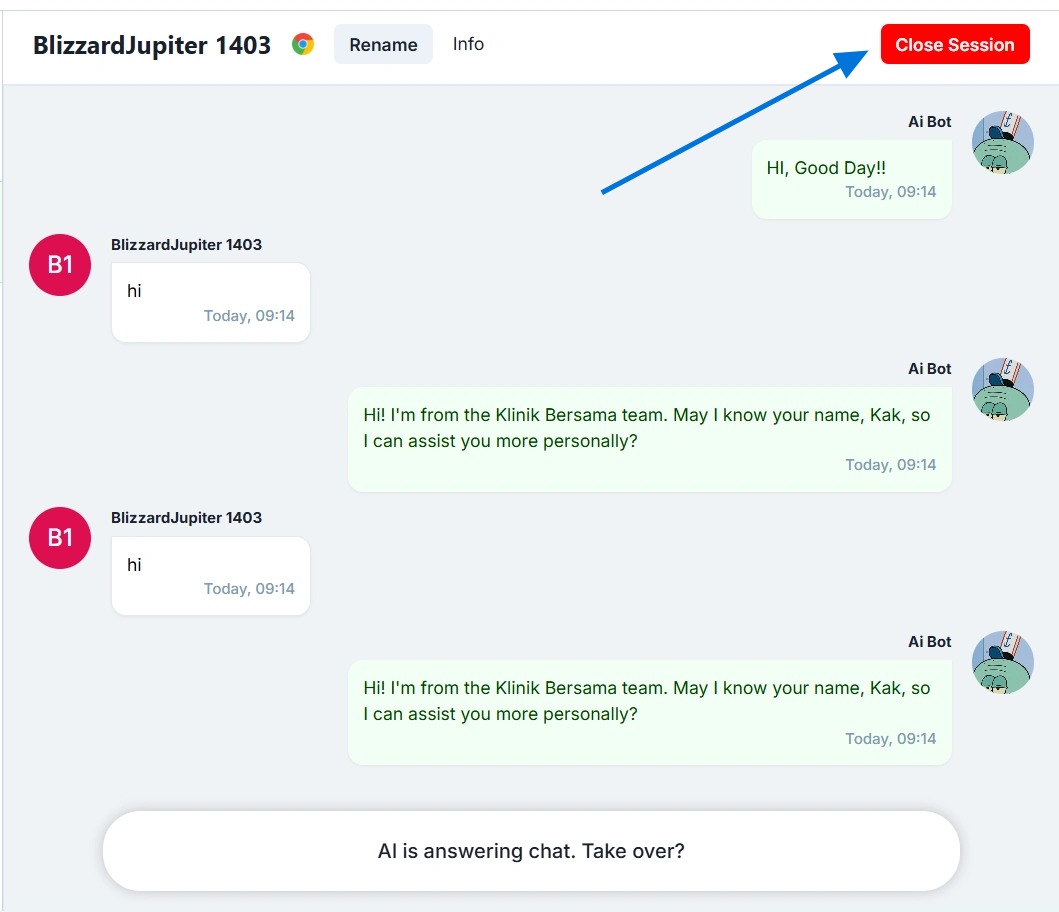
- If you click ‘Close Session’, this conversation will close and be moved to the Closed Chats section
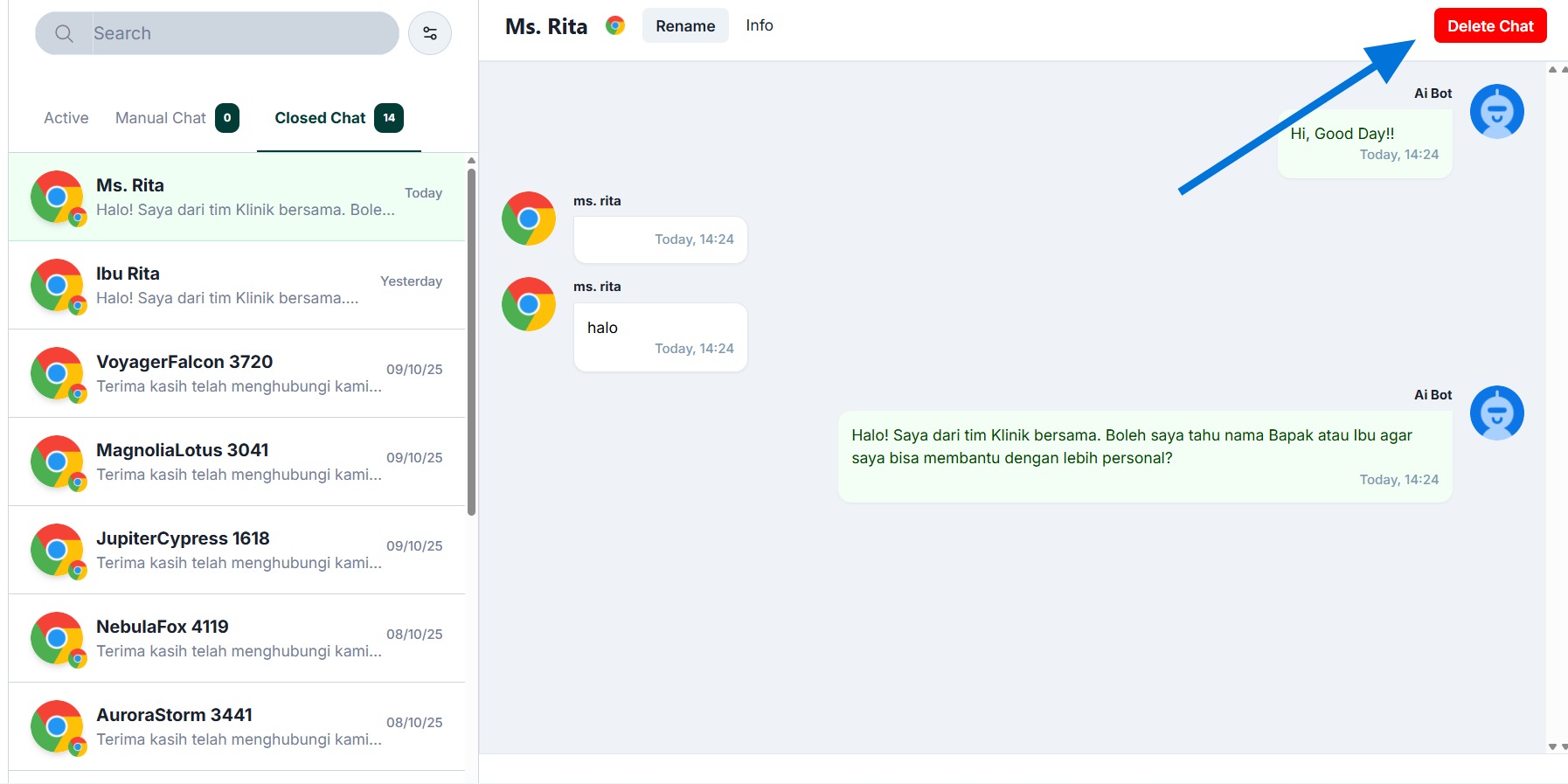
- In the “Closed Chat” tab, there is an option to delete the conversation.
Coming soon
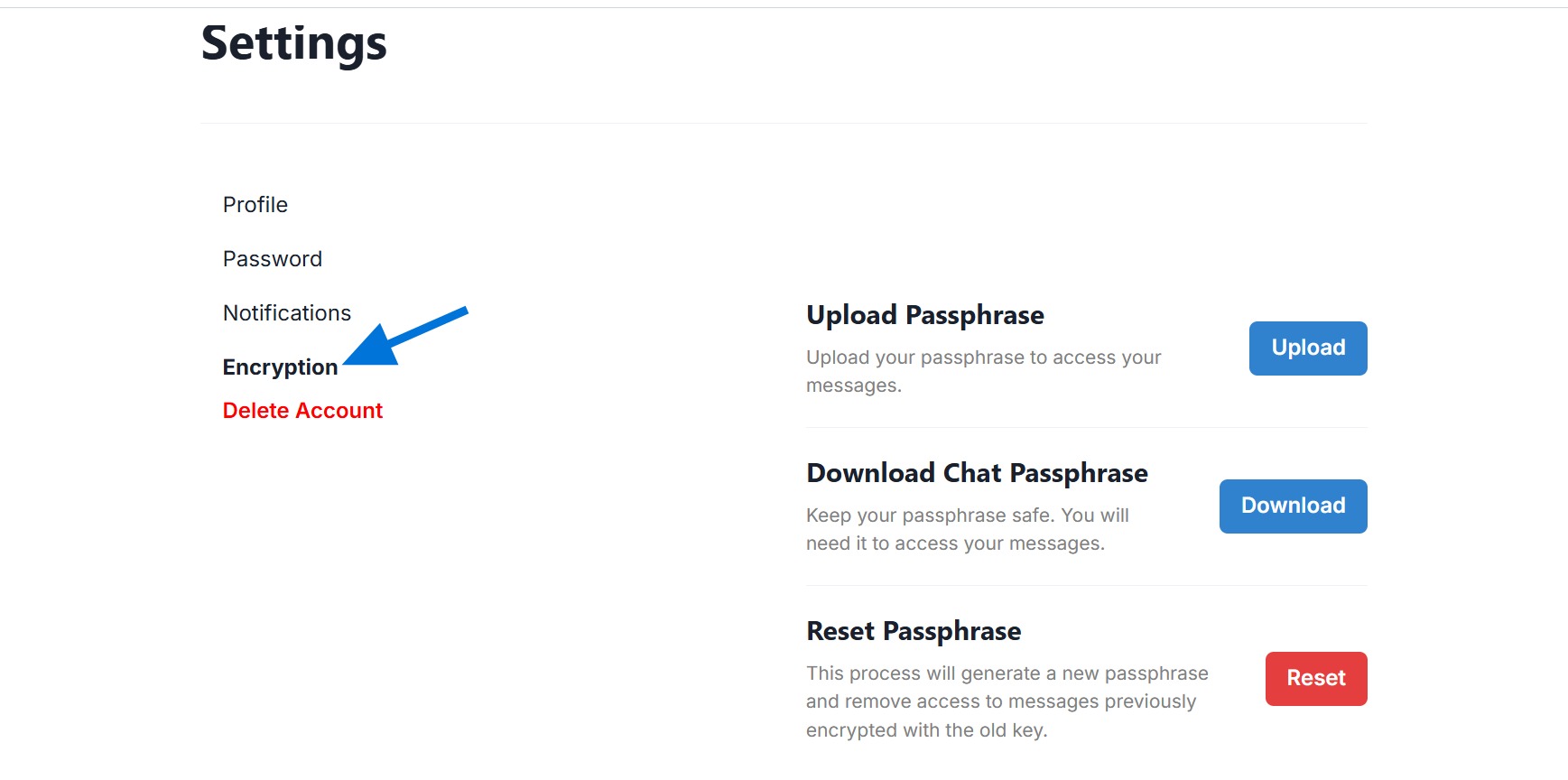
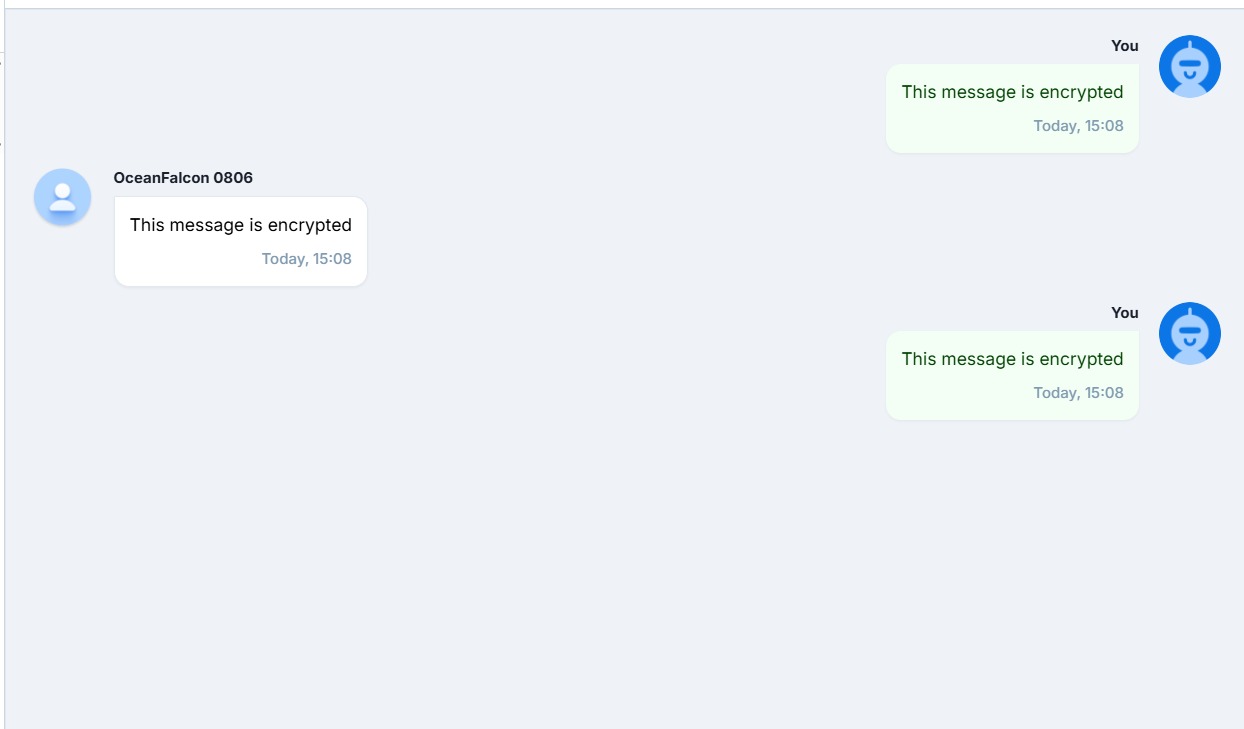
If [[This message is encrypted]] appear, it means the passkey on the encrypted page does not match the passkey that was used when this conversation was received. If you have already downloaded the passkey, you can upload it by opening your profile and then navigating to the encrypted page.
The dashboard will play a notification sound every time a message is received from a customer, even when the inbox page is not open. However, for the notification sound to work, users must open the inbox page first everytime open the dashboard dibalas.ai.
Coming Soon
Dibalas AI uses partial end-to-end encryption to keep your chat history private.
While part of the encryption process happens on the server (so the AI can process your conversations), the system remains secure because Dibalas AI never has access to the decryption key.
This means only you can read your conversations, as they are protected by a unique encryption key that you can download.
The key is automatically generated and stored locally in your browser without requiring any manual action.
If the key is deleted — for example, if you clear your browser’s cache or session data — you can reset your passphrase on the Profile > Encryption page, then:
-
Download the new passphrase again
-
Upload it back to the system
Following these steps will keep your chat history secure and accessible only to you.
Please be careful. If you proceed with the reset, you will no longer be able to access your previous chat history. All messages will be marked as hidden.
However, this feature is optional — you may choose not to enable the encryption function