
Plans & Pricing
How to buy a package, pay and download invoices, and what happens when a package expires.
How packages work
- A package belongs to a team, not to your user account. If you run several teams and want paid limits in each, buy a package for each team.
- Before you buy, check that the right team is open (the team name is shown in the upper right corner).
- A team without a paid package uses the free package.
- Only the team Owner and Managers can buy packages. Members can see invoices but can't buy.
- If a team has more than one active package, the specifications of the most expensive package apply.
Checking your quota
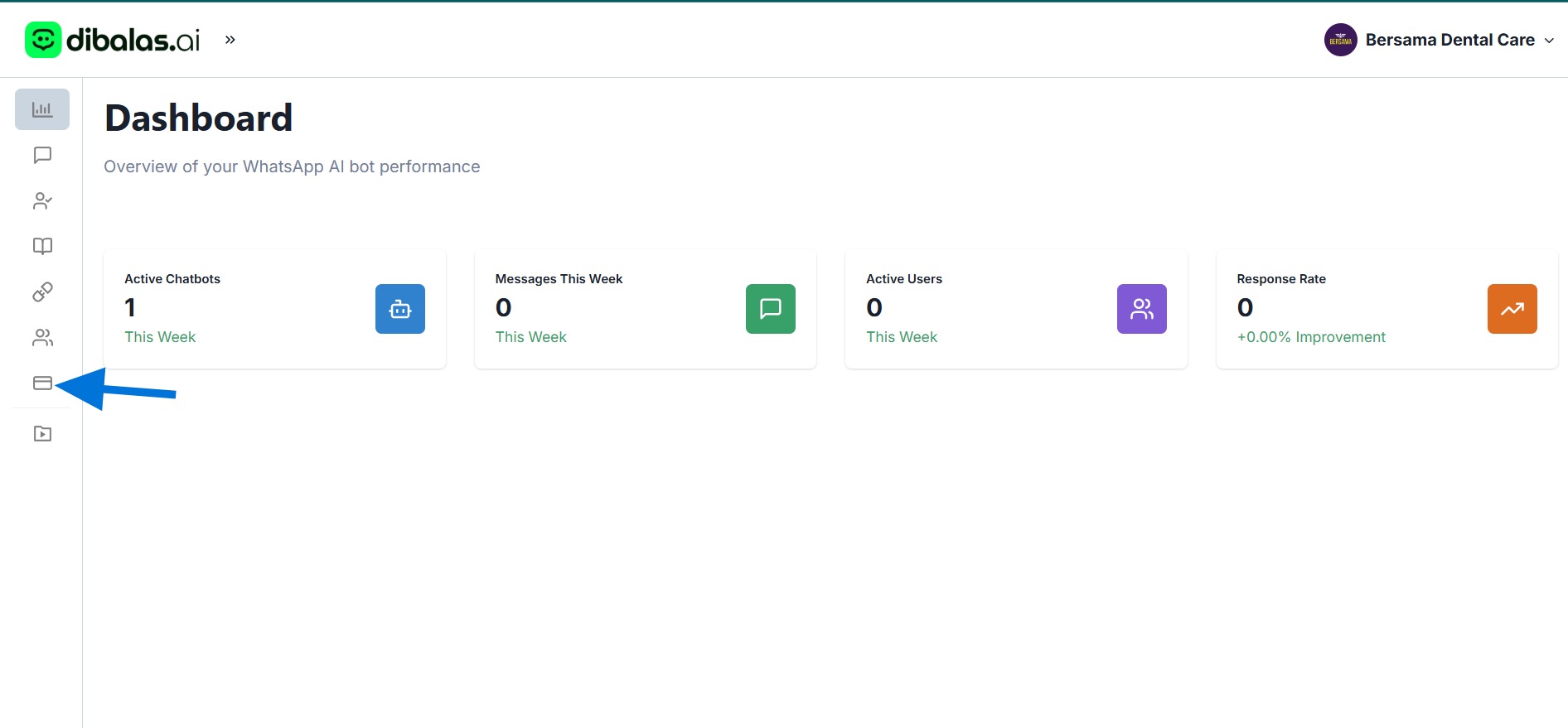
Open Credits in the left sidebar. The page has two tabs: Active Packages and Invoices.
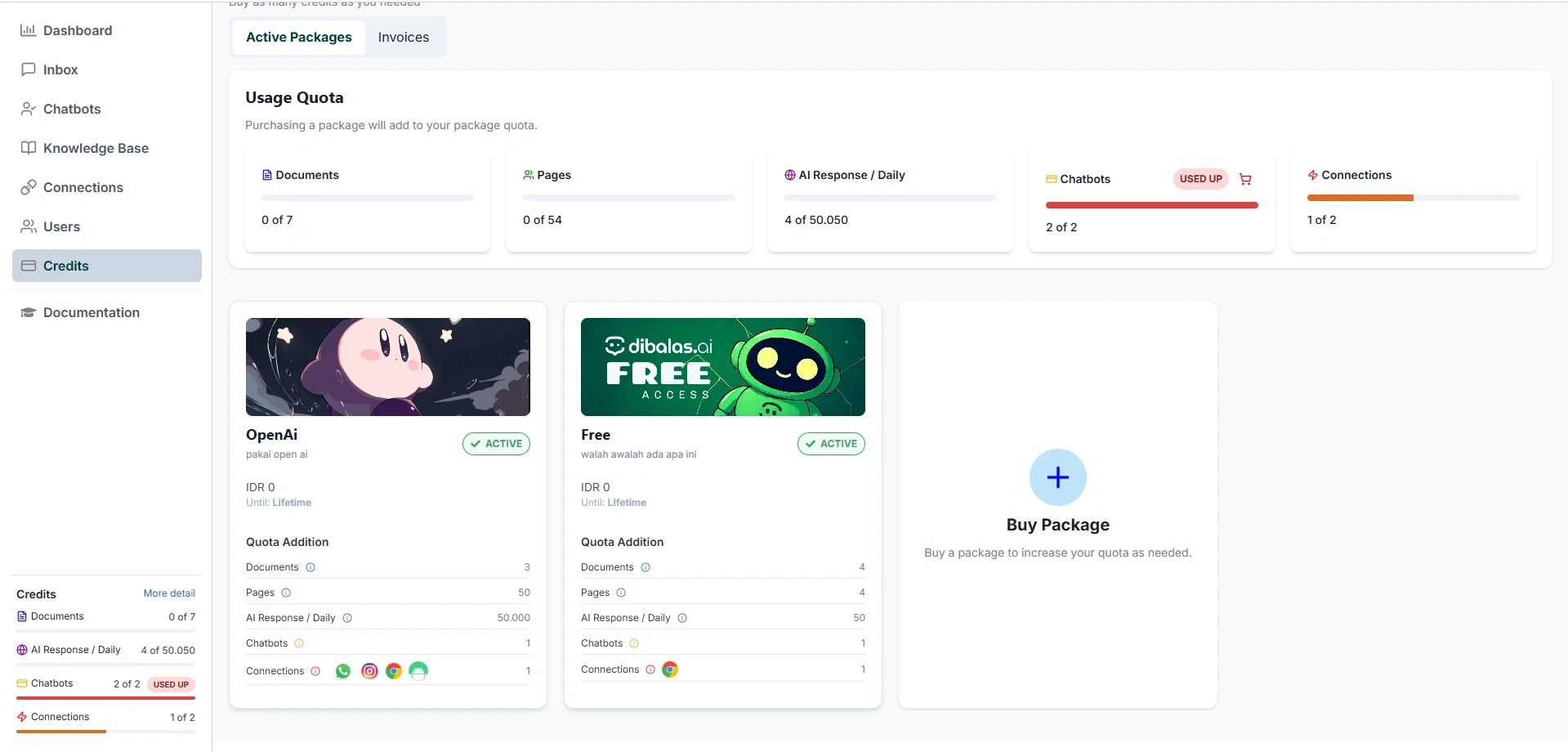
Active Packages shows your current active plan and how much of each quota you have used:
- Documents: knowledge base files you can upload.
- Pages: total pages across all knowledge base documents.
- AI Response / Daily: AI replies per day.
- Chatbots: AI chatbots you can create.
- Connections: channels you can connect (WhatsApp, Instagram, Telegram, website, Android and Instagram automation accounts all count).
How to buy a package
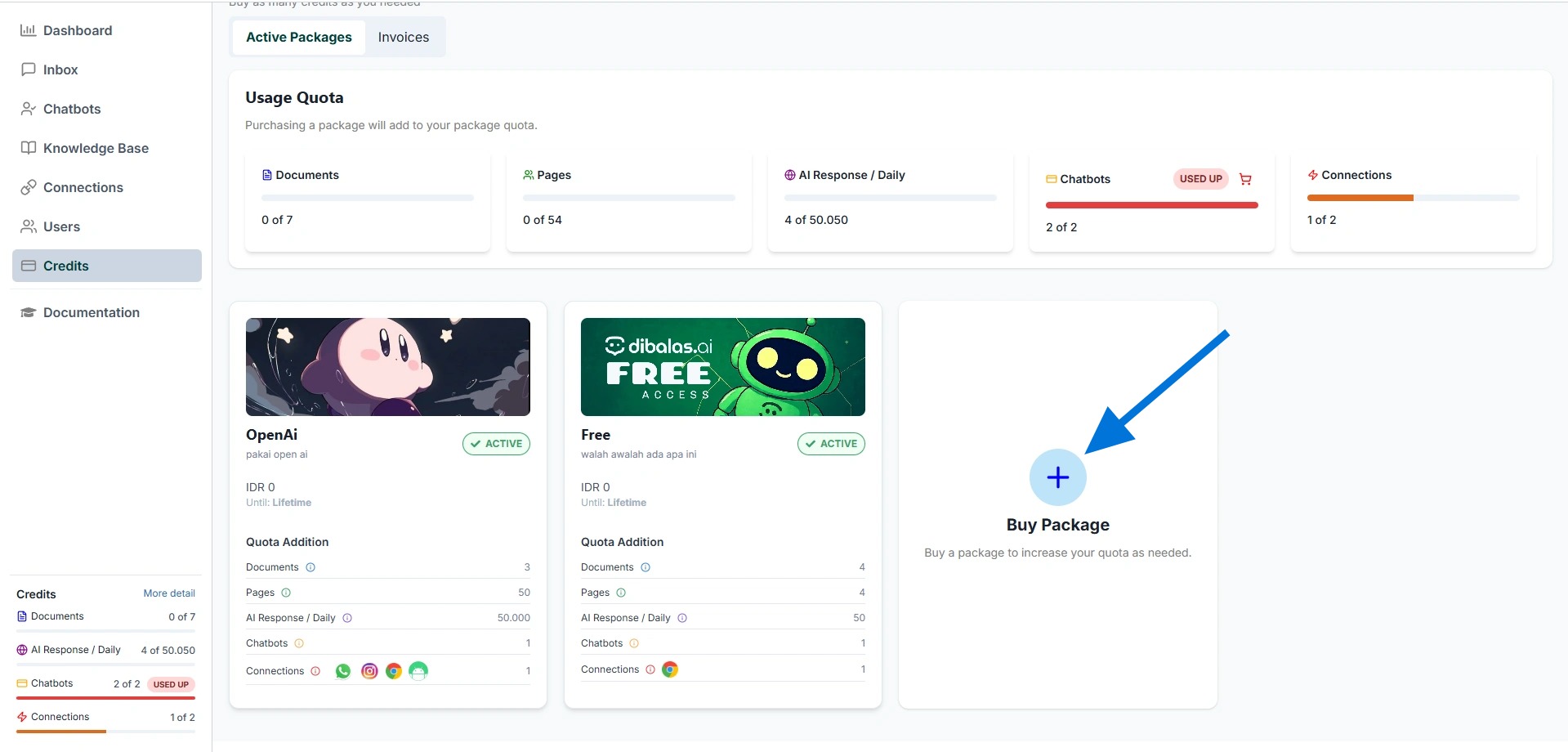
- On the Active Packages tab, click the Buy Package card.
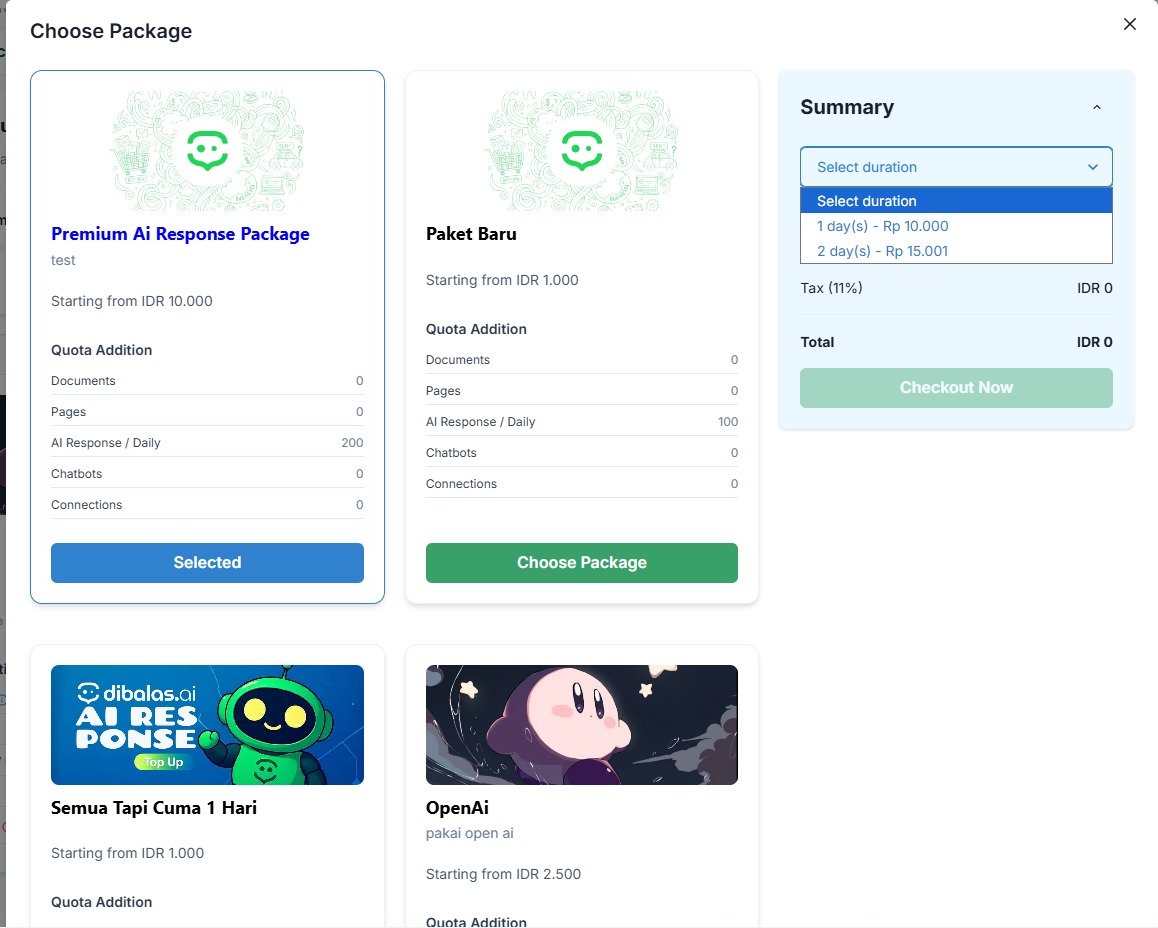
- A window lists the available packages with their limits. Click Choose Package on the one you want.
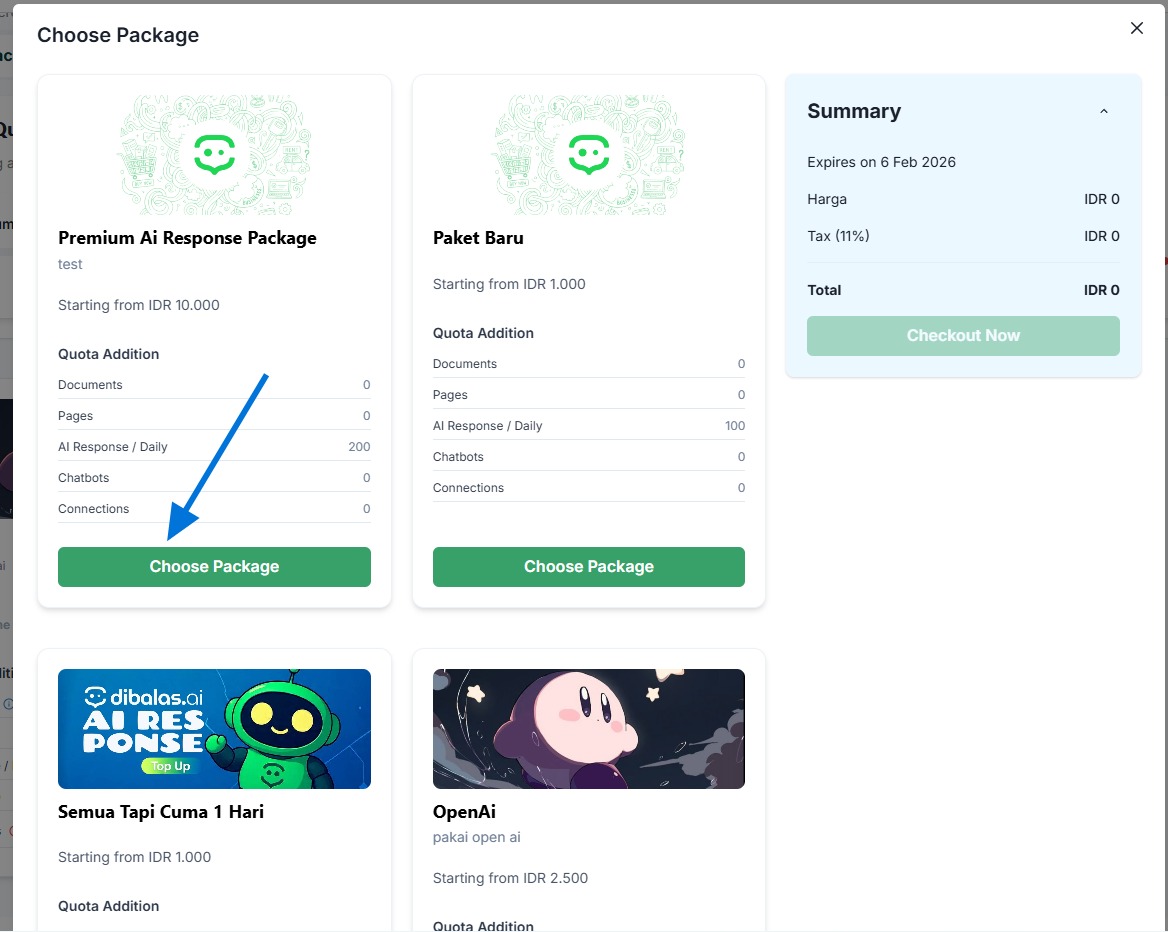
- The Summary on the right shows your order. Choose the Duration (packages are sold per number of days) and decide whether to turn on Auto Renewal. The total includes tax.
- (Optional) Click Add coupon code, enter the code and apply it.
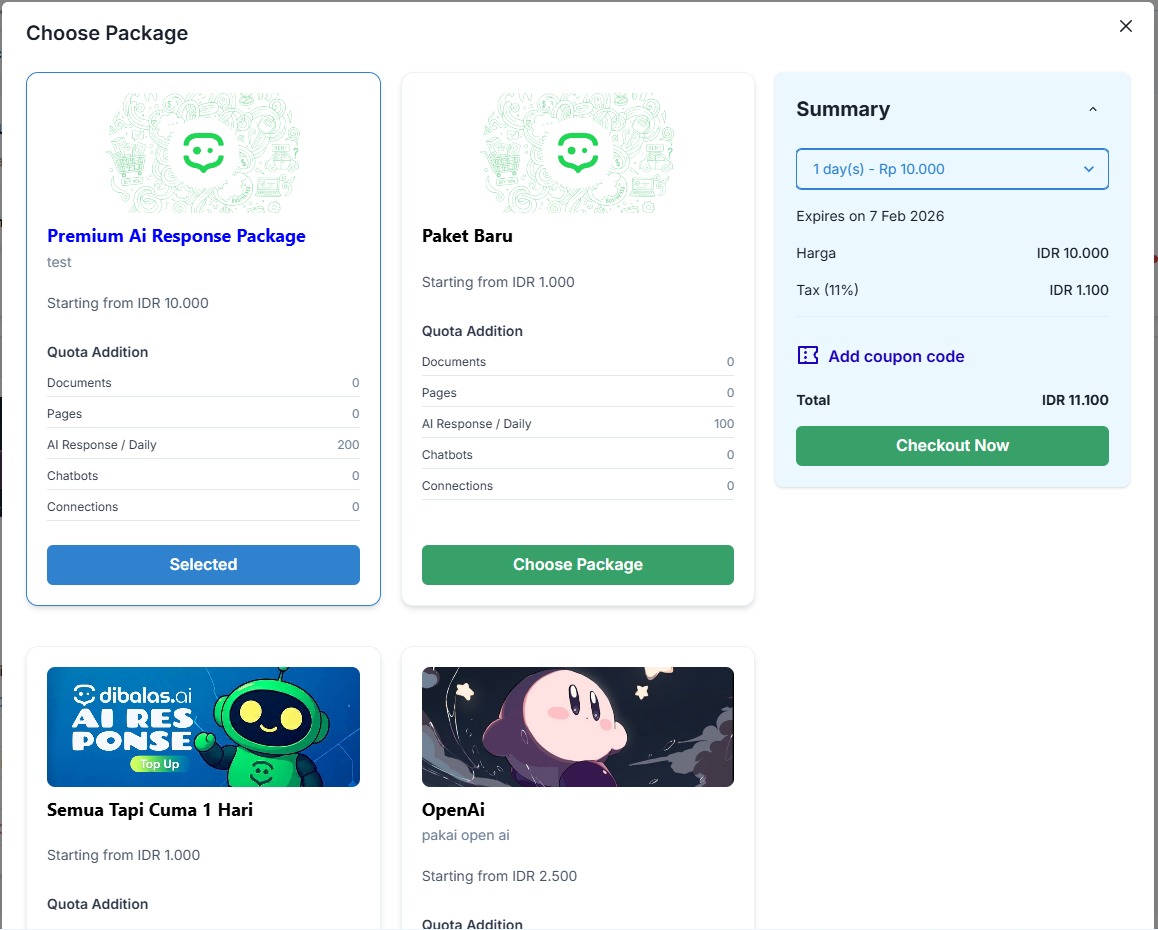
- Click Checkout Now, choose a payment method and complete the payment.
If you buy a package you already own, the new purchase adds quota. Its duration starts on the day you buy it; it is not added to the end of the previous package.
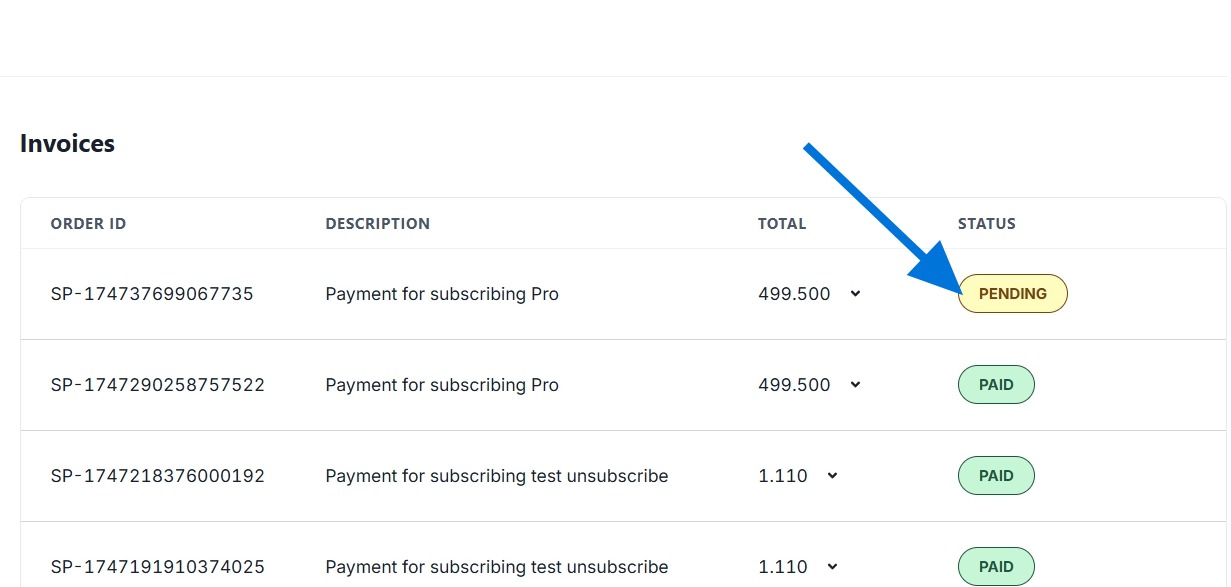
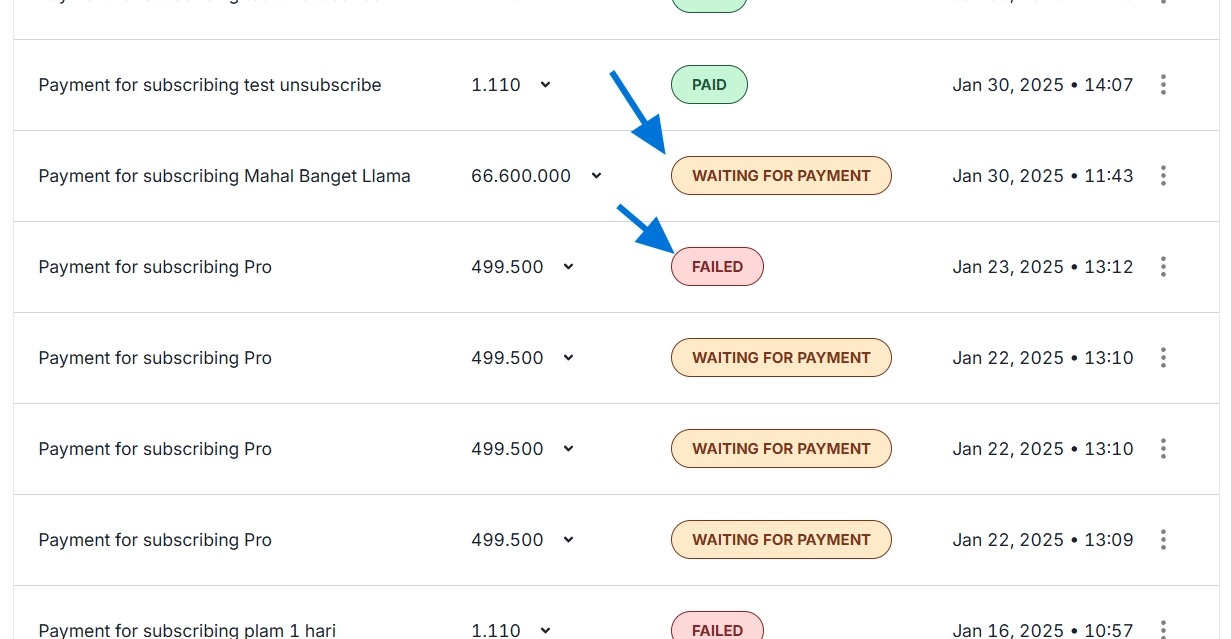
Payment status: If you close the payment page before paying, the order stays Waiting for payment or Pending. When the payment is confirmed, the status changes to Paid and the new quota is active right away.
Invoices
- Open Credits, then the Invoices tab.
- Click the three-dot icon at the end of a transaction row.
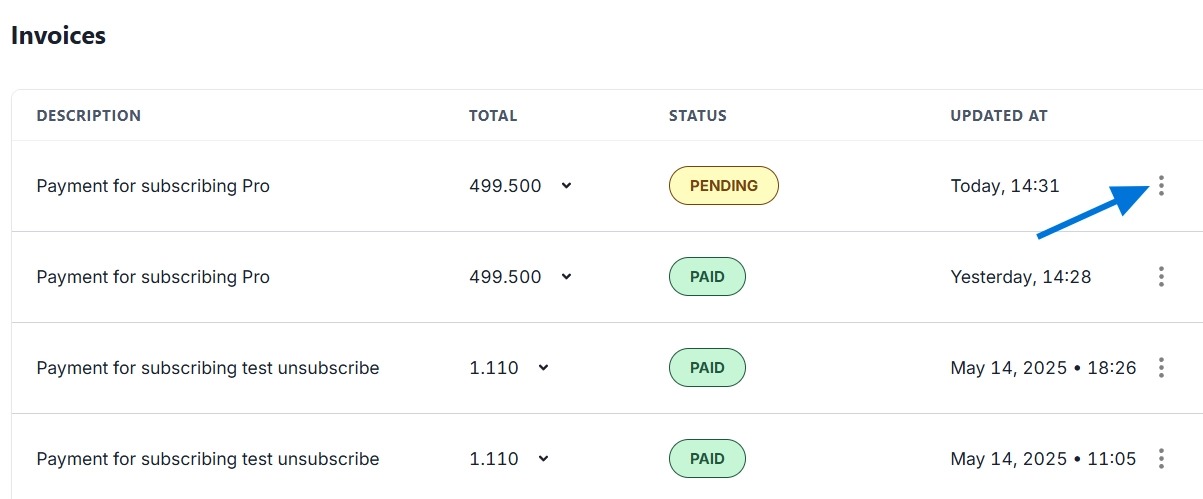
- Choose an action:
- Pay invoice: pay an order that is not paid yet.
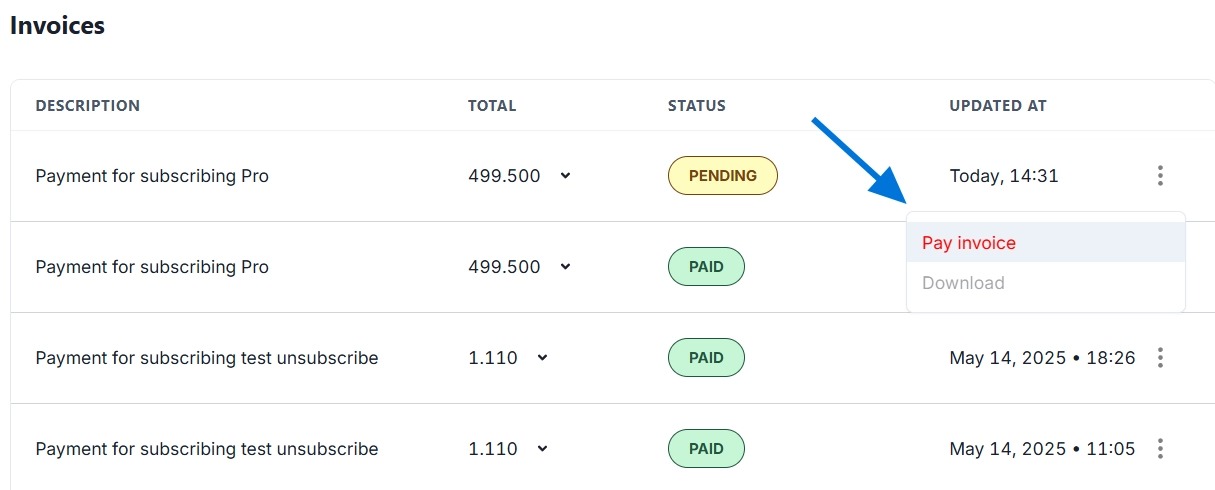
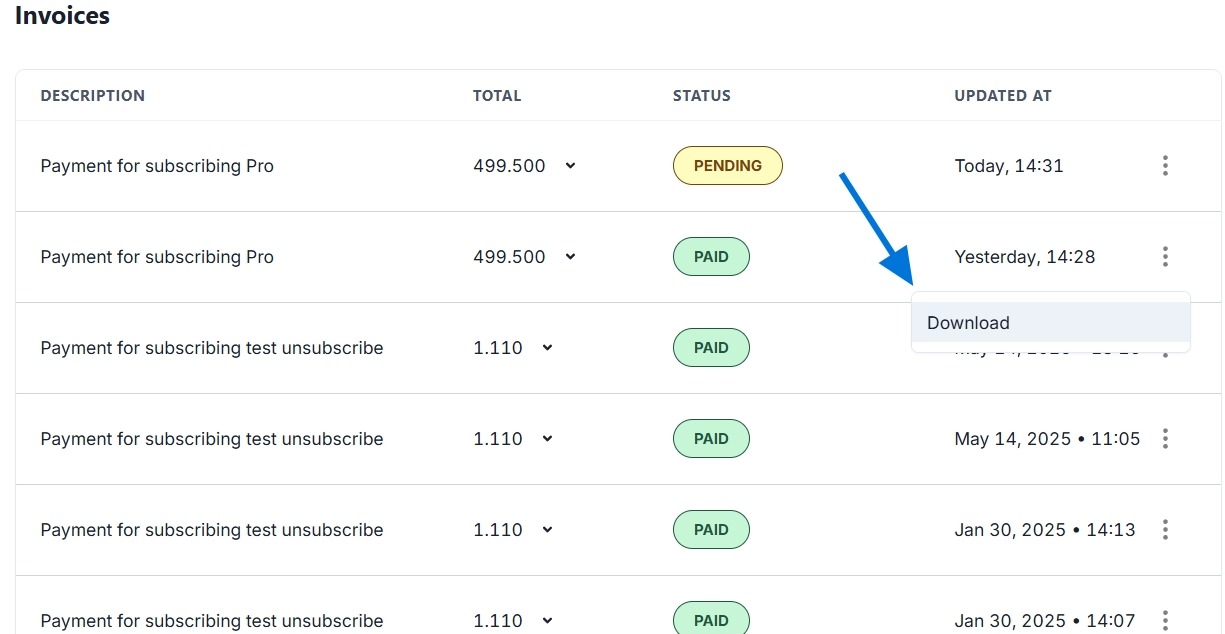
- Download: download the invoice PDF. This option is active once an invoice file exists for the order, which happens after payment.
- Pay invoice: pay an order that is not paid yet.
- An order that is never paid can end with the status Failed.
When a package expires
DibalasAI emails you one hour before a package expires and again when it expires. After that, your team falls back to the limits of its remaining packages (or the free package).
If you now have more chatbots, connections or knowledge base documents than the remaining limits allow, DibalasAI deactivates the extra ones:
- Chatbots beyond the limit are deactivated together with their connections and knowledge base, and their open conversations are closed.
- Connections and documents beyond the limit are deactivated.
- Instagram automation accounts beyond the connection limit are deactivated, and their rules are switched off.
DibalasAI does not turn these back on by itself. After you buy a package with enough quota, activate the chatbots, connections, documents and automation rules again yourself.
Example:
- Your team has a package that allows 2 chatbots, each with 1 connection.
- The package expires, and the remaining free package allows 1 chatbot and 1 connection.
- One chatbot and its connection stay active. The other chatbot and its connection are deactivated.
- After you buy a larger package, open the deactivated chatbot and turn it on again.