
Home
Getting started guide for DibalasAI. Learn how to create a smart chatbot to automatically reply to customer messages.
Welcome to DibalasAI 👋
DibalasAI is a smart virtual assistant ready to help you respond to customer messages 24/7. You can manage multiple communication channels from one place, ranging from WhatsApp, Instagram DM, Telegram, Messenger, to LiveChat on your website.
Why use DibalasAI?
- Smart & Contextual: The chatbot doesn't just provide rigid template answers. Our system is able to understand the context of your business data so the replies feel more natural.
- Always Updated: Through the plugin feature, the chatbot can check dynamic information in real-time, such as remaining stock or reservation schedule availability.
- Unified Platform: No need to bother opening multiple applications. All messages from various platforms are centralized in one dashboard.
Quick Start Guide
There are two easy ways to start using DibalasAI:
- Via Web: Suitable if you need full feature access and team management.
- Via Android App: Practical for automating messages directly from your mobile device.
1. Register via Web
This method is highly recommended for managing all DibalasAI features freely.
Steps:
- Open the page app.dibalas.ai.
- Register using your Google account or email.
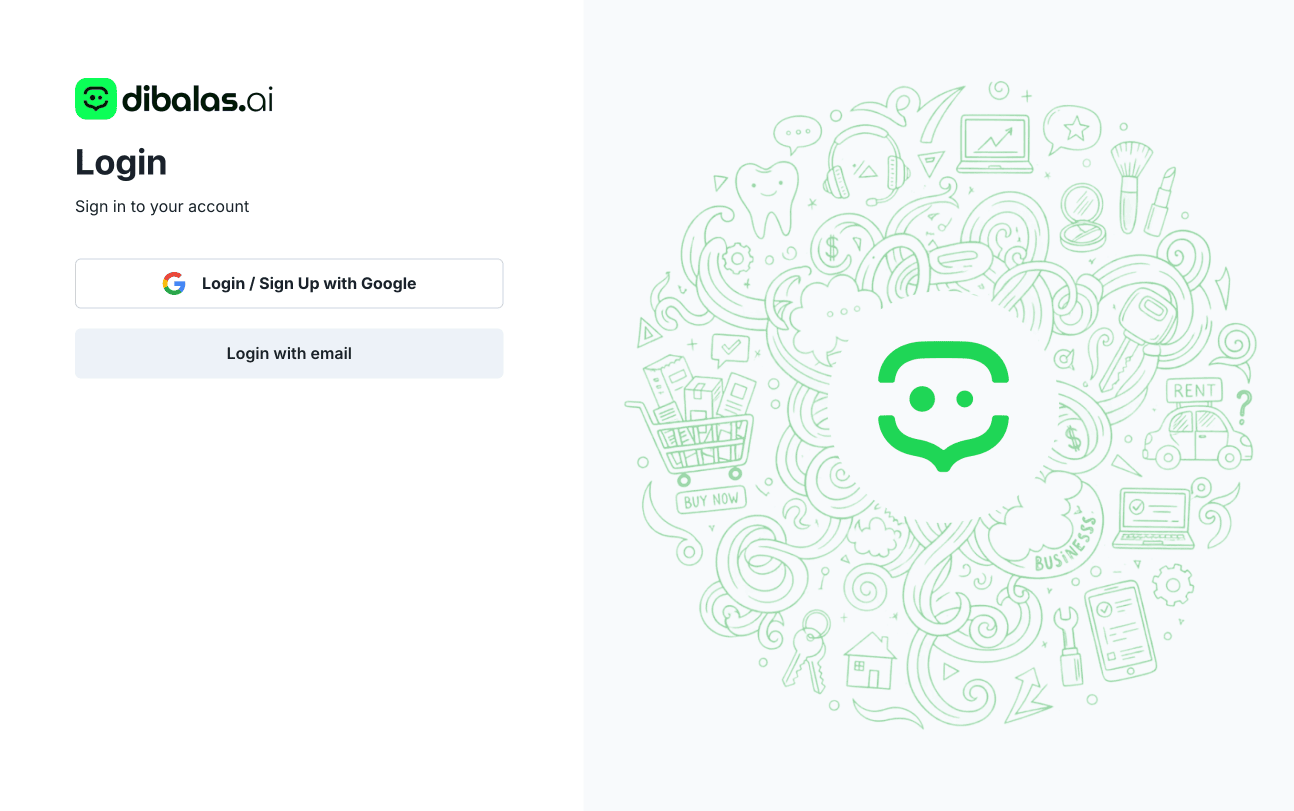
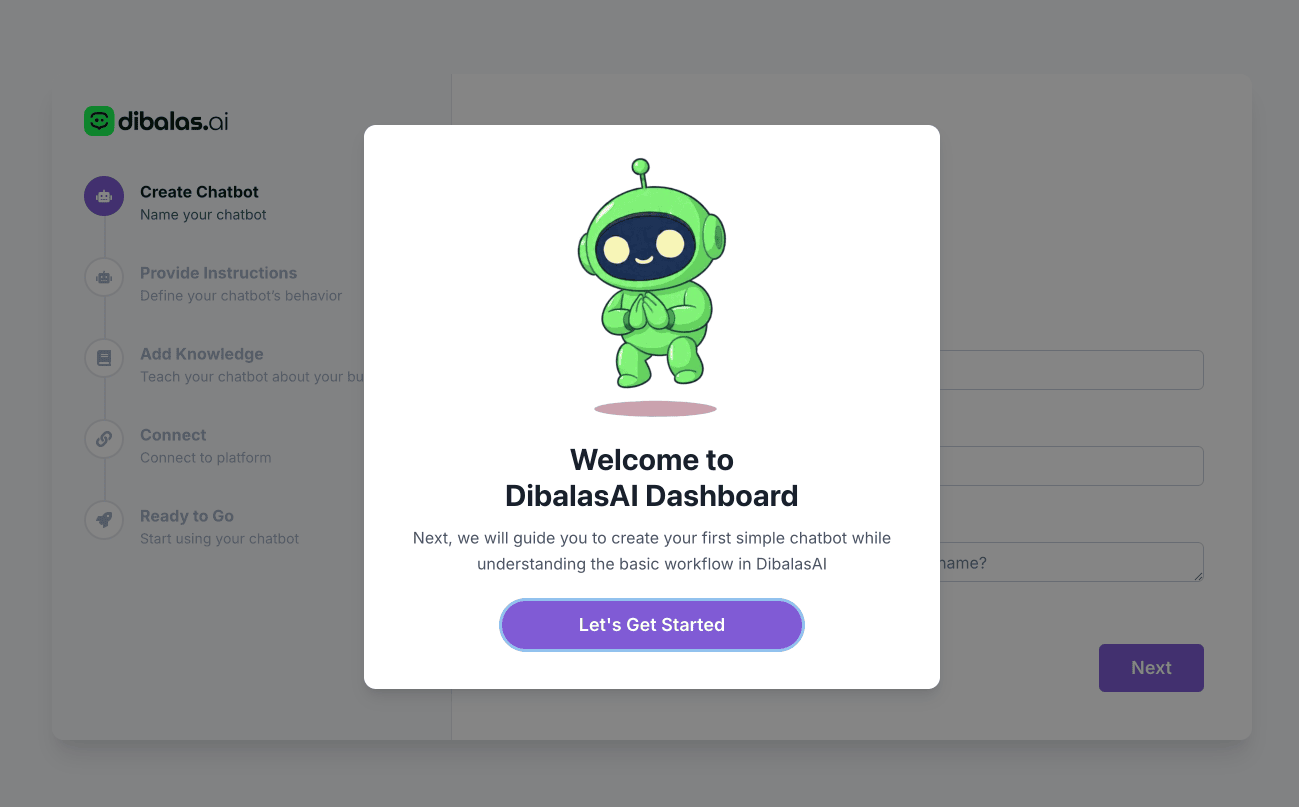
First Time Setup: When you log in for the first time, you will be guided to create your first chatbot. This step is very simple:
- Identity: Determine the name and tone of voice of your chatbot (e.g., friendly, casual, or formal).
- Instructions: Direct how the chatbot should behave when receiving customer questions.
- Knowledge Base: Upload product information documents or FAQs to make your chatbot smarter.
- Integration: Select the platform you want to connect, such as WhatsApp or Instagram DM.
Done! Your chatbot is active and can be accessed via a public link: https://chat.dibalas.ai/your_username.
More Information: Please see the full guide in the Account Guide.
2. Using the Android App
The Android version is more practical for automating messages directly from your mobile device by reading incoming notifications on your phone.
Steps:
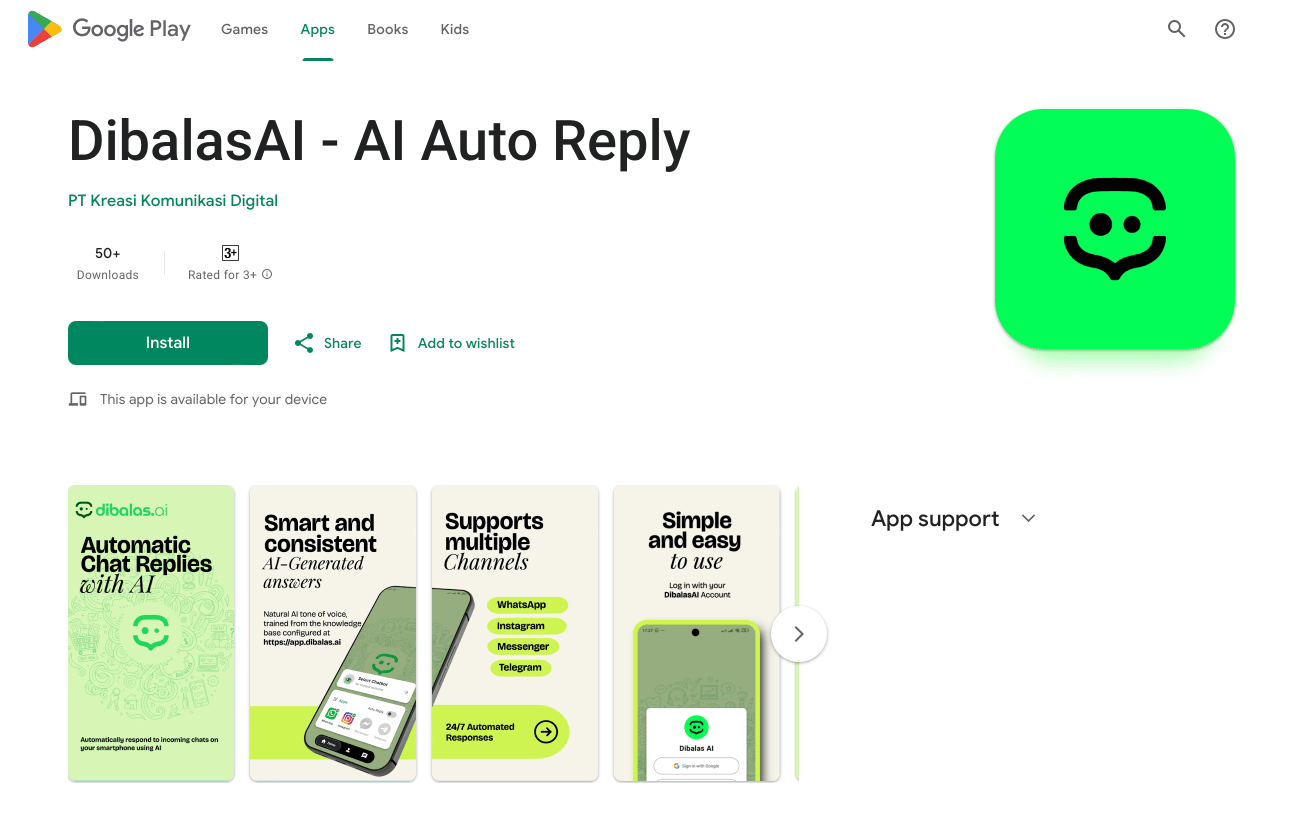
- Download the DibalasAI app on the Google Play Store.
- Important: When opening the application for the first time, make sure you grant Notification Access Permission.
- This permission is required because the application works by detecting incoming message notifications (such as from WhatsApp) to then send automatic replies directly from your device.
More Information: Please study the complete guide in the Android App Guide.