Password Management
How to change, reset, and recover your account password.
Keeping your account secure is very important. DibalasAI provides facilities to change and recover your password. How to change the password will differ slightly depending on how you first registered (using Google or manually registering with Email).
How to Change Password
1. If Registered with Google
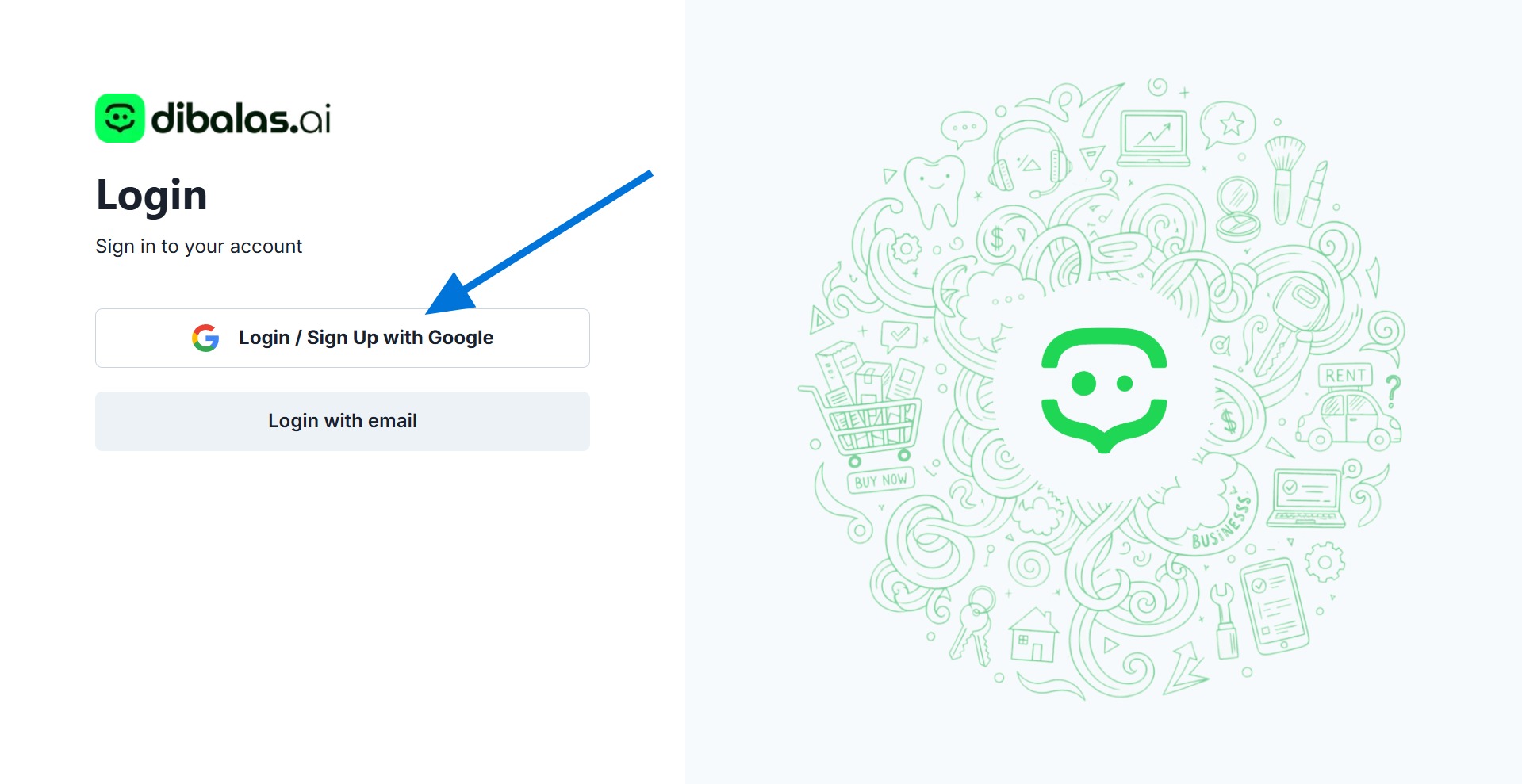
If you registered using the "Sign in / Register with Google" button, your account by default does not have a specific password in our system. However, you can still create a password to be able to log in manually:
-
Make sure you are logged into the DibalasAI dashboard.
-
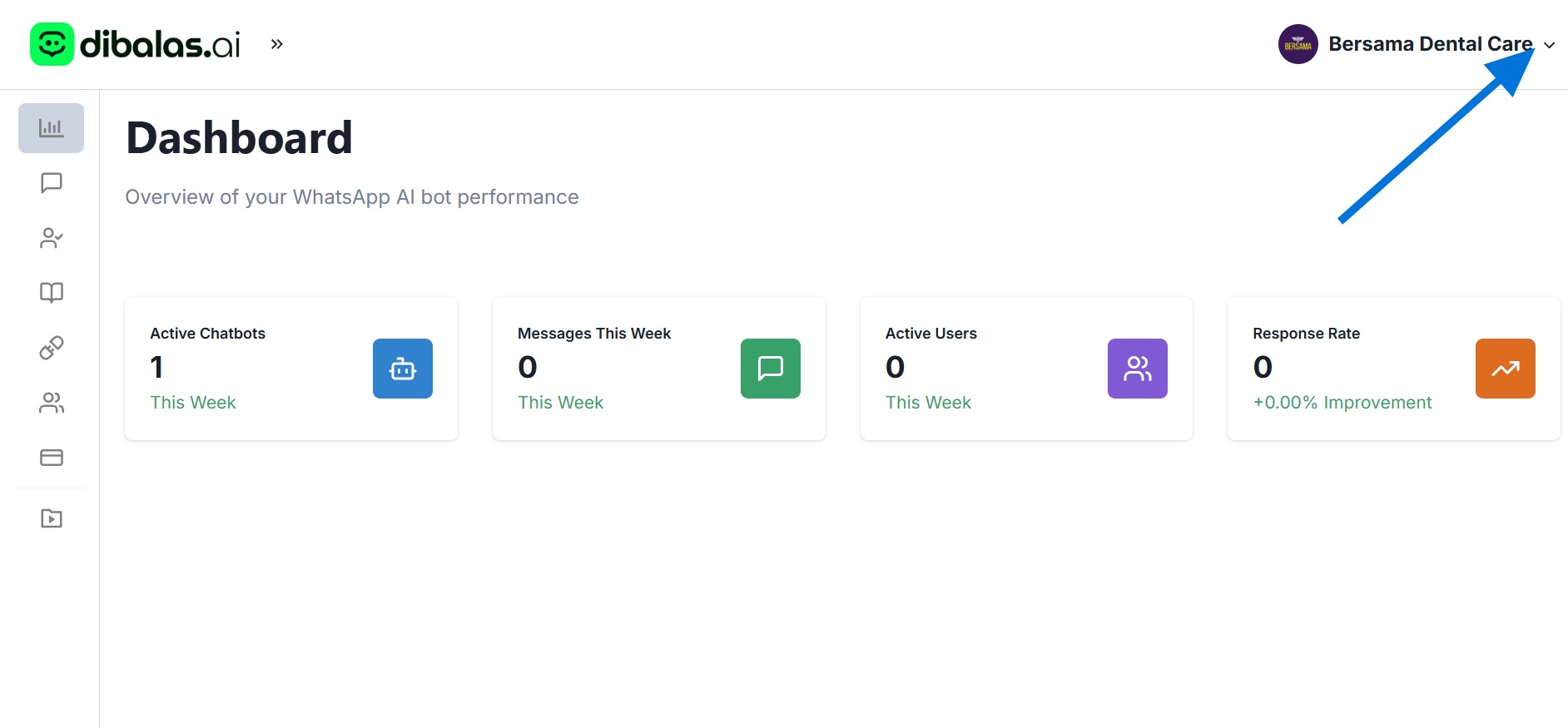
Click your username in the upper right corner of the screen to open the dropdown menu.
-
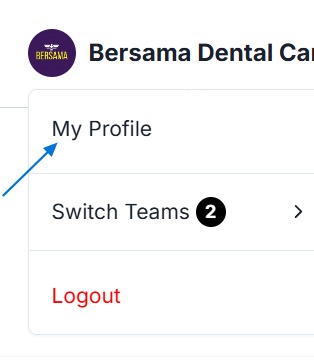
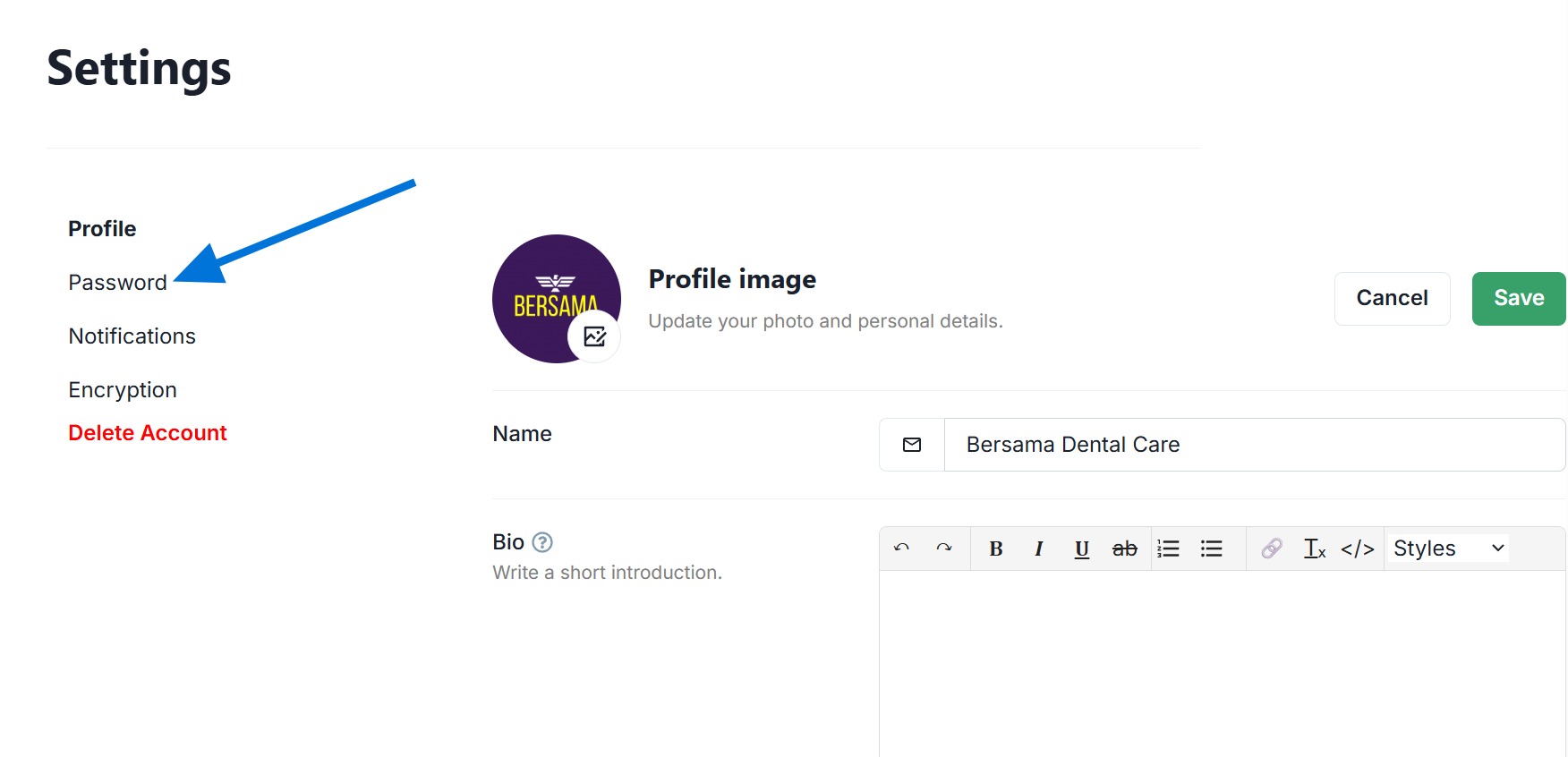
Select the My Profile menu.
-
Open the Password settings tab.
-
Click the Reset password button. The system will send a link to your email. Open your email inbox, then click the link to set a new password.
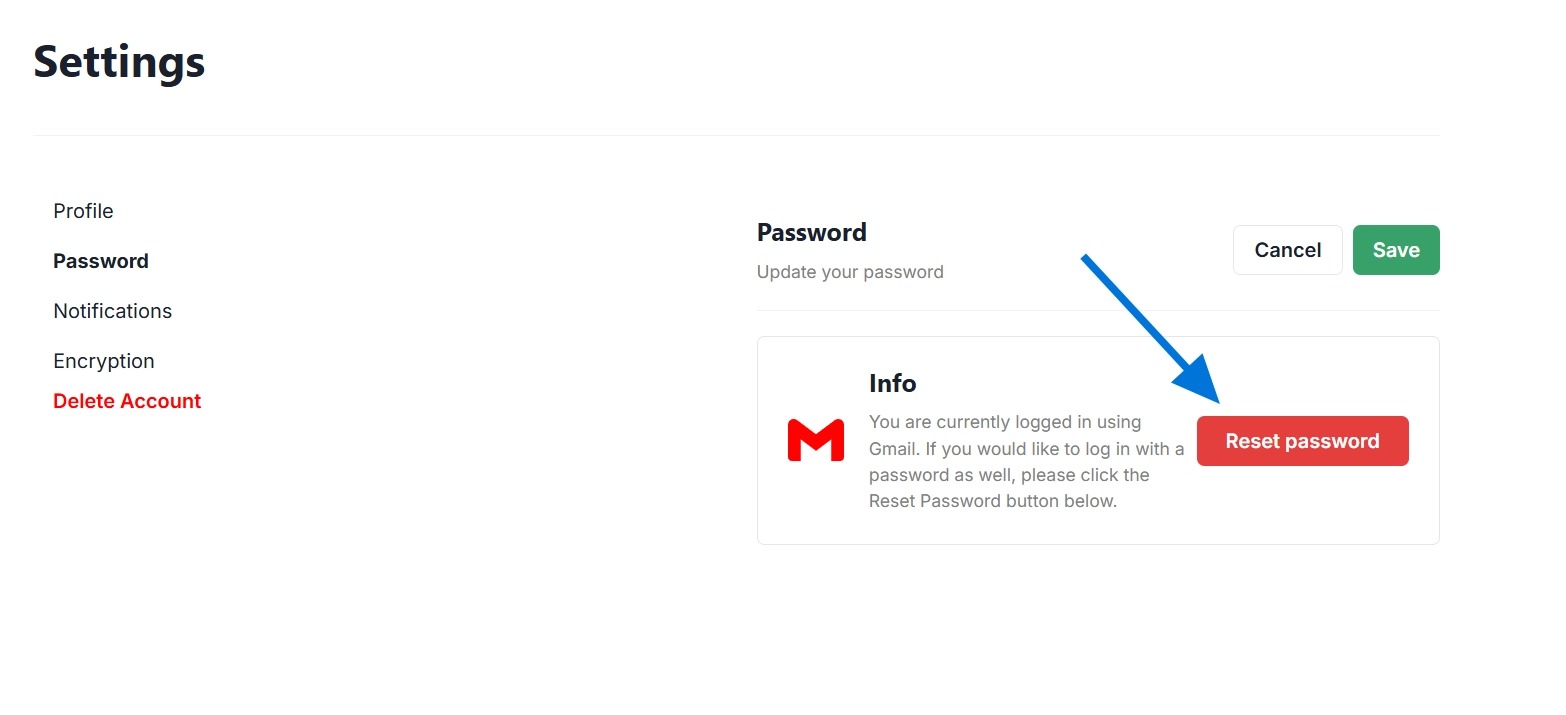
Note: After the password is successfully created, you now have the option to log in using a Google account OR log in manually using that email address and password.
2. If Registered Manually (with Email)
If you registered manually, you can directly update your old password from the profile page:
-
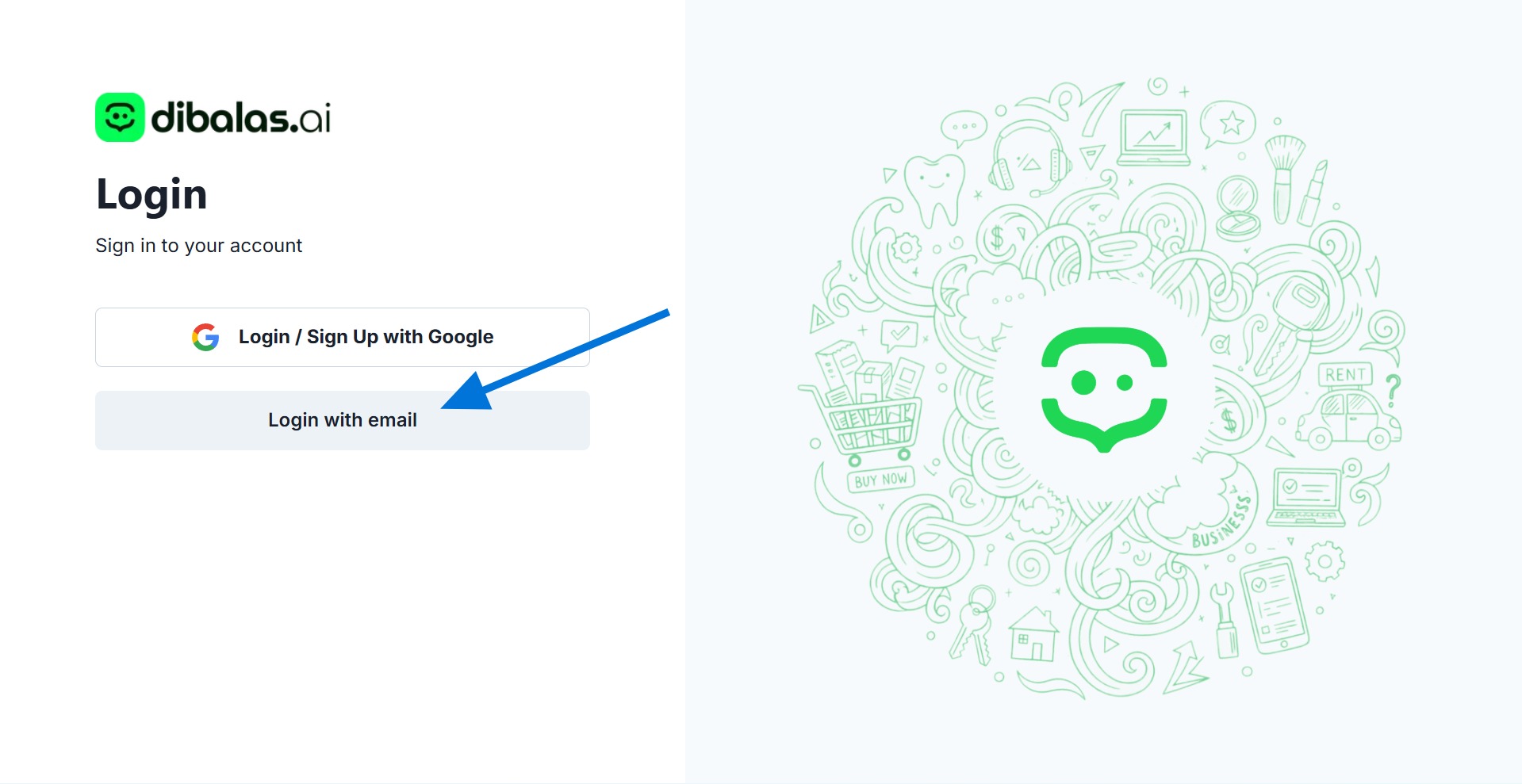
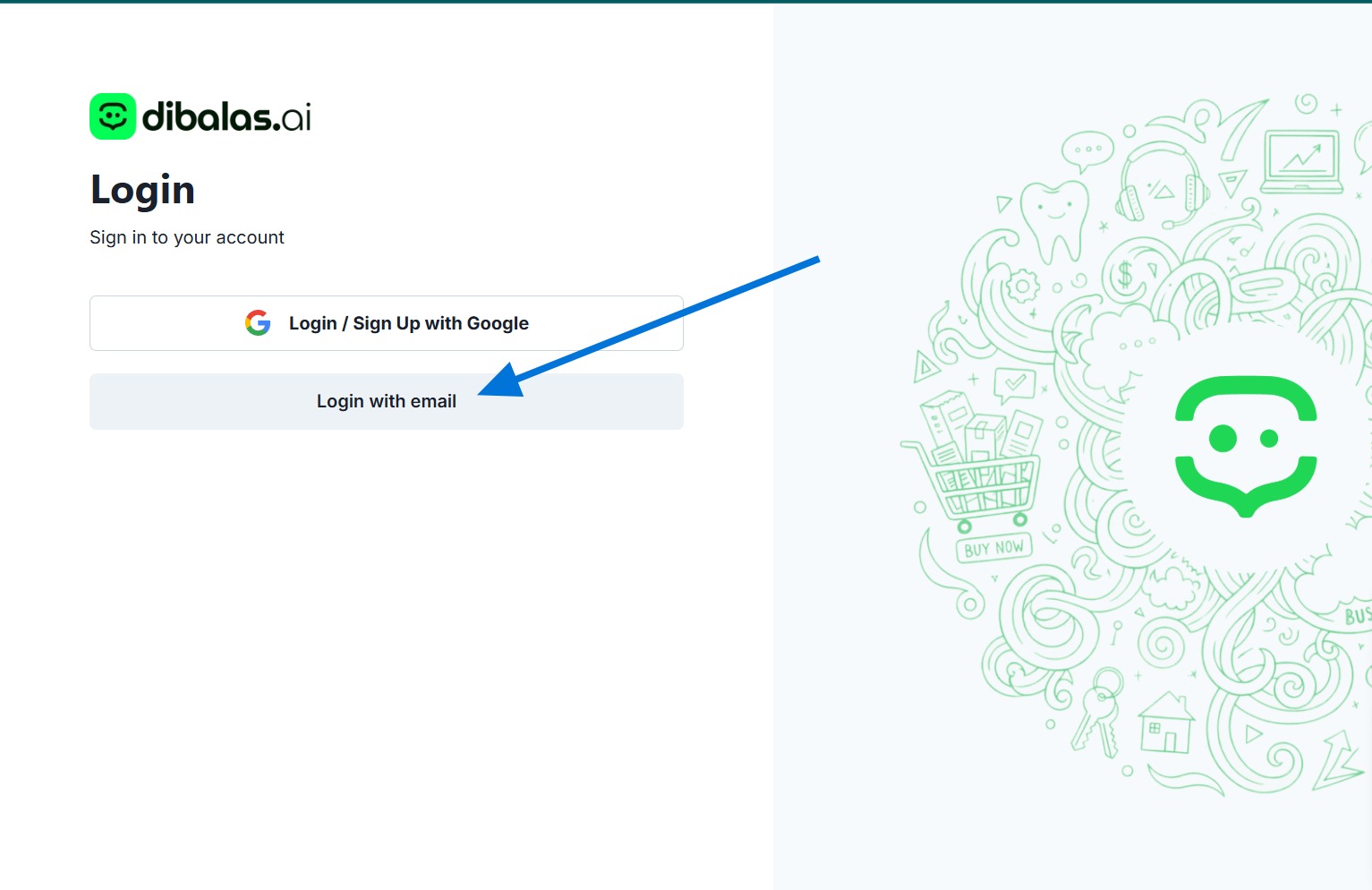
On the login page, select Login with email.
-
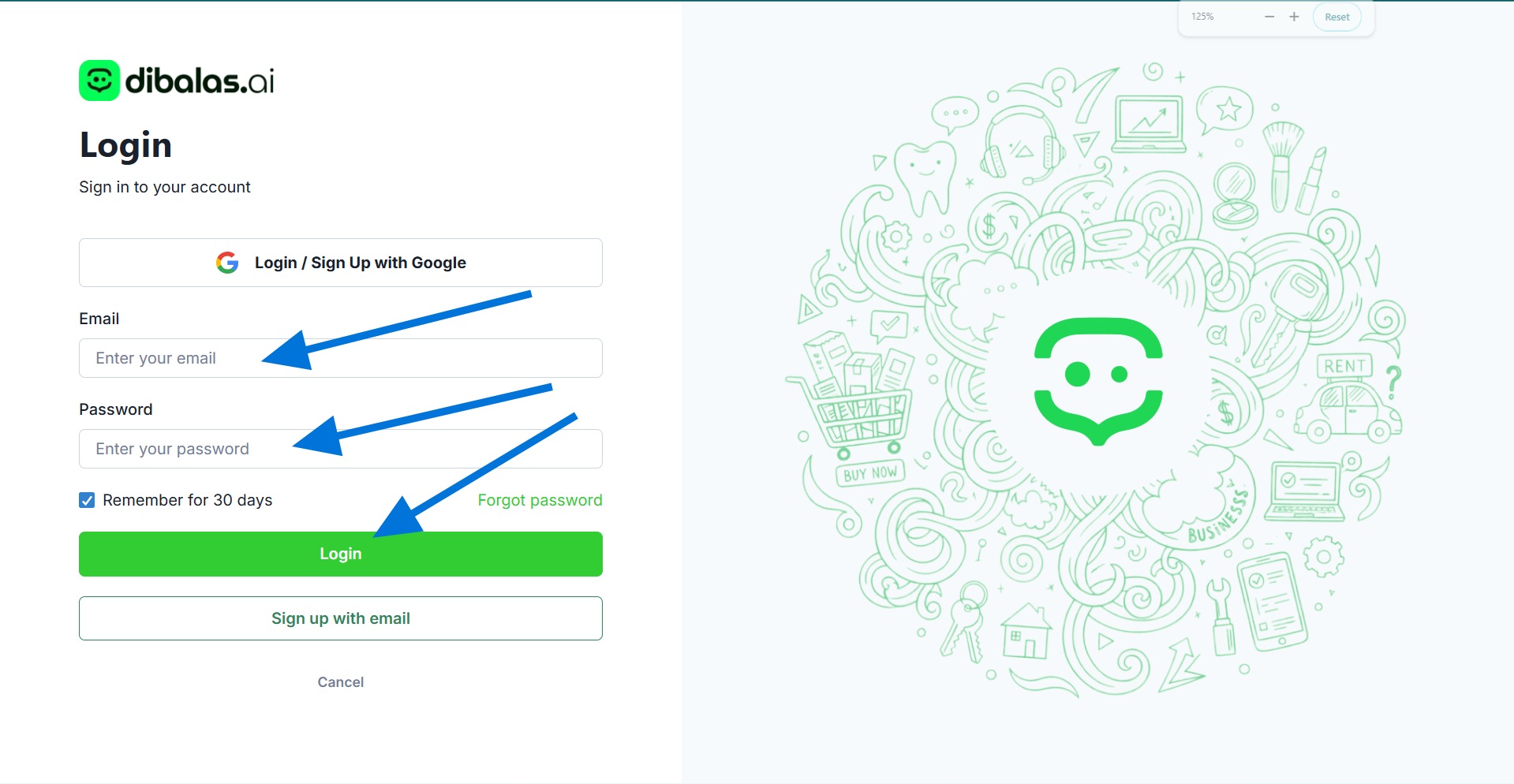
then enter your credentials and click login.
-
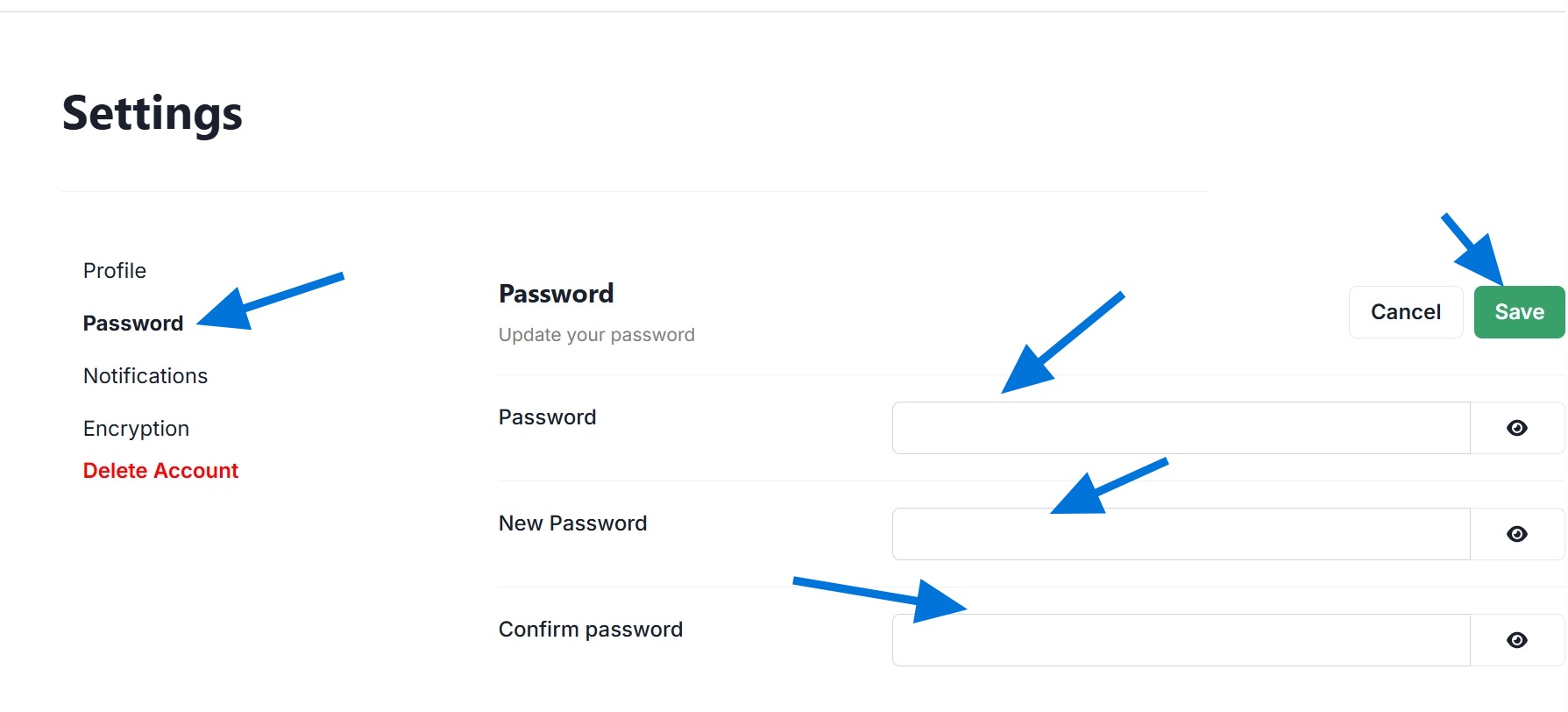
Navigate to your profile page.
-
Fill out the password update form:
- Enter your current password in the Password field.
- Enter the new password in the New password field.
- Retype the new password in the Confirm password field.
-
Click Save. Starting the next session, you must use this new password to log in.
How to Recover Password (Forgot Password)
If you forget your password and cannot log into the dashboard, you can reset it directly from the login page.
Steps:
-
On the main page, select Login with email.
-
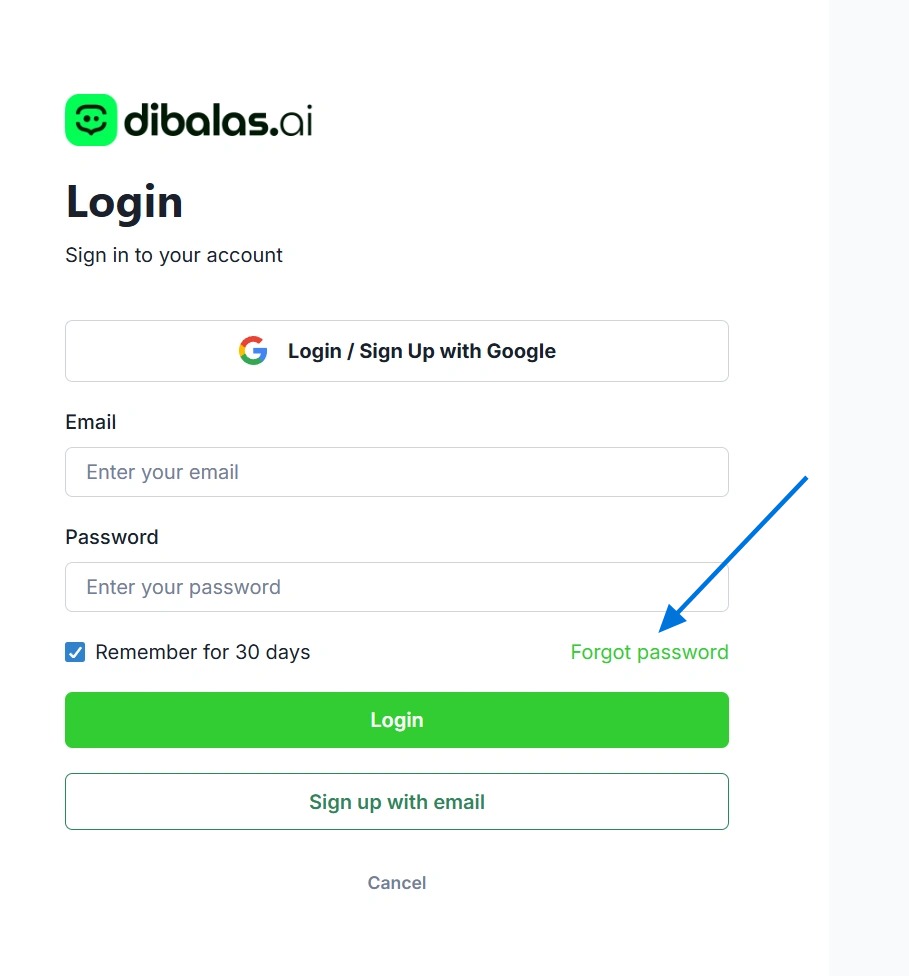
Click the Forgot password link located below the login form.
-
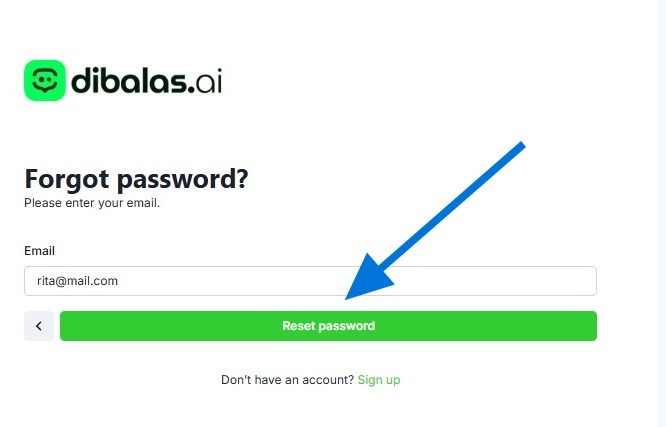
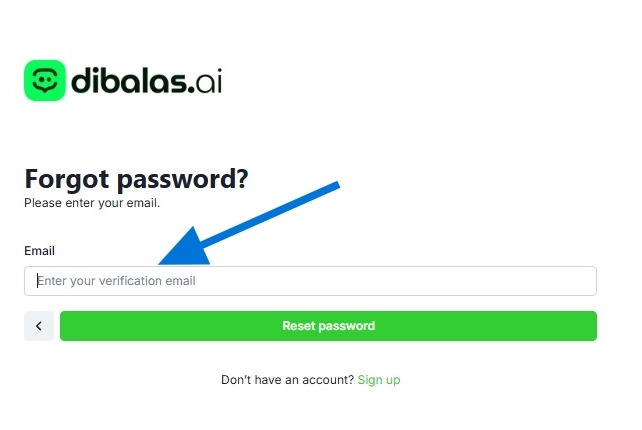
Enter the email address registered to your DibalasAI account.
-
Click the Reset Password button. The system will send recovery instructions to your email. Check your inbox, then click the provided link to create a new password.