Profile Management
How to manage your profile information, photo, and account preferences.
You can personalize your DibalasAI account by updating basic profile information, changing your password, and setting notification preferences.
Steps to Access Profile:
- Log into the DibalasAI dashboard using your account.
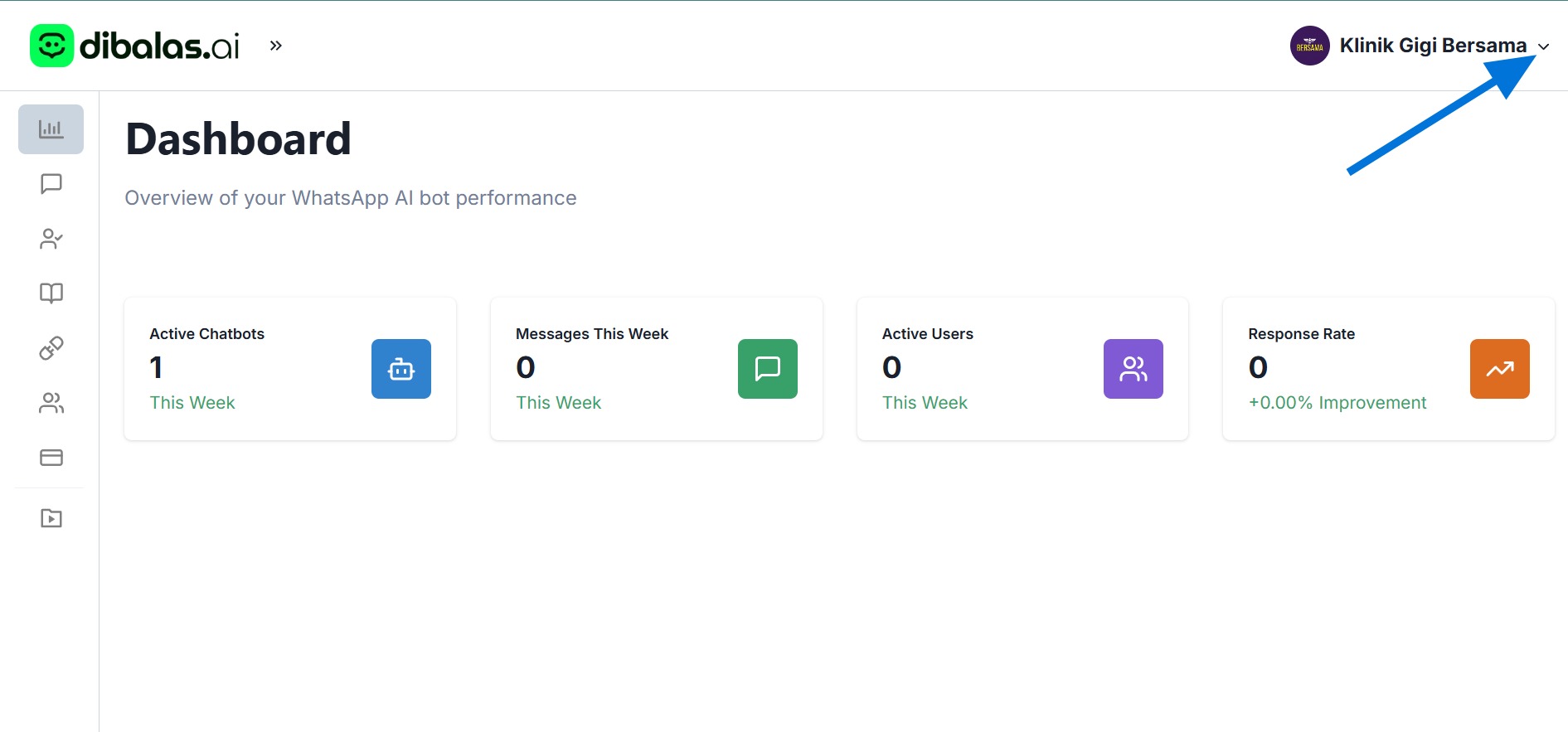
- Click your username in the upper right corner of the screen to open the dropdown menu.
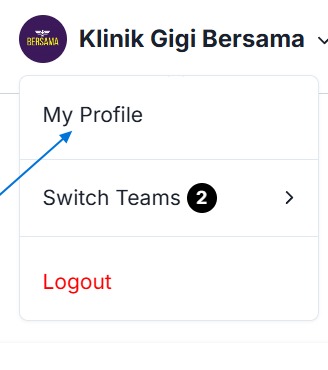
- Select the My Profile menu.
Changing Basic Information
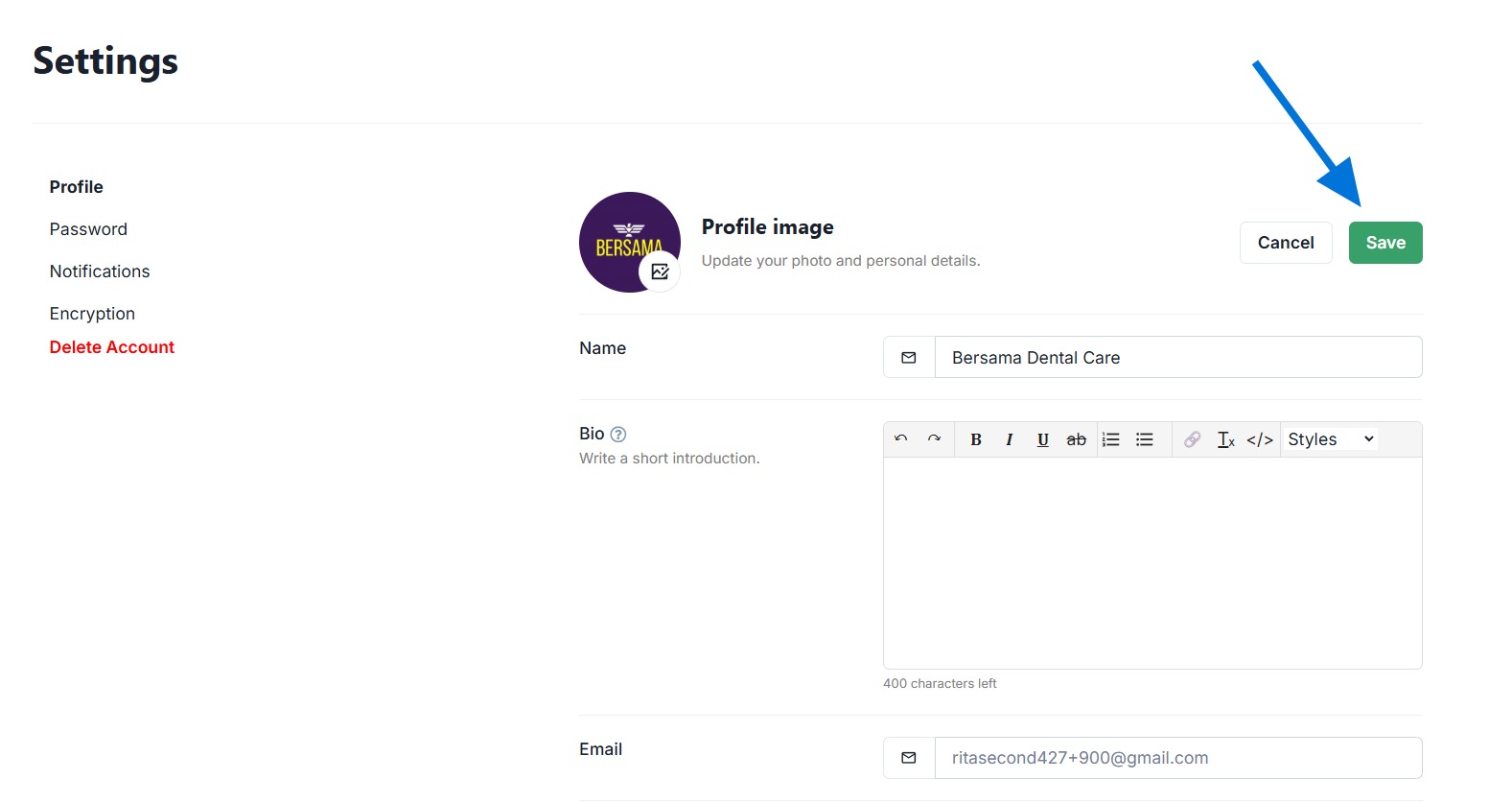
On the main profile tab, you can update the following information:
- Profile Photo: Upload your photo or company logo.
- Display Name: Change the name that will appear on the dashboard and team conversations.
- Description: Add a bio or a brief introduction about yourself.
- On this page, you can also see your email address information and the list of Teams you are a part of.
- Don't forget to click the Save button to confirm changes.
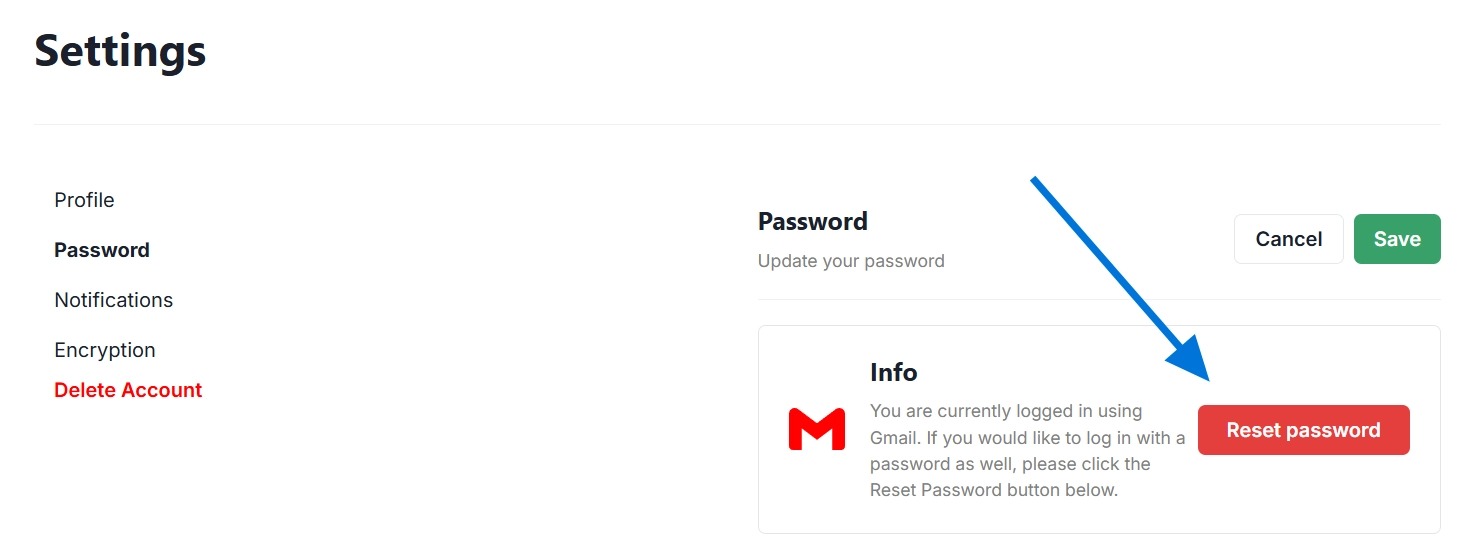
Updating Password
You can navigate to the Password tab to periodically update your account password to maintain security.
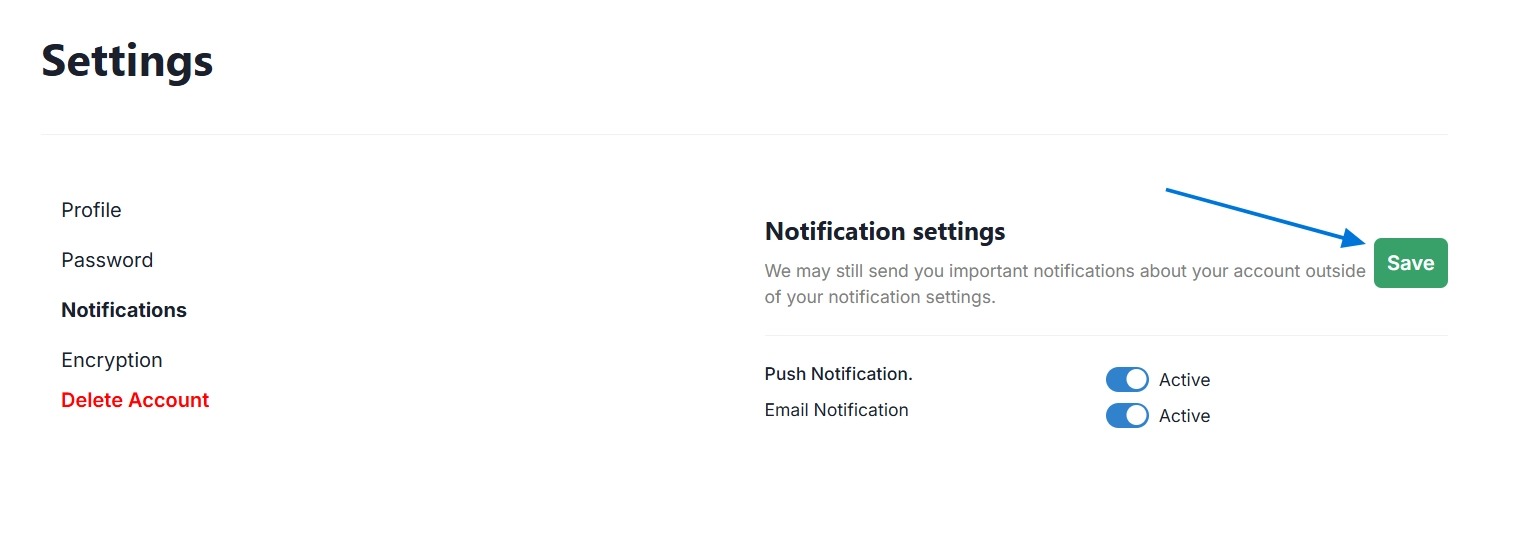
Setting Notifications
On the Notifications tab, you can control what types of alerts or emails you want to receive from the DibalasAI system. Click Save after adjusting your preferences.
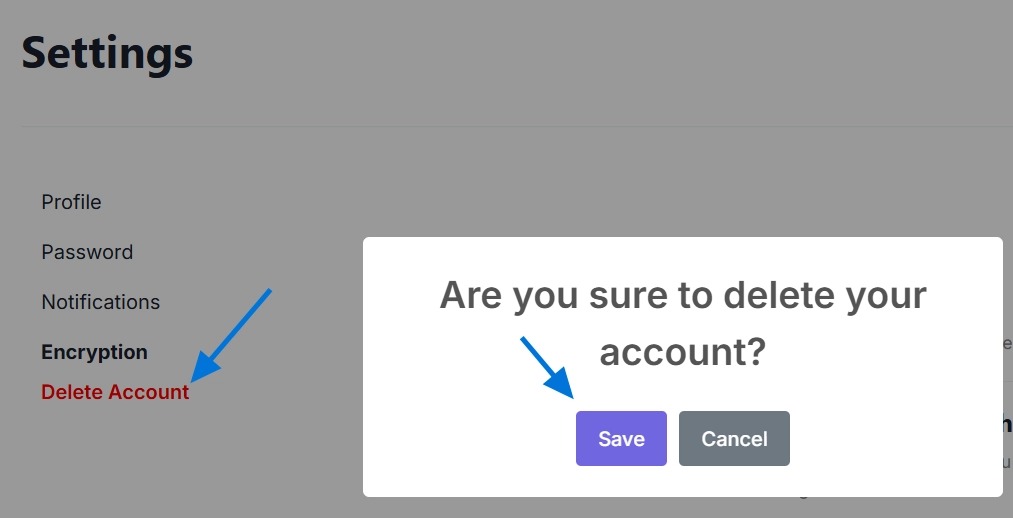
Deleting Account
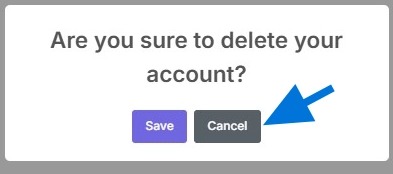
If necessary, you have the option to permanently delete your DibalasAI account. Please be careful as this action cannot be undone.
Coming Soon: Inbox Encryption
Note: This feature is still in development (Coming Soon).
In the future, you will be able to encrypt your inbox with partial end-to-end encryption for extra protection.
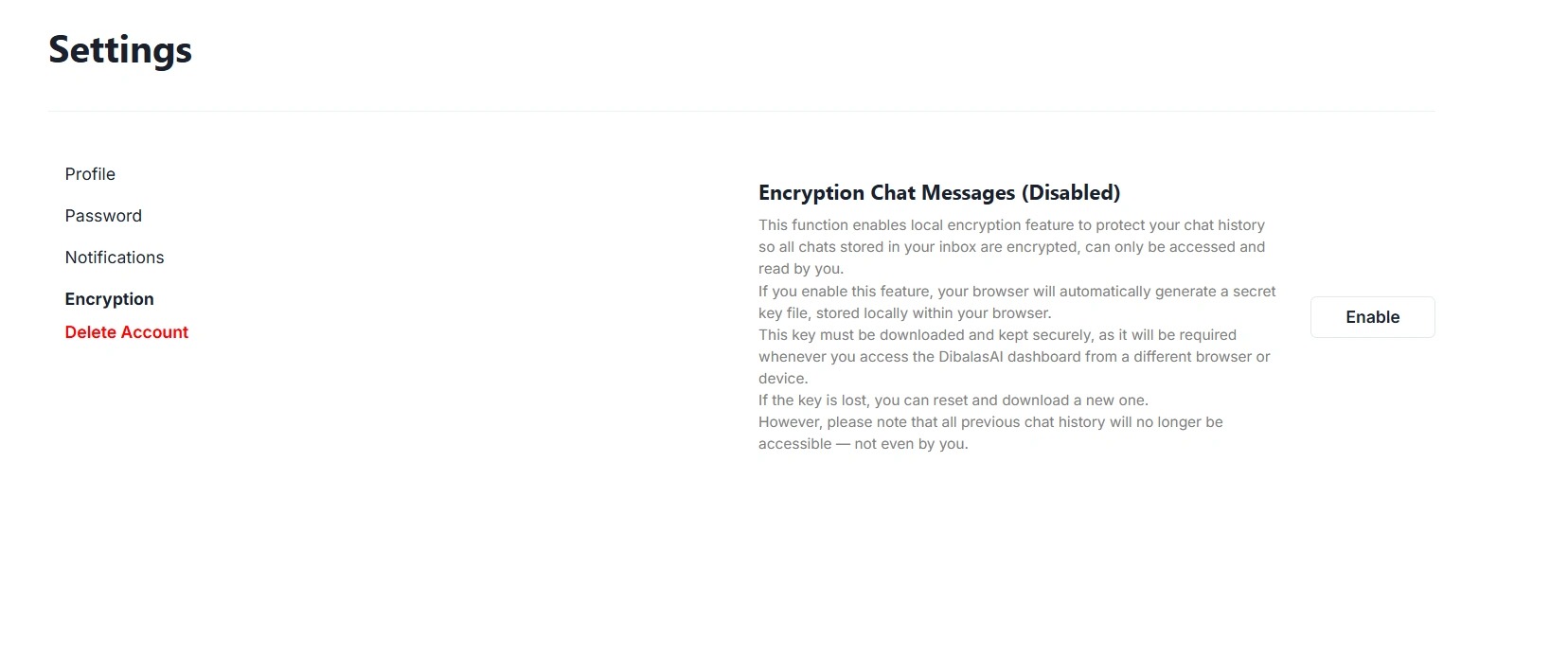
Below is an overview of the encryption settings page before the feature is activated. You will be given the option to activate it or not.
How Does This Encryption Work? DibalasAI will use partial end-to-end encryption to maintain the confidentiality of your conversation history. Although part of the decryption process is done on the server so the AI can still read the context and reply to messages, the system is designed in such a way that DibalasAI never stores or knows your main decryption key.
This means the conversation history can only be read using a unique key stored locally in your browser. This key (passphrase) is generated automatically without complex interaction.
Important Warning:
- If the passphrase is lost (for example because you clear the browser cache/session), you must download it again and re-upload it to the system via the Profile > Encryption menu.
- If you completely lose the key and perform a reset, you will no longer be able to access old conversation history. All messages before the reset process will be marked as "hidden". Make sure you fully understand this mechanism before activating it later.