
Creating a Chatbot
How to create, edit, deactivate and delete an AI chatbot in DibalasAI.
Every conversation in DibalasAI is answered by an AI chatbot. You can create several chatbots in one team, for example one for sales and one for support.
Note: Only the team Owner and Managers can create chatbots. Members can't.
Creating a chatbot
-
Log in to the DibalasAI dashboard.
-
Open Chatbots in the left sidebar.
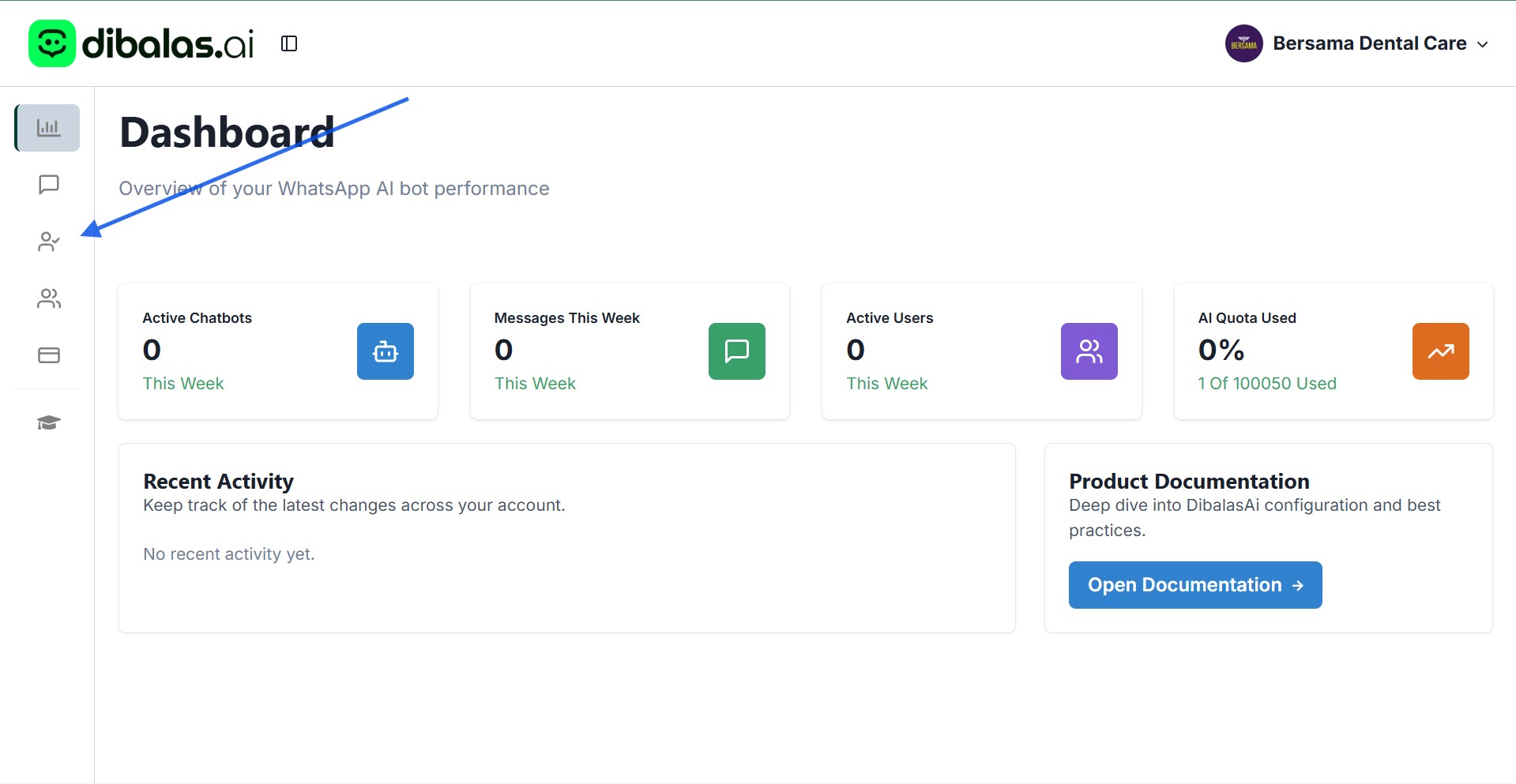
-
Click Create New AI Chatbot.
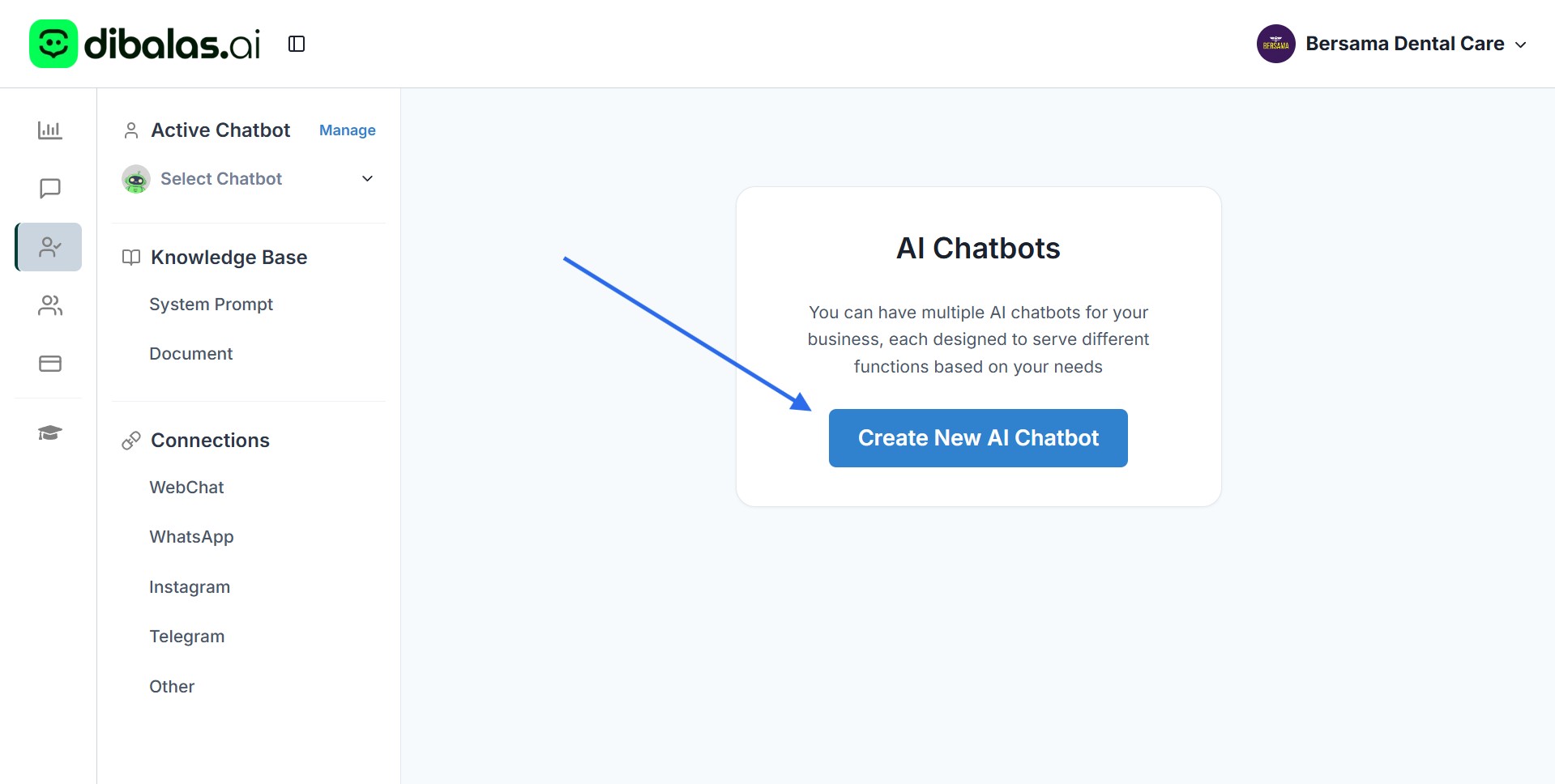
-
Fill in the form:
- Chatbot Avatar/Icon: a picture for the chatbot, such as your business logo.
- Chatbot Name: for example, "Maju Store Assistant".
- Chatbot Role: what the chatbot does, for example "Customer Service".
- Greeting message: the first message a customer sees when they start a chat.
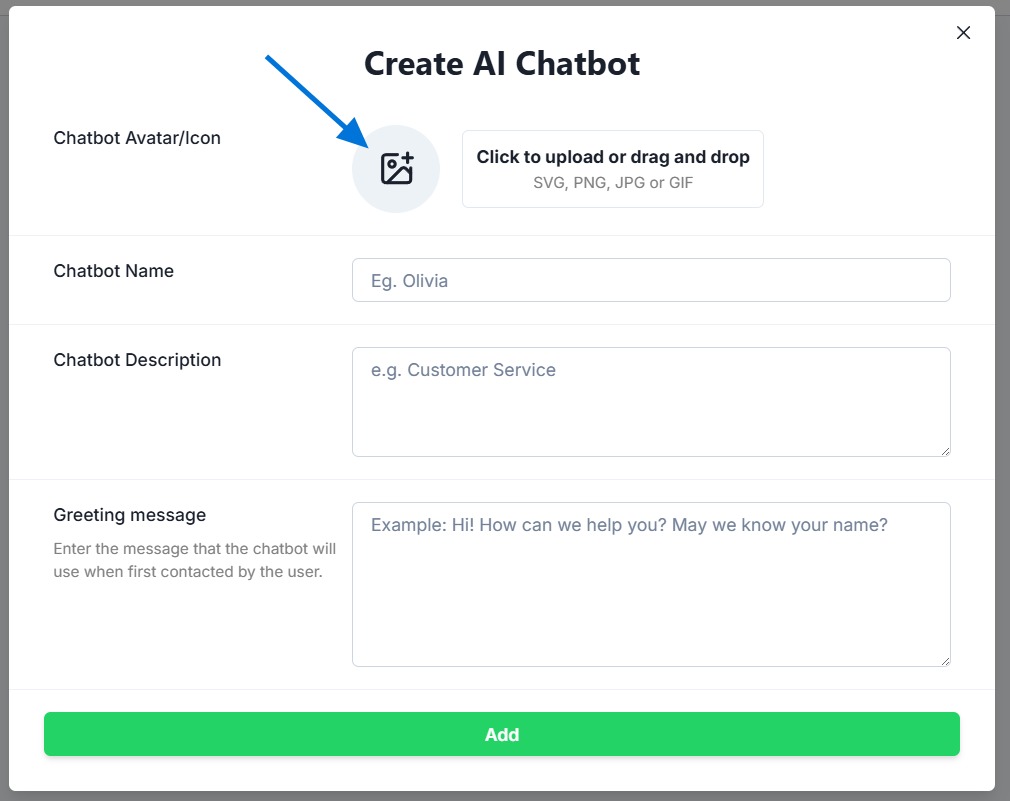
-
Click Add.
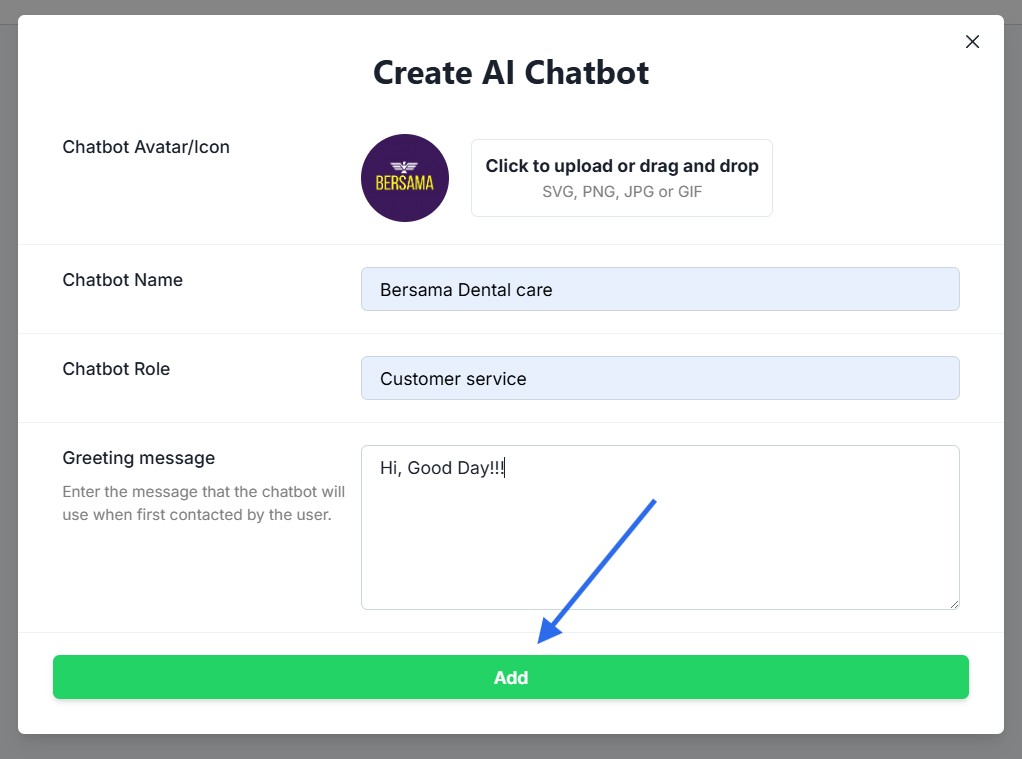
-
The new chatbot appears in the Chatbots list.
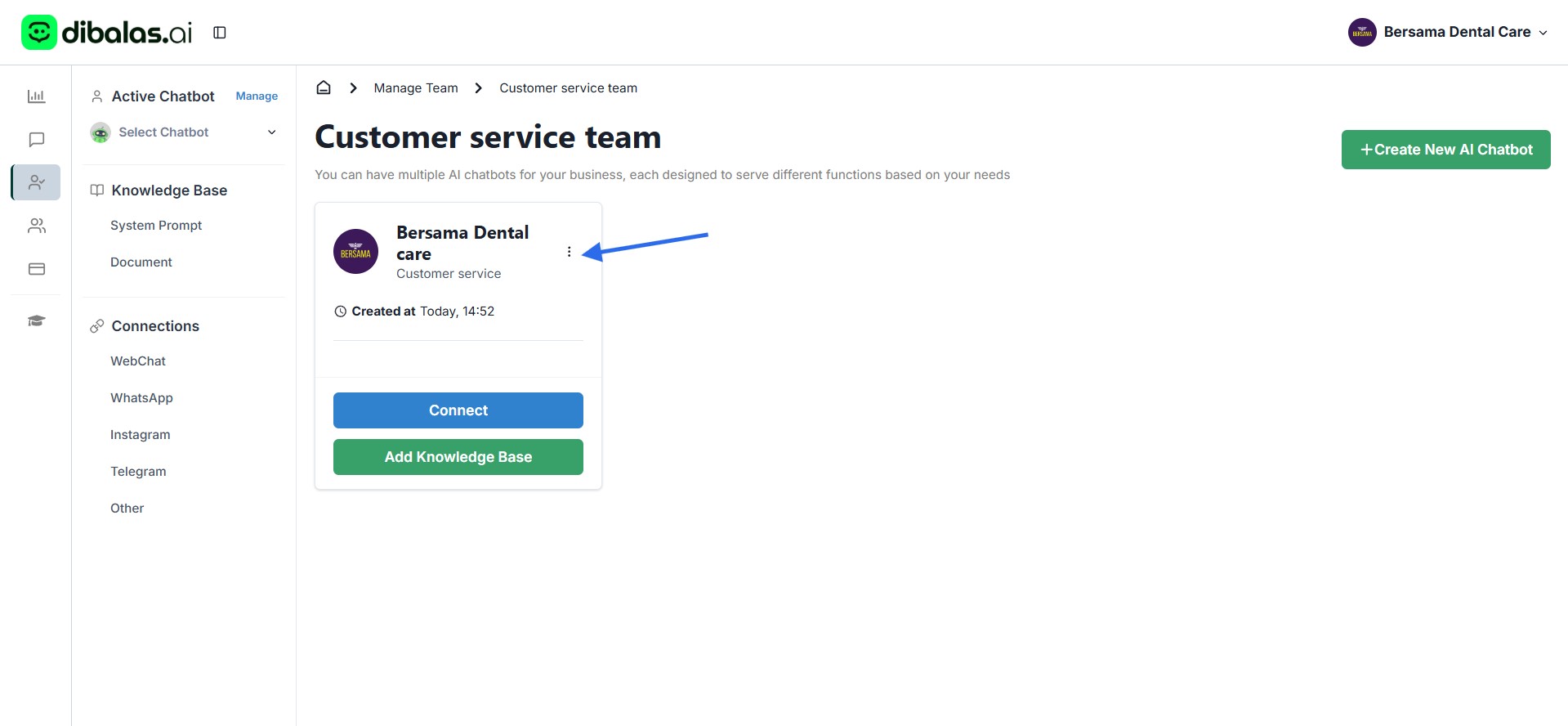
Next, give the chatbot instructions and documents in the Knowledge Base, then connect it to a channel in Connections.
Activating and deactivating a chatbot
Each chatbot card has an active switch, and the edit form has a Chatbot Status setting. An inactive chatbot does not answer anyone, on any of its channels. The Dashboard shows a reminder when some of your chatbots are inactive.
DibalasAI can also deactivate chatbots by itself when your package expires and you have more chatbots than the remaining quota allows. See Plans & Pricing.
Editing or deleting a chatbot
- On the chatbot card on the Chatbots page, click the three-dot icon in the upper right corner.
- Select Edit to change the avatar, name, role, greeting or status.
- Select Delete to remove the chatbot permanently.
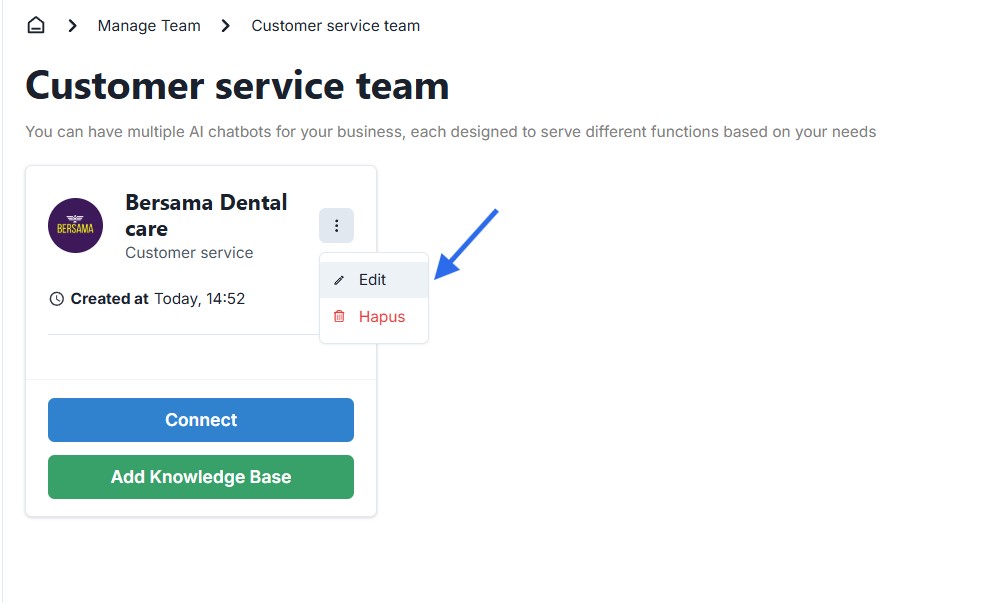
The Owner, Managers and the person who created the chatbot can edit or delete it.