
Adding Connections
How to connect a chatbot to your website, InstaChat, WhatsApp, Instagram, Telegram and the Android app.
A connection links a chatbot to a channel where your customers send messages. Each connection uses one slot of the Connections quota in your package. Only the team Owner and Managers can add or remove connections.
To open the connection settings:
- Open Chatbots in the left sidebar, then click Connect on the chatbot card.
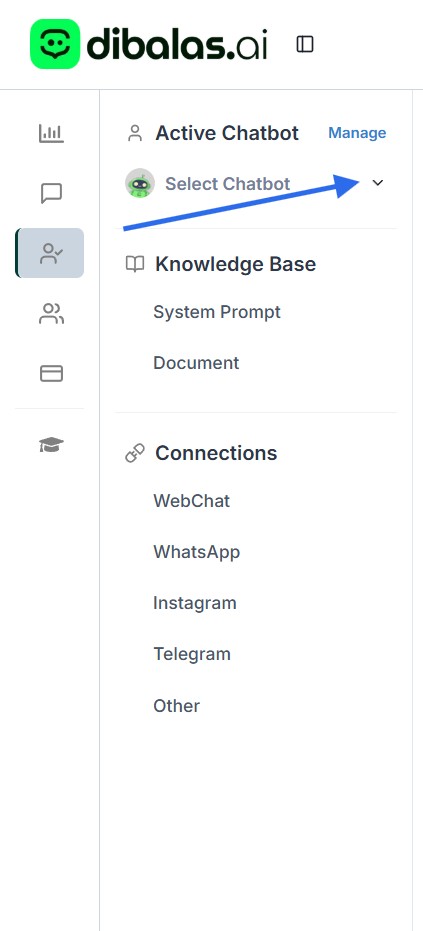
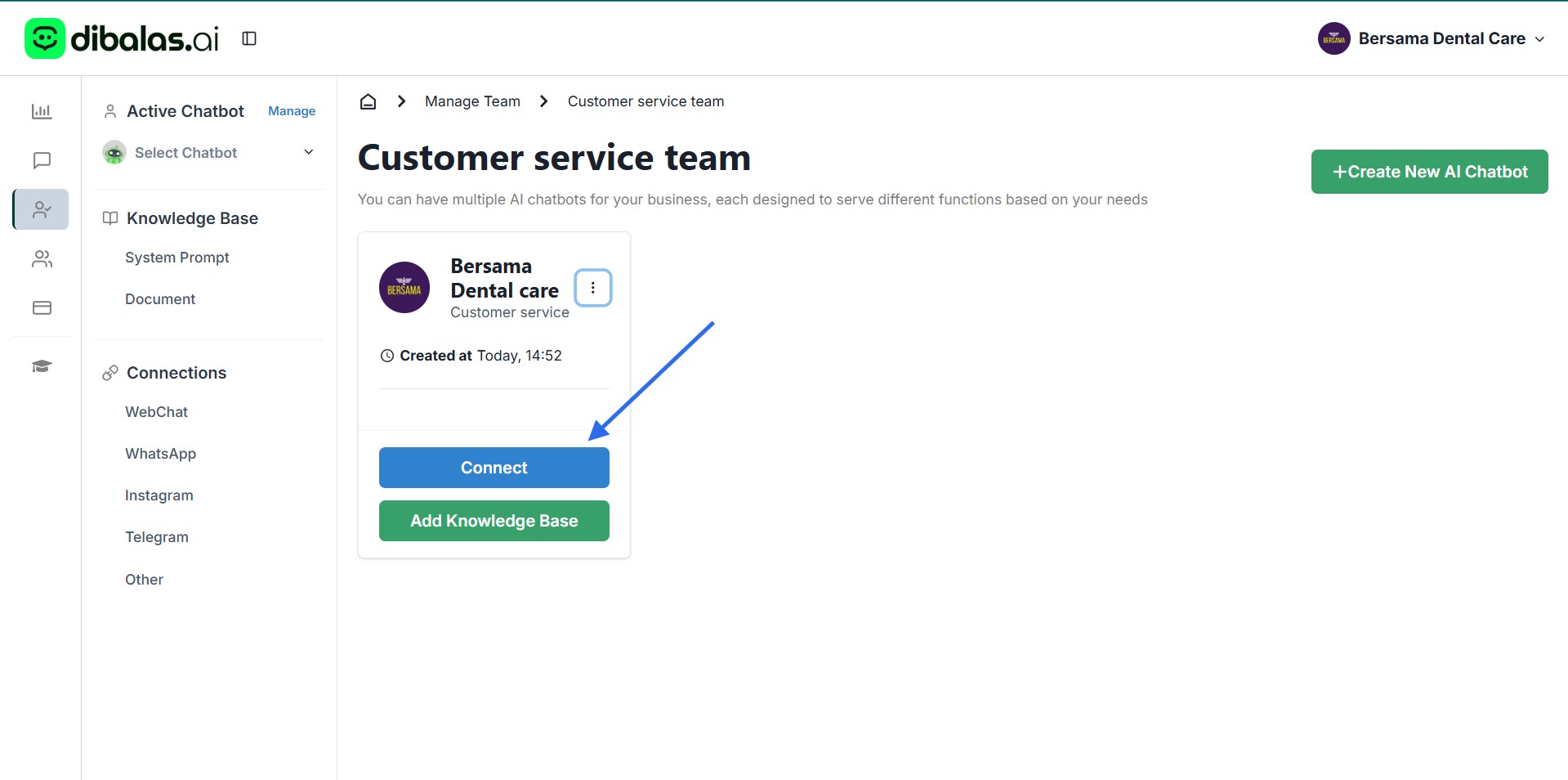
- Check that the right chatbot is selected in Active Chatbot at the top of the chatbot menu.
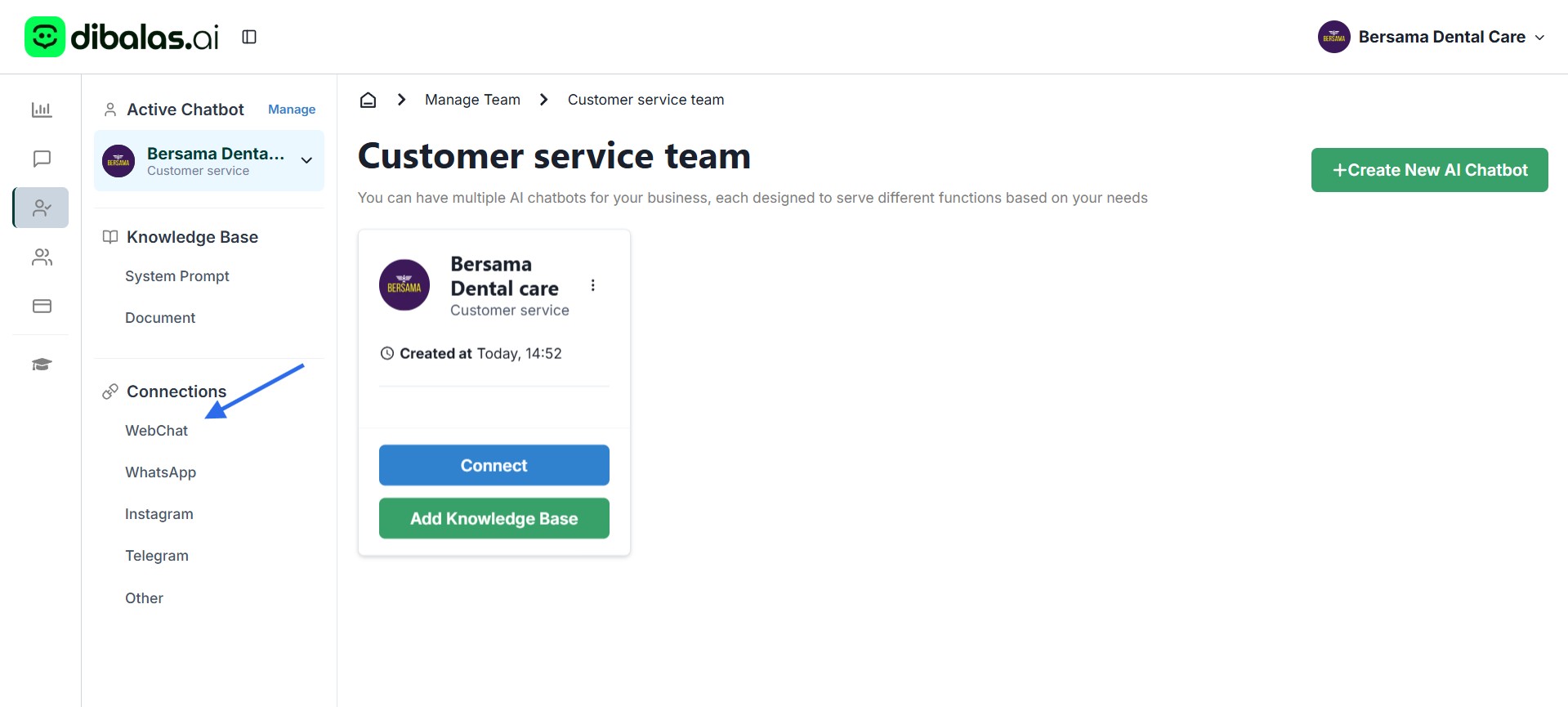
- Under Connections, pick a channel: WebChat, WhatsApp, Instagram, Telegram or Other (Android app).
1. WebChat: website widget or InstaChat
WebChat first asks whether you have a website:
- I have a website: you get a chat widget to install on your site.
- I don't have a website: you get InstaChat, a chat page with its own link.
Website widget
- Choose I have a website and fill in the widget settings:
- Logo: your business logo. If you leave it empty, the default icon is used.
- Header and Description: the text at the top of the chat window.
- Domain: the address of the website where you will install the widget.
- Enable Form: ask visitors for their name, email and phone number before the chat starts.
- Show Channel Shortcuts: show links to your other active channels (for example WhatsApp) inside the widget.
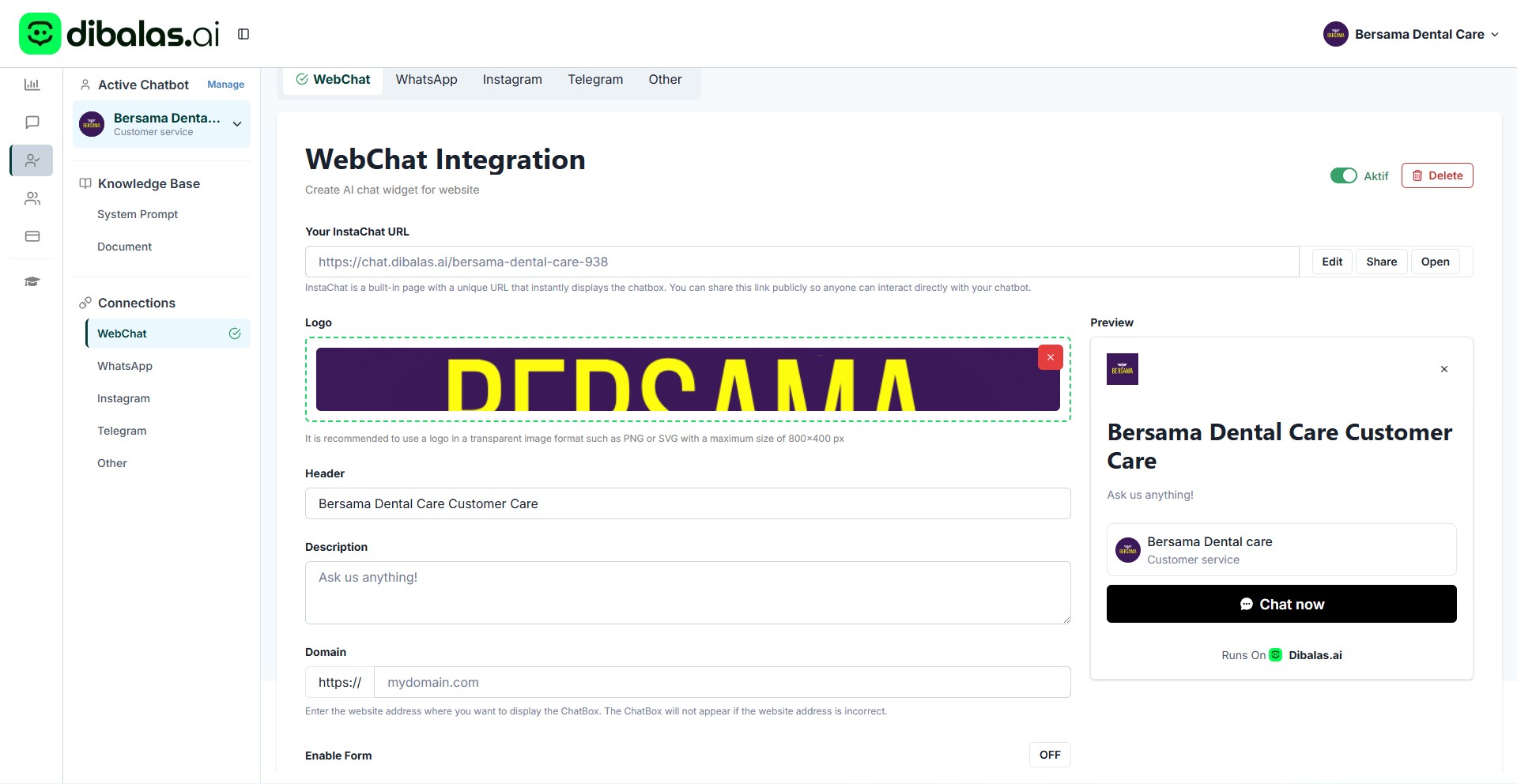
- Click Save Configuration.
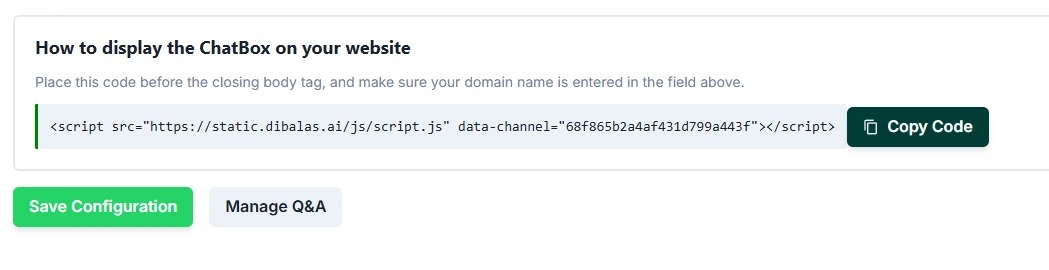
- Click Copy Code and paste the script just before the
</body>tag of every page where the widget should appear.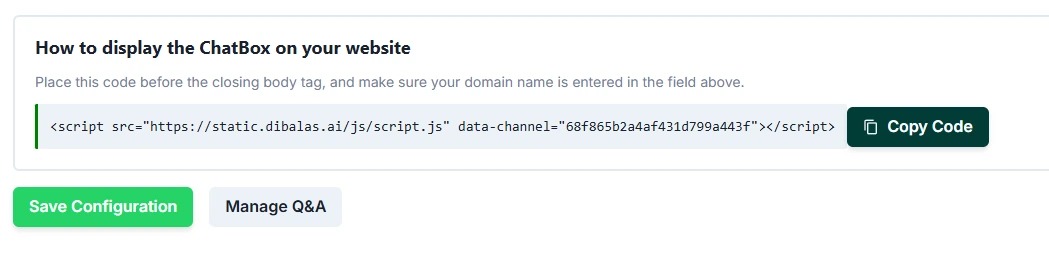
Ready-made questions (Q&A)
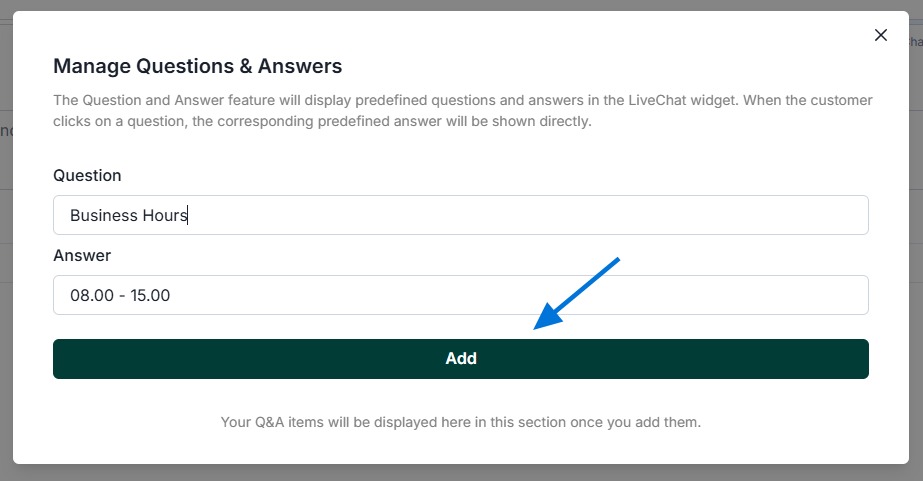
After you save the configuration, the Manage Q&A button appears. Q&A items show up in the widget as questions a visitor can click; the widget then shows the answer you wrote. They don't change what the AI knows: to teach the chatbot, use the Knowledge Base.
- Click Manage Q&A, type a Question and an Answer, then click Add.
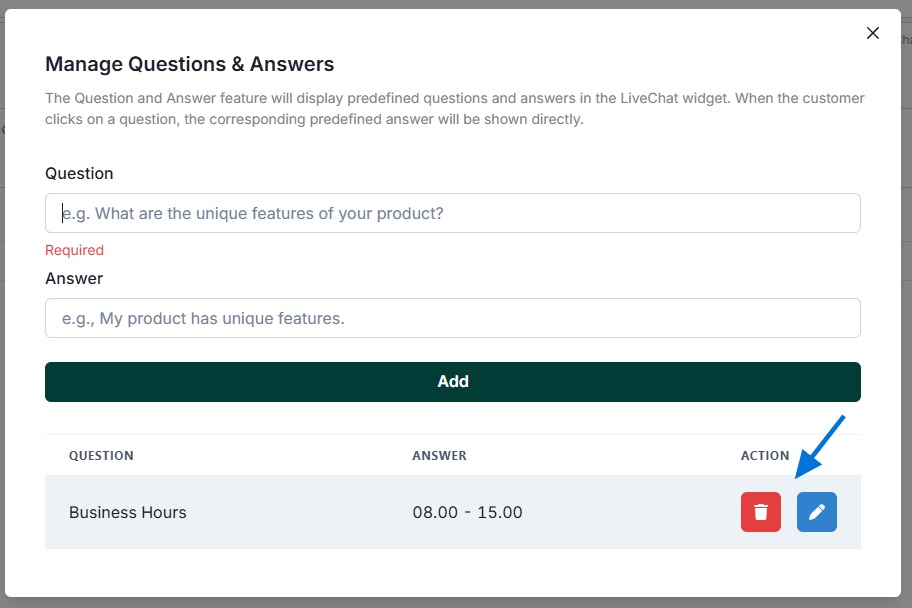
- You can edit or delete saved items in the list.
InstaChat
InstaChat is a page with its own link, for example https://chat.dibalas.ai/your-store, that opens a chat with your chatbot. Share the link on social media, in your bio or in a QR code; nobody needs to install anything.
- Choose I don't have a website and set the link for your page.
- Click Save Configuration, then Copy Link.
2. WhatsApp (official WhatsApp Business API)
DibalasAI connects to WhatsApp through Meta's official WhatsApp Business API. There are three ways to connect a number:
- Method A: keep using the WhatsApp Business app on your phone. Connect the number you already use in the WhatsApp Business app.
- Method B: register a new number. Register a number that has never been used with the WhatsApp API.
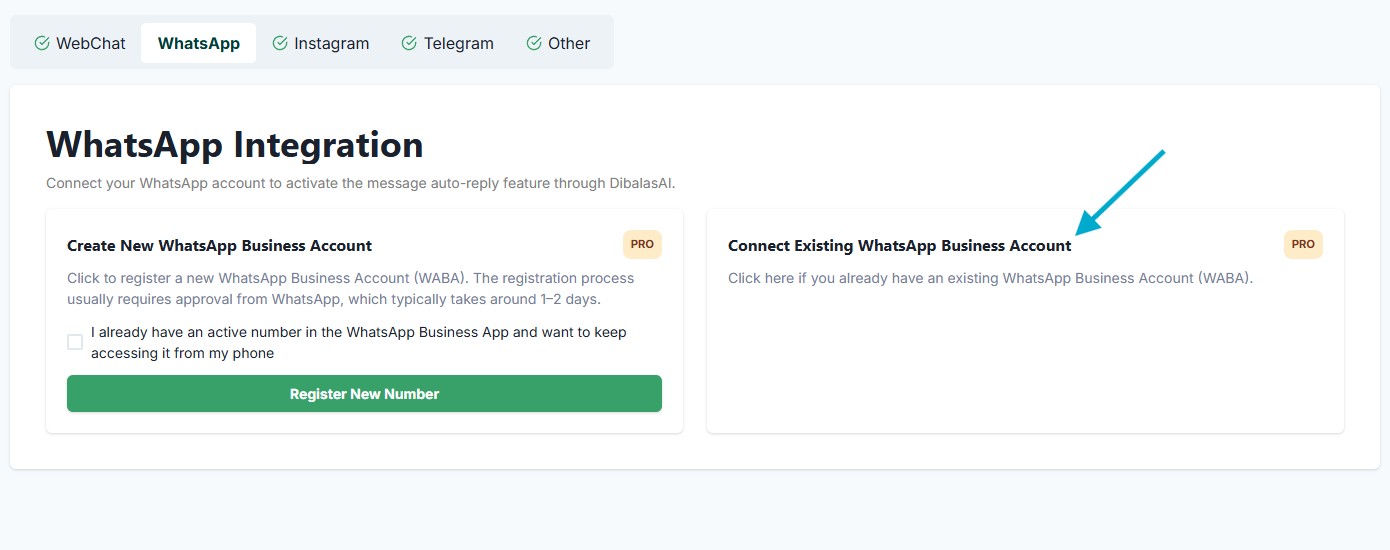
- Method C: use an existing WhatsApp Business Account (WABA). Connect an API account you already have.
Methods A and B start from the Create New WhatsApp Business Account card. Method C uses the Connect Existing WhatsApp Business Account card.
Method A: keep using the WhatsApp Business app
Use this method if your number is already active in the WhatsApp Business app and you want to keep using the app on your phone. It is the simplest method, and you don't need to set up a separate API account.
- Tick "I already have an active number in the WhatsApp Business App and want to keep accessing it from my phone".
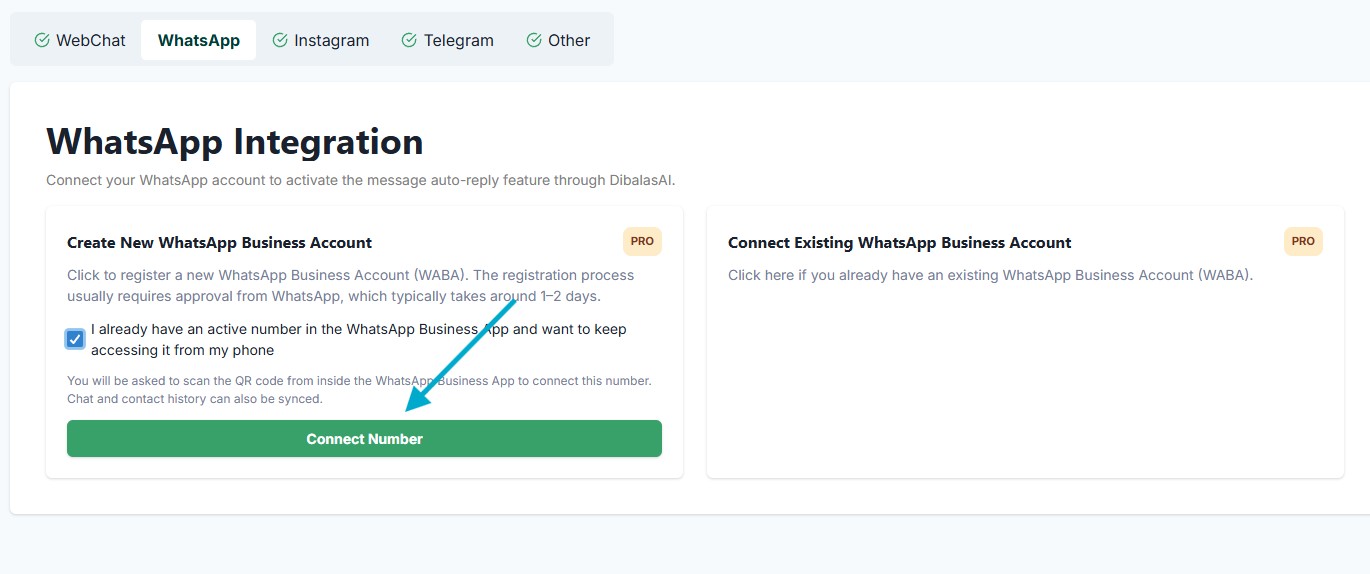
- Click Connect Number.
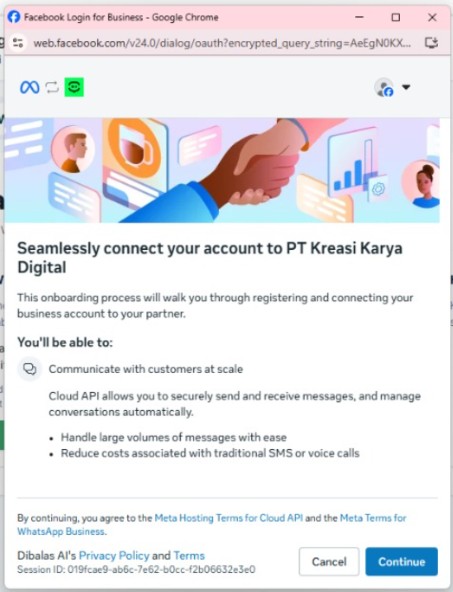
- Click Continue.
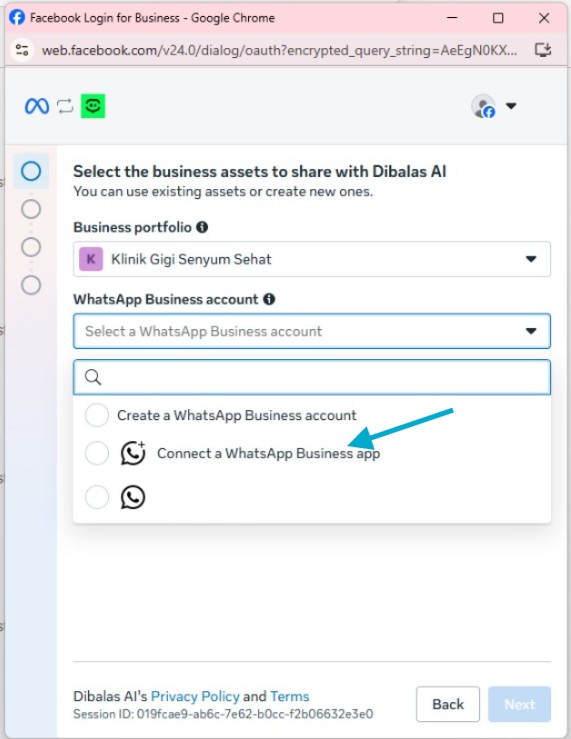
- Select Connect a WhatsApp Business app.
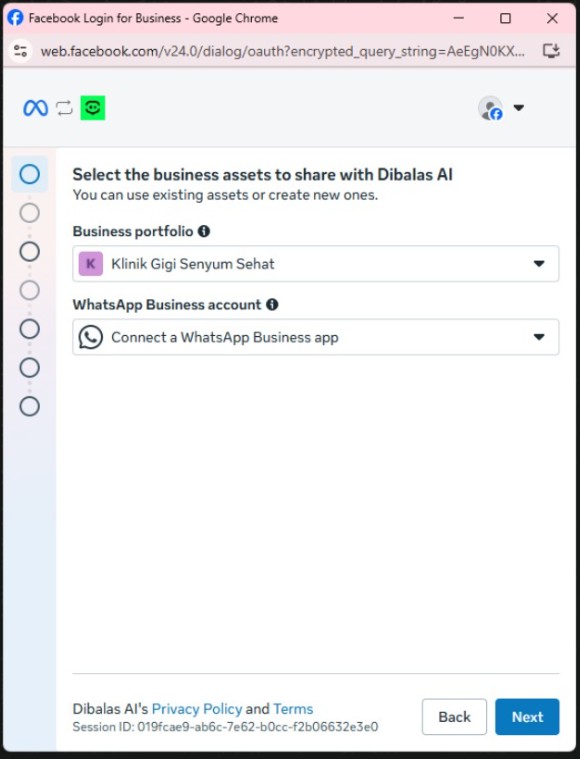
- Click Next.
- Enter the WhatsApp Business number you use now. The number must be registered in WhatsApp Business and active (it must have at least one message).
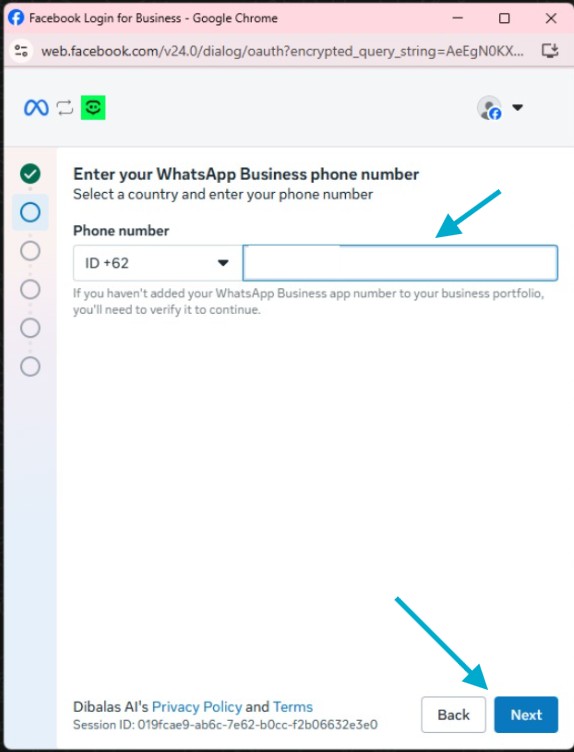
- Click Next.
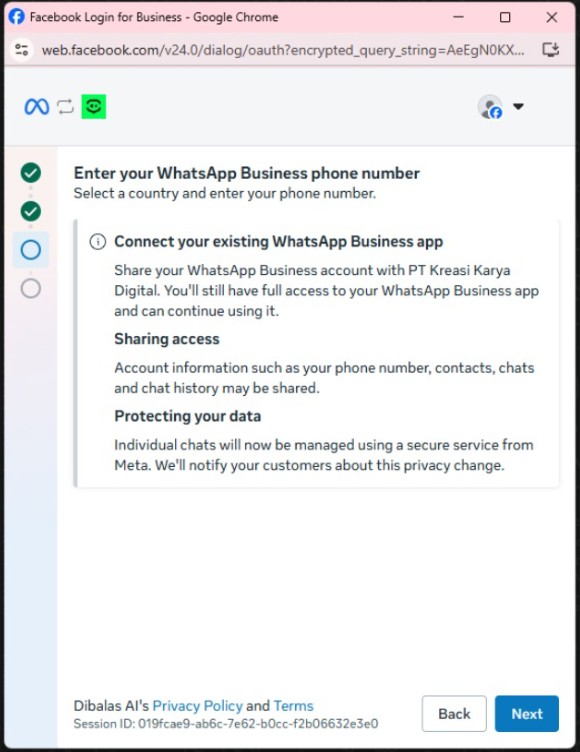
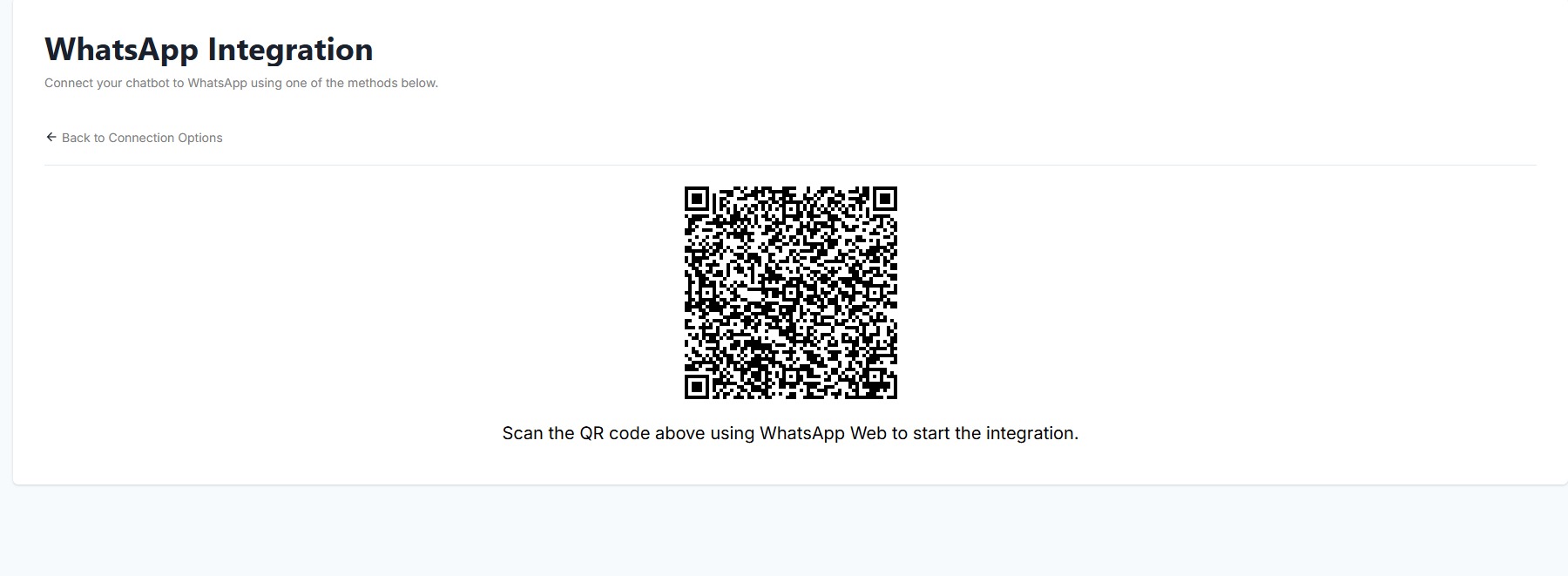
- On your phone, open Settings in WhatsApp Business, tap the QR icon next to your name, open the Scan Code tab and scan the QR code on screen.
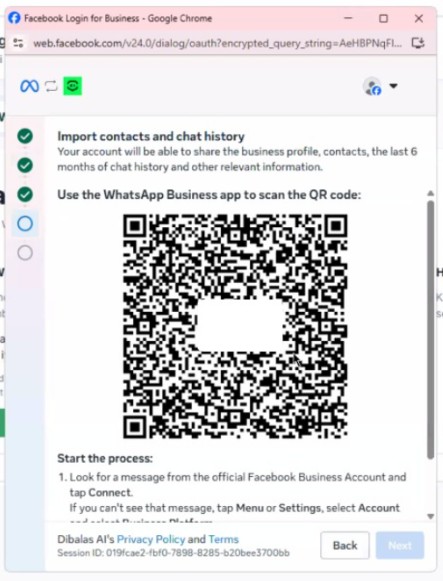
- Follow the steps on your phone, then return to the Facebook Login for Business window.
- Choose your time zone and click Next.
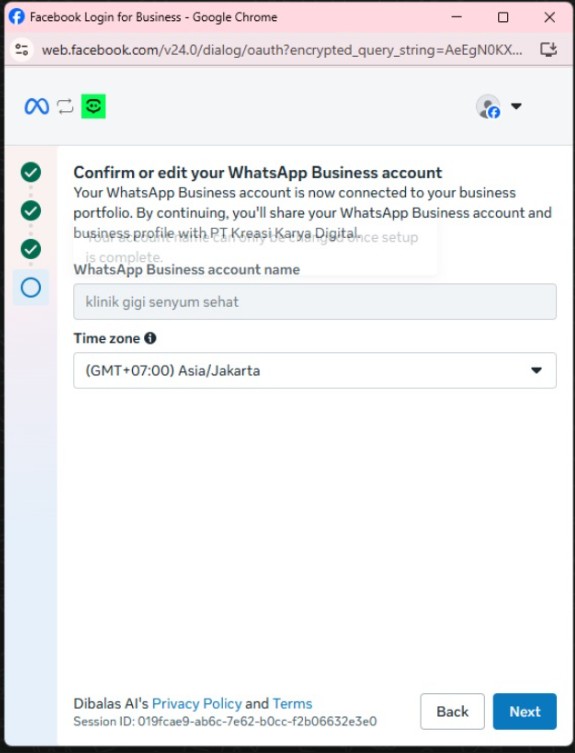
- Click Confirm.
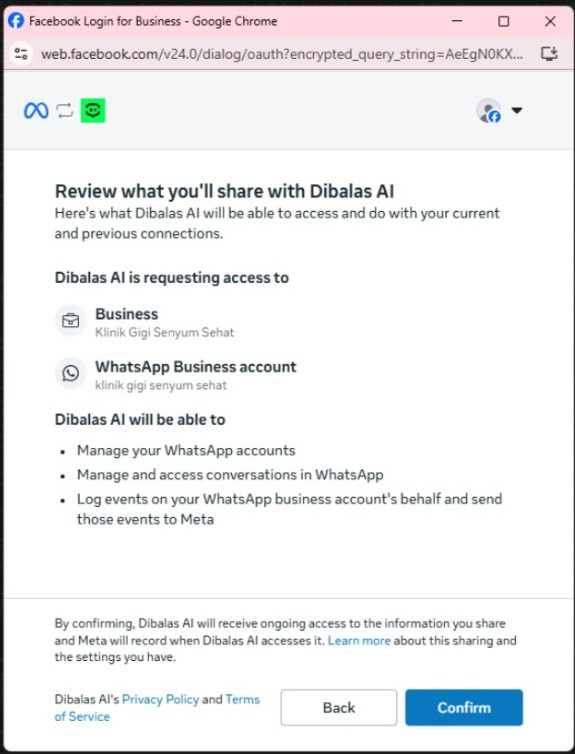
- Wait until the process finishes.
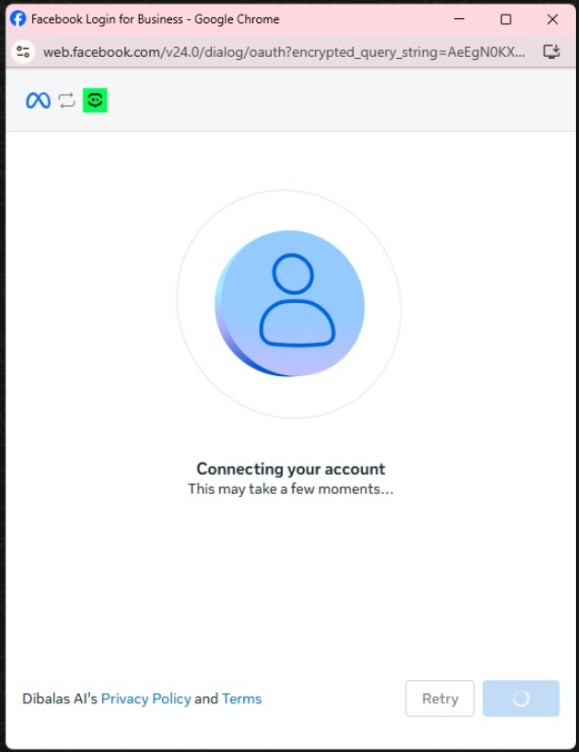
- You return to the connections page. The status shows Pending until Meta approves the number. Meta sends the result by email. When you receive it, follow its instructions and run Method A again; this time you won't need to scan the QR code.
Method B: register a new number
Important: Do not tick "I already have an active number in the WhatsApp Business App and want to keep accessing it from my phone".
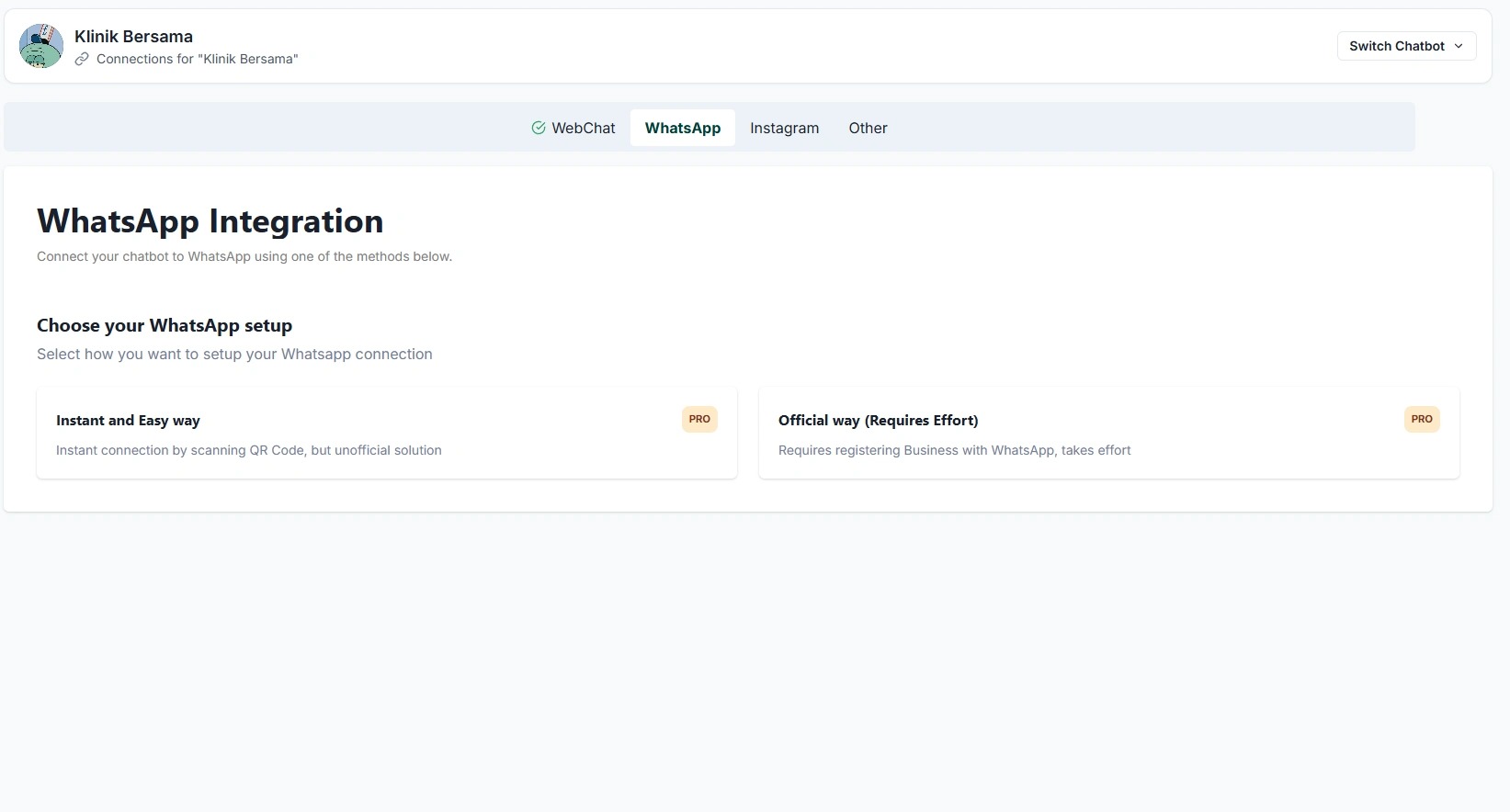
- Click Register New Number.
- A Facebook window opens. Log in to Facebook if asked, then click Continue.
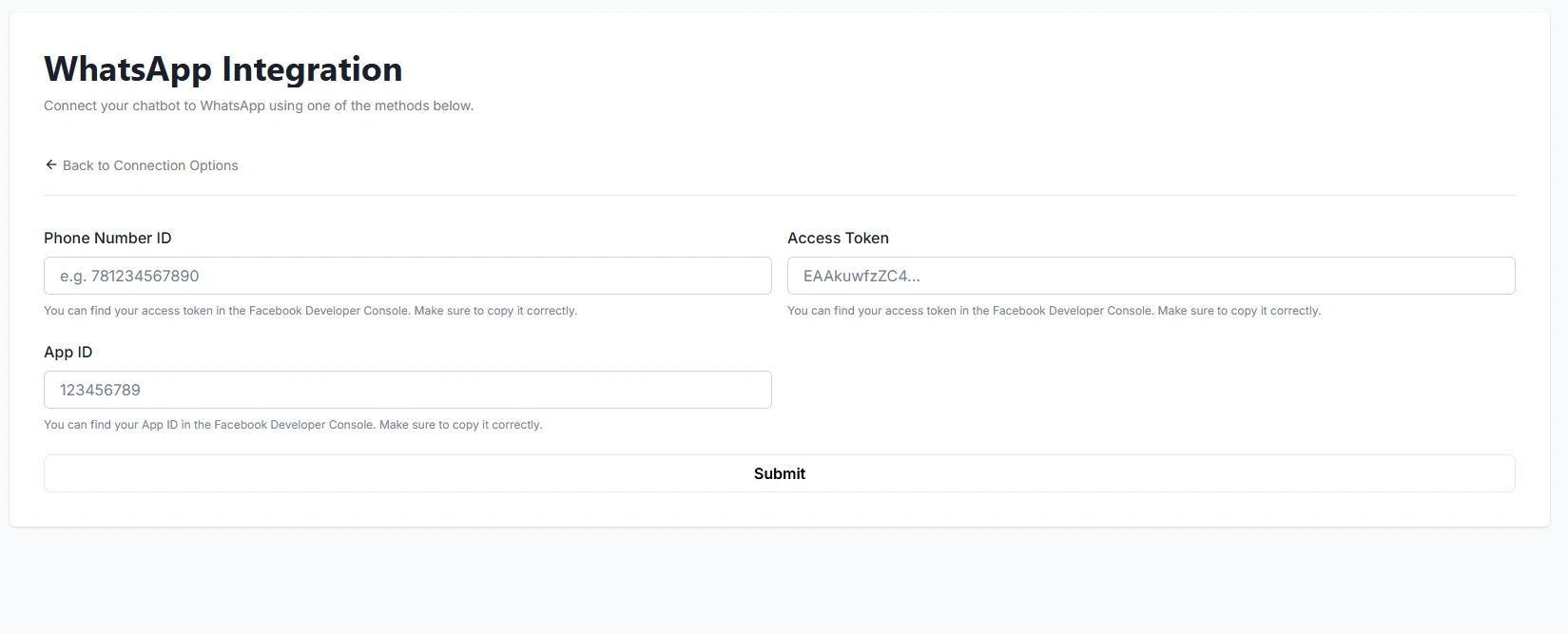
- Click Next to grant the permissions.
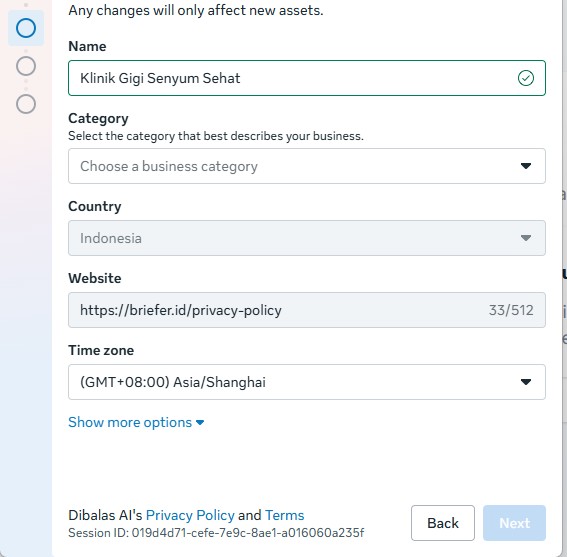
- Choose the business category that fits your business.
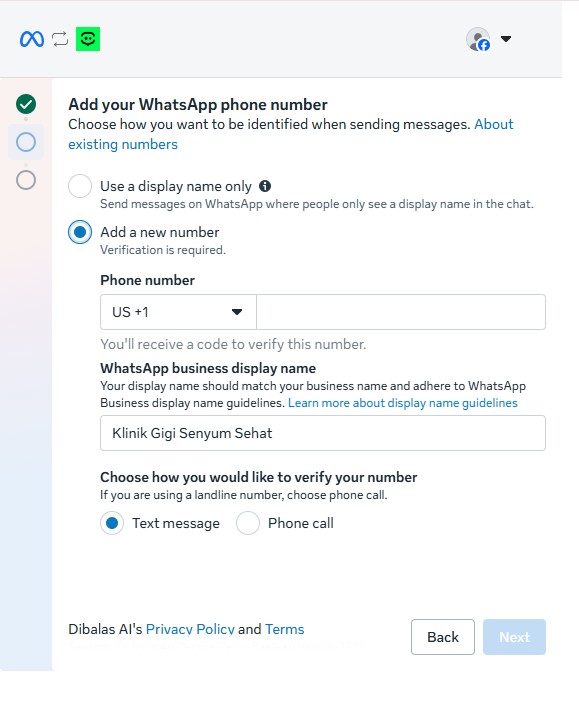
- Select Add New Number and enter a number that has never been registered with the WhatsApp API. Choose SMS or phone call for verification, then click Next.
- Wait for the sync to finish, then click Finish.
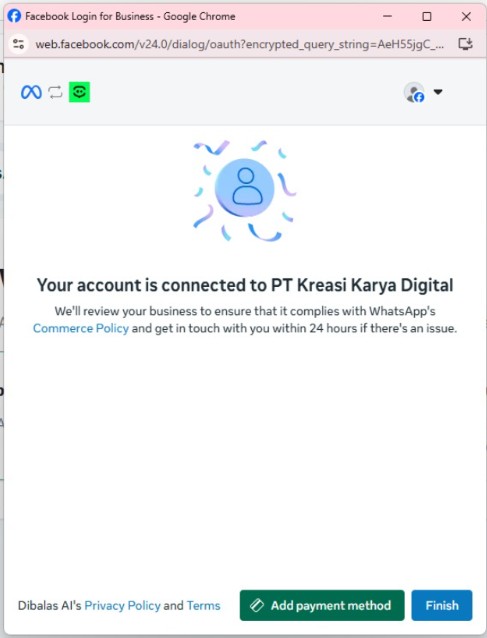
Meta's WhatsApp Business team will email you instructions for opening WhatsApp Manager.
Method C: use an existing WABA
- Click Connect Existing WhatsApp Business Account.
- Log in to Facebook if asked.
- Choose the WABA and the phone number you want to connect.
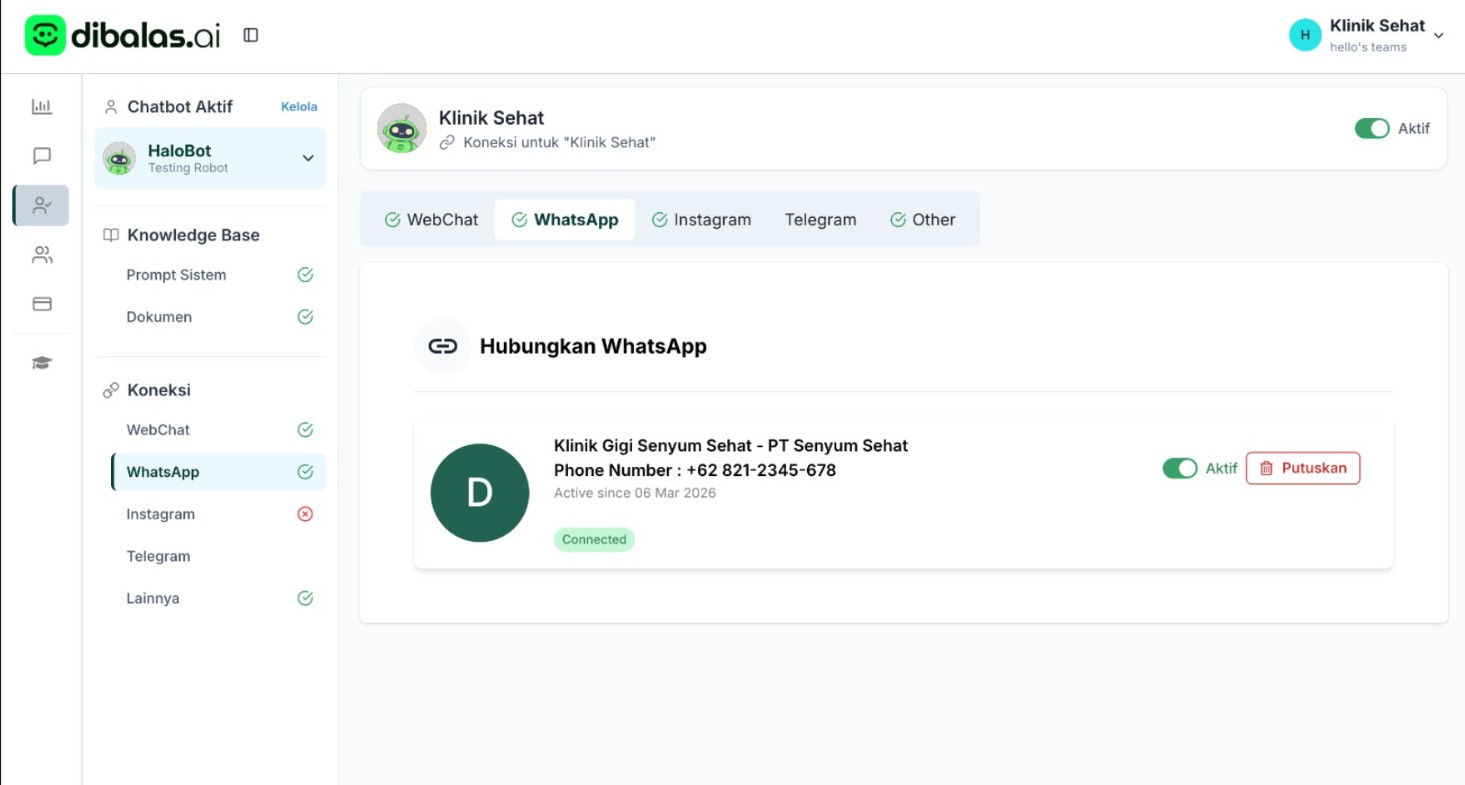
A connected WhatsApp number looks like this:
3. Instagram
The chatbot can answer Instagram Direct Messages.
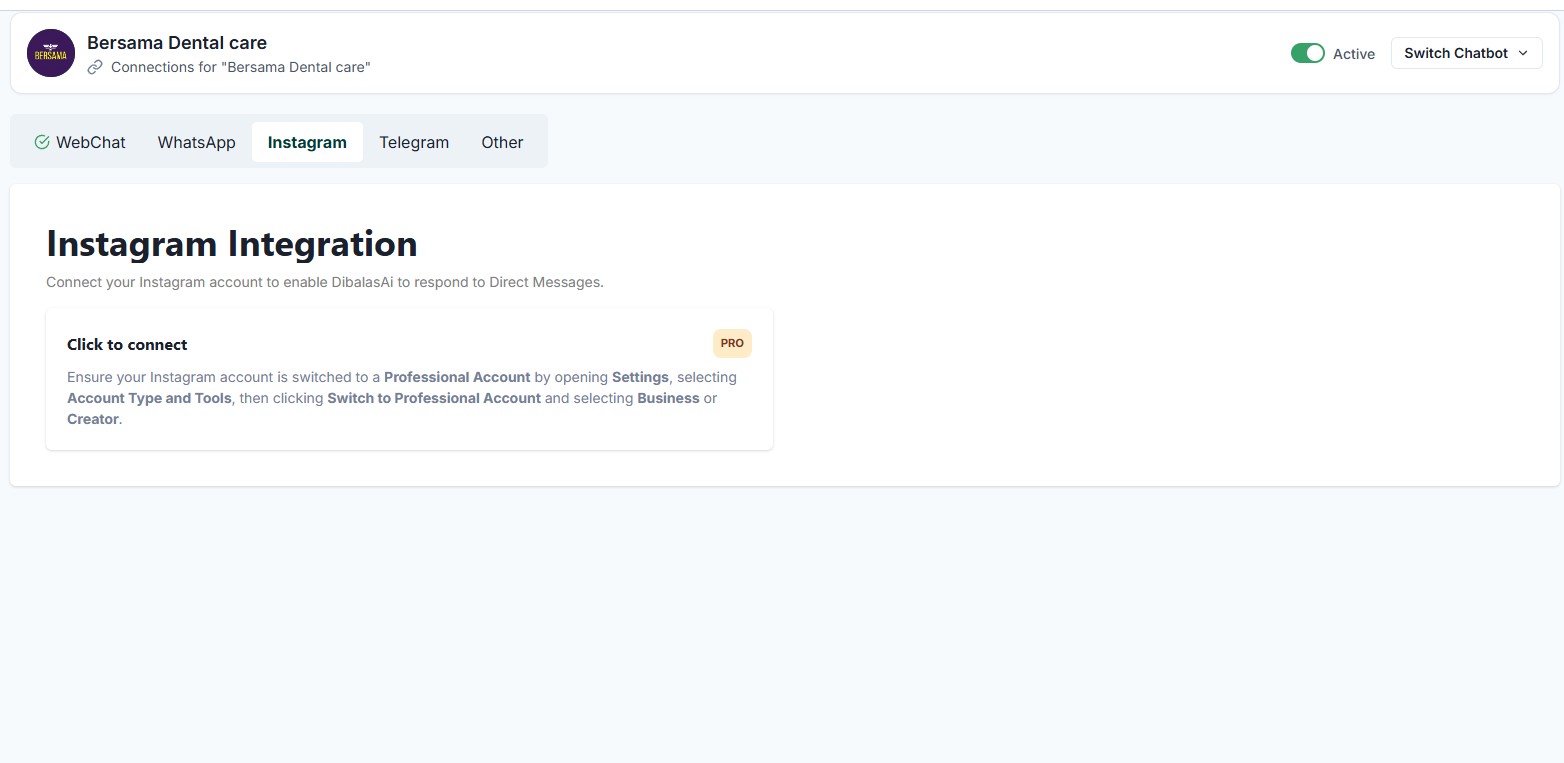
- Make sure your Instagram account is a Professional account (Business or Creator). In the Instagram app, open Settings → Account type and tools → Switch to professional account.
- On the Instagram tab, click Connect your Instagram Account.
- Log in to Instagram and allow DibalasAI to access your messages.
If a customer's first message doesn't get a reply, see the Connection FAQ.
4. Telegram
The chatbot answers through a Telegram bot that you create yourself. It does not reply from your personal Telegram account.
- In Telegram, search for @BotFather.
- Start a chat and send
/newbot. - Follow the instructions to name your bot and choose its username.
- Copy the API token that BotFather sends you.
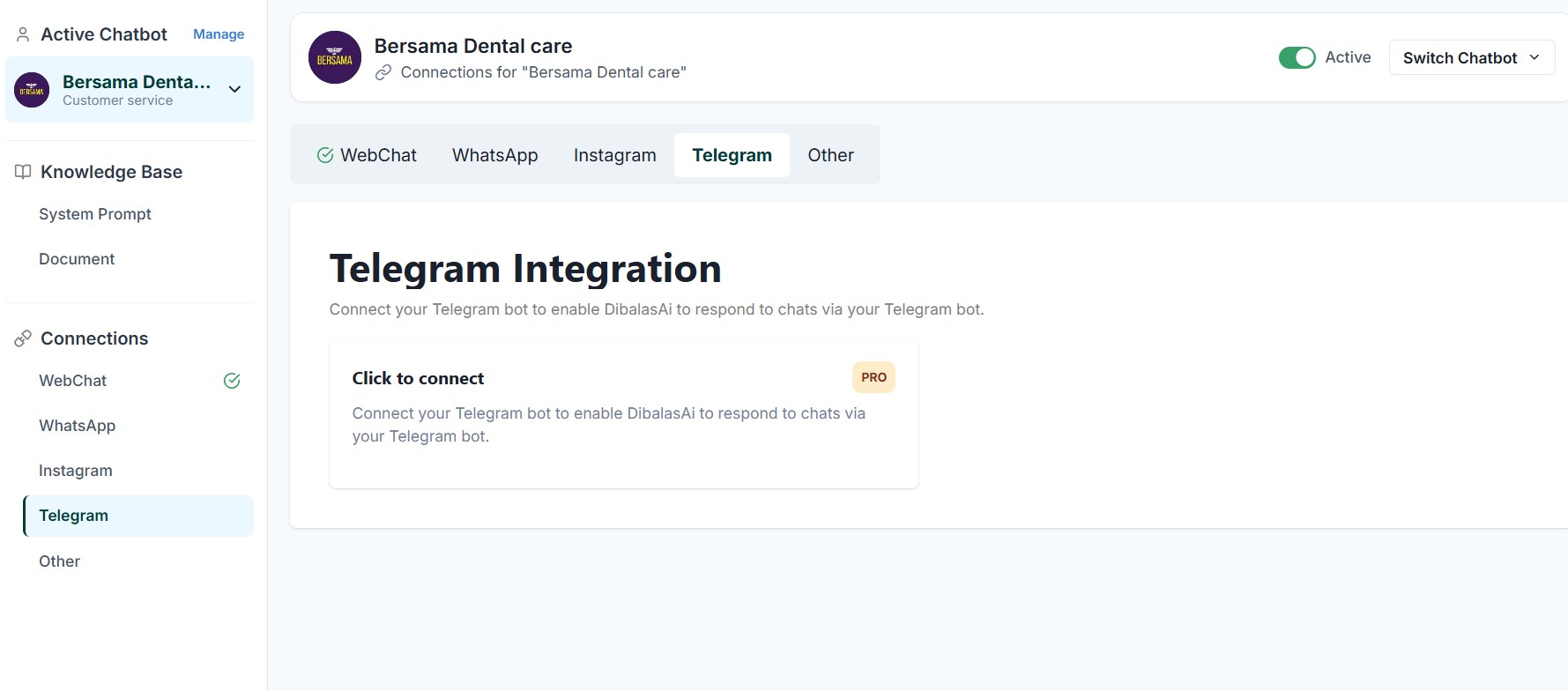
- On the Telegram tab in DibalasAI, click Connect your Telegram Account, paste the token and click Integrate.
Customers then chat with your bot (for example @yourstore_bot) and the chatbot answers.
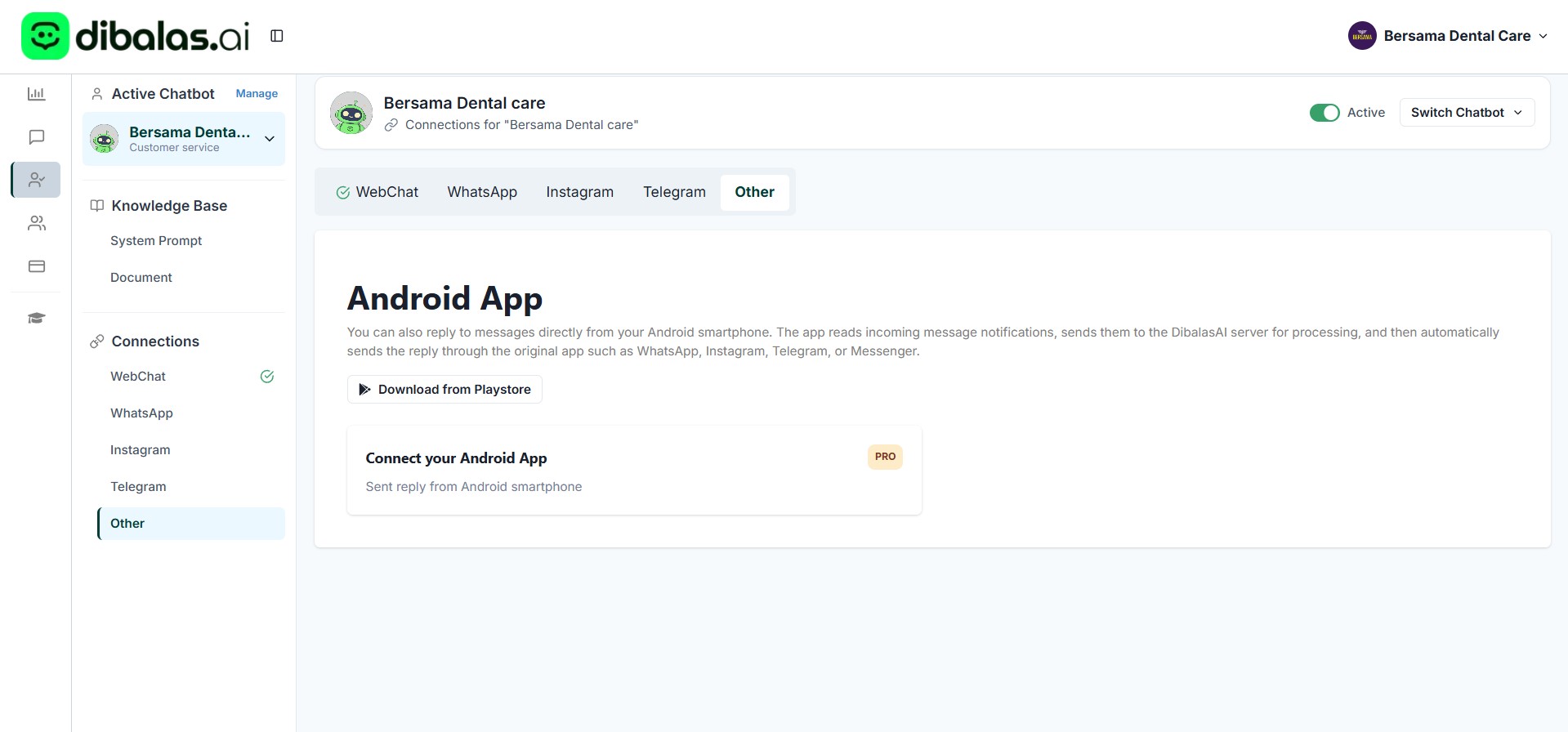
5. Other: Android app
The Android app answers messages from your phone by reading incoming notifications. Use it if you don't use the WhatsApp API. It works with WhatsApp, WhatsApp Business, Instagram, Facebook Messenger and Telegram.
- Install DibalasAI from the Google Play Store (the Download from Playstore button links to it).
- Log in to the app with the same account you use on the dashboard.
- On the Other tab, click Connect your Android App.
- On your phone, grant notification access so the app can read incoming messages and reply.
Note: While the Android app is connected to a chatbot, the Instagram and Telegram integrations of that chatbot are disabled ("Integration disabled (Android active)"). Disconnect the Android app first if you want to connect Instagram or Telegram through the dashboard.
The full guide is in the Android App Guide.