Managing Teams
How to create, edit, delete and switch between teams.
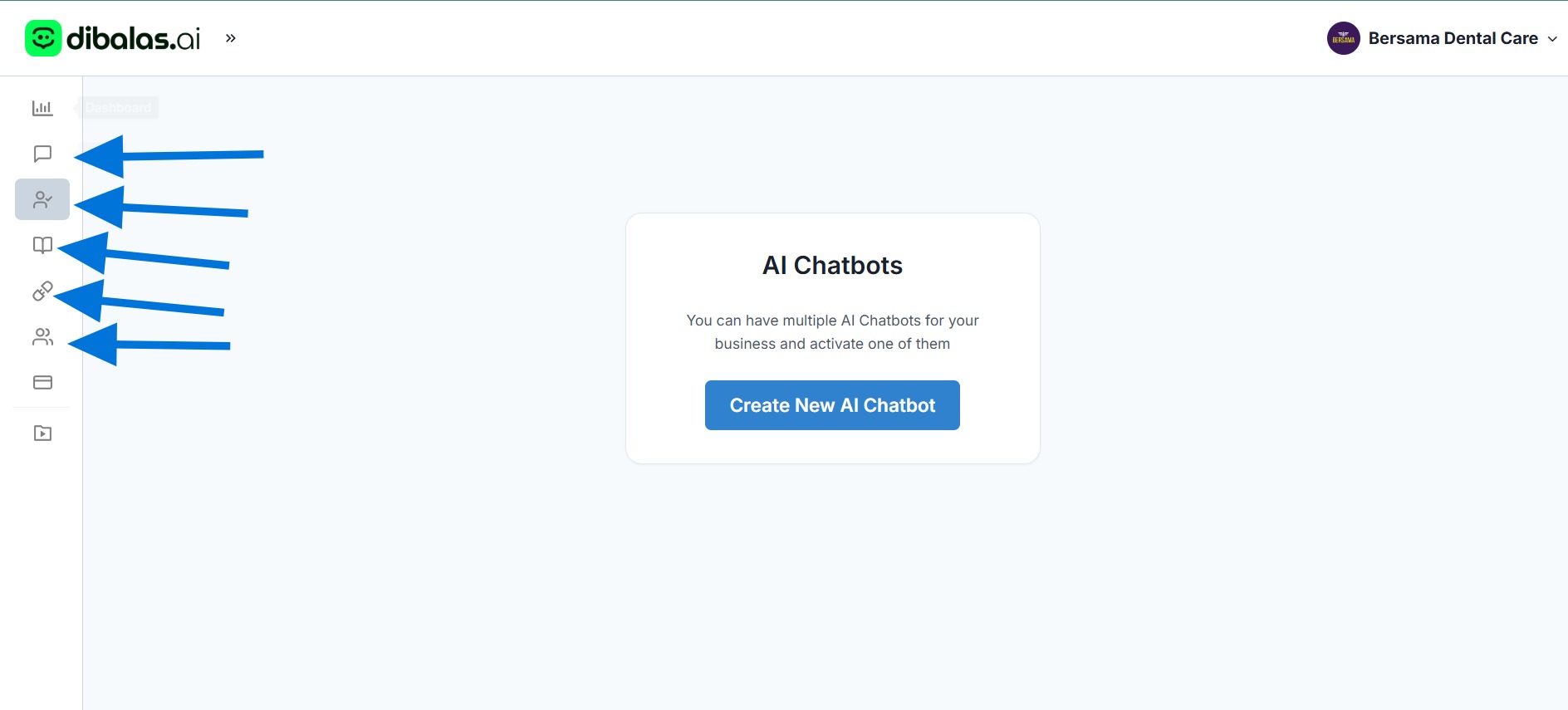
In DibalasAI, chatbots, the inbox, knowledge base, connections, members and the package all belong to a team. You can create several teams (for example, a Sales team and a Support team) to keep them apart.
Opening the Manage Team page
Use either of these:
- On the Chatbots page, click the Manage Team link at the top.
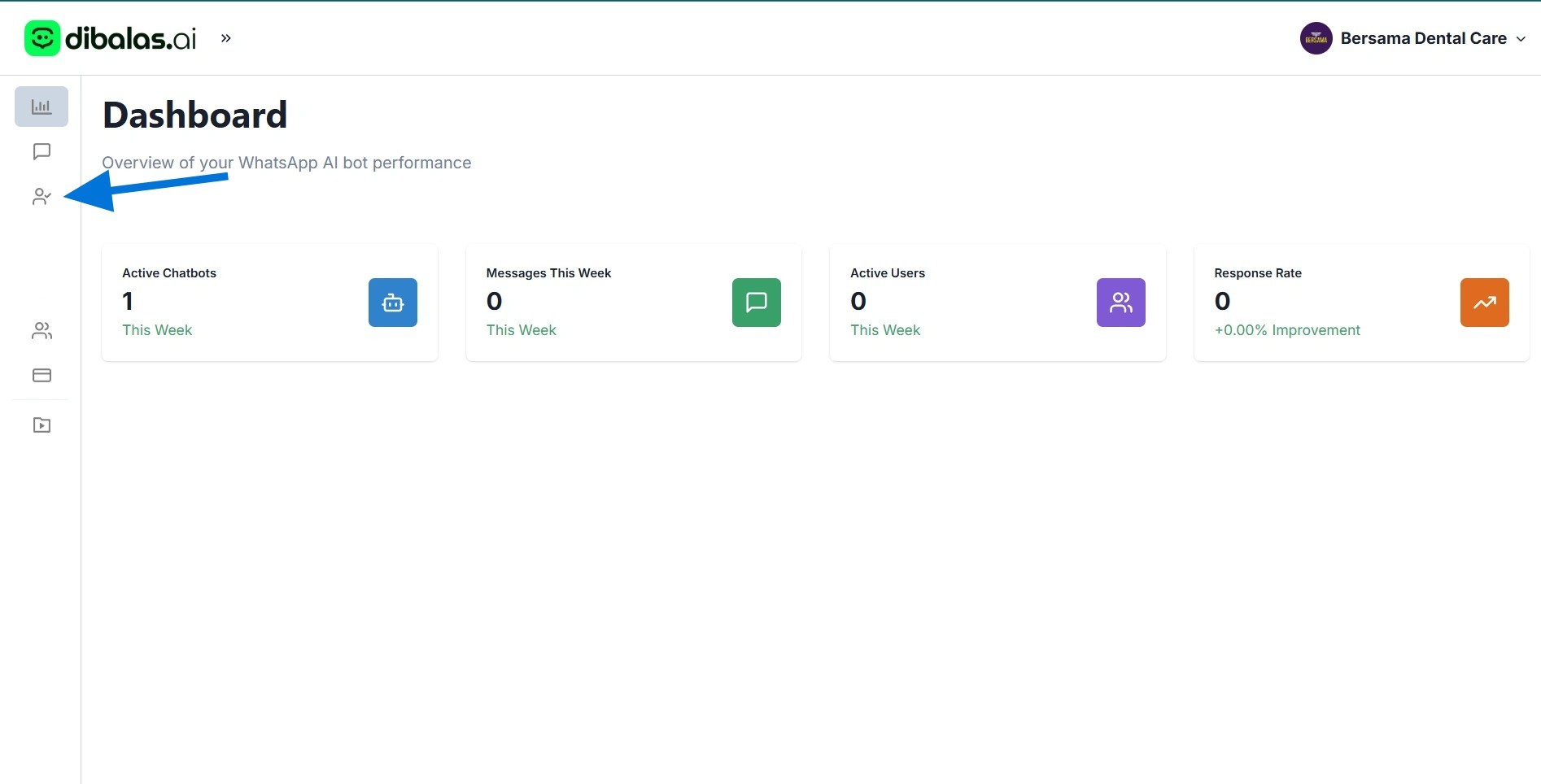
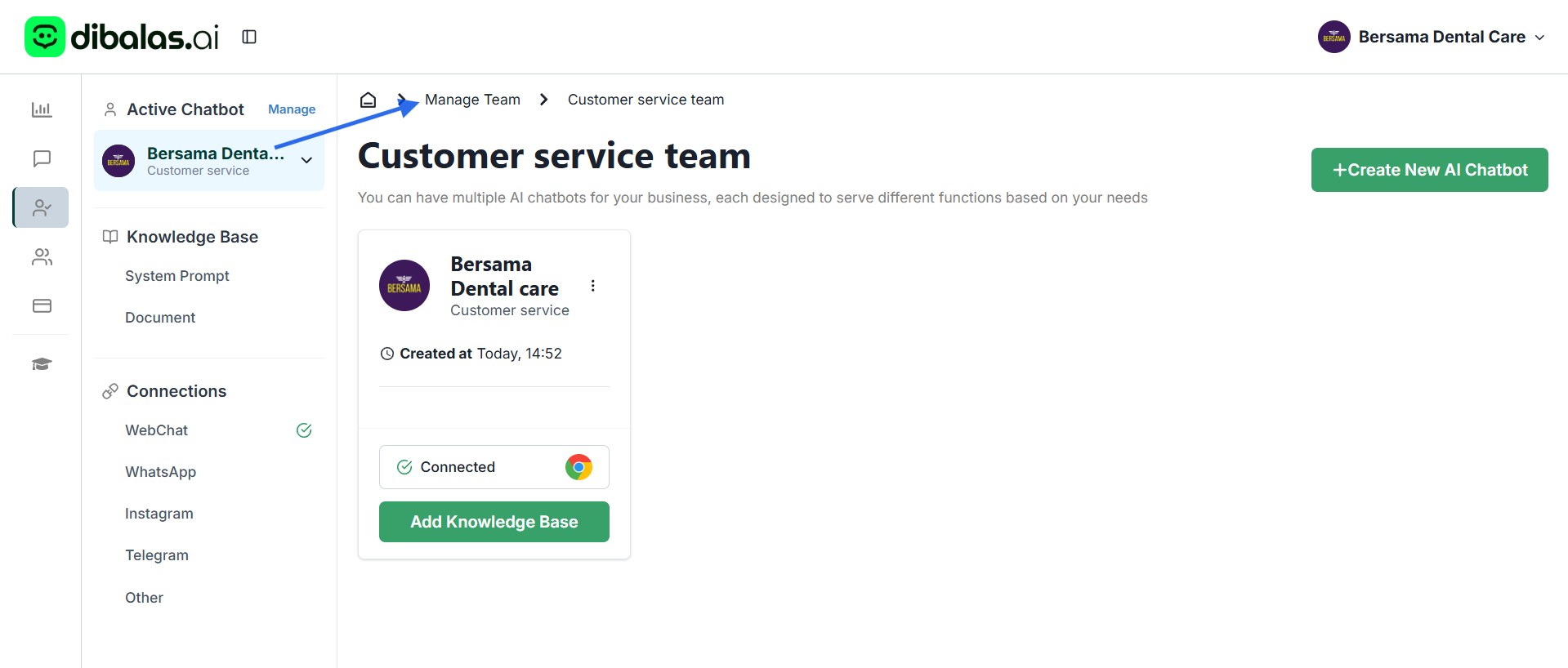
- Click your username in the upper right corner, open Switch Teams, then click Manage.
Creating a team
- On the Manage Team page, click Add Team.
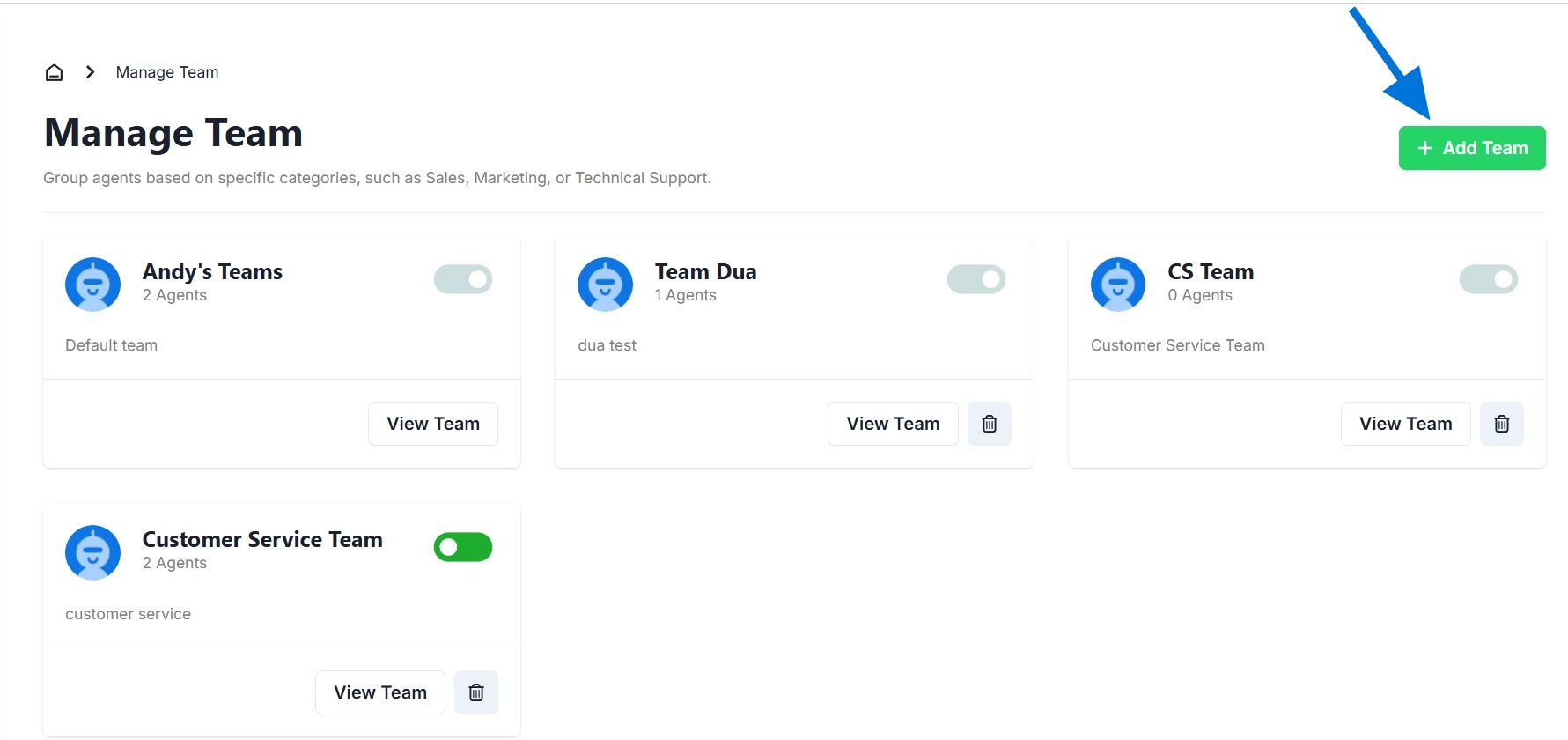
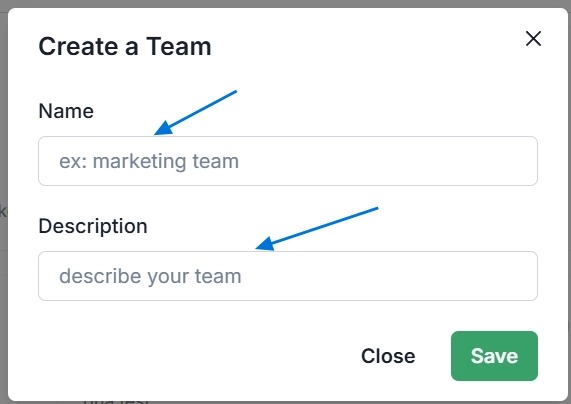
- In Create a Team, enter the team name and a short description.
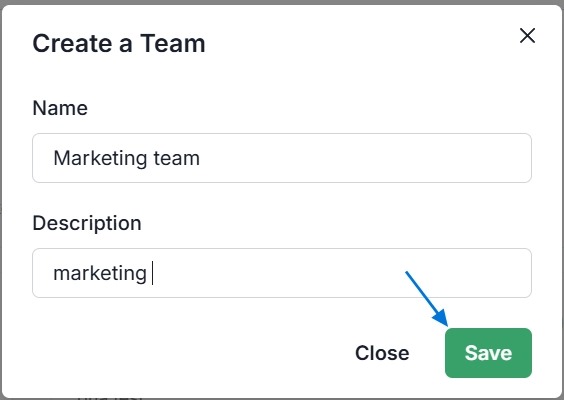
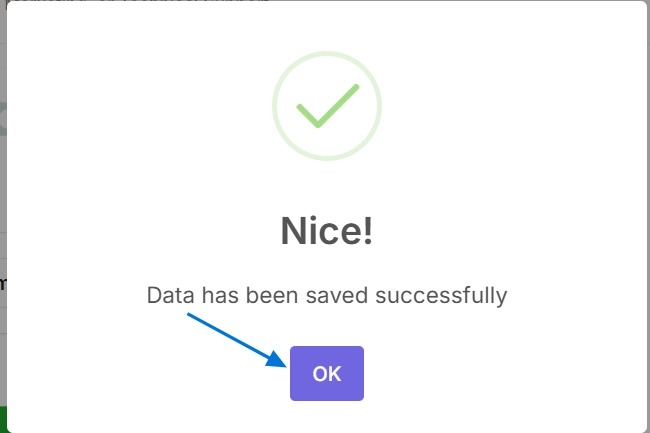
- Click Save. The new team appears in the list, with you as its Owner.
The Owner of a team also sees a pencil icon to edit the team and a trash icon to delete it. Only the Owner can edit or delete a team.
Switching teams
If you belong to more than one team, check that the right team is open before you change chatbots or buy a package. There are three ways to switch:
From the Manage Team page
- Open Manage Team.
- Find the team and click View Team.
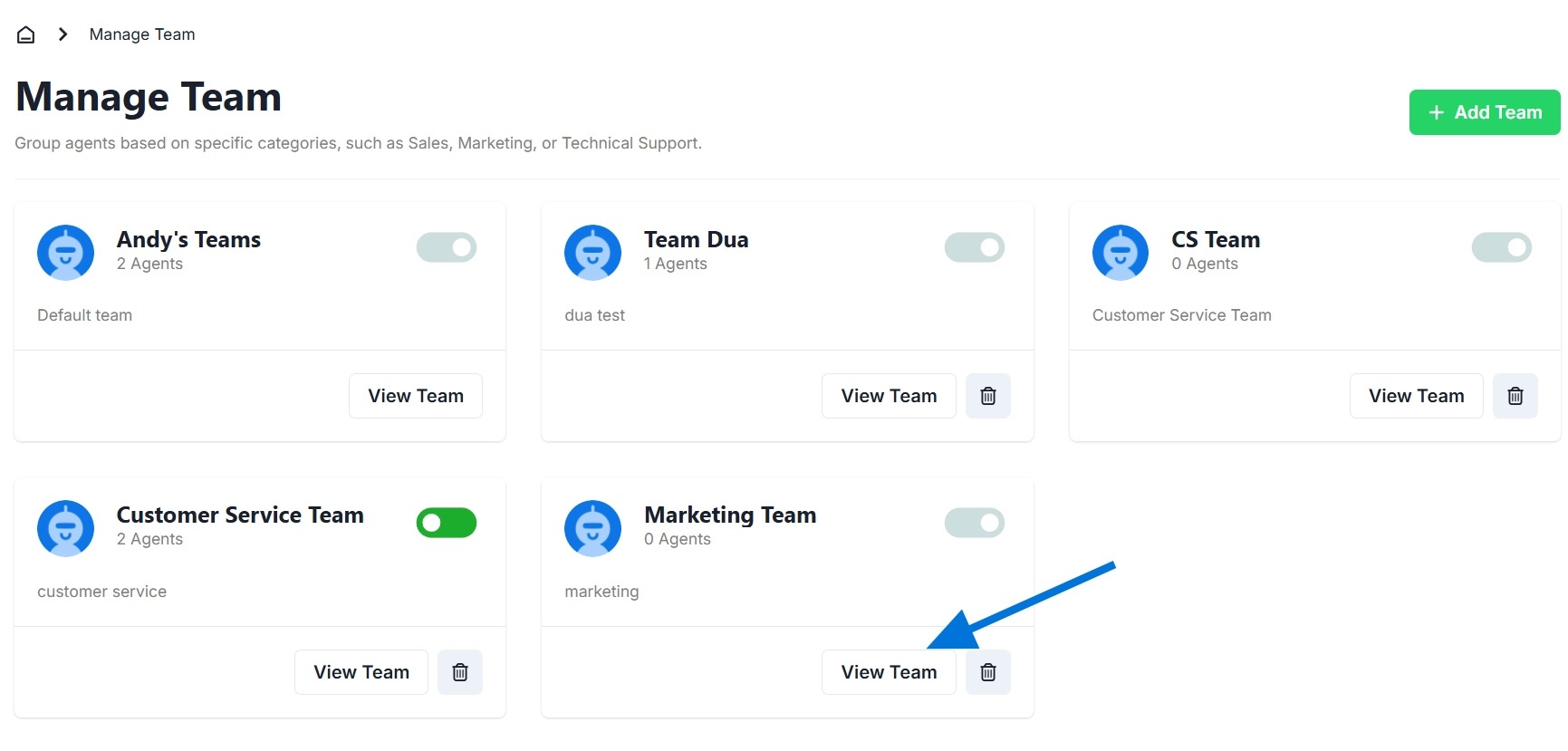
- The whole dashboard (Chatbots, Inbox and so on) now shows that team's data.
From the profile menu
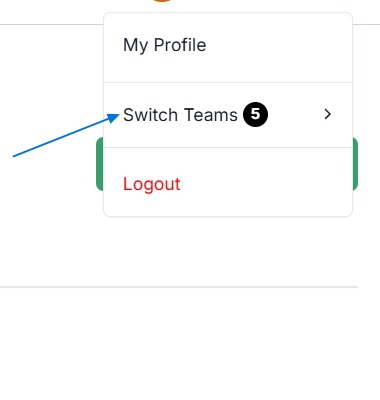
- Click your username in the upper right corner.

- Select Switch Teams.
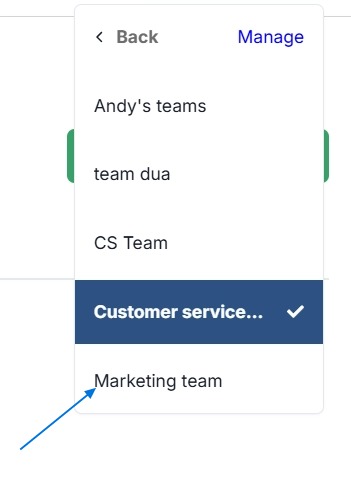
- Click the team you want to open. The dashboard switches to that team.
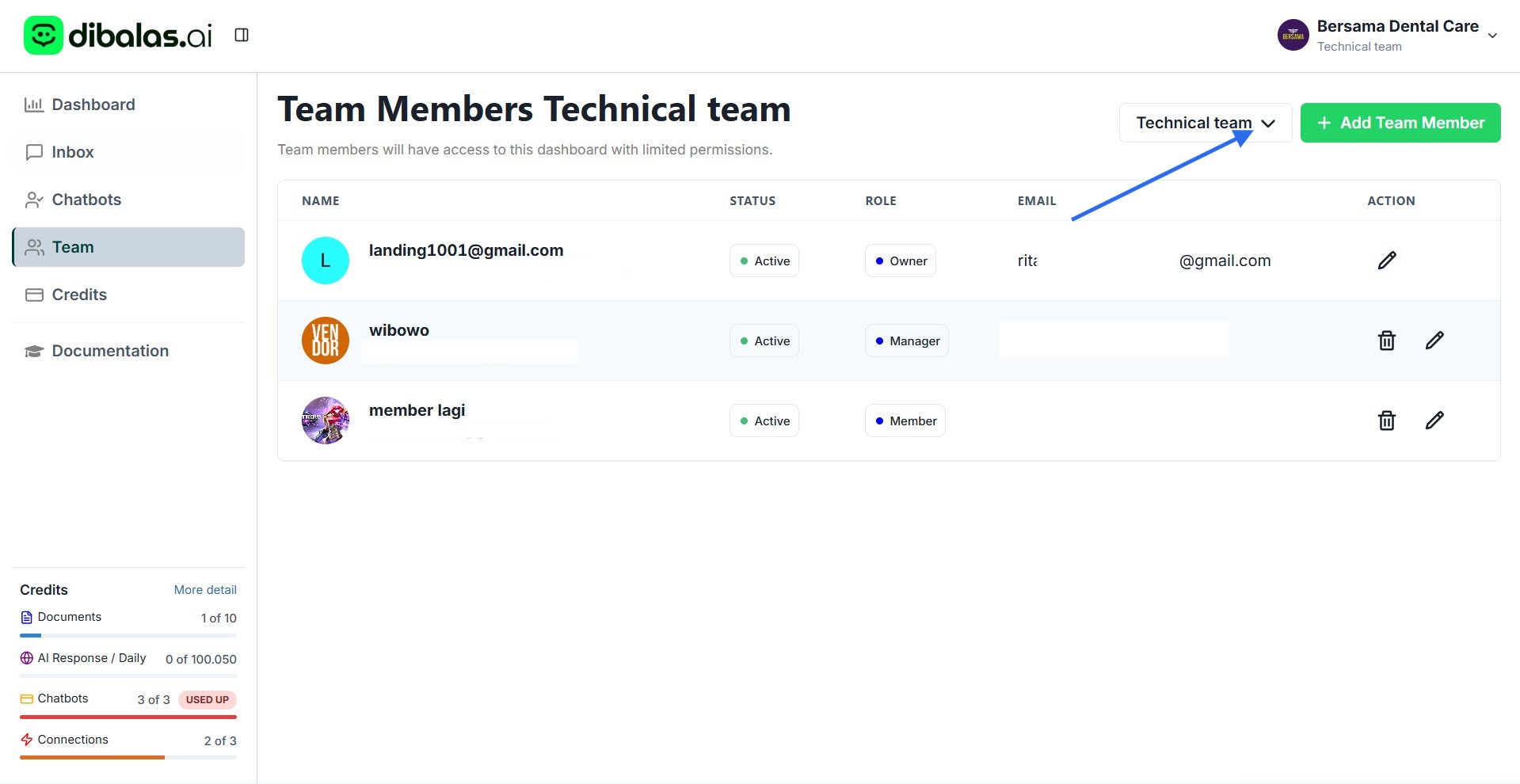
From the Team page
On the Team page in the left sidebar, pick a team from the dropdown at the top of the page.