
Taking Over Conversations
How to use the inbox, take over a conversation from the chatbot and close it.
Managing the Inbox
The Inbox shows every conversation between your chatbots and your customers, on all channels. From here you can follow the chatbot's answers and reply yourself when needed.
Notifications and sound
The dashboard plays a sound and shows a browser notification when a customer sends a new message, on any dashboard page. This only works if you allow notifications for the dashboard in your browser. If you blocked them, the dashboard asks you to turn them on: click the lock icon next to the address bar, set Notifications to Allow, then reload the page.
You can turn push and email notifications on or off on the Notifications tab of your profile.
How the chatbot closes idle conversations
While the AI is answering
- If the customer sends nothing for about 2 minutes, the chatbot asks whether they still need help.
- If the customer doesn't answer within about 1 minute after that, the conversation is closed automatically.
- To continue, the customer sends a new message, which starts a new conversation.
While a team member has taken over
- If the customer sends nothing for about 2 minutes, the conversation goes back to the AI, and the chatbot tells the customer that the AI is answering again. Replies from your team don't reset this timer; only messages from the customer do.
- After that, the AI-handled rules above apply: a check-in message about 2 minutes later, and automatic closing if there is still no answer.
These times are approximate. The actual message can arrive a few minutes later than stated.
Opening and filtering the Inbox
-
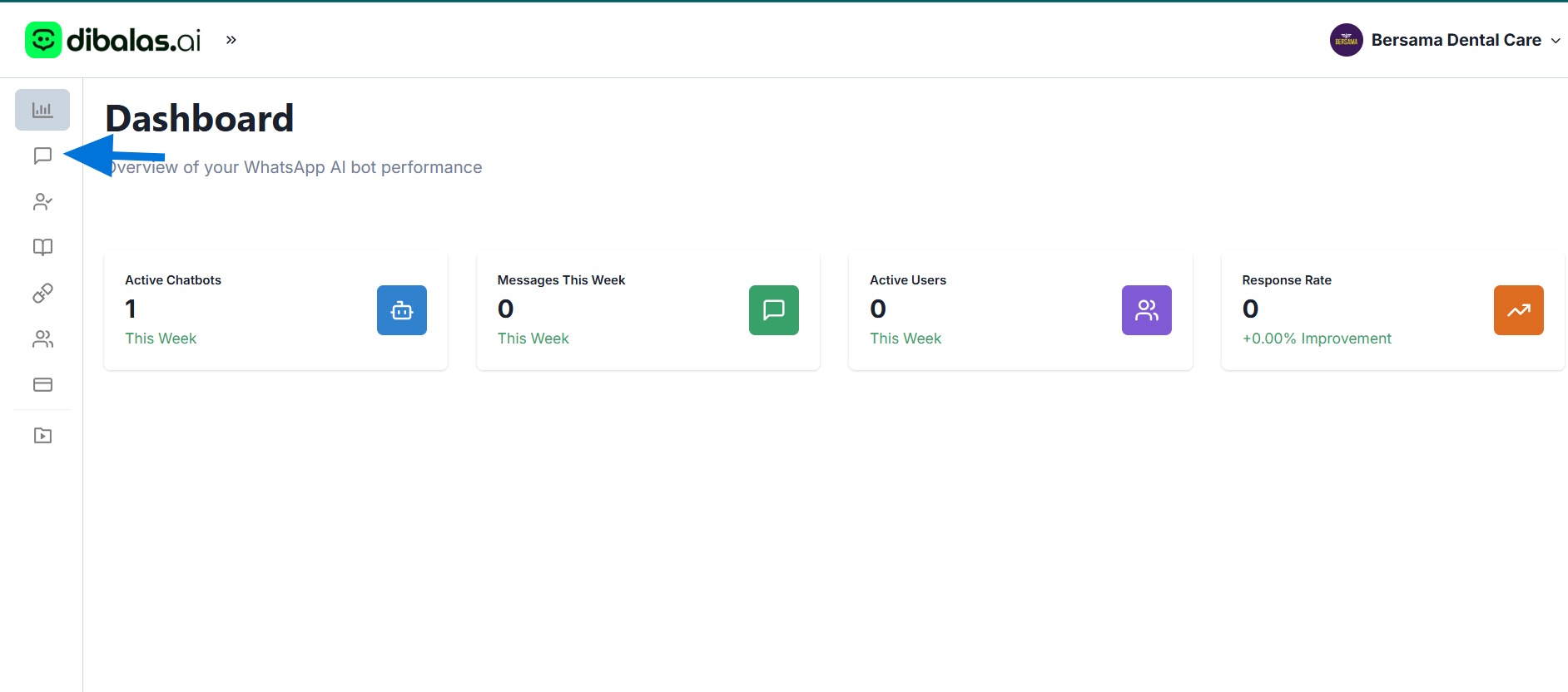
Click Inbox in the left sidebar.
-
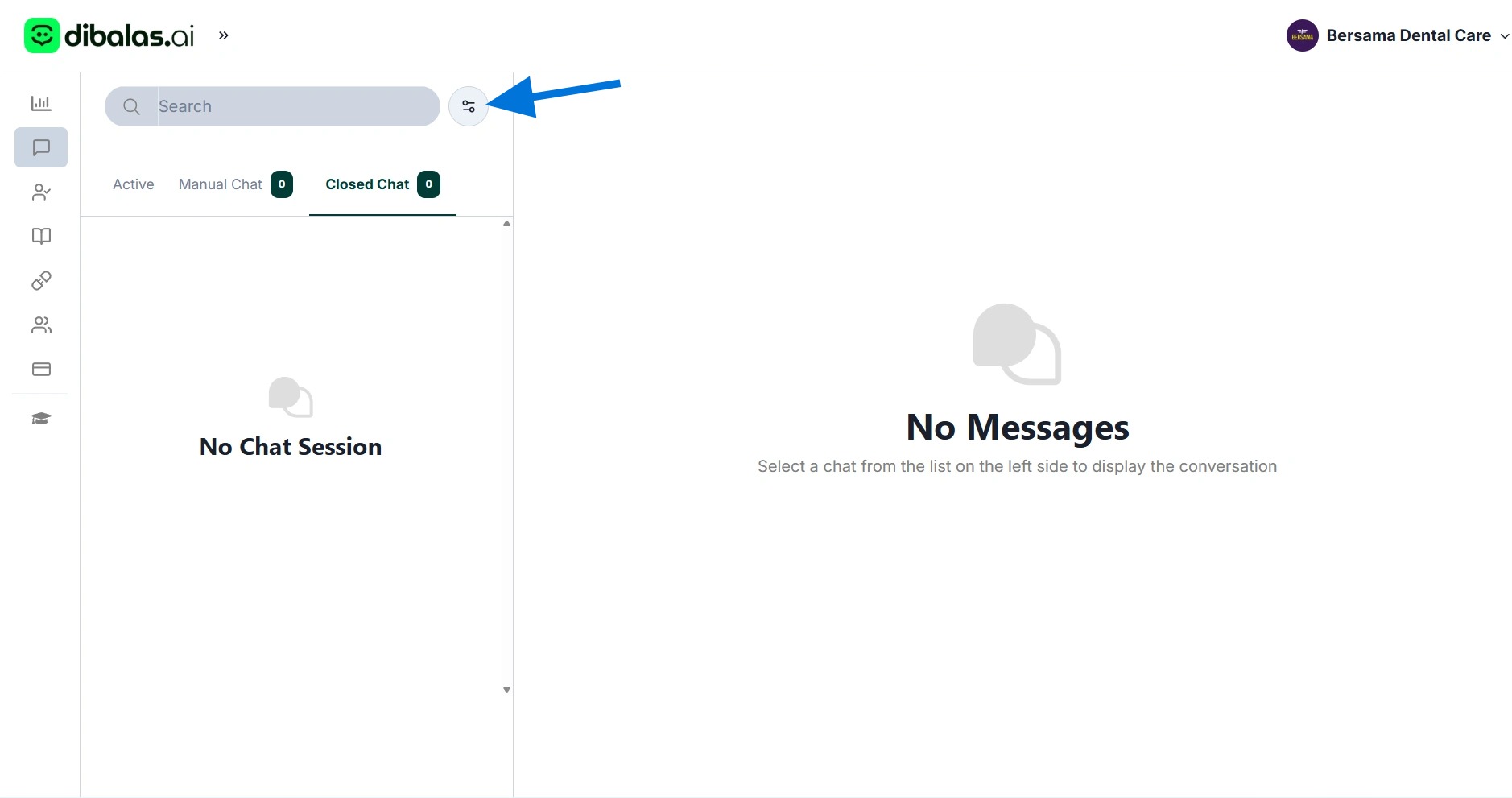
The Inbox has three tabs:
- AI Chat: conversations the chatbot is answering.
- Manual: conversations a team member has taken over.
- Closed: finished conversations.
-
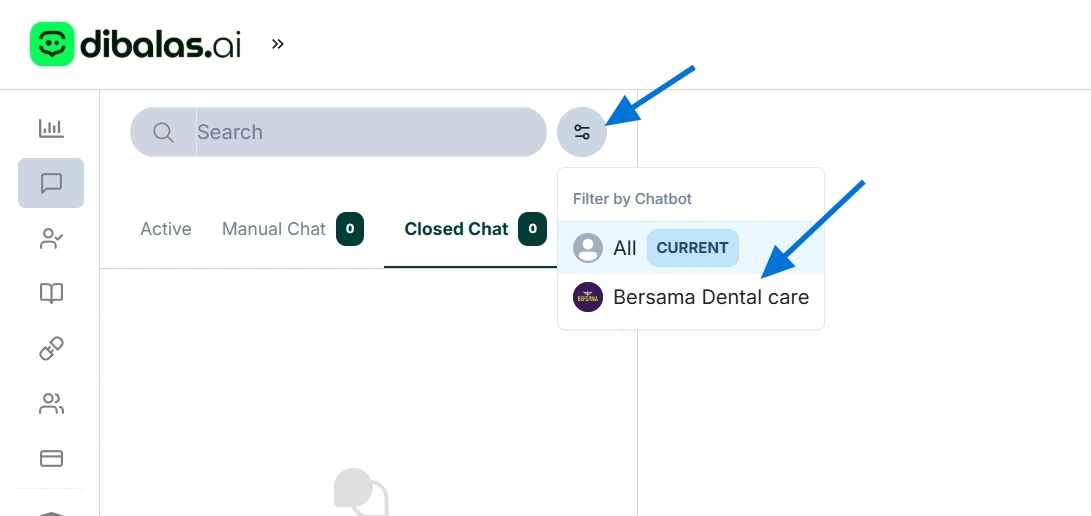
To see one chatbot's conversations only, click the filter icon and choose the chatbot under Filter by Chatbot.
-
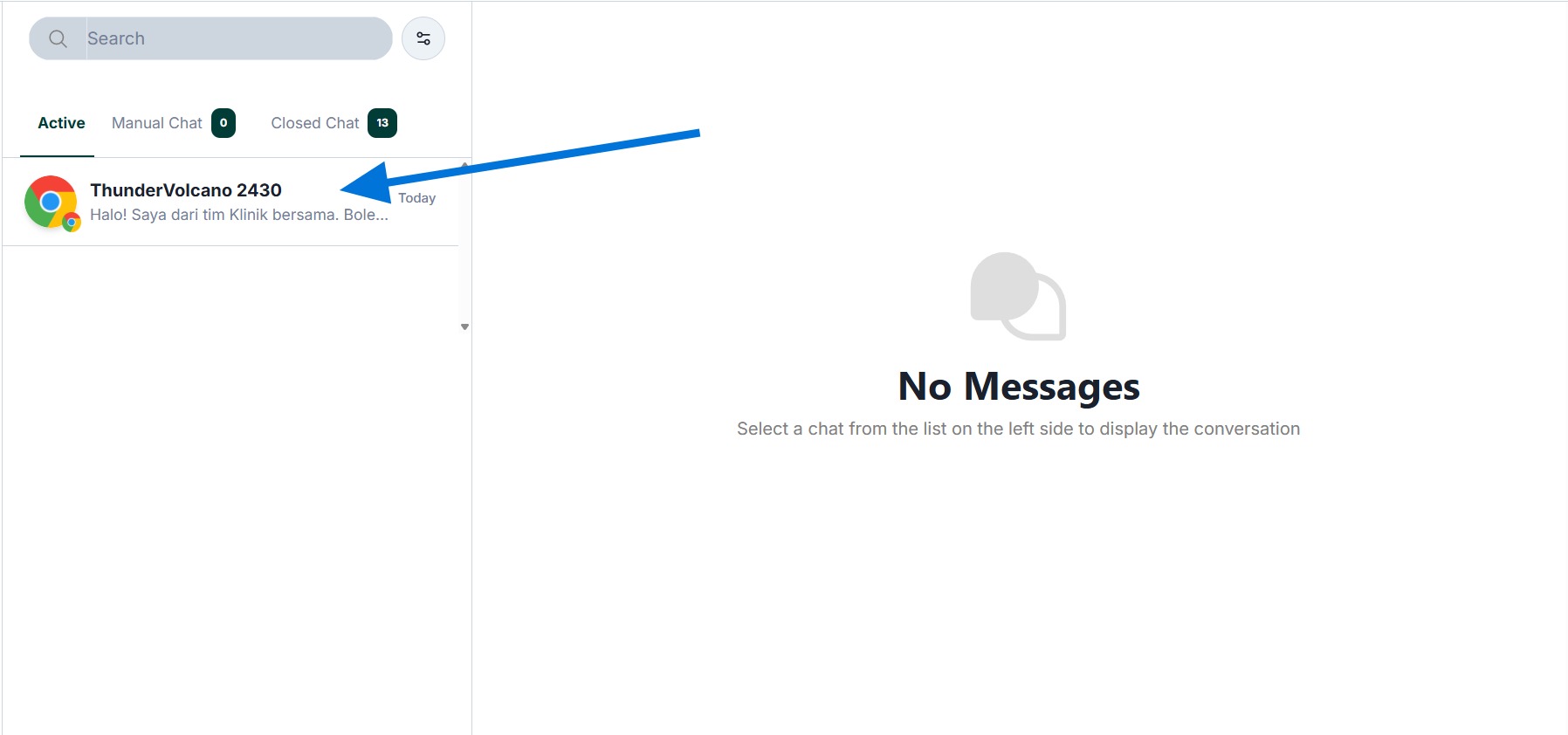
Click a conversation in the list to open it.
Renaming a customer
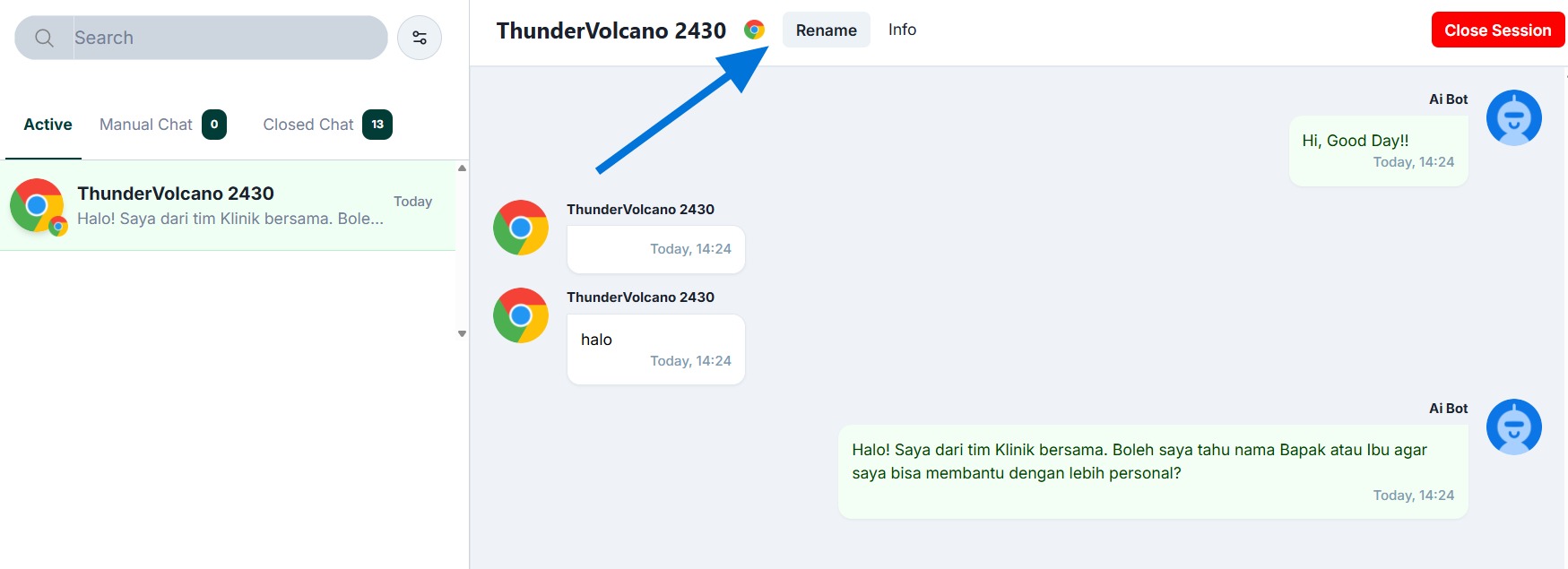
- In the open conversation, click Rename next to the customer's name.
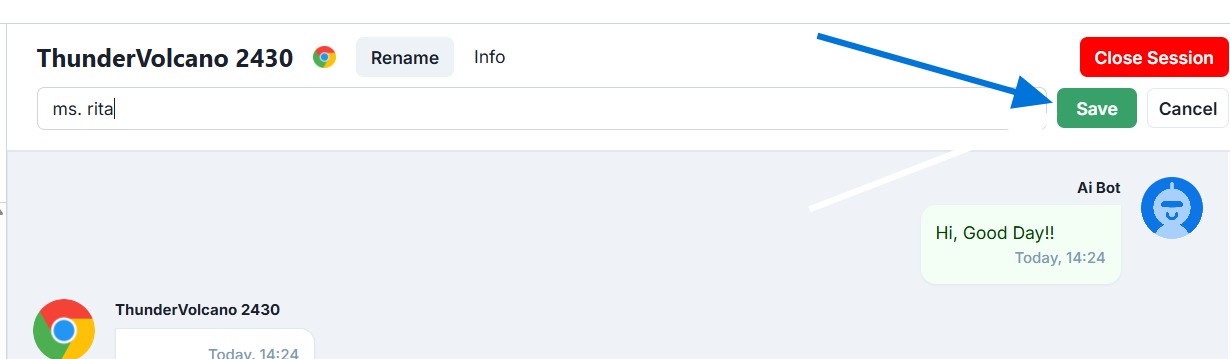
- Type the new name and click Save.
Conversation summary
Click Summary in an open conversation to read a short summary written by the AI. A summary is created once the conversation has at least 10 messages; shorter conversations show no summary.
Taking Over a Conversation
When a question needs a person, you can stop the chatbot and continue the conversation yourself.
-
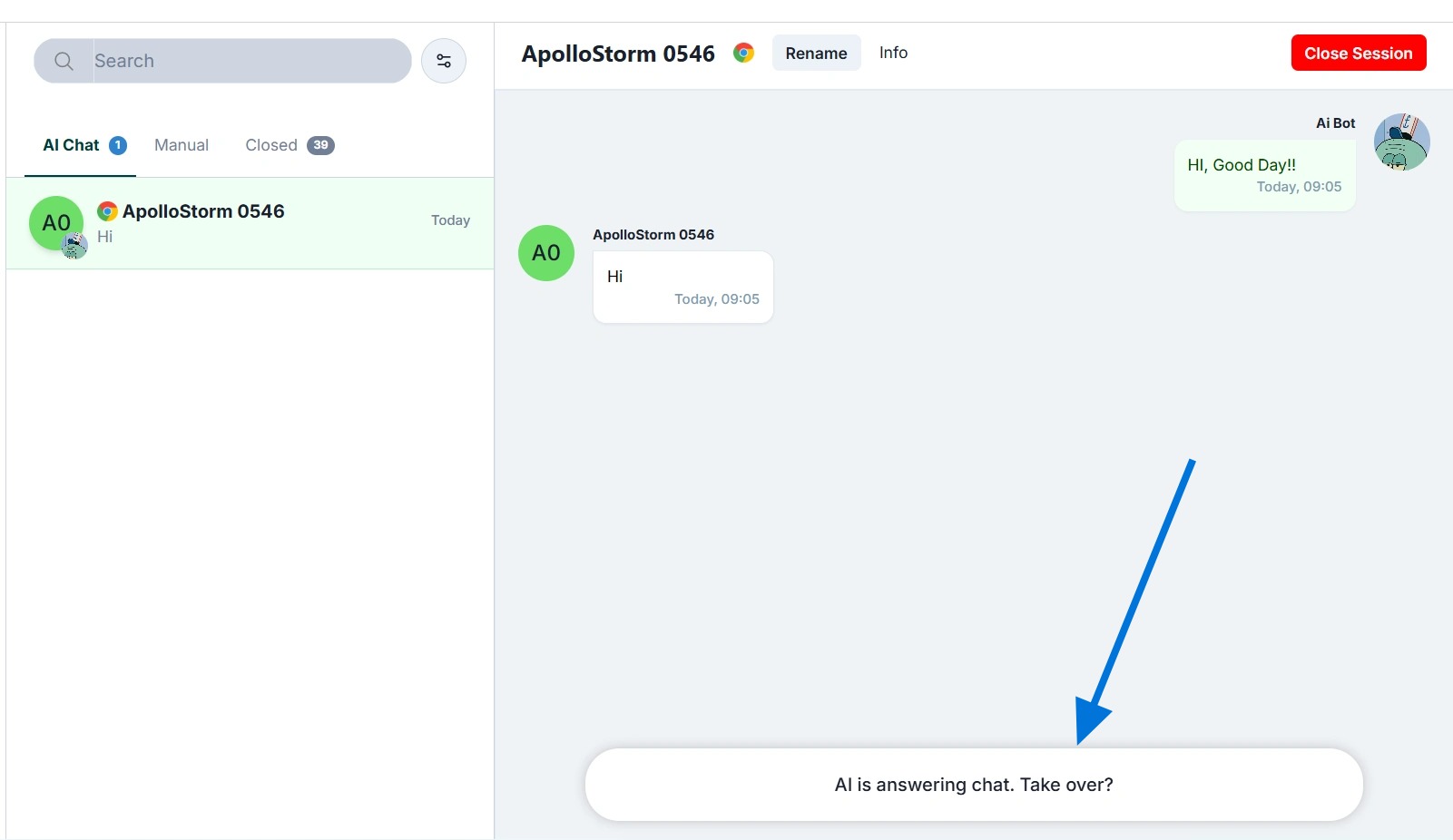
In the open conversation, the message box shows "AI is answering chat. Take over?". Click it, then confirm with Yes, Take Over.
-
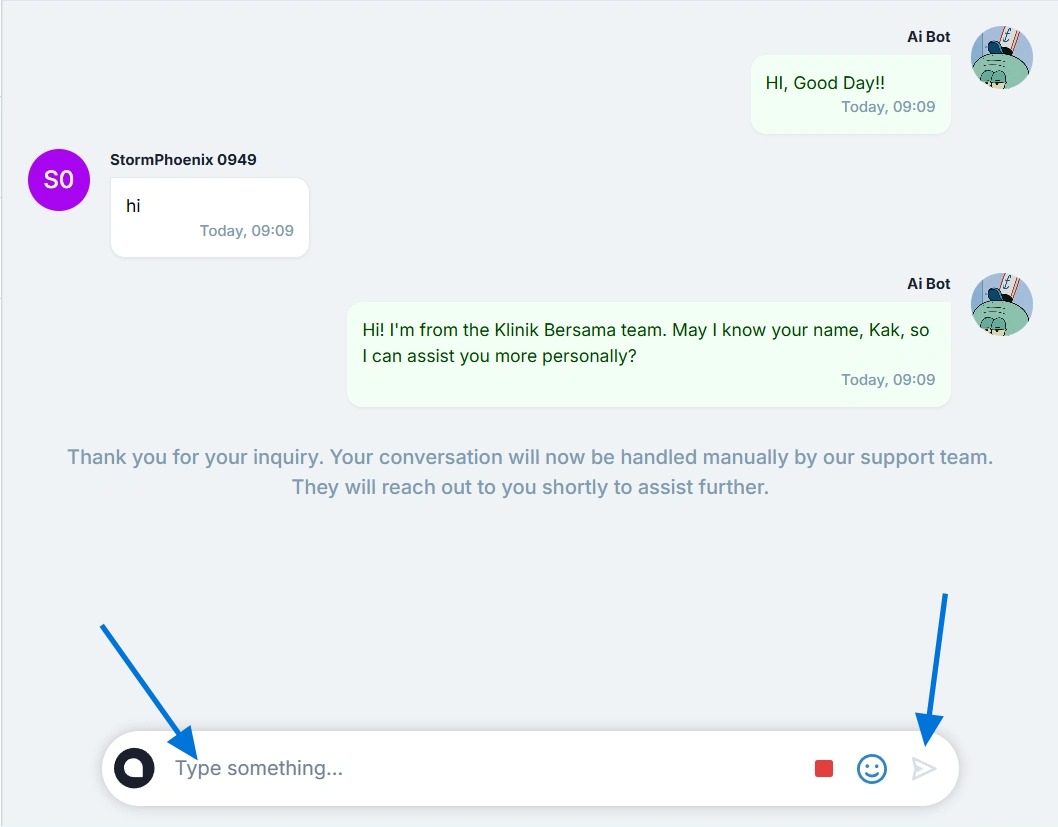
The chatbot stops replying to this customer and the conversation moves to the Manual tab. Type your reply (emoji are available) and send it.
-
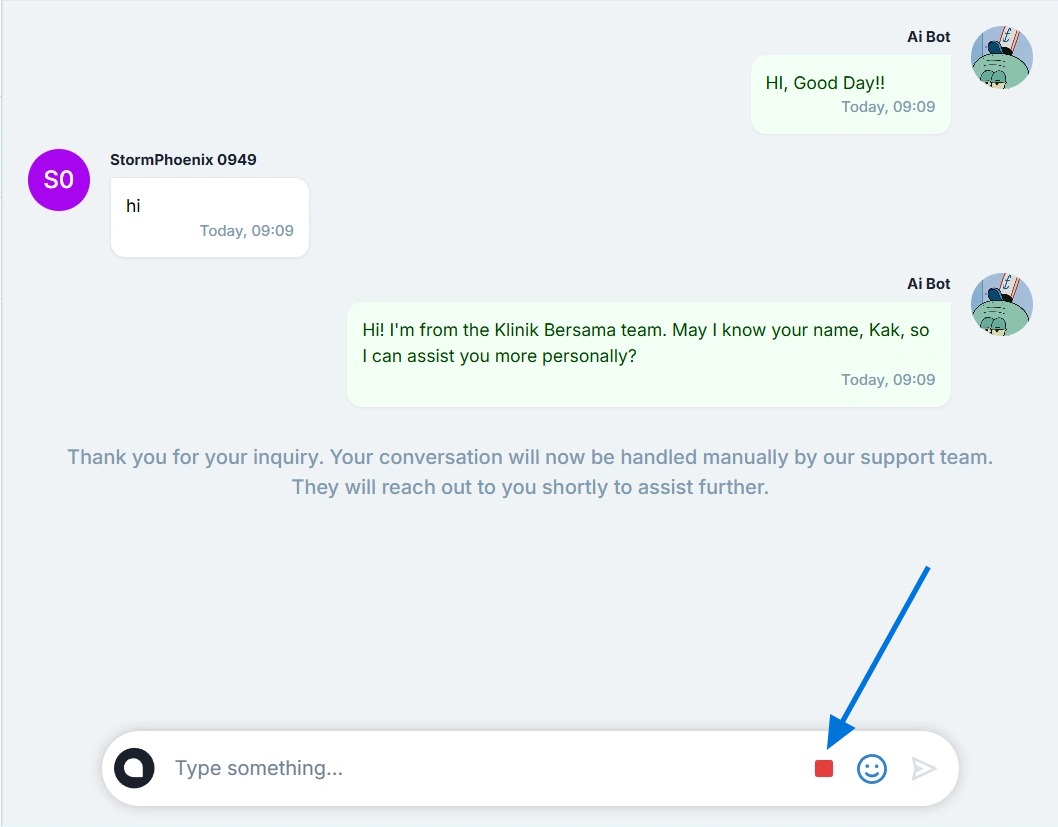
To end the takeover, click the stop icon. A dialog offers three choices:
- Cancel: keep handling the conversation yourself.
- Return to AI: the chatbot takes over again.
- Yes, End Session: close the conversation.
Closing a conversation
- Click Close Session to end a conversation.
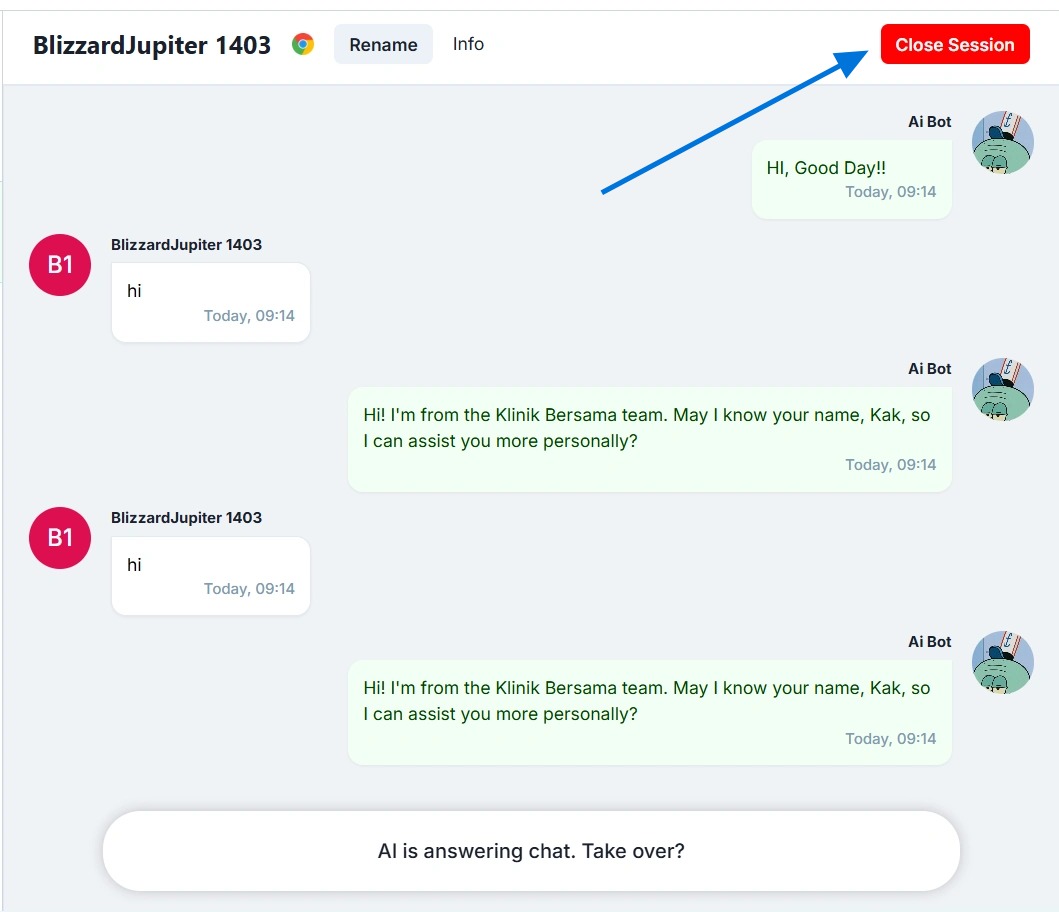
- The conversation moves to the Closed tab. The Owner and Managers can delete a closed conversation with Delete Chat.
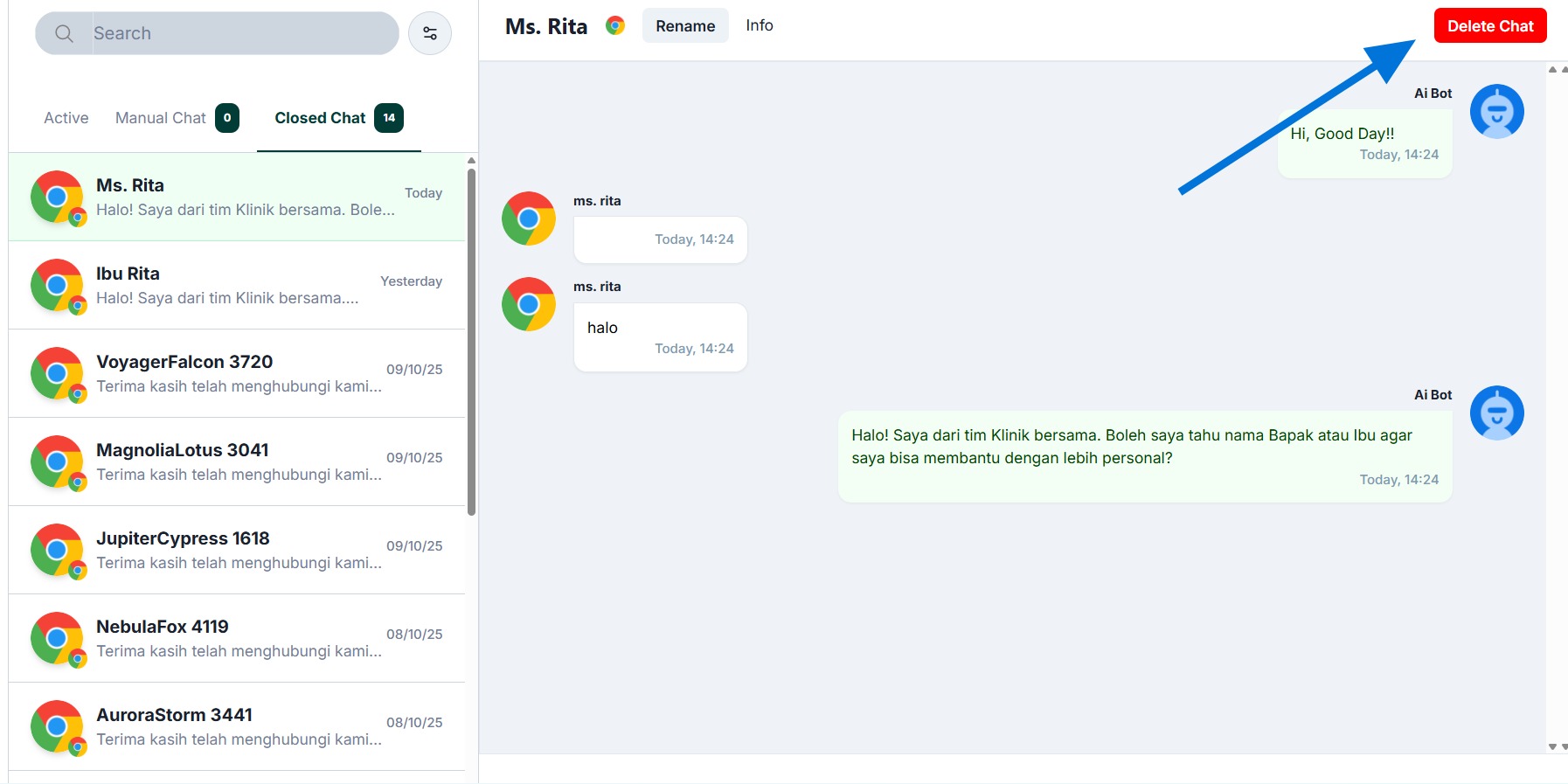
Note: Conversations are deleted automatically 30 days after the chatbot's last reply.
Encrypted messages
If inbox encryption is turned on, messages show "This message is encrypted" in a browser that doesn't have the key. Install the key on the Encryption tab of your profile. See Profile Management.