
Adding Human Agents
How to invite colleagues to your team and what each role can do.
Invite colleagues to your team so they can watch the Inbox and reply to customers when the chatbot needs help.
Inviting a new member
Only the Owner and Managers can invite members.
-
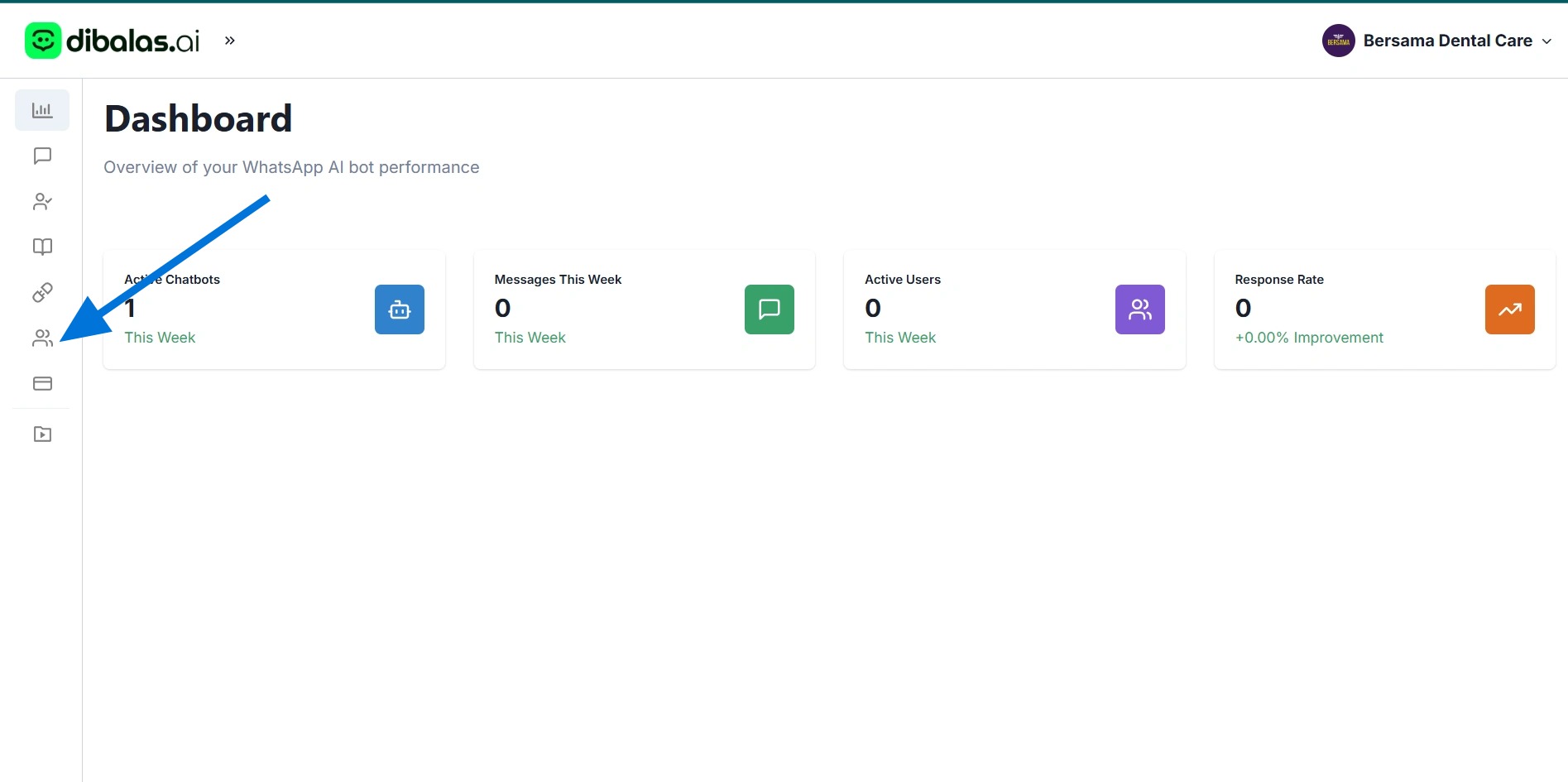
Open Team in the left sidebar.
-
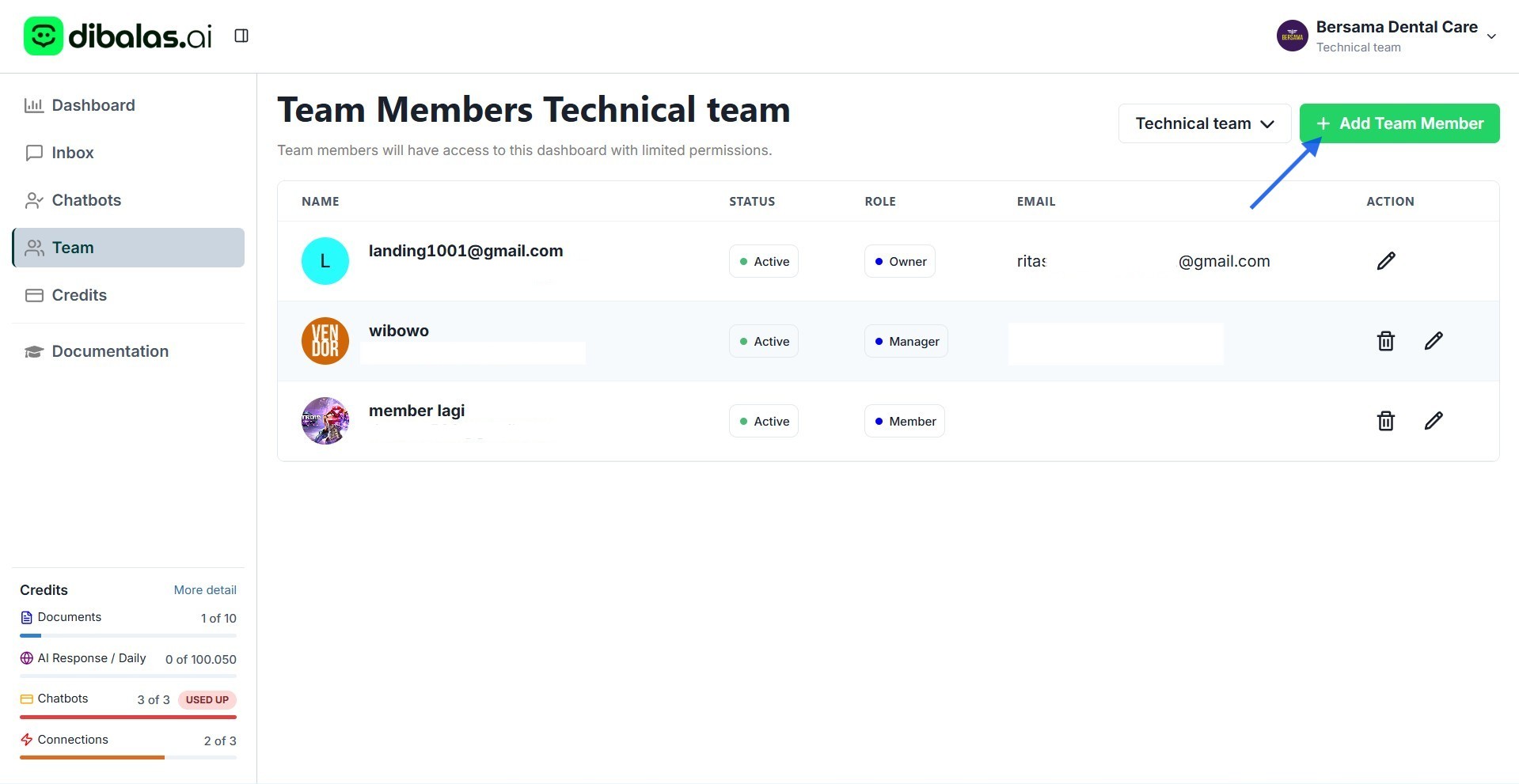
Click Add Team Member.
-
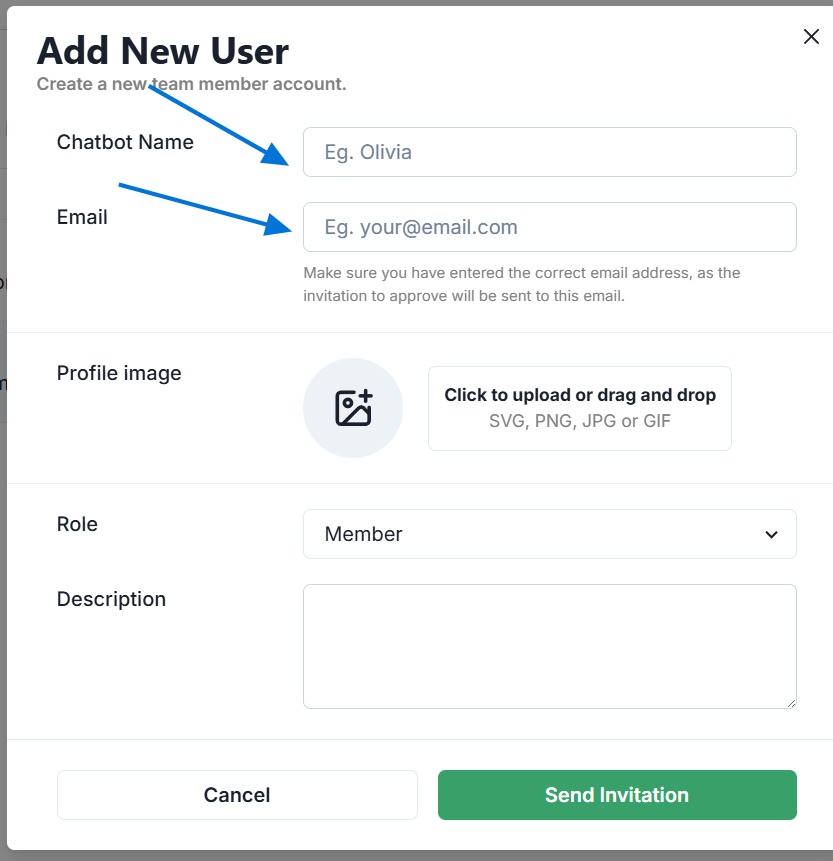
Fill in the form:
- Name and Email: DibalasAI sends the invitation to this address, so check that it is correct.
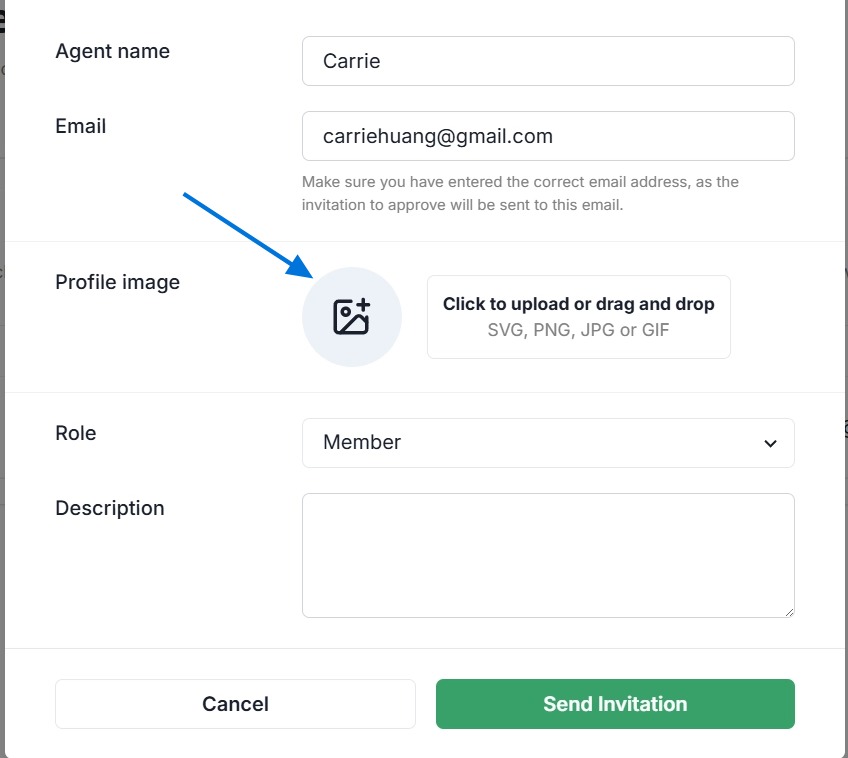
- Profile image (optional): leave it empty if the person will upload their own.
- Name and Email: DibalasAI sends the invitation to this address, so check that it is correct.
-
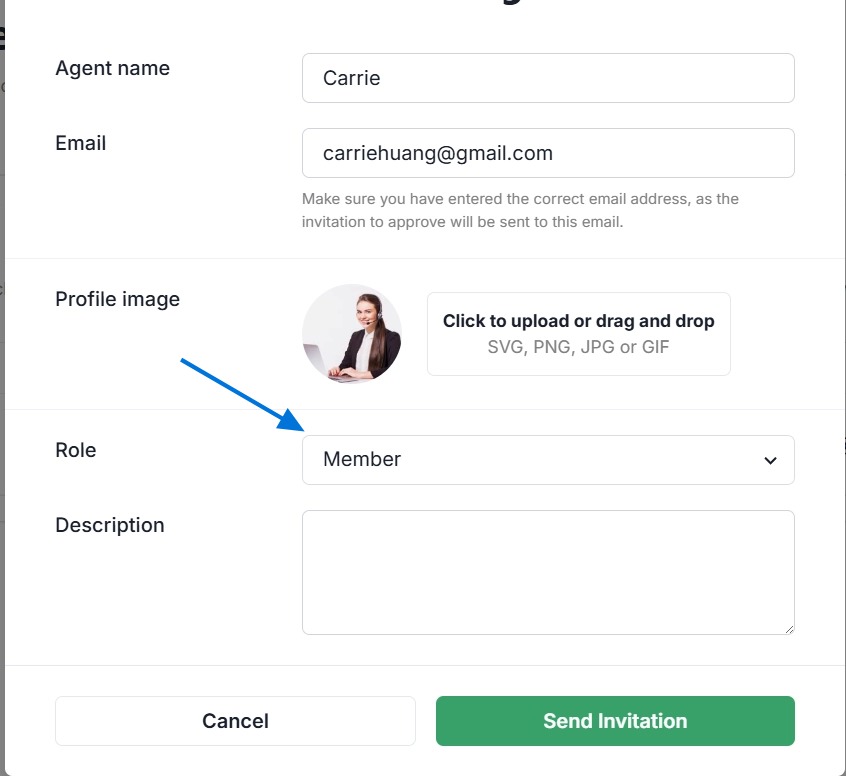
Choose the Role. The form shows what each role is allowed to do.
-
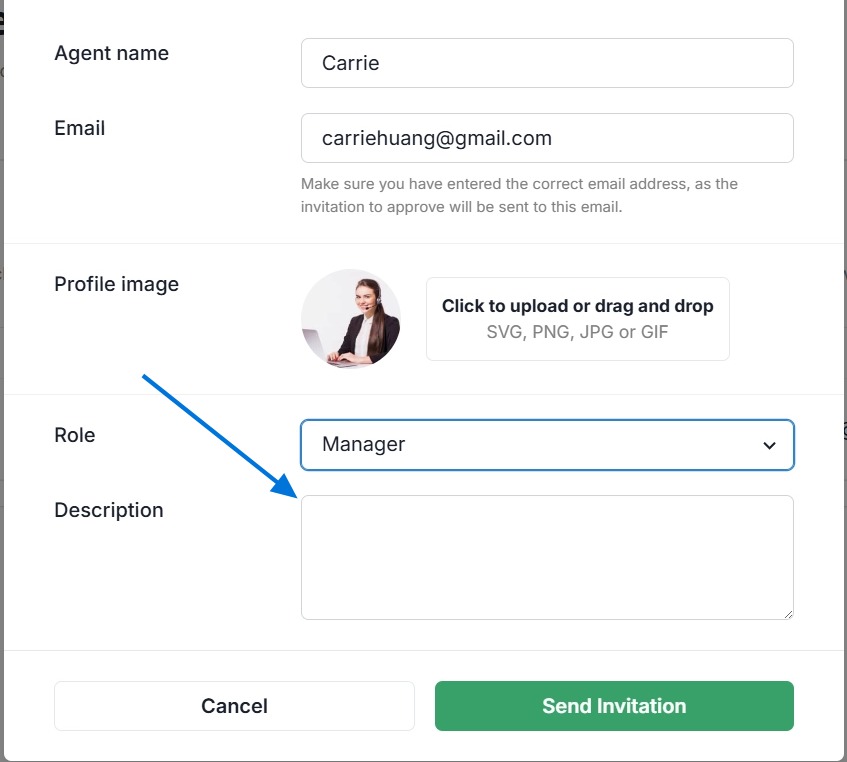
Add a short Description of the person's job (optional).
-
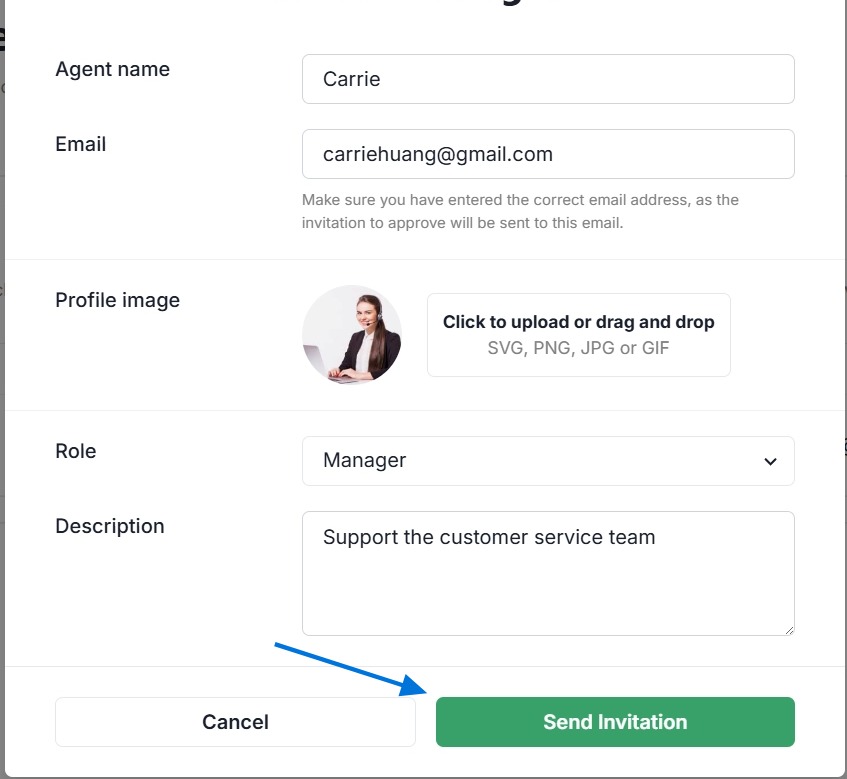
Click Send Invitation. The person receives an email and joins the team after clicking the link in it.
Roles
A team has three roles.
Owner
- The person who created the team. Each team has one Owner.
- Can do everything, including editing or deleting the team and changing or removing any member.
Manager
- Can create, edit and delete chatbots, connections and knowledge base documents.
- Can buy packages and see the Credits page.
- Can invite new members (as Member) and remove Members.
- Can use the Inbox, take over conversations and delete closed conversations.
Member
- Sees only Dashboard and Inbox in the sidebar.
- Can read conversations, reply, and take over conversations from the chatbot.
- Can't change chatbots, connections or the knowledge base, can't manage members, can't buy packages, and can't delete conversations.
Managing members
The member list on the Team page shows everyone in the team and their status.
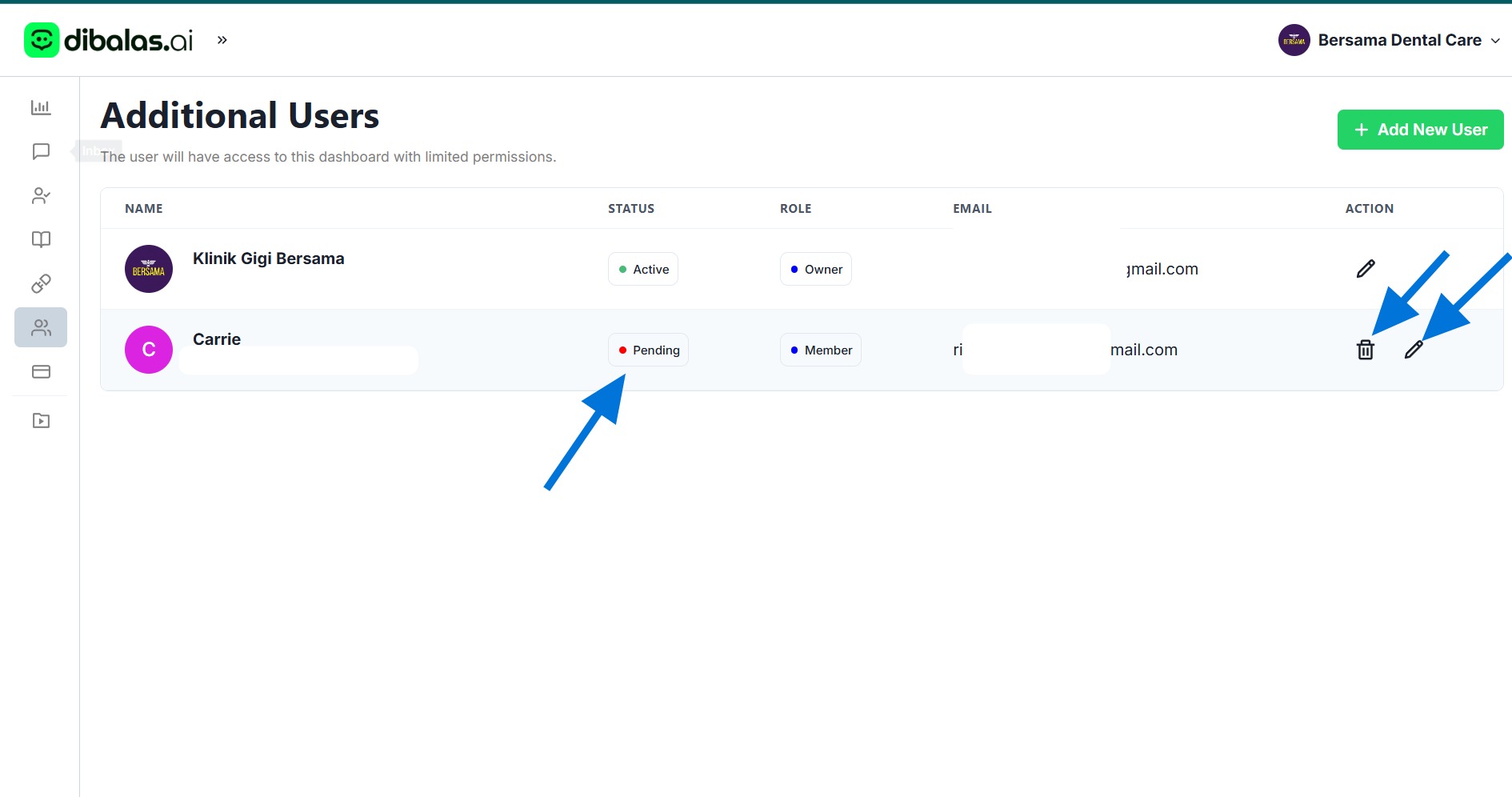
- Pending means the person has not opened the invitation link yet. The status changes to Active once they accept.
- Click the pencil icon to change a member's name, description or role (Member or Manager).
- Click the trash icon to remove a member. They lose access to the team's Inbox immediately, and there is no confirmation step, so check the name before you click.