
Knowledge Base & Plugin
Set the chatbot's instructions, upload documents and install plugins.
The chatbot answers from two sources you control: the System Prompt, which sets its role and style, and the Docs, which hold facts about your business. Plugins add live data on top of that.
To open the knowledge base:
- Open Chatbots in the left sidebar.
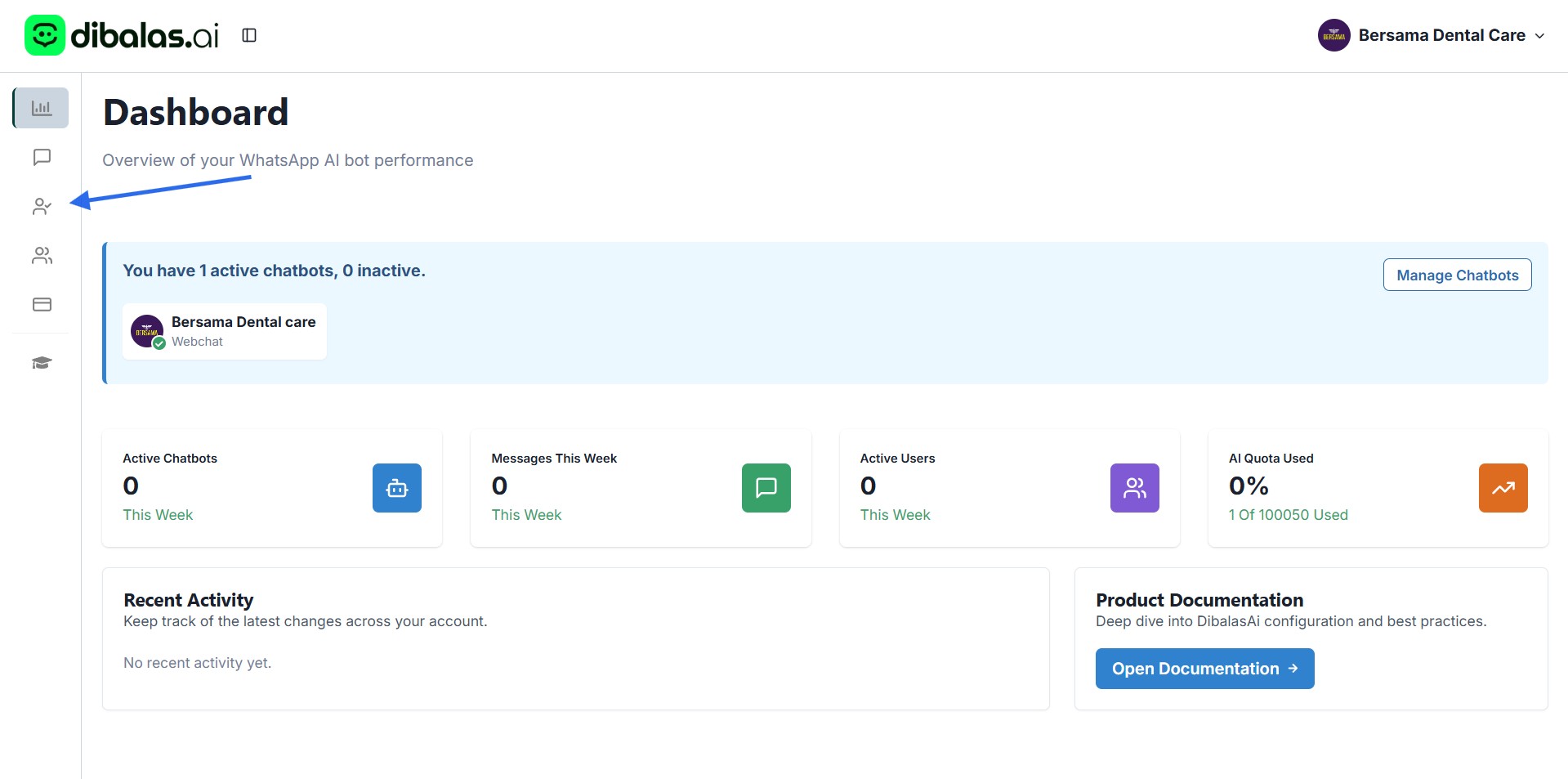
- Select your chatbot in the Active Chatbot selector at the top of the chatbot menu.
- Under Knowledge Base, click System Prompt or Document.
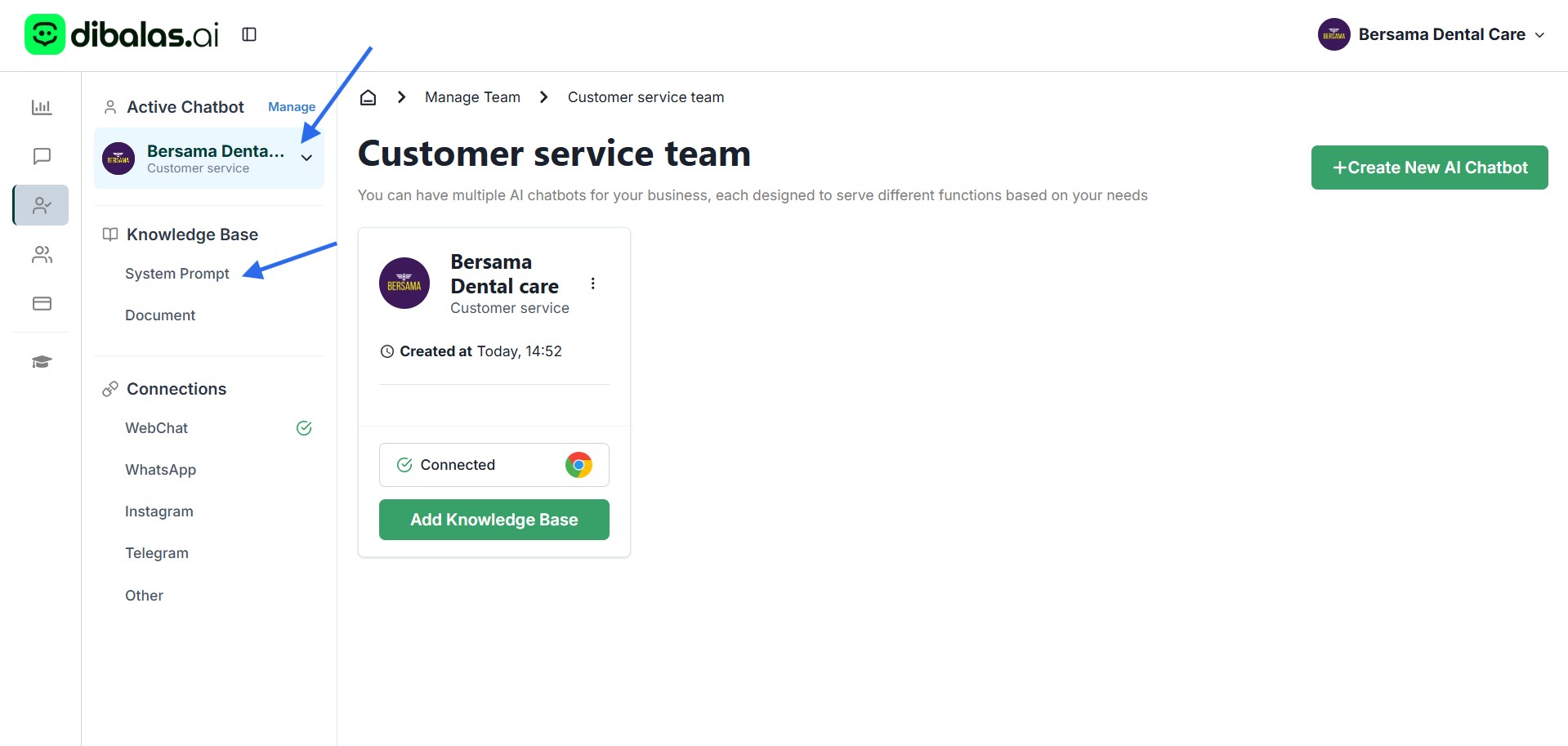
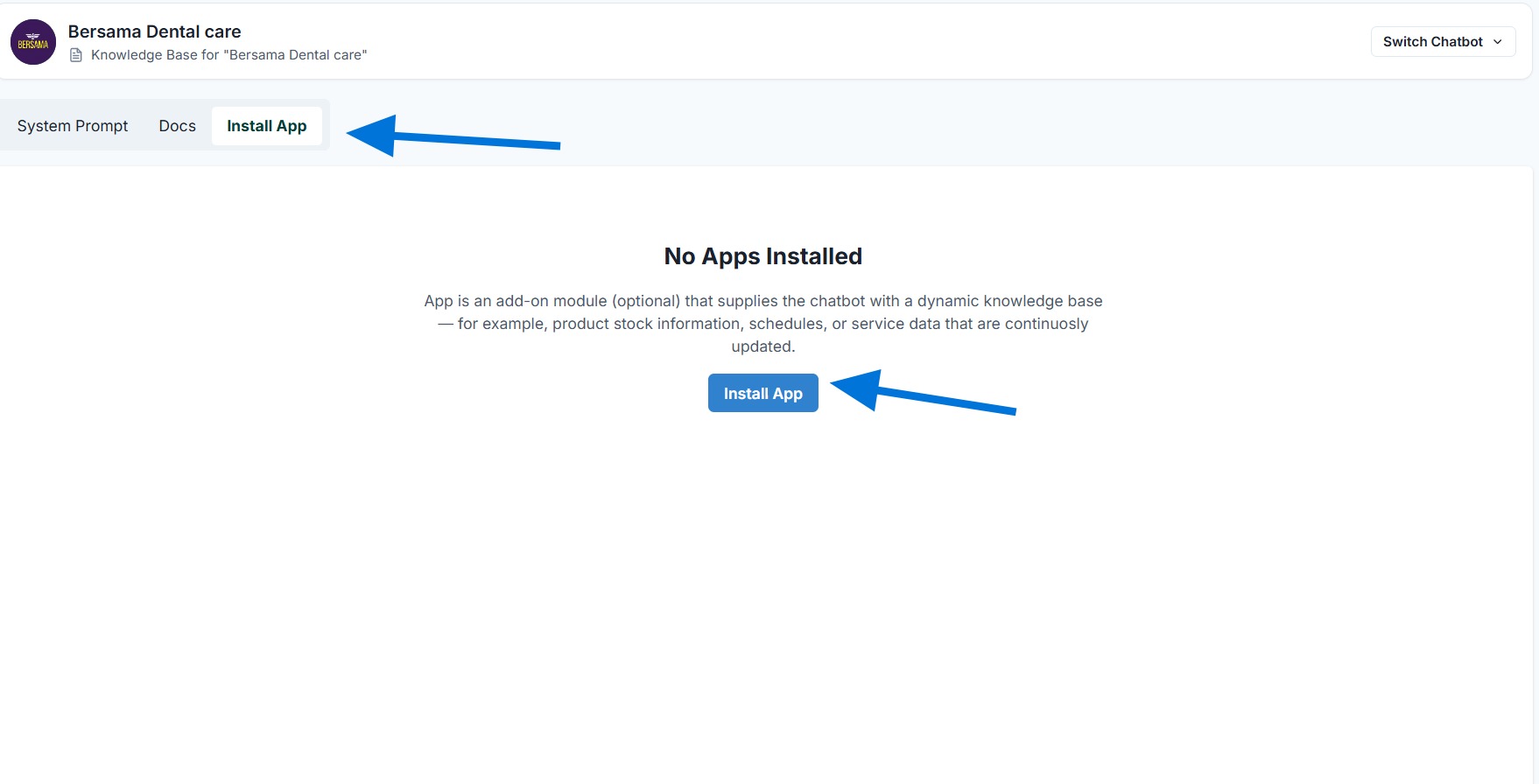
The page has the tabs System Prompt, Docs and Install Plugin, plus one tab for each plugin installed on this chatbot.
Only the team Owner and Managers can change the knowledge base.
1. System Prompt
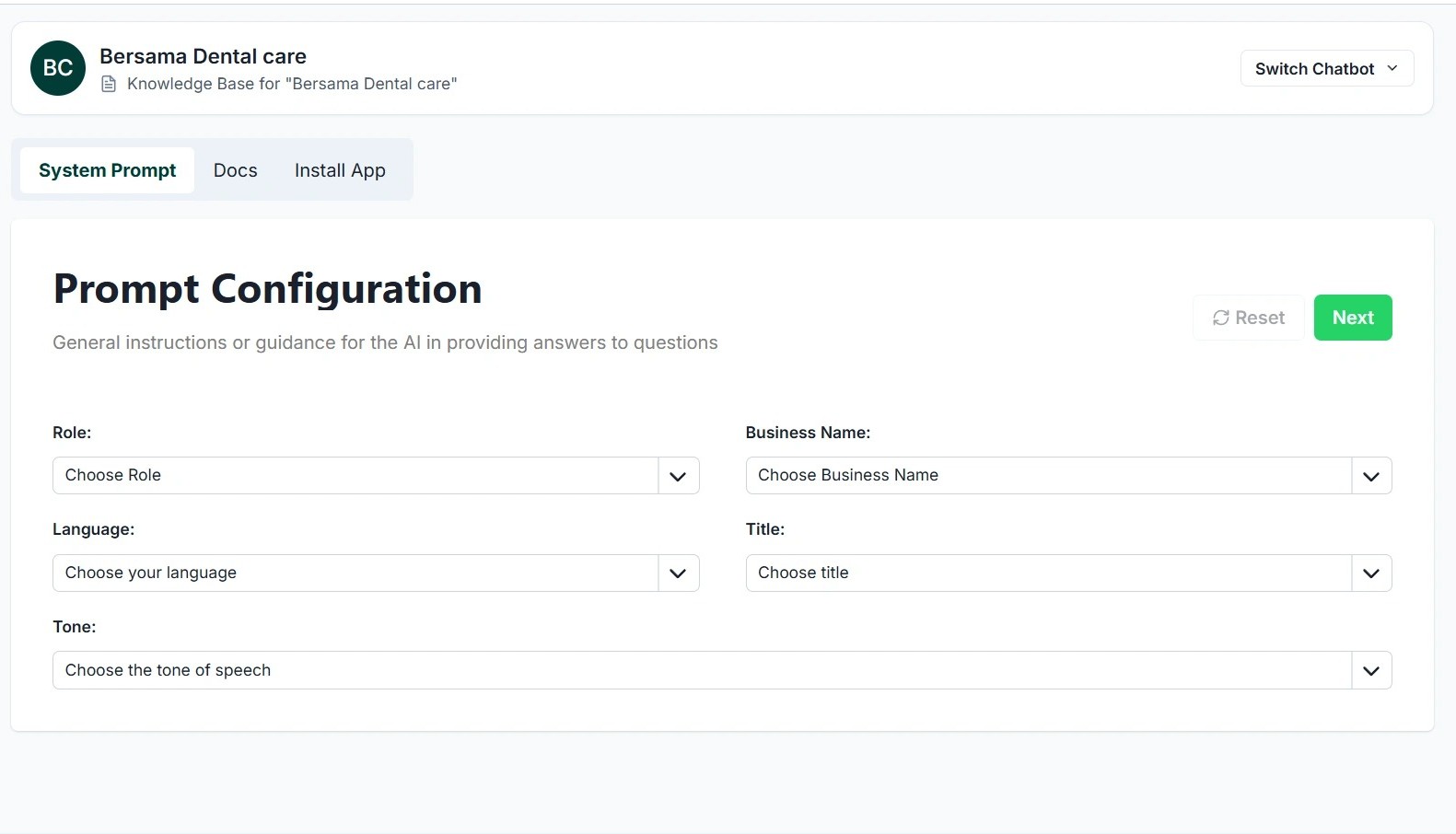
The System Prompt tells the chatbot who it is and how to talk to customers. Fill in:
- Role: Customer Service, Sales and Marketing, Technical Support, or Other to type your own.
- Business Name: the name of your business or store.
- Language: Indonesian, English, or Other to type another language.
- Title: how the chatbot addresses customers, for example "Mr. or Mrs." or "Bro or Sis", or Other to type your own.
- Tone: Neutral, Professional, Casual, Warm, Informal, or Other.
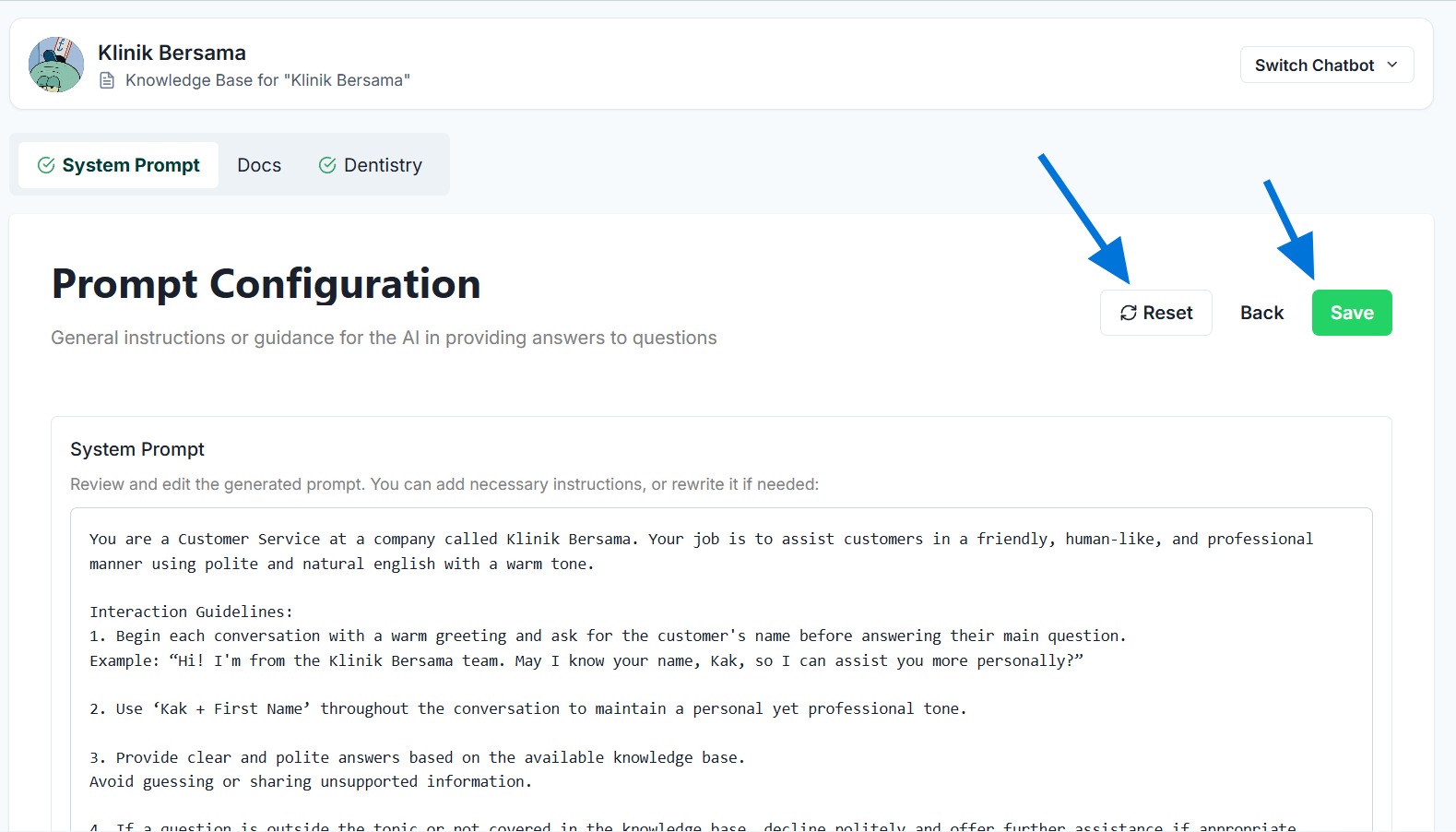
Click Next. DibalasAI writes a system prompt from your choices and shows it in an editor. Read it, edit the text if you want, then click Save (or Back to change the choices).
To change the settings later, click Reset. The fields open again so you can change your choices; then click Next and Save.
2. Docs
On the Docs tab you upload files with details about your products, services, prices, FAQs or policies. The chatbot uses them as its main reference when it answers.
- Accepted formats: PDF, DOCX, DOC and TXT.
- Upload one file at a time, up to 5 MB per file.
- The tab shows your remaining document quota and page quota.
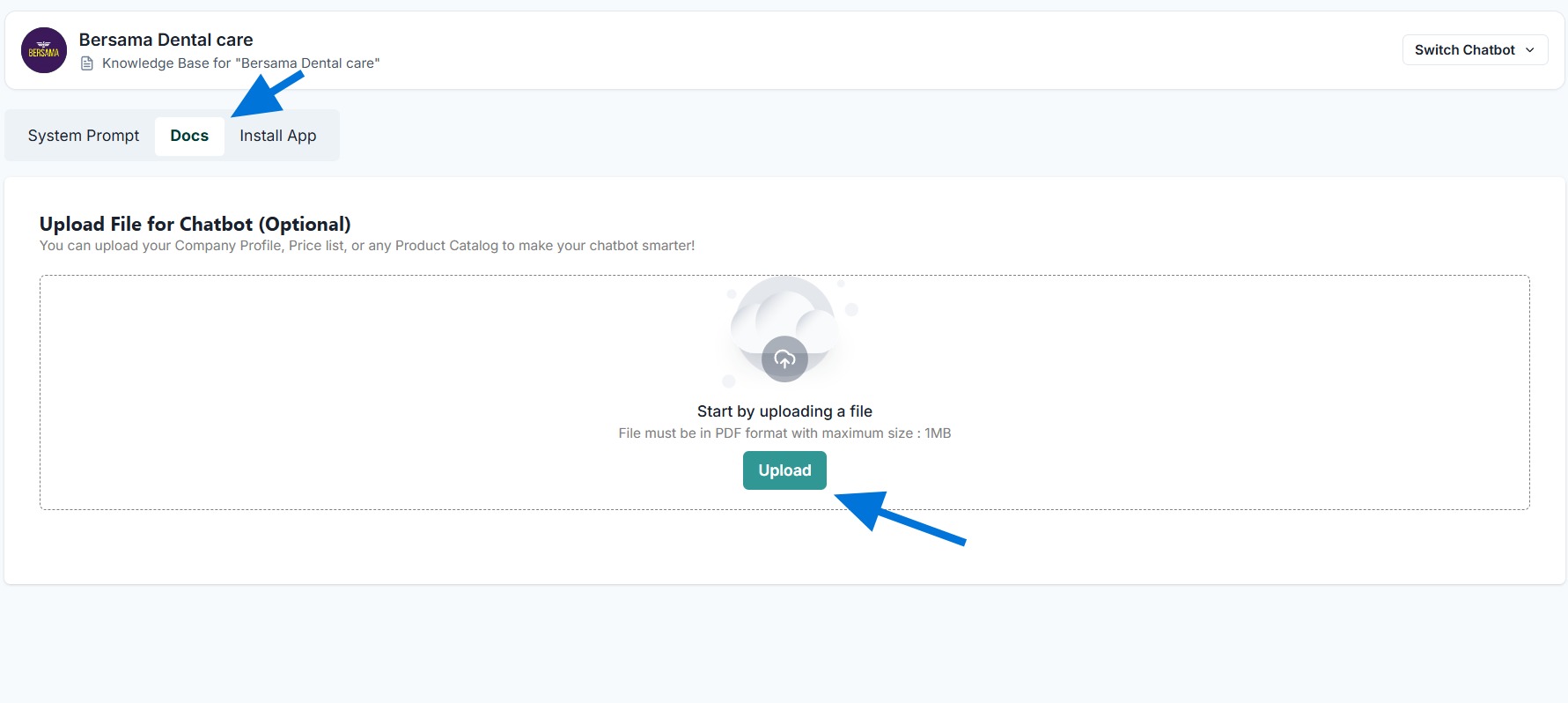
How pages are counted: your package limits the total number of pages across all documents. DibalasAI does not use the page count of the original file. It counts the words in the extracted text and treats about 450 words as one page, so a dense PDF page can count as more than one page.
The questions your chatbot could not answer from these documents appear under Knowledge Gaps on the Dashboard. Use that list to decide what to add.
Plugins
A plugin gives the chatbot data that changes often, such as product stock, schedules or bookings, and lets it act on that data, for example by recording a reservation. Plugins are optional.
Installing a plugin
-
On the knowledge base page, open the Install Plugin tab.
-
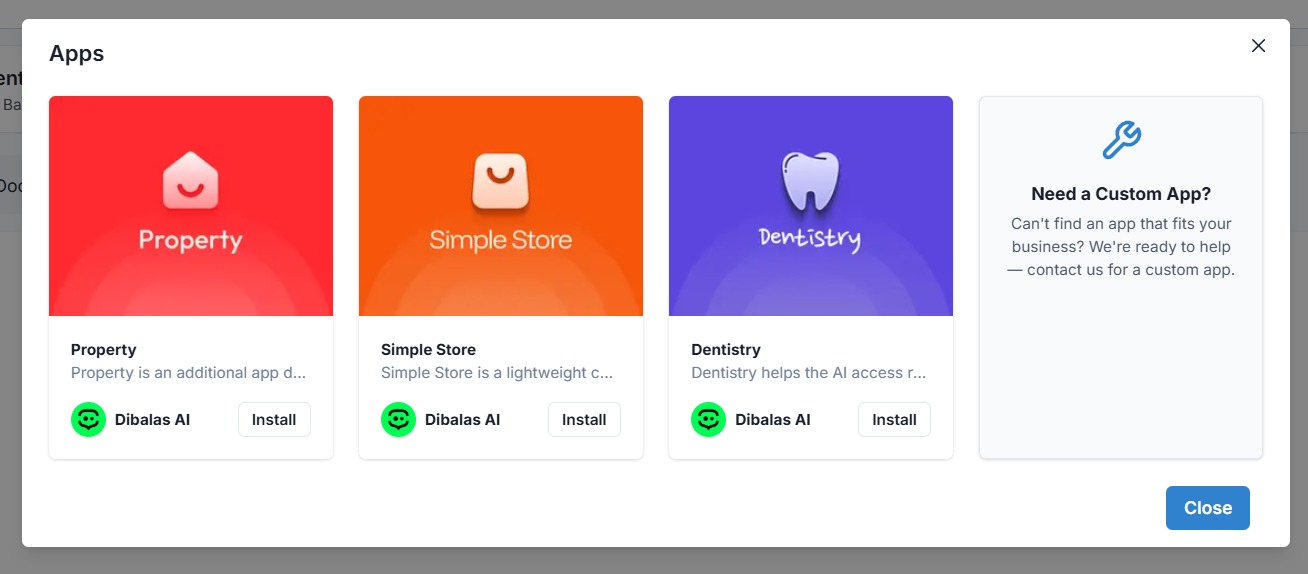
Pick a plugin from the catalog on the Explore tab, for example:
- Dentistry: appointments for dental clinics.
- Simple Catalog: a product catalog for shops.
- Property: room availability for boarding houses, hotels or villas.
- Auto Rental: vehicle rentals.
- Gdocs: use a Google Docs or Google Sheets file as a knowledge source.
-
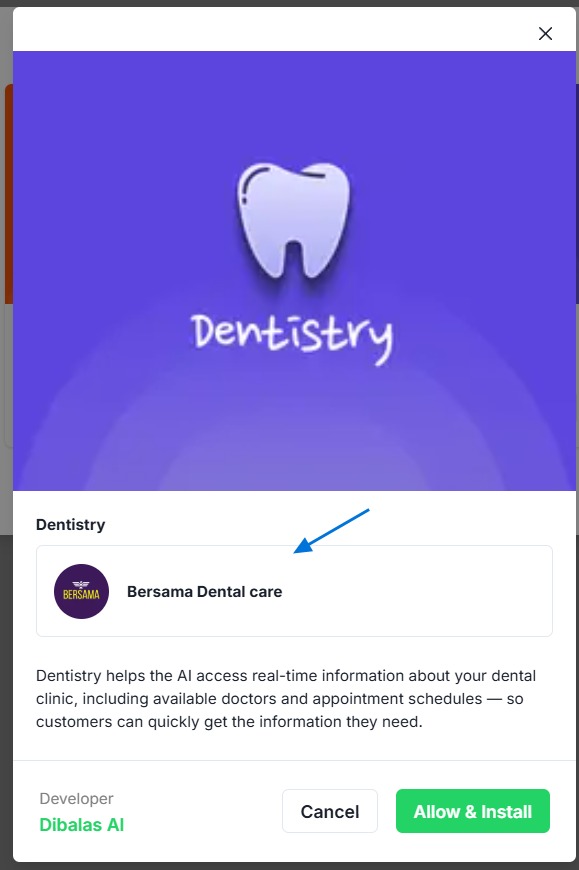
Under Installing to, choose the chatbot that will use the plugin, then click Allow & Install.
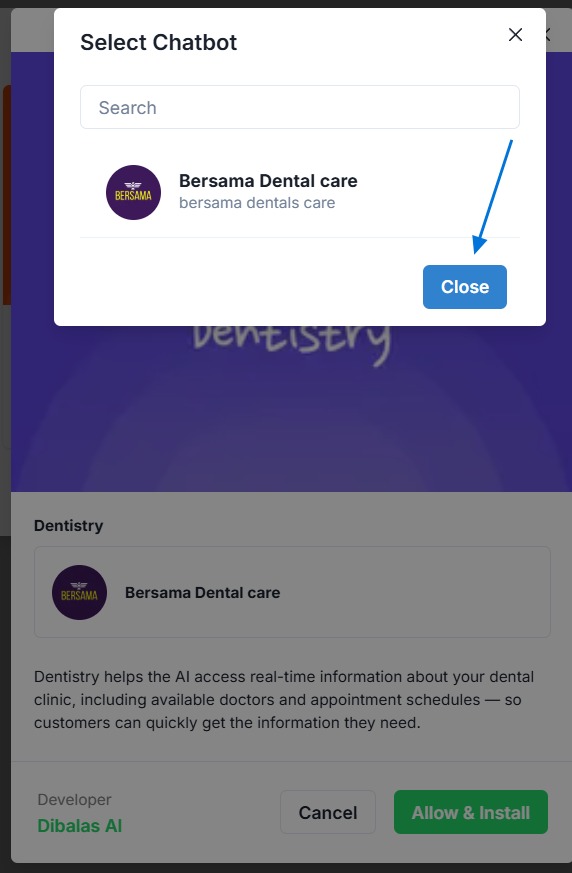
-
The plugin now appears as its own tab on the knowledge base page and as an item in the chatbot menu. Open it there to set up its data.
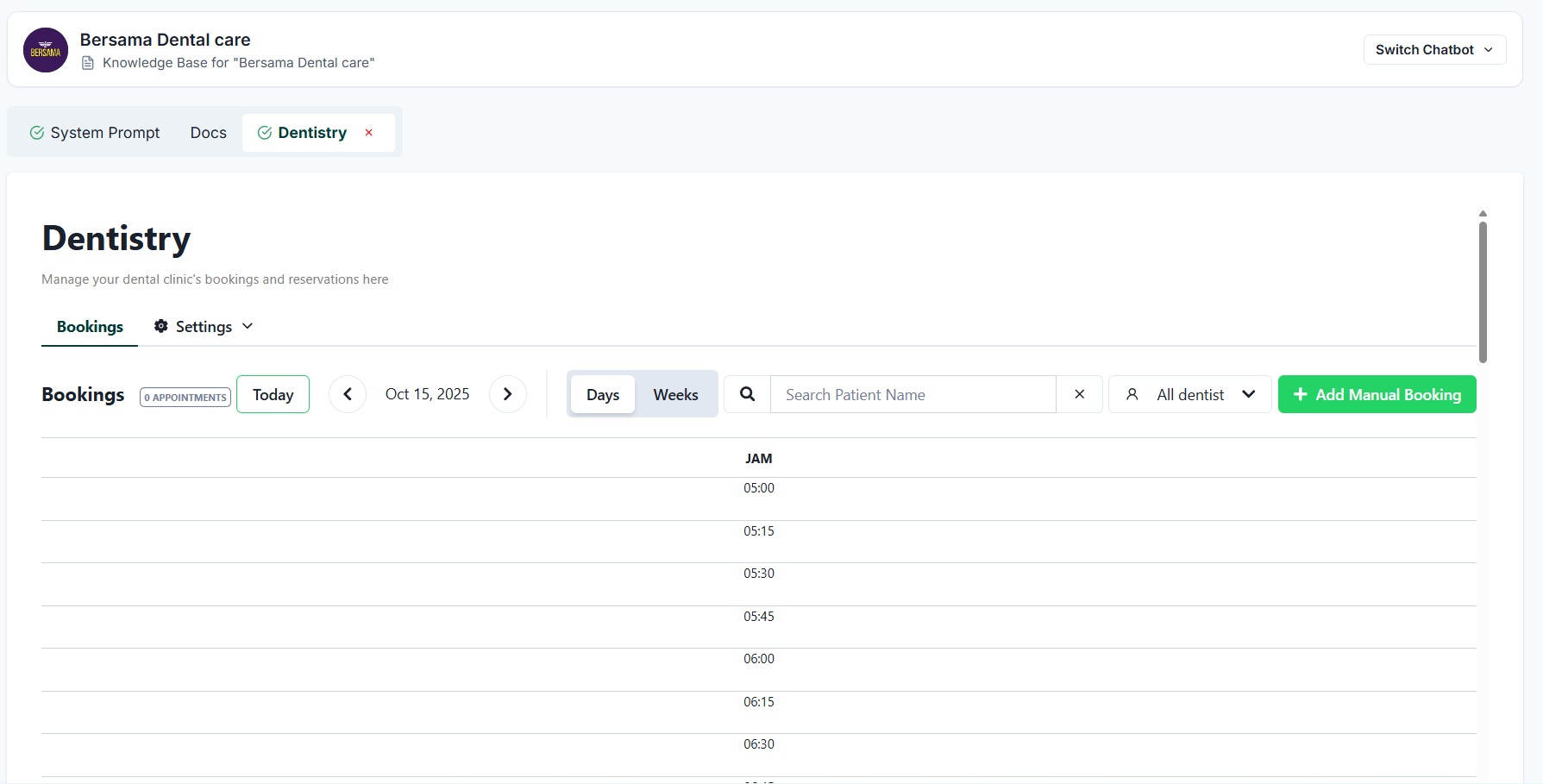
To remove a plugin, open the Installed tab and click Uninstall. The plugin and its data are removed from that chatbot.
If none of the plugins fits your business, the Need a Custom Plugin? card lets you contact the DibalasAI team.